> ## Documentation Index
> Fetch the complete documentation index at: https://learn.nexudus.com/llms.txt
> Use this file to discover all available pages before exploring further.
# Custom Favicon
> Replace the browser tab icon of the Members Portal with your own 32×32 favicon using the image file drive and head.js.
## Overview
The favicon is the small icon shown in the browser tab, bookmarks, and history next to your portal's page title. By default, the Members Portal uses your location's logo as its favicon.
To use a dedicated favicon instead, upload the icon to your file drive and reference it from `head.js` in the Web Template Editor.
Prepare your favicon as a **32×32 pixel** PNG file before you start. Smaller files and simple, high-contrast designs work best at this size.
## Add your favicon
Go to **[Settings > Website > Web Template Editor](https://dashboard.nexudus.com/settings/editor/templates)** and, under **File drive** in the left-hand panel, select **[Image files](https://dashboard.nexudus.com/settings/editor/imageFiles)**. Add a new image and upload your 32×32 favicon, e.g. `fav.png`.
Leave **Display this image on the home page and 'about us' gallery** unticked. That option adds the image to your public image gallery, which you don't want for a favicon.
Once the image is saved, open it again and copy the URL shown in the form. It looks like this:
```
https://yourspace.spaces.nexudus.com//images/fav.png?cache=2026-10-05T10:00:00+00:00
```
The double slash before `images` is expected and the URL works as-is. You can keep or remove the `?cache=…` part. Keeping it means browsers fetch the new image if you replace the file later.
In the Web Template Editor, expand the **Built-in files** folder in the left-hand panel and click `head.js`.
A new `head.js` contains a commented-out example wrapped in `/* … */`. **Delete everything in the file**, including that comment block.
`head.js` must contain valid JSON only. JSON does not support comments, so if any comment remains, the whole file is ignored and none of its elements, including your favicon, are added to the page.
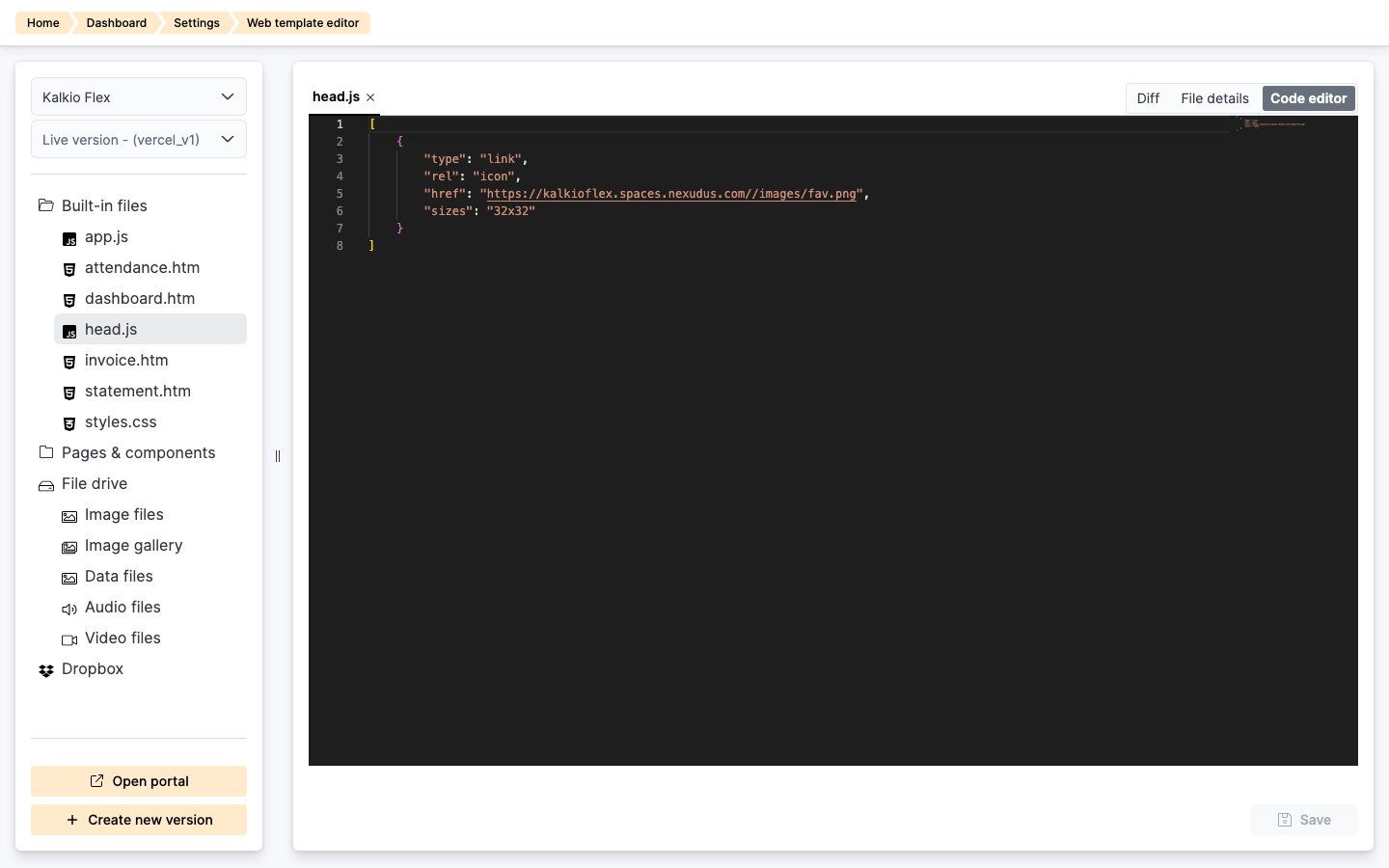
Paste the following into `head.js`, replacing the `href` value with the URL you copied:
```json theme={null}
[
{
"type": "link",
"rel": "icon",
"href": "https://yourspace.spaces.nexudus.com//images/fav.png",
"sizes": "32x32"
}
]
```
If `head.js` already contains other elements, add the favicon object to the existing array rather than creating a second array.
Click **Save**. The favicon is applied on the next portal page load.
When you're done, `head.js` contains only the JSON array, with no comments:
 Your favicon then appears in the browser tab next to the page title:
 ## Troubleshooting
### The favicon doesn't appear
* **Check for comments.** Make sure no `/* … */` or `//` comments remain anywhere in `head.js`.
* **Validate the JSON.** Look for trailing commas after the last property or object, missing quotes around keys or values, and unbalanced brackets. If the JSON is invalid, the portal ignores the file without showing an error. Note that the commented-out example in a new `head.js` contains a trailing comma, so uncommenting it does not produce valid JSON.
* **Check the file you edited.** The JSON array goes in `head.js`, not `app.js`. `app.js` runs JavaScript, so pasting the array there has no effect.
* **Check the image URL.** Open the `href` URL directly in a browser tab to confirm the image loads.
### The old icon still shows
Browsers cache favicons aggressively. Hard-refresh the page or open the portal in a private window to see the new icon. If you replaced the image file, update the `?cache=…` value in the URL, or add one, so browsers fetch the new version.
## Related
* [Custom Code and Fonts](/editor/custom-web-injector): full reference for `head.js`, `app.js`, and `styles.css`.
This documentation is built and hosted on [Mintlify](https://mintlify.com), a developer documentation platform.
## Troubleshooting
### The favicon doesn't appear
* **Check for comments.** Make sure no `/* … */` or `//` comments remain anywhere in `head.js`.
* **Validate the JSON.** Look for trailing commas after the last property or object, missing quotes around keys or values, and unbalanced brackets. If the JSON is invalid, the portal ignores the file without showing an error. Note that the commented-out example in a new `head.js` contains a trailing comma, so uncommenting it does not produce valid JSON.
* **Check the file you edited.** The JSON array goes in `head.js`, not `app.js`. `app.js` runs JavaScript, so pasting the array there has no effect.
* **Check the image URL.** Open the `href` URL directly in a browser tab to confirm the image loads.
### The old icon still shows
Browsers cache favicons aggressively. Hard-refresh the page or open the portal in a private window to see the new icon. If you replaced the image file, update the `?cache=…` value in the URL, or add one, so browsers fetch the new version.
## Related
* [Custom Code and Fonts](/editor/custom-web-injector): full reference for `head.js`, `app.js`, and `styles.css`.
This documentation is built and hosted on [Mintlify](https://mintlify.com), a developer documentation platform.