> ## Documentation Index
> Fetch the complete documentation index at: https://learn.nexudus.com/llms.txt
> Use this file to discover all available pages before exploring further.
# Portal Editor Overview
> A visual drag-and-drop page editor for customising every page viewers and members see in your Nexudus Members Portal.
The Portal Editor is currently in **preview**. If you'd like to try it out, please [reach out to us](mailto:support@nexudus.com) to join the early access program.
**Browser Compatibility:** The Portal Editor does not currently work in Firefox. Please use Chrome, Edge, Safari, or another Chromium-based browser.
The Members Portal Editor is a visual, drag-and-drop page builder that lets coworking-space operators customise every page of their portal — from the public landing page to the member dashboard — without writing any code.
 ## What you can do
| Capability | Description |
| ---------------------------- | ------------------------------------------------------------------------------------------------------------------- |
| **Edit built-in pages** | Modify the layout and content of every standard portal page (Home, Dashboard, Articles, Events, etc.) |
| **Create custom pages** | Build entirely new pages from scratch or from pre-made templates |
| **Drag-and-drop components** | Add headings, cards, alerts, grids, images, iframes, scripts and many more — all with configurable properties |
| **Responsive design** | Preview your designs at Desktop (1400 px), Tablet (768 px) and Mobile (375 px) breakpoints |
| **Audience targeting** | Show or hide sections for everyone, logged-in users, members only or contacts only using the CustomerType component |
| **Live preview** | Open a full preview of your changes in a new browser tab before saving |
| **AI page generation** | Describe a page in natural language and let the AI assistant generate a starting layout for you |
| **Custom navigation** | Organise built-in and custom pages into fixed categories and custom groups in the portal navigation |
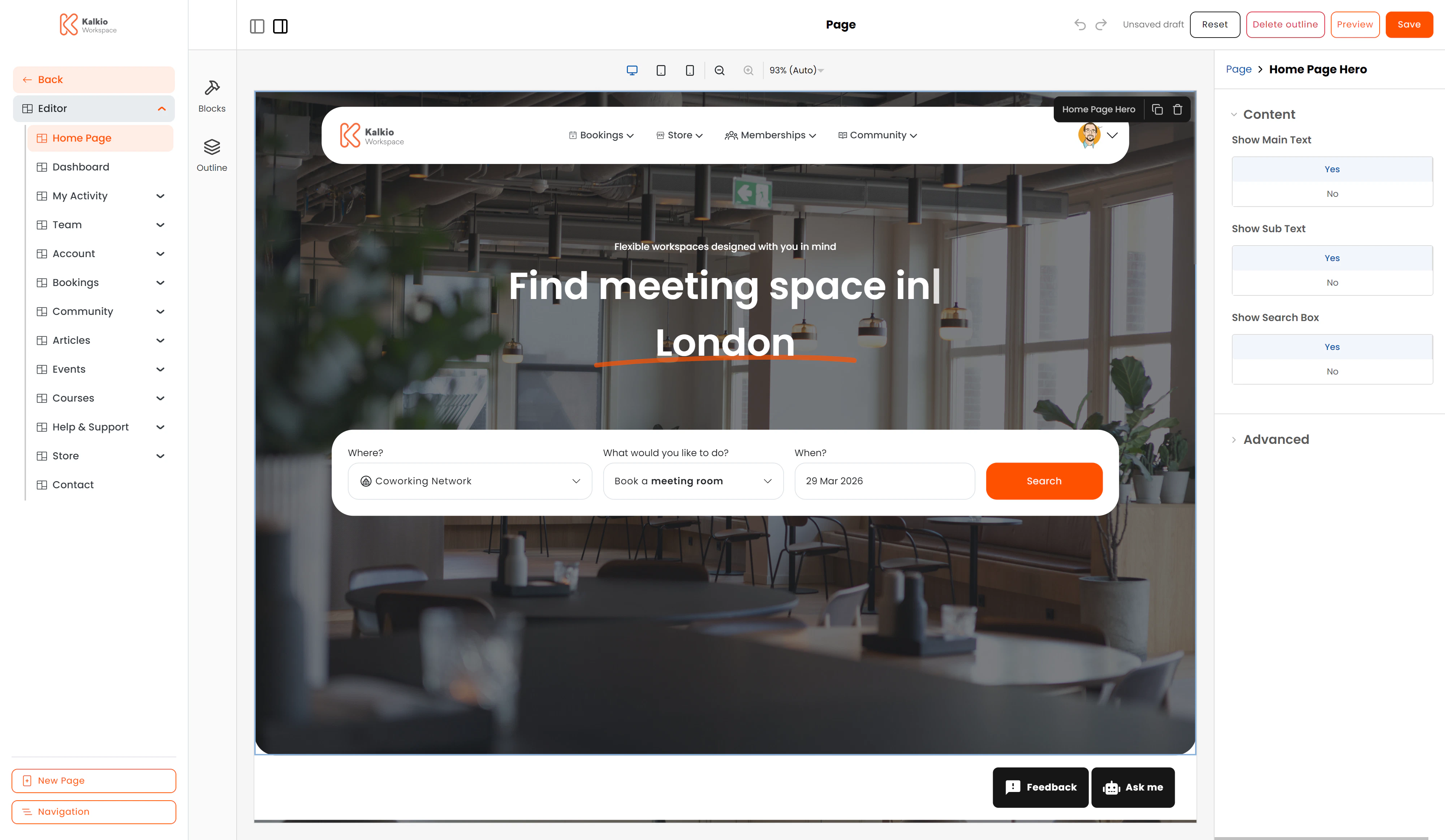
## Editor anatomy
The editor interface is divided into four main areas:
1. **Left sidebar** — browse and open built-in pages, custom pages, create new pages from templates, and open the Navigation editor.
2. **Component drawer & Outline** — built-in Puck panels for inserting new components (drag from the drawer) and inspecting the component tree (Outline).
3. **Canvas** — the live preview area where you drag, drop and rearrange components. Supports Desktop, Tablet and Mobile viewports.
4. **Properties bar** — when you select a component on the canvas, its configurable properties appear on the right-hand side, organised in collapsible groups.
5. **Toolbar** — the top bar with Save, Reset, Delete, Preview buttons and an unsaved-draft indicator.
## How to access the editor
Navigate to **your portal URL** and append `/admin/editor` — for example `https://yourspace.nexudus.site/admin/editor`. You must be signed in as a space operator.
## Next steps
Browse built-in pages, custom pages, templates and the navigation editor.
Configure fixed categories and custom groups to organise your portal menu.
Learn about every available component and its configurable properties.
Draft management, saving, resetting, deleting, and previewing pages.
Containers, grids, stacks, divs and responsive layout primitives.
Embed external content, load third-party scripts, and target content by audience.
## What you can do
| Capability | Description |
| ---------------------------- | ------------------------------------------------------------------------------------------------------------------- |
| **Edit built-in pages** | Modify the layout and content of every standard portal page (Home, Dashboard, Articles, Events, etc.) |
| **Create custom pages** | Build entirely new pages from scratch or from pre-made templates |
| **Drag-and-drop components** | Add headings, cards, alerts, grids, images, iframes, scripts and many more — all with configurable properties |
| **Responsive design** | Preview your designs at Desktop (1400 px), Tablet (768 px) and Mobile (375 px) breakpoints |
| **Audience targeting** | Show or hide sections for everyone, logged-in users, members only or contacts only using the CustomerType component |
| **Live preview** | Open a full preview of your changes in a new browser tab before saving |
| **AI page generation** | Describe a page in natural language and let the AI assistant generate a starting layout for you |
| **Custom navigation** | Organise built-in and custom pages into fixed categories and custom groups in the portal navigation |
## Editor anatomy
The editor interface is divided into four main areas:
1. **Left sidebar** — browse and open built-in pages, custom pages, create new pages from templates, and open the Navigation editor.
2. **Component drawer & Outline** — built-in Puck panels for inserting new components (drag from the drawer) and inspecting the component tree (Outline).
3. **Canvas** — the live preview area where you drag, drop and rearrange components. Supports Desktop, Tablet and Mobile viewports.
4. **Properties bar** — when you select a component on the canvas, its configurable properties appear on the right-hand side, organised in collapsible groups.
5. **Toolbar** — the top bar with Save, Reset, Delete, Preview buttons and an unsaved-draft indicator.
## How to access the editor
Navigate to **your portal URL** and append `/admin/editor` — for example `https://yourspace.nexudus.site/admin/editor`. You must be signed in as a space operator.
## Next steps
Browse built-in pages, custom pages, templates and the navigation editor.
Configure fixed categories and custom groups to organise your portal menu.
Learn about every available component and its configurable properties.
Draft management, saving, resetting, deleting, and previewing pages.
Containers, grids, stacks, divs and responsive layout primitives.
Embed external content, load third-party scripts, and target content by audience.