> ## Documentation Index
> Fetch the complete documentation index at: https://learn.nexudus.com/llms.txt
> Use this file to discover all available pages before exploring further.
# Brivo
> Connect Brivo cloud access control to Nexudus, so customers and visitors open doors based on their passes, bookings and contracts, with Brivo Mobile Pass on their phone.
## Overview
**Brivo** is cloud-based access control. The integration adds your customers to Brivo and puts them in the right Brivo **groups** based on what they have in Nexudus. Each group is a set of doors you define in Brivo; Nexudus decides who's in it. Registered visitors can get access too.
The integration is free in Nexudus. You need a Brivo account with your doors installed, and a Brivo API key — Brivo usually shares one when you open your account, or you can request it from Brivo technical support.
## How access works
| Customers get access through | When |
| - | - |
| **Passes** | While the pass is active — including passes included in their plan, passes shared by their team, and the pass they're checked in with. |
| **Resource bookings** | From about 15 minutes before the booking starts until it ends. Customers added as guests to the booking get the same access. |
| **Desks and offices** | While the desk or office is on one of their active contracts. If a team's paying member holds the contract, the whole team gets access. |
| **Visitor registration** | Visitors get access to your visitor groups from 15 minutes before their expected arrival until midnight that day — or, for guests on a booking, until 15 minutes after the booking ends. |
When a customer no longer has any access, Nexudus handles their Brivo user according to your **No access policy**.
## Before you start
* **Find your Brivo Admin ID.** Sign in at access.brivo.com, select your icon in the bottom-left corner, and copy the **Admin ID**. You sign in with it, not your email address, when connecting.
* **Create your groups in Brivo.** Each group should include every door a customer needs — the building entrance and floor doors as well as the room itself. Create one for visitors too, if they'll need access.
## Setting up Brivo
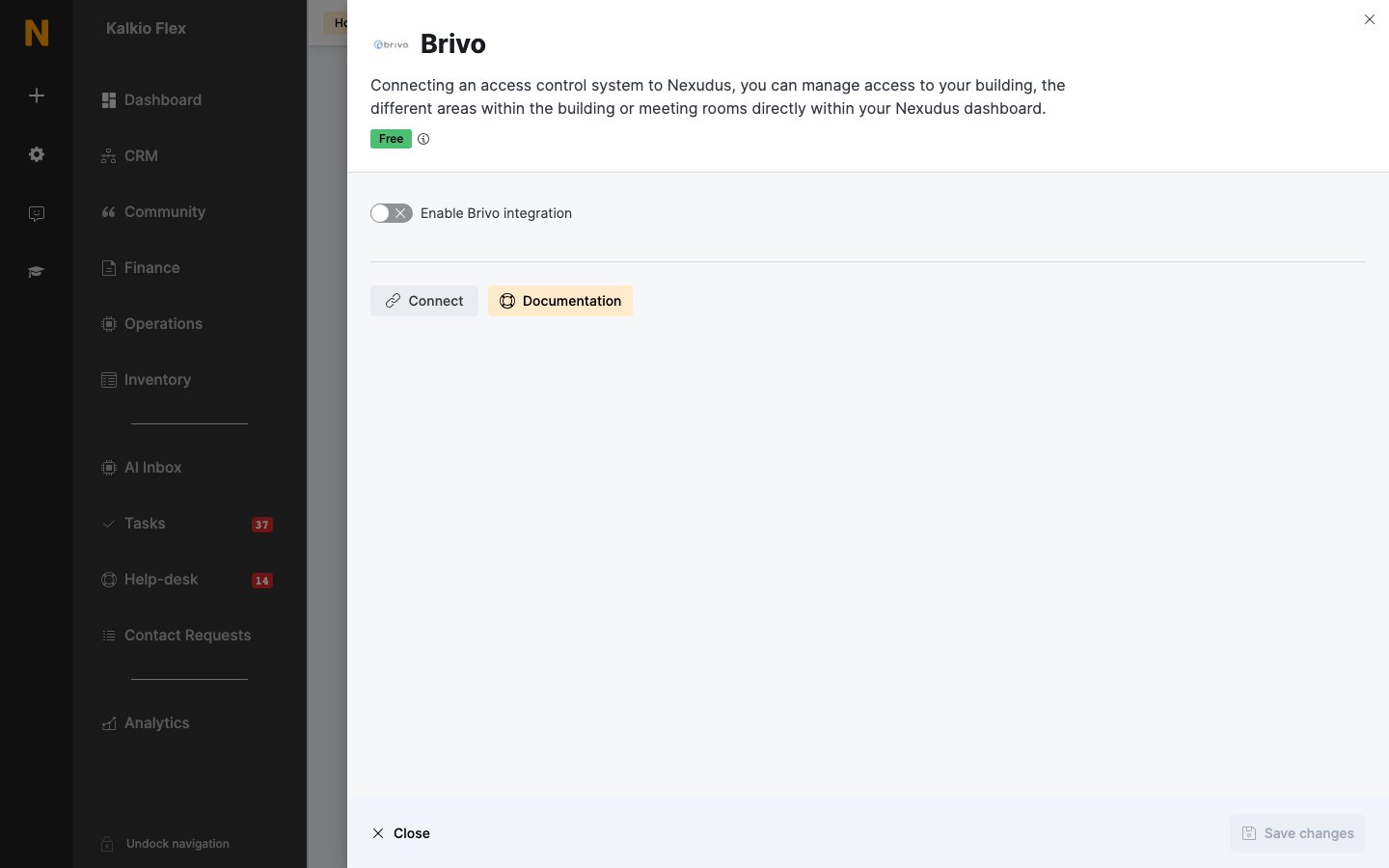
Go to **Settings → Integrations → Brivo**, turn on **Enable Brivo integration**, choose your **Region** — **Europe** for European accounts, **Global** for everywhere else — and enter your **API Key**. Set the options below, and save.
Select **Connect** and sign in to Brivo with your **Admin ID** and password. You're returned to Nexudus.
Choose a **Brivo access group** for each of your **Resources**, **Passes** and **Desks / Offices**. Leave an item blank if it shouldn't open any doors.
Under **Credential type**, choose the **Access card format** for customers and the **Visitor QR code format** for visitors. Under **Presence tracking**, choose an **Action** for each lock (below). Save.
 ## Settings
| Setting | What it does |
| - | - |
| **Automatically unlock nearest door with mobile app** | The app tries to open the nearest door as soon as the customer opens it. Leave off if your Brivo account doesn't allow it, or if door access varies a lot between customers — unlock attempts will often fail. |
| **Use customer 'Internet access, check-in and printing pin-code' as PIN for Brivo access.** | Customers open Brivo PIN pads with their Nexudus PIN. Only turn on if you use PIN locks. |
| **Redeem OnAir Passes automatically on the mobile app** | Sets up Brivo Mobile Pass in the Passport app automatically, so customers can open doors straight away. |
| **List available locks on the mobile app** | Shows customers the list of doors they can open when they tap **Unlock door** in the Passport app. |
| **No access policy** | What happens to a customer's Brivo user when they lose all access (below). |
| **Visitor Access Group Ids** | The IDs of the Brivo groups registered visitors are added to. Separate several with commas. |
### Choosing a no access policy
Brivo bills Mobile Pass licences per active mobile pass, so this choice affects your Brivo costs.
| Option | When customers lose access | When they regain it |
| - | - | - |
| **Suspend Brivo user account** | User is suspended; their mobile pass is kept and still counts towards your licences. | User is unsuspended automatically. |
| **Delete Brivo user account** | User and mobile pass are deleted, along with their Brivo access history. | A new user and mobile pass are created, and the customer redeems a new code. |
| **Suspend Brivo user account and remove Mobile Pass** | User is suspended and their mobile pass removed, freeing the licence. | User is unsuspended and gets a new mobile pass. |
## Checking customers in from door unlocks
Under **Presence tracking**, set each lock's **Action**: **Check customer in** (for example, your main entrance), **Check customer out**, **Toggle customer check-in status**, or **Do nothing**.
## How customers and visitors open doors
When customers first get access, Brivo emails them a **Mobile Pass invite code**. They redeem it once — unless their user is deleted, or suspended with the mobile pass removed.
* **In the Brivo Mobile Pass app** — they select **Enter Invite Code**, enter the email address they use with your space and the code, and select **Redeem Invite**. With Brivo readers they can then hold their phone near the reader; with third-party readers, they choose the door in the app.
* **In the white-label Passport app** — they go to **My Activity → Integrations → Manage Mobile Pass**, select **Set up mobile pass**, and enter the code. If **Redeem OnAir Passes automatically on the mobile app** is on, this happens for them. They then tap **Unlock door**.
The white-label Passport app can open Brivo doors remotely — customers don't need to be at the door.
Customers can also use Brivo cards: enter each card number in the customer's **Access cards** field in **Account → Access rights**, pressing Enter after each one.
**Visitors** receive a QR code in their visitor registration email, which they show at the reader. On an iPhone, they can add it to Apple Wallet from the email.
## Related
* [Access control](/integrations/access-control/overview) — how access control works in Nexudus
* [Visitors](/platform/operations/visitors) — registering visitors
* [Check-ins](/platform/operations/check-ins) — tracking who's in your space
This documentation is built and hosted on [Mintlify](https://mintlify.com), a developer documentation platform.
## Settings
| Setting | What it does |
| - | - |
| **Automatically unlock nearest door with mobile app** | The app tries to open the nearest door as soon as the customer opens it. Leave off if your Brivo account doesn't allow it, or if door access varies a lot between customers — unlock attempts will often fail. |
| **Use customer 'Internet access, check-in and printing pin-code' as PIN for Brivo access.** | Customers open Brivo PIN pads with their Nexudus PIN. Only turn on if you use PIN locks. |
| **Redeem OnAir Passes automatically on the mobile app** | Sets up Brivo Mobile Pass in the Passport app automatically, so customers can open doors straight away. |
| **List available locks on the mobile app** | Shows customers the list of doors they can open when they tap **Unlock door** in the Passport app. |
| **No access policy** | What happens to a customer's Brivo user when they lose all access (below). |
| **Visitor Access Group Ids** | The IDs of the Brivo groups registered visitors are added to. Separate several with commas. |
### Choosing a no access policy
Brivo bills Mobile Pass licences per active mobile pass, so this choice affects your Brivo costs.
| Option | When customers lose access | When they regain it |
| - | - | - |
| **Suspend Brivo user account** | User is suspended; their mobile pass is kept and still counts towards your licences. | User is unsuspended automatically. |
| **Delete Brivo user account** | User and mobile pass are deleted, along with their Brivo access history. | A new user and mobile pass are created, and the customer redeems a new code. |
| **Suspend Brivo user account and remove Mobile Pass** | User is suspended and their mobile pass removed, freeing the licence. | User is unsuspended and gets a new mobile pass. |
## Checking customers in from door unlocks
Under **Presence tracking**, set each lock's **Action**: **Check customer in** (for example, your main entrance), **Check customer out**, **Toggle customer check-in status**, or **Do nothing**.
## How customers and visitors open doors
When customers first get access, Brivo emails them a **Mobile Pass invite code**. They redeem it once — unless their user is deleted, or suspended with the mobile pass removed.
* **In the Brivo Mobile Pass app** — they select **Enter Invite Code**, enter the email address they use with your space and the code, and select **Redeem Invite**. With Brivo readers they can then hold their phone near the reader; with third-party readers, they choose the door in the app.
* **In the white-label Passport app** — they go to **My Activity → Integrations → Manage Mobile Pass**, select **Set up mobile pass**, and enter the code. If **Redeem OnAir Passes automatically on the mobile app** is on, this happens for them. They then tap **Unlock door**.
The white-label Passport app can open Brivo doors remotely — customers don't need to be at the door.
Customers can also use Brivo cards: enter each card number in the customer's **Access cards** field in **Account → Access rights**, pressing Enter after each one.
**Visitors** receive a QR code in their visitor registration email, which they show at the reader. On an iPhone, they can add it to Apple Wallet from the email.
## Related
* [Access control](/integrations/access-control/overview) — how access control works in Nexudus
* [Visitors](/platform/operations/visitors) — registering visitors
* [Check-ins](/platform/operations/check-ins) — tracking who's in your space
This documentation is built and hosted on [Mintlify](https://mintlify.com), a developer documentation platform.