> ## Documentation Index
> Fetch the complete documentation index at: https://learn.nexudus.com/llms.txt
> Use this file to discover all available pages before exploring further.
# Salto KS
> Connect Salto KS cloud access control to Nexudus, so customers open doors with tags or their phone based on their passes, bookings and contracts, and visitors get a PIN.
## Overview
**Salto KS** is cloud-based access control. The integration adds your customers to Salto KS and puts them in the right Salto **access groups** based on what they have in Nexudus. You decide which doors each group opens in Salto KS; Nexudus decides who's in each group. Customers open doors with Salto tags, or with their phone if you have Salto mobile access. Visitors can get a PIN code.
The integration is free in Nexudus. You need a Salto KS account with your locks installed — contact Salto to set one up.
## How access works
| Customers get access through | When |
| - | - |
| **Passes** | While the pass is active — including passes included in their plan, passes shared by their team, and the pass they're checked in with. |
| **Resource bookings** | From about 15 minutes before the booking starts until it ends. Customers added as guests to the booking get the same access. |
| **Desks and offices** | While the desk or office is on one of their active contracts. If a team's paying member holds the contract, the whole team gets access. |
| **Visitor registration** | With visitor PIN codes on, visitors get a PIN for your visitor group, valid from 15 minutes before their expected arrival until the end of the day — or until their booking ends, if they're a booking guest. |
When a customer no longer has any access, Nexudus suspends or deletes their Salto KS user, depending on your **No access policy**.
## Before you start
Create your access groups in Salto KS — they can only be created and edited there. Each group should include every door a customer needs — the building entrance and floor doors as well as the room itself. If visitors will get access, create a group for them too.
To let customers open doors with their phone, you need a Salto KS **mobile access** subscription that covers enough users.
## Setting up Salto KS
Go to **Settings → Integrations → Salto**, turn on **Enable Salto integration**, and save. Select **Connect**, sign in to Salto KS, tick **Remember My Decision**, and select **Yes, allow**. You're returned to Nexudus.
Set the options below, and save.
Under **Select the Salto site to show data for:**, choose the Salto site for this location.
Choose a **SaltoV2 access group** for each of your **Resources**, **Passes** and **Desks / Offices**. Leave an item blank if it shouldn't open any doors. Under **Presence tracking**, choose an **Action** for each lock (below). Save.
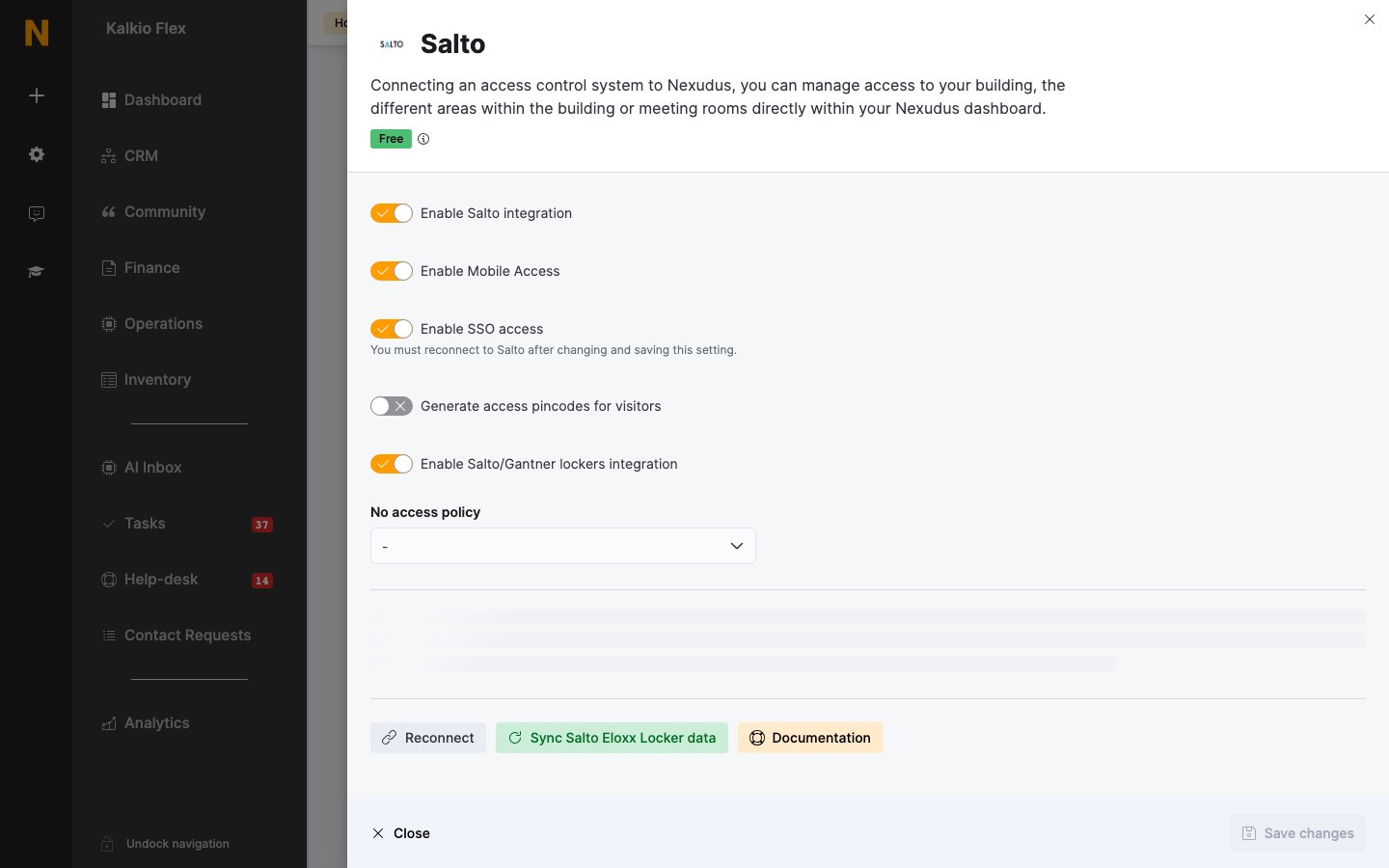 ## Settings
| Setting | What it does |
| - | - |
| **Enable Mobile Access** | Lets customers open doors with their phone. Needs a Salto mobile access subscription. |
| **Enable SSO access** | Lets customers open doors from your white-label Passport app without setting up a Salto account (below). Reconnect to Salto after changing it. |
| **Generate access pincodes for visitors** | Gives registered visitors a PIN code in their registration email. Then choose the group visitors get access to under **Select the group you would like visitors to be granted access to:**. |
| **Enable Salto/Gantner lockers integration** | Syncs Salto Eloxx (Gantner) lockers into Nexudus. See [Lockers](/platform/billing/lockers). |
| **No access policy** | What happens to a customer's Salto user when they lose all access: **Suspend Salto user account** or **Delete Salto user account**. |
## Checking customers in from door unlocks
Under **Presence tracking**, set each lock's **Action**: **Check customer in** (for example, your main entrance), **Check customer out**, **Toggle customer check-in status**, or **Do nothing**.
## Giving customers Salto tags
To let a customer open doors with a Salto tag, first add the tag to the Salto KS site for their location, so you can see its number. Then open the customer in Nexudus, go to **Account → Access rights**, enter the tag number in **Access cards** and press Enter. Always use **Access cards**, even though tags are key fobs. The tag works within about 15 minutes, for the doors the customer has access to.
## How customers open doors with their phone
Customers can use Salto's own app or your [white-label Passport app](/passport/white-label-setup). Phones open Salto doors over Bluetooth, so customers need to be at the door.
* **With SSO access** — there's nothing for customers to set up. They turn on Bluetooth, tap **Unlock door** in your app, and hold their phone near the lock. The first door can take up to 10 seconds. Customers can't use your white-label app and Salto's app at the same time with SSO.
* **Without SSO access** — when customers first get access, Salto emails them an invitation to create a Salto account. They then connect it in your app under **My Activity → Integrations → Connect**, and use the **Unlock door** tile.
To start using SSO with a white-label app, contact Nexudus support to update your app, then turn on **Enable SSO access**, save, and select **Reconnect**. Encourage customers to update your app.
## Troubleshooting
Either the Salto KS account you connected with is no longer a Salto admin, or a customer's tag belongs to a different Salto site from their location. Check the account is still an admin. If it is, remove the tag from the wrong site, add it to the right one, and enter it on the customer again.
Check that they have an active pass, a booking starting within 15 minutes, or a contract with a linked desk or office, and that the item is linked to a group containing that door. If they use their phone, check Bluetooth is on and that you have enough mobile access users in Salto.
## Related
* [Access control](/integrations/access-control/overview) — how access control works in Nexudus
* [Lockers](/platform/billing/lockers) — Salto Eloxx (Gantner) lockers
* [Visitors](/platform/operations/visitors) — registering visitors
This documentation is built and hosted on [Mintlify](https://mintlify.com), a developer documentation platform.
## Settings
| Setting | What it does |
| - | - |
| **Enable Mobile Access** | Lets customers open doors with their phone. Needs a Salto mobile access subscription. |
| **Enable SSO access** | Lets customers open doors from your white-label Passport app without setting up a Salto account (below). Reconnect to Salto after changing it. |
| **Generate access pincodes for visitors** | Gives registered visitors a PIN code in their registration email. Then choose the group visitors get access to under **Select the group you would like visitors to be granted access to:**. |
| **Enable Salto/Gantner lockers integration** | Syncs Salto Eloxx (Gantner) lockers into Nexudus. See [Lockers](/platform/billing/lockers). |
| **No access policy** | What happens to a customer's Salto user when they lose all access: **Suspend Salto user account** or **Delete Salto user account**. |
## Checking customers in from door unlocks
Under **Presence tracking**, set each lock's **Action**: **Check customer in** (for example, your main entrance), **Check customer out**, **Toggle customer check-in status**, or **Do nothing**.
## Giving customers Salto tags
To let a customer open doors with a Salto tag, first add the tag to the Salto KS site for their location, so you can see its number. Then open the customer in Nexudus, go to **Account → Access rights**, enter the tag number in **Access cards** and press Enter. Always use **Access cards**, even though tags are key fobs. The tag works within about 15 minutes, for the doors the customer has access to.
## How customers open doors with their phone
Customers can use Salto's own app or your [white-label Passport app](/passport/white-label-setup). Phones open Salto doors over Bluetooth, so customers need to be at the door.
* **With SSO access** — there's nothing for customers to set up. They turn on Bluetooth, tap **Unlock door** in your app, and hold their phone near the lock. The first door can take up to 10 seconds. Customers can't use your white-label app and Salto's app at the same time with SSO.
* **Without SSO access** — when customers first get access, Salto emails them an invitation to create a Salto account. They then connect it in your app under **My Activity → Integrations → Connect**, and use the **Unlock door** tile.
To start using SSO with a white-label app, contact Nexudus support to update your app, then turn on **Enable SSO access**, save, and select **Reconnect**. Encourage customers to update your app.
## Troubleshooting
Either the Salto KS account you connected with is no longer a Salto admin, or a customer's tag belongs to a different Salto site from their location. Check the account is still an admin. If it is, remove the tag from the wrong site, add it to the right one, and enter it on the customer again.
Check that they have an active pass, a booking starting within 15 minutes, or a contract with a linked desk or office, and that the item is linked to a group containing that door. If they use their phone, check Bluetooth is on and that you have enough mobile access users in Salto.
## Related
* [Access control](/integrations/access-control/overview) — how access control works in Nexudus
* [Lockers](/platform/billing/lockers) — Salto Eloxx (Gantner) lockers
* [Visitors](/platform/operations/visitors) — registering visitors
This documentation is built and hosted on [Mintlify](https://mintlify.com), a developer documentation platform.