> ## Documentation Index
> Fetch the complete documentation index at: https://learn.nexudus.com/llms.txt
> Use this file to discover all available pages before exploring further.
# Accounting
> Send your Nexudus invoices and payments to Xero, QuickBooks Online, or Moloni, or issue e-invoices to tax authorities — and prepare your accounts first.
## Overview
Accounting integrations send the invoices you issue in Nexudus — and the payments recorded against them — to your accounting or tax system, so you don't have to re-enter them. Nexudus stays where you issue invoices; the accounting system receives copies.
| Integration | Use it for |
| - | - |
| [**Xero**](/integrations/accounting/xero) | Sending invoices and payments to Xero, and bringing payments made in Xero back into Nexudus. |
| [**QuickBooks Online**](/integrations/accounting/quickbooks-online) | Sending invoices and payments to QuickBooks Online. |
| [**Moloni**](/integrations/accounting/moloni) | Registering invoices in Moloni to meet SAF-T requirements, for example in Portugal. |
| [**E-invoicing**](/integrations/accounting/e-invoicing) | Sending structured e-invoices to customers and tax authorities, including Peppol and VERIFACTU in Spain. |
All four are free and set up under **Settings → Integrations → Accounting and payments**, separately for each location.
## Before you connect Xero or QuickBooks
Invoices only transfer cleanly when Nexudus and your accounting system use the same accounts and tax rates. Set these up before connecting, because invoices issued before they match can't be transferred.
In **Settings → Invoices and tax → Accounts**, add a [financial account](/platform/finance/financial-accounts) for each sales account you use in your accounting system, with exactly the same **Name** and **Code** — for example *Membership Revenue*, code *4000*.
Add the accounts your accounting system records payments in the same way, choosing **Payments** as the account type. You'll choose them in the integration's settings.
Make sure every [tax rate](/platform/finance/tax-rates) in Nexudus has an identical counterpart — same name and rate — in your accounting system.
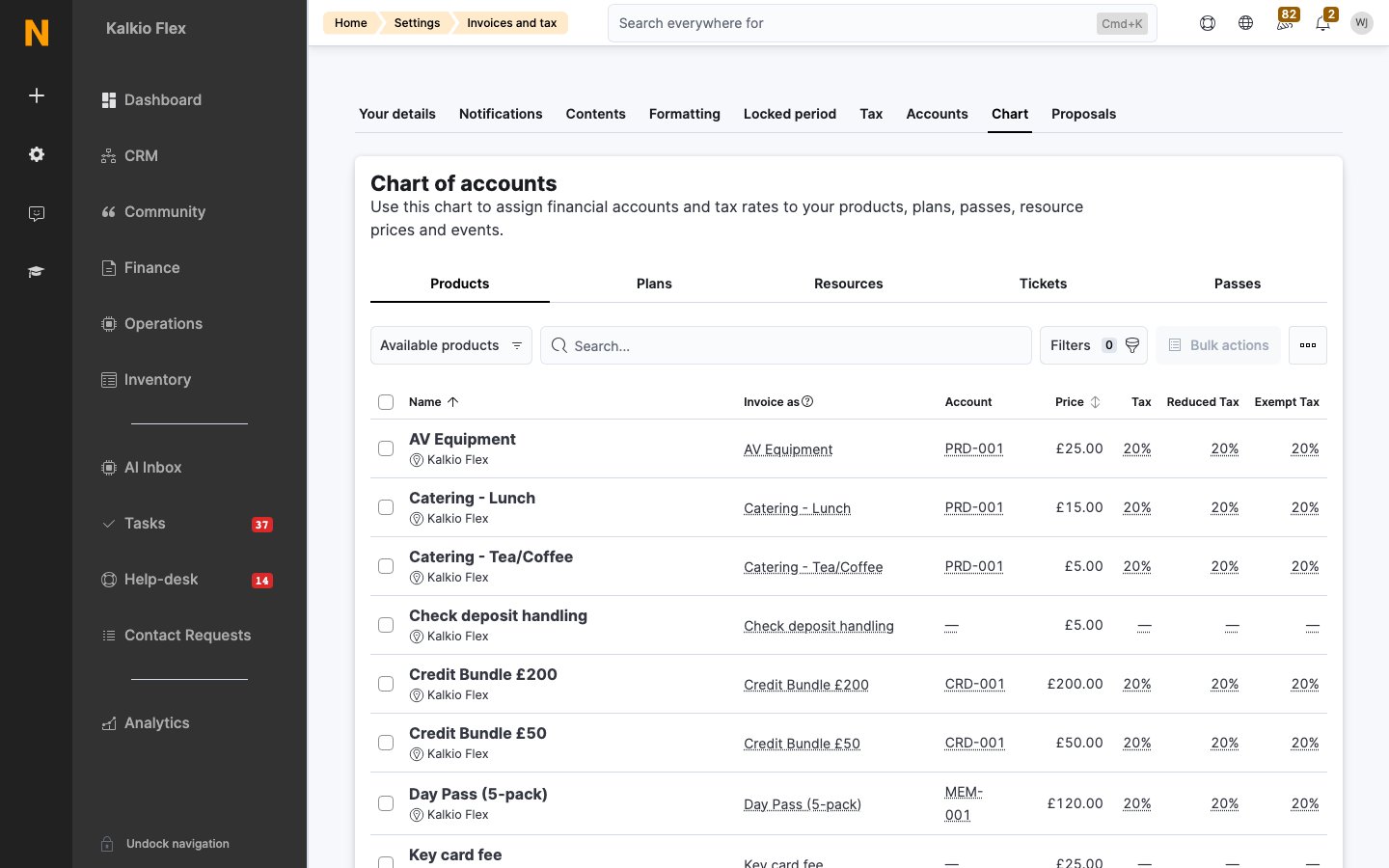
In the [chart of accounts](/platform/finance/chart-of-accounts), give every product, plan, resource rate, event ticket and pass a financial account and tax rate. Invoice lines without an account are rejected.
 **Running several locations?** Give each location its own [invoice reference format](/platform/finance/invoices/invoice-settings#invoice-references). Accounting systems reject invoices with a reference they already have.
If your customers already exist as contacts in your accounting system, make sure each customer's **Billing / Trading name** in Nexudus matches the contact's name exactly. Otherwise the accounting system creates a new contact and puts the invoices there.
## Checking transfers
Transferred invoices show a badge in **Finance → Invoices** — **In Xero**, **In QuickBooks**, or **In Moloni** — and e-invoices show **eInvoice processed** or a failure badge. When a transfer fails, the reason is logged under **Finance → Invoices**, in **Xero errors**, **QuickBooks errors**, **Moloni errors**, or **eInvoicing errors**. These links appear once the integration is connected.
## Related
* [Financial accounts](/platform/finance/financial-accounts) — the accounts your invoices are posted to
* [Tax rates](/platform/finance/tax-rates) — the rates applied to invoice lines
* [Invoices](/platform/finance/invoices) — issuing and managing invoices
* [Import payments from DATEV](/platform/settings/import-export/datev-imports) — matching DATEV payments to Nexudus invoices
This documentation is built and hosted on [Mintlify](https://mintlify.com), a developer documentation platform.
**Running several locations?** Give each location its own [invoice reference format](/platform/finance/invoices/invoice-settings#invoice-references). Accounting systems reject invoices with a reference they already have.
If your customers already exist as contacts in your accounting system, make sure each customer's **Billing / Trading name** in Nexudus matches the contact's name exactly. Otherwise the accounting system creates a new contact and puts the invoices there.
## Checking transfers
Transferred invoices show a badge in **Finance → Invoices** — **In Xero**, **In QuickBooks**, or **In Moloni** — and e-invoices show **eInvoice processed** or a failure badge. When a transfer fails, the reason is logged under **Finance → Invoices**, in **Xero errors**, **QuickBooks errors**, **Moloni errors**, or **eInvoicing errors**. These links appear once the integration is connected.
## Related
* [Financial accounts](/platform/finance/financial-accounts) — the accounts your invoices are posted to
* [Tax rates](/platform/finance/tax-rates) — the rates applied to invoice lines
* [Invoices](/platform/finance/invoices) — issuing and managing invoices
* [Import payments from DATEV](/platform/settings/import-export/datev-imports) — matching DATEV payments to Nexudus invoices
This documentation is built and hosted on [Mintlify](https://mintlify.com), a developer documentation platform.