> ## Documentation Index
> Fetch the complete documentation index at: https://learn.nexudus.com/llms.txt
> Use this file to discover all available pages before exploring further.
# QuickBooks Online
> Send invoices and payments from Nexudus to QuickBooks Online, automatically or on demand.
## Overview
The **QuickBooks Online** integration sends the invoices you issue in Nexudus to QuickBooks, along with their customers and payments. It works with QuickBooks Online only, not QuickBooks Desktop.
The integration is free.
## Before you start
You need a QuickBooks Online account, and matching accounts and tax rates in Nexudus. Follow [Before you connect Xero or QuickBooks](/integrations/accounting#before-you-connect-xero-or-quickbooks) first.
## Connecting QuickBooks Online
In QuickBooks, open the gear menu → **Company Settings** → **Advanced** and untick **Automatically apply credits** and **Automatically apply payments**, then save. This stops QuickBooks applying payments to the wrong invoices.
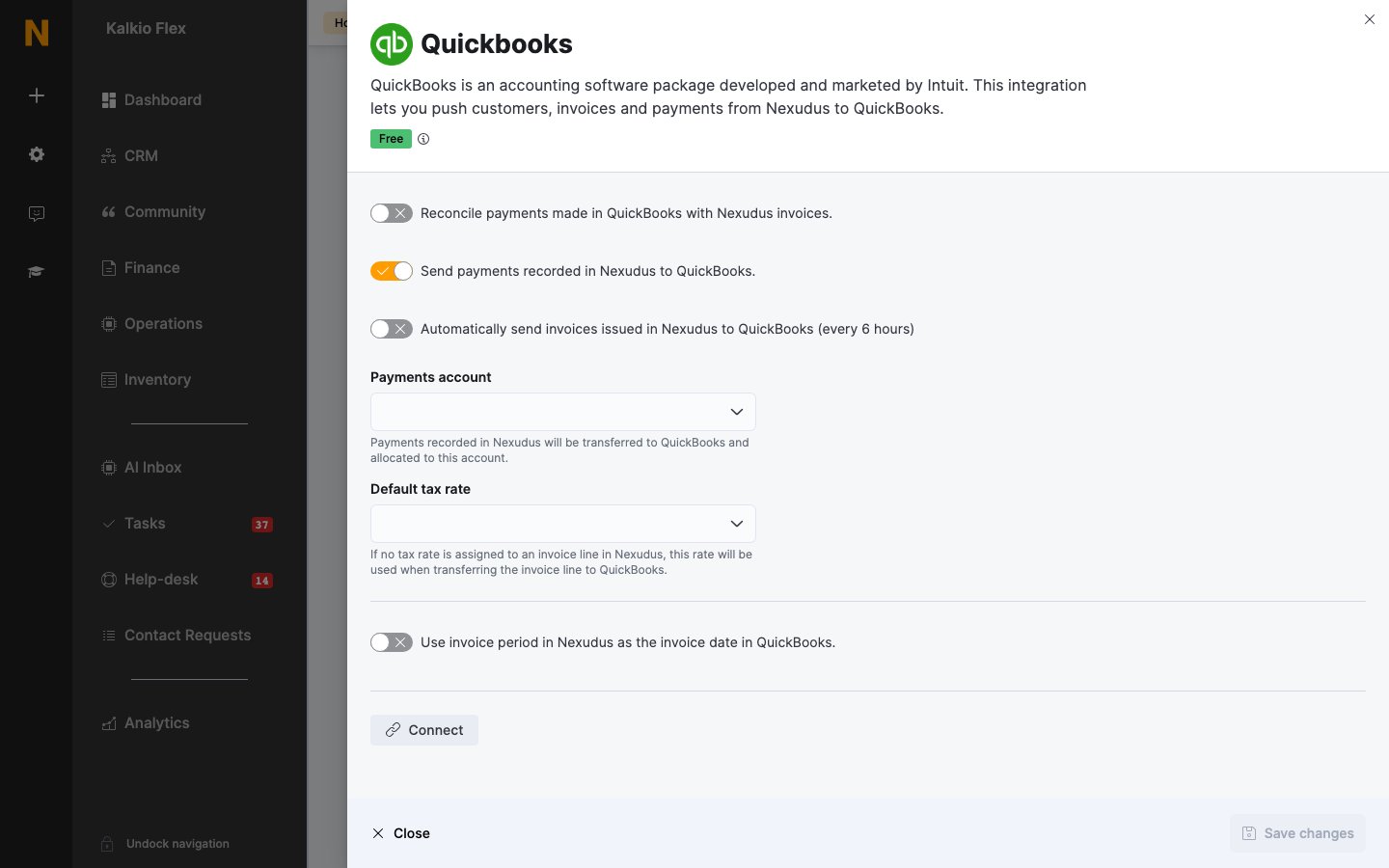
In Nexudus, go to **Settings → Integrations → Quickbooks**, select **Connect**, sign in to QuickBooks, and allow access. You're returned to Nexudus.
Choose the **Payments account** and **Default tax rate**, turn on the options you want, and save.
 ## Settings
| Setting | What it does |
| - | - |
| **Reconcile payments made in QuickBooks with Nexudus invoices.** | Marks invoices as paid in Nexudus when their payment is recorded in QuickBooks. |
| **Send payments recorded in Nexudus to QuickBooks.** | Sends payments with their invoices. |
| **Automatically send invoices issued in Nexudus to QuickBooks (every 6 hours)** | Transfers new invoices automatically. |
| **Payments account** | The QuickBooks account payments are allocated to. Must be a **Payments** [financial account](/platform/finance/financial-accounts) with the same name and code. |
| **Default tax rate** | Used for invoice lines that have no tax rate in Nexudus. |
| **Use invoice period in Nexudus as the invoice date in QuickBooks.** | Dates invoices by their billing period rather than their issue date. |
## Transferring invoices
To transfer straight away, go to **Finance → Invoices**, tick the invoices, and choose **Transfer to QuickBooks** from **Bulk actions**. Transferred invoices show an **In QuickBooks** badge.
### Cancelled and refunded invoices
Transfer the credit note first, then the invoice:
* **Cancelled, unpaid** — QuickBooks links the credit note to the invoice, closes it, and shows the invoice as paid.
* **Cancelled, paid** — QuickBooks creates a credit note that stays unapplied, as the credit can still be used.
* **Refunded** — QuickBooks records an invoice, a payment, and a refund rather than a credit note.
## Troubleshooting
Failed transfers are listed under **Finance → Invoices → QuickBooks errors**.
| Error | Cause and fix |
| - | - |
| **Unauthorized-401** | The connection was lost — for example after changing your QuickBooks password. Open the integration and connect again. |
| **String length specified does not match the supported length.** | An invoice line's description is over QuickBooks' 100-character limit. Shorten it and transfer again. |
| **Business Validation Error: Enter a transaction amount to continue.** | Every line on the invoice is free. QuickBooks can't receive invoices worth nothing. |
## Related
* [Accounting](/integrations/accounting) — preparing your accounts
* [Invoices](/platform/finance/invoices) — issuing and managing invoices
This documentation is built and hosted on [Mintlify](https://mintlify.com), a developer documentation platform.
## Settings
| Setting | What it does |
| - | - |
| **Reconcile payments made in QuickBooks with Nexudus invoices.** | Marks invoices as paid in Nexudus when their payment is recorded in QuickBooks. |
| **Send payments recorded in Nexudus to QuickBooks.** | Sends payments with their invoices. |
| **Automatically send invoices issued in Nexudus to QuickBooks (every 6 hours)** | Transfers new invoices automatically. |
| **Payments account** | The QuickBooks account payments are allocated to. Must be a **Payments** [financial account](/platform/finance/financial-accounts) with the same name and code. |
| **Default tax rate** | Used for invoice lines that have no tax rate in Nexudus. |
| **Use invoice period in Nexudus as the invoice date in QuickBooks.** | Dates invoices by their billing period rather than their issue date. |
## Transferring invoices
To transfer straight away, go to **Finance → Invoices**, tick the invoices, and choose **Transfer to QuickBooks** from **Bulk actions**. Transferred invoices show an **In QuickBooks** badge.
### Cancelled and refunded invoices
Transfer the credit note first, then the invoice:
* **Cancelled, unpaid** — QuickBooks links the credit note to the invoice, closes it, and shows the invoice as paid.
* **Cancelled, paid** — QuickBooks creates a credit note that stays unapplied, as the credit can still be used.
* **Refunded** — QuickBooks records an invoice, a payment, and a refund rather than a credit note.
## Troubleshooting
Failed transfers are listed under **Finance → Invoices → QuickBooks errors**.
| Error | Cause and fix |
| - | - |
| **Unauthorized-401** | The connection was lost — for example after changing your QuickBooks password. Open the integration and connect again. |
| **String length specified does not match the supported length.** | An invoice line's description is over QuickBooks' 100-character limit. Shorten it and transfer again. |
| **Business Validation Error: Enter a transaction amount to continue.** | Every line on the invoice is free. QuickBooks can't receive invoices worth nothing. |
## Related
* [Accounting](/integrations/accounting) — preparing your accounts
* [Invoices](/platform/finance/invoices) — issuing and managing invoices
This documentation is built and hosted on [Mintlify](https://mintlify.com), a developer documentation platform.