> ## Documentation Index
> Fetch the complete documentation index at: https://learn.nexudus.com/llms.txt
> Use this file to discover all available pages before exploring further.
# Xero
> Send invoices and payments from Nexudus to Xero automatically, reconcile payments made in Xero, and let customers pay through Xero.
## Overview
The **Xero** integration sends the invoices you issue in Nexudus to Xero, along with their customers and payments. It can also bring payments recorded in Xero back into Nexudus, marking the matching invoices as paid. Transfers run automatically every six hours, or whenever you start one.
The integration is free.
## Before you start
You need:
* **A Xero organisation for each location**, with its chart of accounts and tax rates set up. One Xero account can hold organisations for several locations.
* **Matching accounts and tax rates in Nexudus.** Follow [Before you connect Xero or QuickBooks](/integrations/accounting#before-you-connect-xero-or-quickbooks) first.
## Connecting Xero
Go to **Settings → Integrations → Xero**.
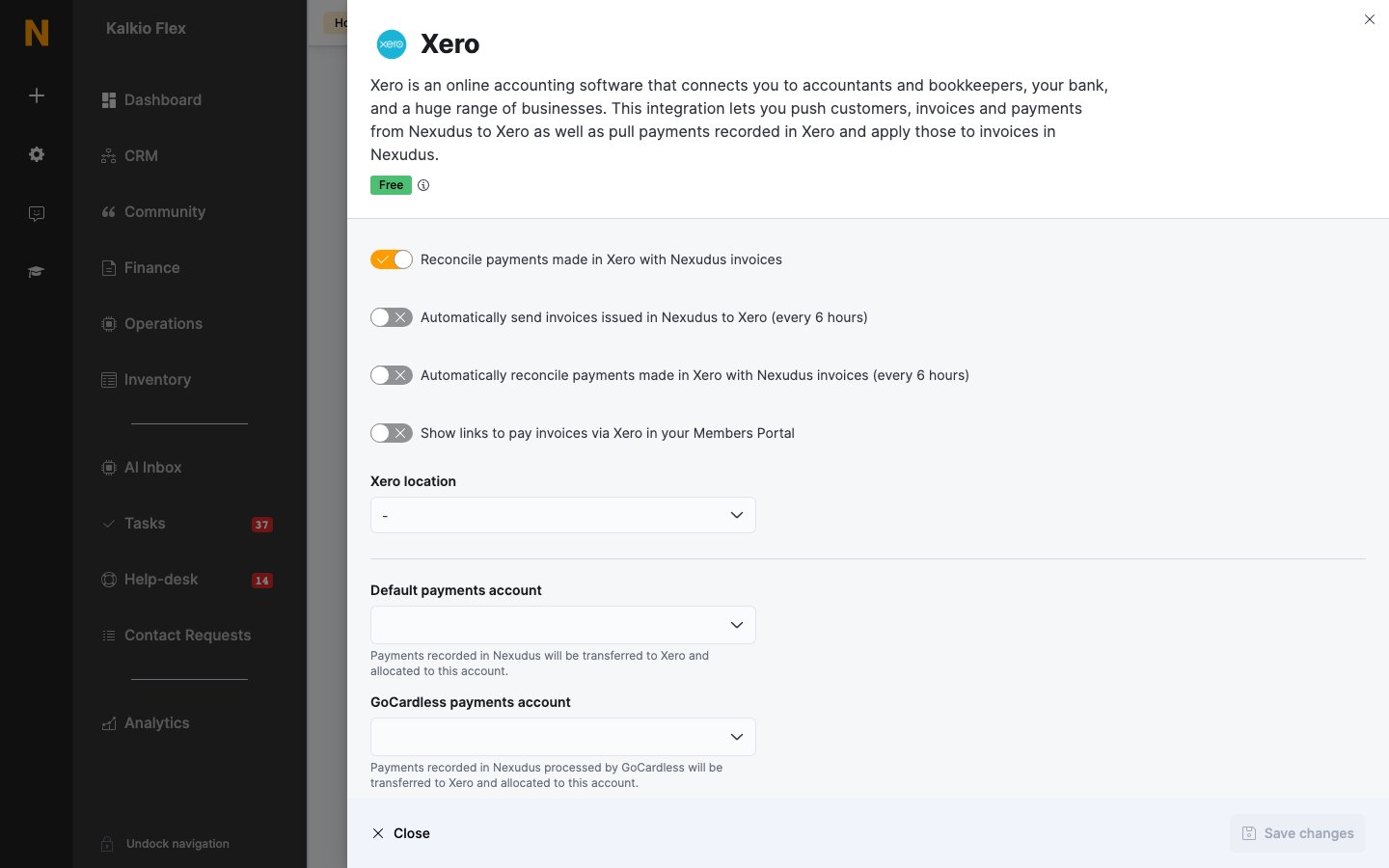
Select **Connect**, sign in to Xero, choose the organisation for this location, and select **Allow access**. You're returned to Nexudus, where the organisation appears under **Xero location**.
Choose the **Default payments account** and any other payments accounts (see below), and a **Default tax rate**.
Turn on the transfer options you want, then save.
 ## Settings
| Setting | What it does |
| - | - |
| **Reconcile payments made in Xero with Nexudus invoices** | Lets Nexudus mark invoices as paid when their payment is recorded in Xero. |
| **Automatically send invoices issued in Nexudus to Xero (every 6 hours)** | Transfers new invoices automatically. |
| **Automatically reconcile payments made in Xero with Nexudus invoices (every 6 hours)** | Checks Xero for payments automatically. Shown when reconciliation is on. |
| **Show links to pay invoices via Xero in your Members Portal** | Lets customers pay invoices through Xero's payment services. See [Xero payment links](/integrations/payment-gateways/xero). |
| **Xero location** | The Xero organisation this Nexudus location sends its invoices to. Choose the right one if your Xero account has several organisations. |
| **Default invoice status** | The status invoices are created with in Xero: **Draft**, **Submitted**, **Approved**, or **Authorised (recommended)**. |
| **Default tax rate** | Used for invoice lines that have no tax rate in Nexudus. |
| **Use invoice period in Nexudus as the invoice date in Xero.** | Dates invoices in Xero by their billing period rather than their issue date. |
### Payments accounts
Payments recorded in Nexudus are sent to Xero and allocated to a payments account depending on how they were made:
| Account | Receives |
| - | - |
| **Default payments account** | All payments not covered by the accounts below. |
| **GoCardless payments account** | Payments collected through GoCardless. |
| **Payment Gateway payments account** | Card payments taken through a payment gateway. |
Each must be a **Payments** [financial account](/platform/finance/financial-accounts) in Nexudus with the same name and code as the account in Xero.
Xero rounds each line's net and tax amounts to two decimal places. If your [amount rounding](/platform/finance/invoices/invoice-settings#amount-rounding) settings don't match, a warning appears in the integration with a link to **Rounding settings**.
## Transferring invoices
With automatic transfers on, there's nothing to do — invoices go to Xero every six hours. To transfer straight away:
1. Go to **Finance → Invoices** and tick up to 100 invoices — draft, unpaid, due or paid.
2. Choose **Transfer to Xero** from **Bulk actions**.
Transferred invoices show an **In Xero** badge. Running a transfer again for an invoice you've since paid in Xero updates it in Nexudus too.
When transferring a cancelled invoice, always transfer the original invoice and its credit note together. Invoices issued before your accounts and tax rates matched can't be transferred.
## Tracking categories
If you run several locations through one Xero organisation, use a tracking category to filter your Xero reports by location. In Xero, go to **Accounting → Advanced → Tracking categories** and add a category named **Location**, **Space**, **Site**, **Center**, **Centre**, or **Building**. Nexudus adds an option for each location as it transfers its invoices.
## Troubleshooting
Failed transfers are listed under **Finance → Invoices → Xero errors**. Transfers carry on past individual failures, so fix the invoice and transfer it again.
| Error | Cause and fix |
| - | - |
| **Account code 'xxxx' is not a valid code for this document.** | An invoice line's financial account doesn't exist in Xero. Correct the line's account on the invoice, and fix the item in the [chart of accounts](/platform/finance/chart-of-accounts) so future invoices are right. |
| **Account code or ID must be specified.** | An invoice line has no financial account. Assign one on the invoice and in the chart of accounts. |
Changes to your accounts in Xero aren't copied to Nexudus — update the matching financial accounts in Nexudus yourself.
## Related
* [Accounting](/integrations/accounting) — preparing your accounts
* [Xero payment links](/integrations/payment-gateways/xero) — letting customers pay through Xero
* [Invoices](/platform/finance/invoices) — issuing and managing invoices
This documentation is built and hosted on [Mintlify](https://mintlify.com), a developer documentation platform.
## Settings
| Setting | What it does |
| - | - |
| **Reconcile payments made in Xero with Nexudus invoices** | Lets Nexudus mark invoices as paid when their payment is recorded in Xero. |
| **Automatically send invoices issued in Nexudus to Xero (every 6 hours)** | Transfers new invoices automatically. |
| **Automatically reconcile payments made in Xero with Nexudus invoices (every 6 hours)** | Checks Xero for payments automatically. Shown when reconciliation is on. |
| **Show links to pay invoices via Xero in your Members Portal** | Lets customers pay invoices through Xero's payment services. See [Xero payment links](/integrations/payment-gateways/xero). |
| **Xero location** | The Xero organisation this Nexudus location sends its invoices to. Choose the right one if your Xero account has several organisations. |
| **Default invoice status** | The status invoices are created with in Xero: **Draft**, **Submitted**, **Approved**, or **Authorised (recommended)**. |
| **Default tax rate** | Used for invoice lines that have no tax rate in Nexudus. |
| **Use invoice period in Nexudus as the invoice date in Xero.** | Dates invoices in Xero by their billing period rather than their issue date. |
### Payments accounts
Payments recorded in Nexudus are sent to Xero and allocated to a payments account depending on how they were made:
| Account | Receives |
| - | - |
| **Default payments account** | All payments not covered by the accounts below. |
| **GoCardless payments account** | Payments collected through GoCardless. |
| **Payment Gateway payments account** | Card payments taken through a payment gateway. |
Each must be a **Payments** [financial account](/platform/finance/financial-accounts) in Nexudus with the same name and code as the account in Xero.
Xero rounds each line's net and tax amounts to two decimal places. If your [amount rounding](/platform/finance/invoices/invoice-settings#amount-rounding) settings don't match, a warning appears in the integration with a link to **Rounding settings**.
## Transferring invoices
With automatic transfers on, there's nothing to do — invoices go to Xero every six hours. To transfer straight away:
1. Go to **Finance → Invoices** and tick up to 100 invoices — draft, unpaid, due or paid.
2. Choose **Transfer to Xero** from **Bulk actions**.
Transferred invoices show an **In Xero** badge. Running a transfer again for an invoice you've since paid in Xero updates it in Nexudus too.
When transferring a cancelled invoice, always transfer the original invoice and its credit note together. Invoices issued before your accounts and tax rates matched can't be transferred.
## Tracking categories
If you run several locations through one Xero organisation, use a tracking category to filter your Xero reports by location. In Xero, go to **Accounting → Advanced → Tracking categories** and add a category named **Location**, **Space**, **Site**, **Center**, **Centre**, or **Building**. Nexudus adds an option for each location as it transfers its invoices.
## Troubleshooting
Failed transfers are listed under **Finance → Invoices → Xero errors**. Transfers carry on past individual failures, so fix the invoice and transfer it again.
| Error | Cause and fix |
| - | - |
| **Account code 'xxxx' is not a valid code for this document.** | An invoice line's financial account doesn't exist in Xero. Correct the line's account on the invoice, and fix the item in the [chart of accounts](/platform/finance/chart-of-accounts) so future invoices are right. |
| **Account code or ID must be specified.** | An invoice line has no financial account. Assign one on the invoice and in the chart of accounts. |
Changes to your accounts in Xero aren't copied to Nexudus — update the matching financial accounts in Nexudus yourself.
## Related
* [Accounting](/integrations/accounting) — preparing your accounts
* [Xero payment links](/integrations/payment-gateways/xero) — letting customers pay through Xero
* [Invoices](/platform/finance/invoices) — issuing and managing invoices
This documentation is built and hosted on [Mintlify](https://mintlify.com), a developer documentation platform.