> ## Documentation Index
> Fetch the complete documentation index at: https://learn.nexudus.com/llms.txt
> Use this file to discover all available pages before exploring further.
# Google Tag Manager
> Add your Google Tag Manager container to every page of your members portal.
## Overview
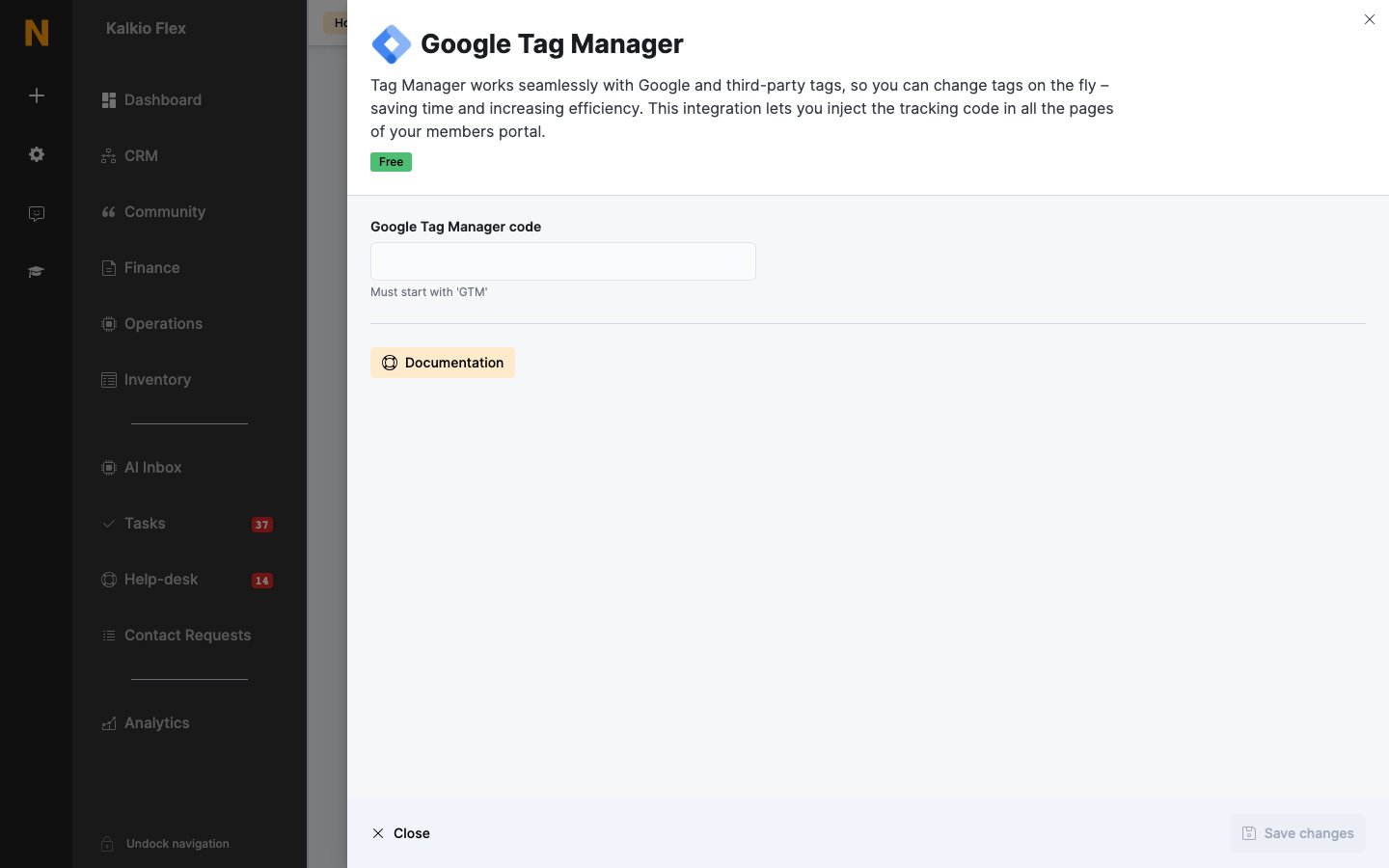
**Google Tag Manager** lets you add and change tracking tags — Google and third-party — without editing your site. The integration adds your container's code to every page of your members portal.
The integration is free.
## Connecting Google Tag Manager
1. In Google Tag Manager, copy your container ID — it starts with `GTM-`.
2. Go to **Settings → Integrations → Google Tag Manager**, paste it into **Google Tag Manager code**, and save.
 You can't use Google Tag Manager and the [Google Analytics 4](/integrations/google-analytics) integration at the same time. If you add a GA4 measurement ID, the Tag Manager code is removed. To use GA4 through Tag Manager, add GA4 as a tag in your container instead.
## Events sent to Tag Manager
The members portal pushes the same page views and events to the data layer as it sends to Google Analytics 4 — with the event name in `event` — so you can use them as triggers. When a customer signs in, their `user_id` is pushed too. See the [event reference](/integrations/google-analytics#event-reference) for every event and its parameters.
## Related
* [Analytics](/integrations/analytics) — all analytics integrations
This documentation is built and hosted on [Mintlify](https://mintlify.com), a developer documentation platform.
You can't use Google Tag Manager and the [Google Analytics 4](/integrations/google-analytics) integration at the same time. If you add a GA4 measurement ID, the Tag Manager code is removed. To use GA4 through Tag Manager, add GA4 as a tag in your container instead.
## Events sent to Tag Manager
The members portal pushes the same page views and events to the data layer as it sends to Google Analytics 4 — with the event name in `event` — so you can use them as triggers. When a customer signs in, their `user_id` is pushed too. See the [event reference](/integrations/google-analytics#event-reference) for every event and its parameters.
## Related
* [Analytics](/integrations/analytics) — all analytics integrations
This documentation is built and hosted on [Mintlify](https://mintlify.com), a developer documentation platform.