> ## Documentation Index
> Fetch the complete documentation index at: https://learn.nexudus.com/llms.txt
> Use this file to discover all available pages before exploring further.
# Slack
> Post event and article announcements to a Slack channel, and send customers and admins their Nexudus notifications in Slack.
## Overview
The **Slack** integration connects a Slack workspace to Nexudus:
* **Announcements** — share an event or article to a public channel from its actions menu (**⋯**).
* **Customer messages** — messages you send customers from Nexudus also reach them in Slack.
* **Invoice notifications** — customers get a Slack message whenever they're emailed an invoice.
* **Admin notifications** — admins get their Nexudus notifications in Slack too, based on their notification preferences.
The integration is free. Invite customers and admins to the Slack workspace and channel yourself, using the same email address they have in Nexudus.
## Connecting Slack
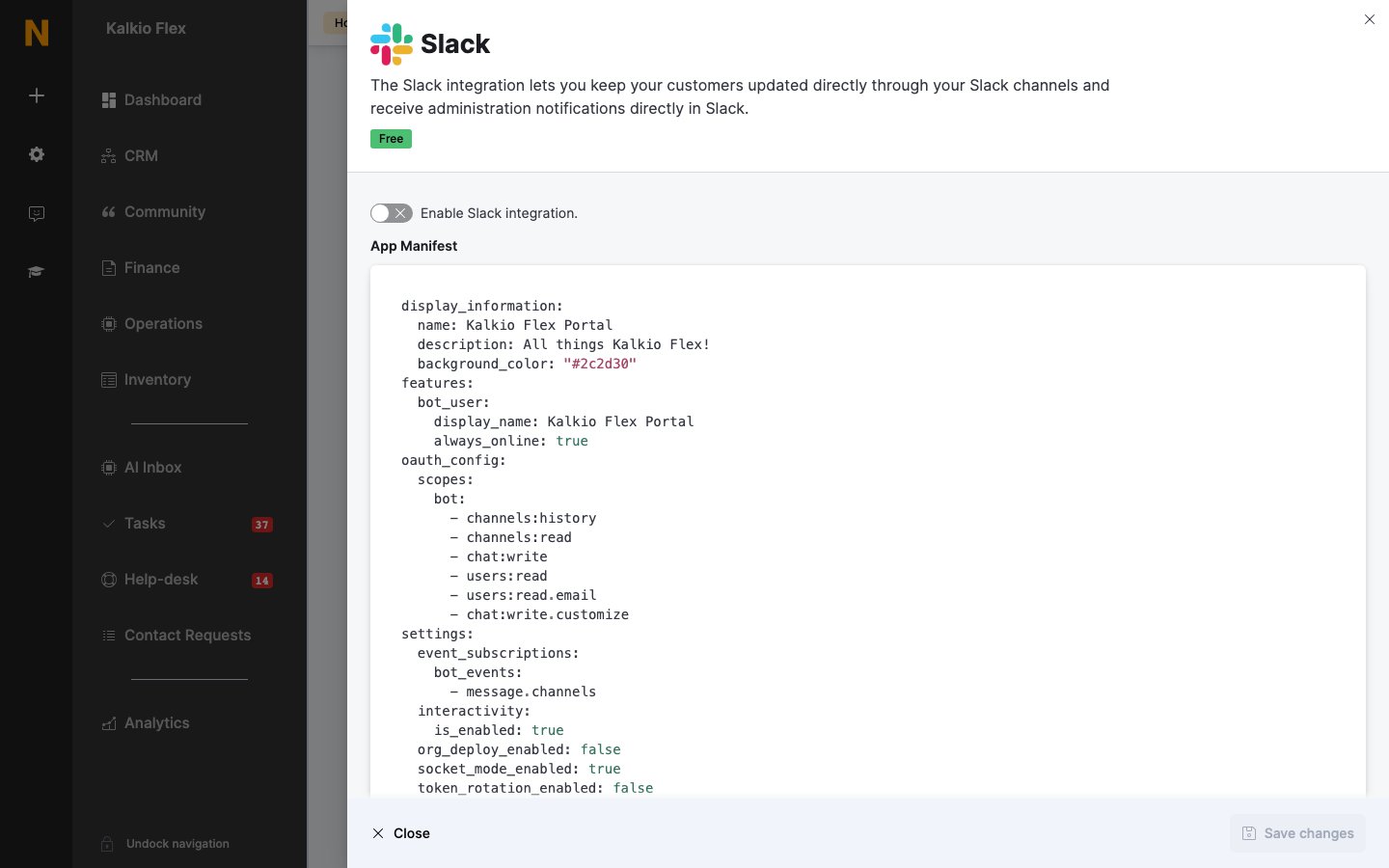
Go to **Settings → Integrations → Slack** and select **Copy to clipboard** under **App Manifest**.
At `api.slack.com/apps`, select **Create an App → From an app manifest**, choose your workspace, replace the YAML with the manifest, adjust the name and description if you like, and create it.
Select **Install to Workspace** and **Allow**. Under **App-Level Tokens**, generate a token with the `connections:write` scope and copy it. Then, under **OAuth & Permissions**, copy the **Bot User OAuth Token**.
In Slack, open the app and choose **Add this app to a channel**, picking the channel for announcements.
Turn on **Enable Slack integration.**, enter the **App-Level Token**, the **Bot API Token** and the **Public anouncements channel** name, and save.
 Treat both tokens like passwords.
## Related
* [CRM and communication](/integrations/communication) — all communication integrations
This documentation is built and hosted on [Mintlify](https://mintlify.com), a developer documentation platform.
Treat both tokens like passwords.
## Related
* [CRM and communication](/integrations/communication) — all communication integrations
This documentation is built and hosted on [Mintlify](https://mintlify.com), a developer documentation platform.