> ## Documentation Index
> Fetch the complete documentation index at: https://learn.nexudus.com/llms.txt
> Use this file to discover all available pages before exploring further.
# Customer Payment Methods
> Set how each customer pays, turn automatic collection on or off, send direct debit requests and store location-specific payment details.
## Overview
Once a payment gateway is enabled, every customer has a **default payment method** that Nexudus uses to collect their invoices. You set a default for new customers at location level, and you can change it for any individual customer. Customers who pay by direct debit also need a mandate, which they set up from a request email or the Members Portal.
## How to access
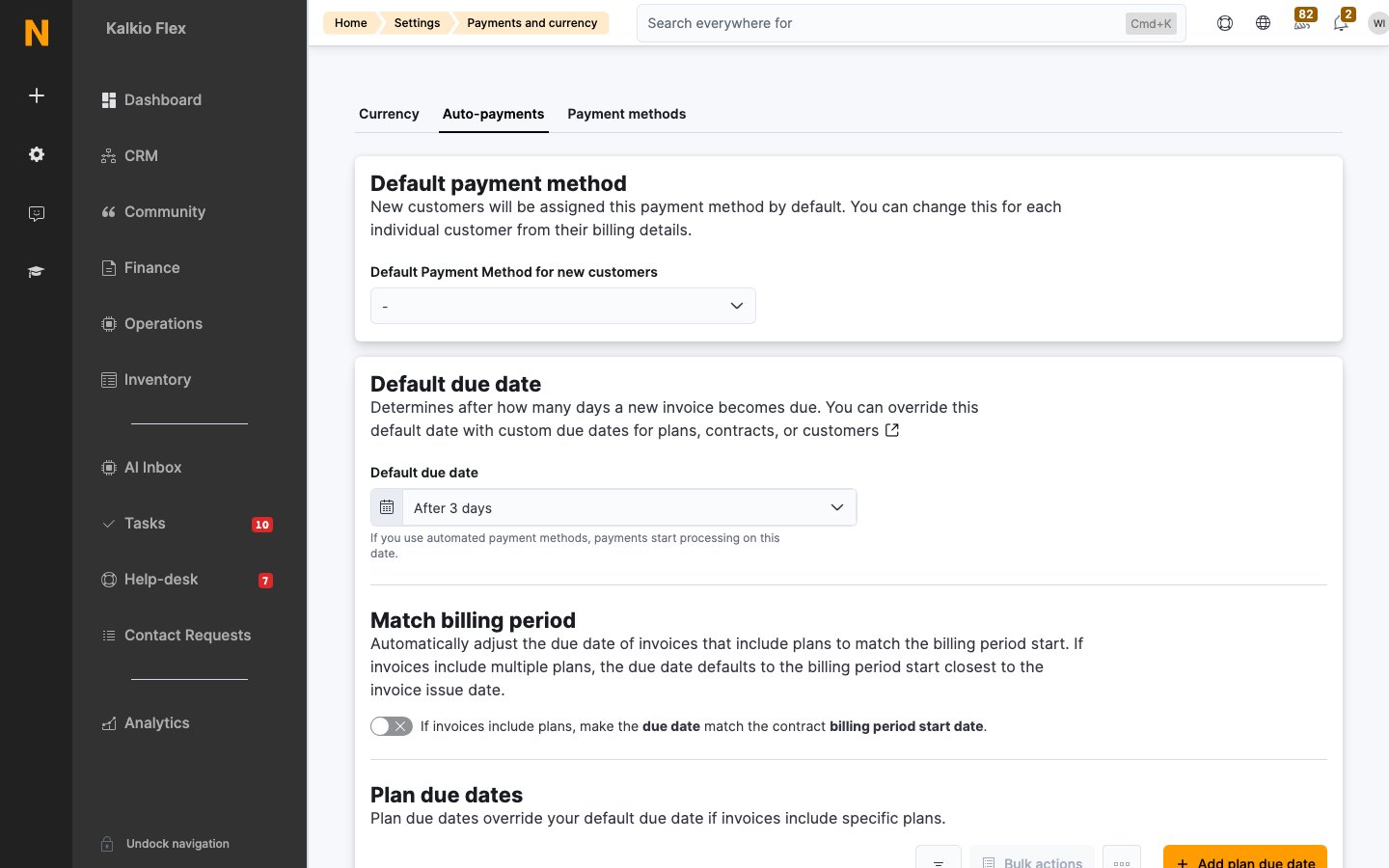
* **Default for new customers**: **Settings → Billing and payments → Payments and currency → Auto-payments**, under **Default payment method**.
* **One customer**: **Operations → Members & contacts**, open the customer, then open the **Payments** tab.
 ## Key concepts
| Term | Meaning |
| - | - |
| **Default payment method** | The method Nexudus uses to collect this customer's invoices automatically. Only methods enabled in the customer's invoicing location appear in the list, plus manual options such as bank transfer, cash and check. |
| **Automatic collection** | **Automatically collect payment for due invoices if payment details are available**. When ticked, Nexudus charges the saved card or bank account when an invoice falls due. Manual options (bank transfer, cash, check, credit note, gift card, other) turn it off automatically. |
| **Mandate** | The customer's authorisation to take direct debit payments from their bank account. Both the customer and their bank must approve it before payments can be collected. |
| **Location-specific payment method** | Payment details stored for one customer in one location. Useful when a customer pays each of your locations from a different bank account, or each location uses its own provider account. |
## Set the default payment method for new customers
1. Go to **Settings → Billing and payments → Payments and currency → Auto-payments**.
2. Under **Default payment method**, choose a method in **Default Payment Method for new customers**.
3. Select **Save changes**.
New customers get this method. Existing customers keep theirs.
## Change a customer's payment method
1. Go to **Operations → Members & contacts** and open the customer.
2. Open the **Payments** tab.
3. Choose the **Default payment method**.
4. Tick or untick **Automatically collect payment for due invoices if payment details are available**.
5. Save the customer.
The **Payments** tab also has a section for each enabled provider:
| Section | Shown when | What you can do |
| - | - | - |
| **Card payments** | A card gateway connected through Spreedly is enabled | See the card on file. |
| **Direct debit (GoCardless)** | GoCardless is enabled | Turn on **Enable GoCardless Direct Debit payments**, see or remove the mandate, and resend the mandate request. |
| **BACS payments (Stripe UK)** | Stripe Direct Debit is enabled | Turn on **Enable Stripe BACS payments**, see the mandate details, and resend the mandate request. |
| **Payment methods** | Always | Add or edit location-specific payment details (see below). |
| **Bank details** | Always | Record the customer's bank details. |
| **Advanced** | Always | See the payment tokens stored for the customer. |
When GoCardless or Stripe BACS is enabled for a customer, Nexudus uses only that method to collect their payments automatically. To switch the customer to another method, select **Disable GoCardless** or **Disable Stripe BACS** first.
## Send direct debit requests
After you enable GoCardless or Stripe Direct Debit, ask your customers to set up a mandate.
1. Go to **Operations → Members & contacts**.
2. Tick every customer who should receive the request.
3. From the bulk actions menu, select **Send Direct Debit request email** and confirm.
Each customer receives an email with a link to enter their bank details and approve the mandate. To resend a request to one customer, open their **Payments** tab and use **Resend sign-up request notification** in the provider's section.
For customers you added before enabling GoCardless, turn on **Enable GoCardless Direct Debit payments** on their **Payments** tab before you send the request. Otherwise the link in the email doesn't lead to a mandate form. To change many customers at once, use a bulk edit.
## Add a location-specific payment method
A customer can hold several mandates for the same provider, one per location. You can't mix providers for one customer: for example, a customer can have two GoCardless mandates, but not one GoCardless mandate and one Stripe Direct Debit mandate.
When a customer approves a mandate through the request email or the Members Portal, Nexudus stores it automatically for the location that sent the request. To add one yourself:
1. Open the customer, then open **Payments → Payment methods**.
2. Select **Add payment method**.
3. Choose the **Location** and the **Provider**.
4. Fill in the provider's details:
| Provider | Details to enter |
| - | - |
| **GoCardless** | **Mandate number** |
| **Stripe BACS** | **Customer Id**, **Mandate Id** and **Method token** |
| **Stripe ACH** (deprecated gateway) | **Bank account number** and **Customer Id** |
| **Stripe Checkout** | **Customer Id** |
5. Save.
When Nexudus finds a location-specific payment method for the invoicing location and provider, it always uses that one instead of any other details for the same provider. For example, if a customer has a Stripe method for your East Side location and a GoCardless method for your Office location, invoices from East Side are collected through Stripe and invoices from Office through GoCardless.
## Tips
* Set the default due date with direct debit settlement times in mind. See [When payments are collected](/integrations/payment-gateways#when-payments-are-collected).
* Test the mandate flow with your own bank account before you send requests to customers.
## Related
* [Payment gateways](/integrations/payment-gateways)
* [GoCardless](/integrations/payment-gateways/gocardless)
* [Stripe Direct Debit](/integrations/payment-gateways/stripe-direct-debit)
* [Members](/platform/operations/members)
This documentation is built and hosted on [Mintlify](https://mintlify.com), a developer documentation platform.
## Key concepts
| Term | Meaning |
| - | - |
| **Default payment method** | The method Nexudus uses to collect this customer's invoices automatically. Only methods enabled in the customer's invoicing location appear in the list, plus manual options such as bank transfer, cash and check. |
| **Automatic collection** | **Automatically collect payment for due invoices if payment details are available**. When ticked, Nexudus charges the saved card or bank account when an invoice falls due. Manual options (bank transfer, cash, check, credit note, gift card, other) turn it off automatically. |
| **Mandate** | The customer's authorisation to take direct debit payments from their bank account. Both the customer and their bank must approve it before payments can be collected. |
| **Location-specific payment method** | Payment details stored for one customer in one location. Useful when a customer pays each of your locations from a different bank account, or each location uses its own provider account. |
## Set the default payment method for new customers
1. Go to **Settings → Billing and payments → Payments and currency → Auto-payments**.
2. Under **Default payment method**, choose a method in **Default Payment Method for new customers**.
3. Select **Save changes**.
New customers get this method. Existing customers keep theirs.
## Change a customer's payment method
1. Go to **Operations → Members & contacts** and open the customer.
2. Open the **Payments** tab.
3. Choose the **Default payment method**.
4. Tick or untick **Automatically collect payment for due invoices if payment details are available**.
5. Save the customer.
The **Payments** tab also has a section for each enabled provider:
| Section | Shown when | What you can do |
| - | - | - |
| **Card payments** | A card gateway connected through Spreedly is enabled | See the card on file. |
| **Direct debit (GoCardless)** | GoCardless is enabled | Turn on **Enable GoCardless Direct Debit payments**, see or remove the mandate, and resend the mandate request. |
| **BACS payments (Stripe UK)** | Stripe Direct Debit is enabled | Turn on **Enable Stripe BACS payments**, see the mandate details, and resend the mandate request. |
| **Payment methods** | Always | Add or edit location-specific payment details (see below). |
| **Bank details** | Always | Record the customer's bank details. |
| **Advanced** | Always | See the payment tokens stored for the customer. |
When GoCardless or Stripe BACS is enabled for a customer, Nexudus uses only that method to collect their payments automatically. To switch the customer to another method, select **Disable GoCardless** or **Disable Stripe BACS** first.
## Send direct debit requests
After you enable GoCardless or Stripe Direct Debit, ask your customers to set up a mandate.
1. Go to **Operations → Members & contacts**.
2. Tick every customer who should receive the request.
3. From the bulk actions menu, select **Send Direct Debit request email** and confirm.
Each customer receives an email with a link to enter their bank details and approve the mandate. To resend a request to one customer, open their **Payments** tab and use **Resend sign-up request notification** in the provider's section.
For customers you added before enabling GoCardless, turn on **Enable GoCardless Direct Debit payments** on their **Payments** tab before you send the request. Otherwise the link in the email doesn't lead to a mandate form. To change many customers at once, use a bulk edit.
## Add a location-specific payment method
A customer can hold several mandates for the same provider, one per location. You can't mix providers for one customer: for example, a customer can have two GoCardless mandates, but not one GoCardless mandate and one Stripe Direct Debit mandate.
When a customer approves a mandate through the request email or the Members Portal, Nexudus stores it automatically for the location that sent the request. To add one yourself:
1. Open the customer, then open **Payments → Payment methods**.
2. Select **Add payment method**.
3. Choose the **Location** and the **Provider**.
4. Fill in the provider's details:
| Provider | Details to enter |
| - | - |
| **GoCardless** | **Mandate number** |
| **Stripe BACS** | **Customer Id**, **Mandate Id** and **Method token** |
| **Stripe ACH** (deprecated gateway) | **Bank account number** and **Customer Id** |
| **Stripe Checkout** | **Customer Id** |
5. Save.
When Nexudus finds a location-specific payment method for the invoicing location and provider, it always uses that one instead of any other details for the same provider. For example, if a customer has a Stripe method for your East Side location and a GoCardless method for your Office location, invoices from East Side are collected through Stripe and invoices from Office through GoCardless.
## Tips
* Set the default due date with direct debit settlement times in mind. See [When payments are collected](/integrations/payment-gateways#when-payments-are-collected).
* Test the mandate flow with your own bank account before you send requests to customers.
## Related
* [Payment gateways](/integrations/payment-gateways)
* [GoCardless](/integrations/payment-gateways/gocardless)
* [Stripe Direct Debit](/integrations/payment-gateways/stripe-direct-debit)
* [Members](/platform/operations/members)
This documentation is built and hosted on [Mintlify](https://mintlify.com), a developer documentation platform.