> ## Documentation Index
> Fetch the complete documentation index at: https://learn.nexudus.com/llms.txt
> Use this file to discover all available pages before exploring further.
# Microsoft Teams
> Add a Nexudus app to your customers' Microsoft Teams so they can book rooms and desks without leaving Teams.
## Overview
The **Microsoft Teams** integration lets people book rooms and desks from inside Microsoft Teams. You create a custom Teams app whose tabs show pages of your members portal, publish it to the Teams organisation, and connect it to Nexudus.
The integration is free in Nexudus. You need an **Enterprise** Office 365 subscription and a **global admin** account. Everyone who'll book through Teams needs a matching user in the Teams organisation.
## Setting up Microsoft Teams
In the Azure portal, go to **App registrations → New registration**, name the app, and register it. Copy the **Application (client) ID** and **Directory (tenant) ID**. Under **Certificates & secrets**, add a **New client secret** and copy its value straight away — you can't see it again.
In Teams, open **Developer portal → Apps → New app**. Under **Basic information**, add your company name and website, links to your privacy policy and terms, and the **Application (client) ID**.
Under **App features → Personal app**, select **Add a personal tab app** for each members portal page you want in Teams — for example your booking calendar. Enter the page's URL as both the **Content** and **Website URL**, and tick every **Scope**.
Select **Distribute → Publish to your organization**. If you're not an organisation admin, ask one to approve it.
Go to **Settings → Integrations → Teams**, turn on **Enable Microsoft Teams integration.**, enter the **Tenant ID**, **Application / Client ID** and **Application Secret**, and save.
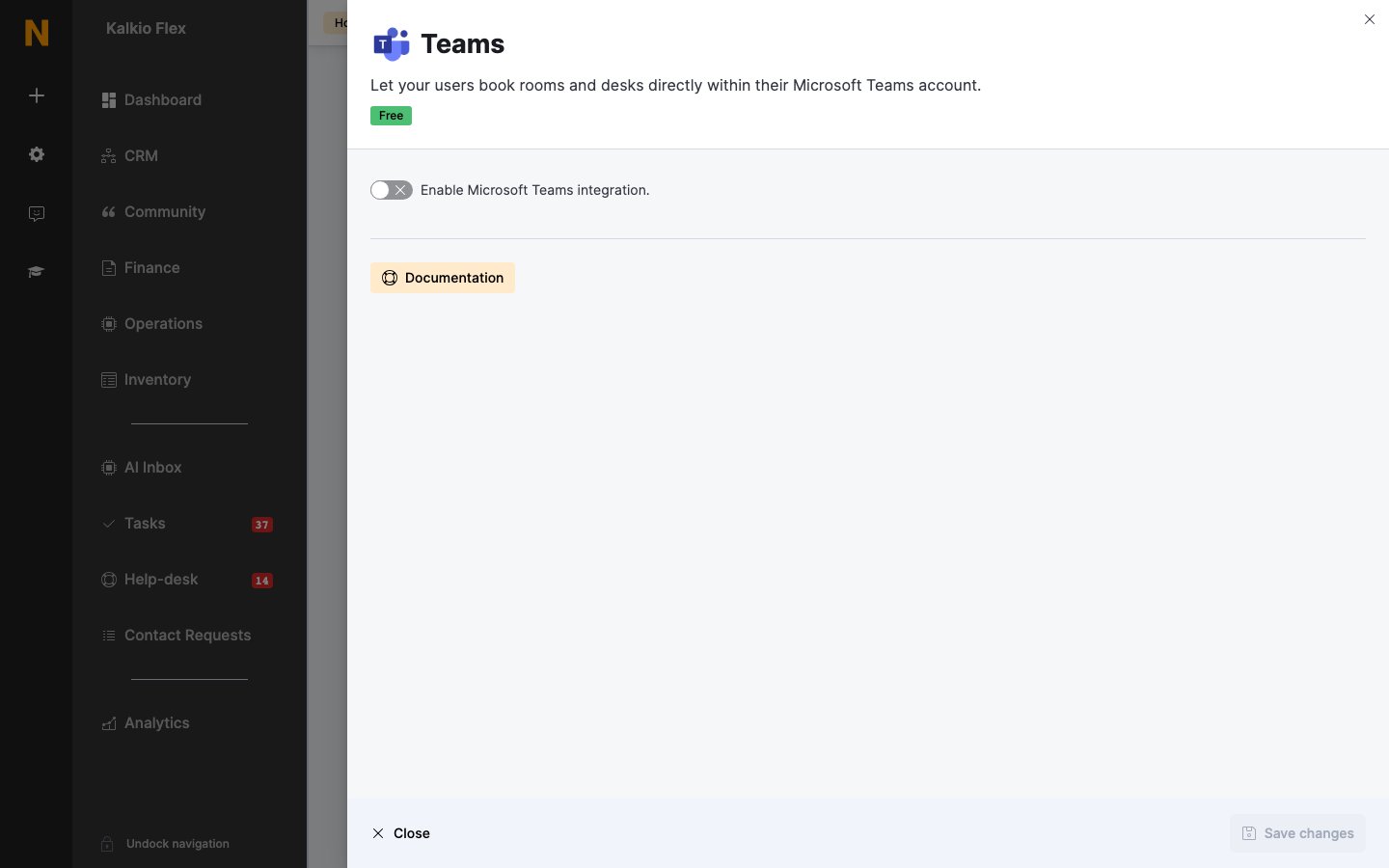 | Setting | What it does |
| - | - |
| **Default home page URL** | The members portal page people see when they open the app. |
| **Display all resources across all locations.** | Shows resources from every location in your network, not just this one. |
Once it's published, people find the app by searching for it in Teams.
## Related
* [Scheduling and calendars](/integrations/scheduling) — all scheduling integrations
* [Azure Active Directory](/integrations/sso/azure-active-directory) — signing in with Microsoft accounts
This documentation is built and hosted on [Mintlify](https://mintlify.com), a developer documentation platform.
| Setting | What it does |
| - | - |
| **Default home page URL** | The members portal page people see when they open the app. |
| **Display all resources across all locations.** | Shows resources from every location in your network, not just this one. |
Once it's published, people find the app by searching for it in Teams.
## Related
* [Scheduling and calendars](/integrations/scheduling) — all scheduling integrations
* [Azure Active Directory](/integrations/sso/azure-active-directory) — signing in with Microsoft accounts
This documentation is built and hosted on [Mintlify](https://mintlify.com), a developer documentation platform.