> ## Documentation Index
> Fetch the complete documentation index at: https://learn.nexudus.com/llms.txt
> Use this file to discover all available pages before exploring further.
# Azure Active Directory
> Let customers and admins sign in to Nexudus with their Microsoft work account through Azure Active Directory (Microsoft Entra ID), including Azure AD B2C.
## Overview
The **Azure Active Directory** integration lets people sign in to Nexudus with their Microsoft account, managed in your Azure Active Directory (now Microsoft Entra ID) tenant. It also works with an **Azure AD B2C** tenant, which lets customers sign in with their own organisation's directory or social accounts.
The integration is free. You need a Microsoft Azure account.
## Setting up Azure Active Directory
Go to **Settings → Integrations → Azure Active Directory**, turn on **Enable Azure Active Directory integration.**, and copy the **Redirect URI**.
In the Azure portal, open **Microsoft Entra ID → App registrations → New registration**. Name it clearly — for example *Nexudus Login – Kalkio Spaces* — and add the redirect URI as a **Web** redirect URI. One app covers all your locations if everyone signs in against the same directory.
Copy the app's **Application (client) ID** and **Directory (tenant) ID**. Under **Certificates & secrets**, create a **New client secret** and copy its **Value** (not its ID).
Enter the **Tenant ID**, **Client ID** and **Client Secret**, set a **Sign in button label**, choose the [shared SSO options](/integrations/sso#options-every-sso-integration-shares), and save.
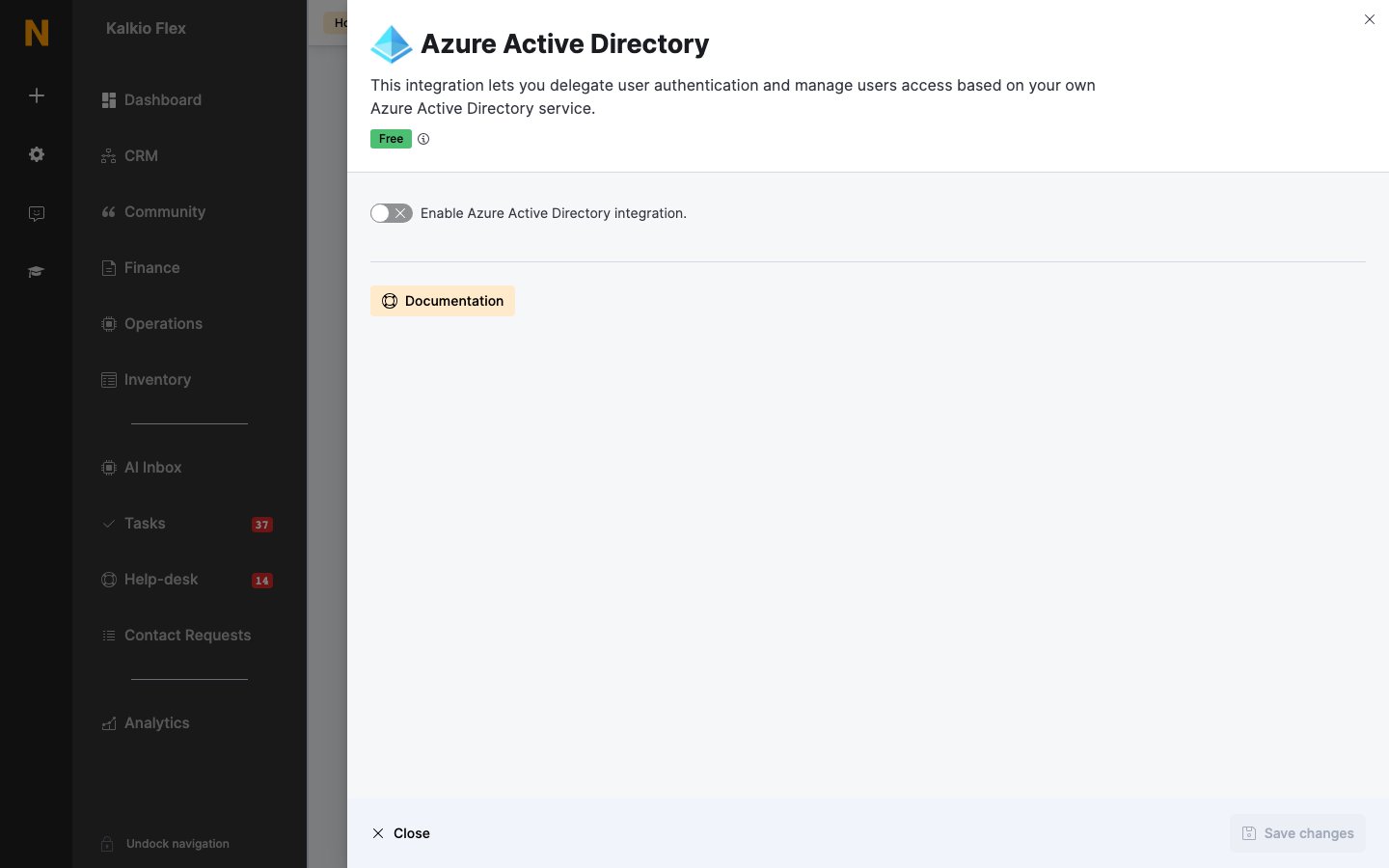 The settings also show a **Login URI**, a direct link that signs people in through Azure — useful for a link on your website or intranet.
Client secrets expire. Create a new one before it does and update **Client Secret** in Nexudus, or nobody will be able to sign in through Azure. Set yourself a reminder as well as relying on Azure's.
## Azure AD B2C
For a B2C tenant, register the app in your B2C tenant and choose **Accounts in any identity provider or organizational directory (for authenticating users with user flows)** as the supported account types. You also need a **user flow**, which decides which details the directory shares with Nexudus. Then complete the same steps above.
## Related
* [Single sign-on](/integrations/sso) — shared SSO options
* [Microsoft Teams](/integrations/scheduling/microsoft-teams) — booking from inside Teams
This documentation is built and hosted on [Mintlify](https://mintlify.com), a developer documentation platform.
The settings also show a **Login URI**, a direct link that signs people in through Azure — useful for a link on your website or intranet.
Client secrets expire. Create a new one before it does and update **Client Secret** in Nexudus, or nobody will be able to sign in through Azure. Set yourself a reminder as well as relying on Azure's.
## Azure AD B2C
For a B2C tenant, register the app in your B2C tenant and choose **Accounts in any identity provider or organizational directory (for authenticating users with user flows)** as the supported account types. You also need a **user flow**, which decides which details the directory shares with Nexudus. Then complete the same steps above.
## Related
* [Single sign-on](/integrations/sso) — shared SSO options
* [Microsoft Teams](/integrations/scheduling/microsoft-teams) — booking from inside Teams
This documentation is built and hosted on [Mintlify](https://mintlify.com), a developer documentation platform.