> ## Documentation Index
> Fetch the complete documentation index at: https://learn.nexudus.com/llms.txt
> Use this file to discover all available pages before exploring further.
# Zoom
> Connect Zoom so bookings of your resources and your events include a unique Zoom Meeting link.
## Overview
The **Zoom** integration creates Zoom Meeting links for your bookings and events:
* **Resources** — connect a meeting room to its own licensed Zoom user, and every booking of it gets that user's meeting link in the confirmation email, for the customer and their guests.
* **Events** — attendees of events with **Send a Zoom Meeting link to all attendees of this event.** get a unique link to join.
The integration is free in Nexudus. You need a licensed Zoom Meetings account (Pro plan or above), with enough participants for your space.
## Connecting Zoom
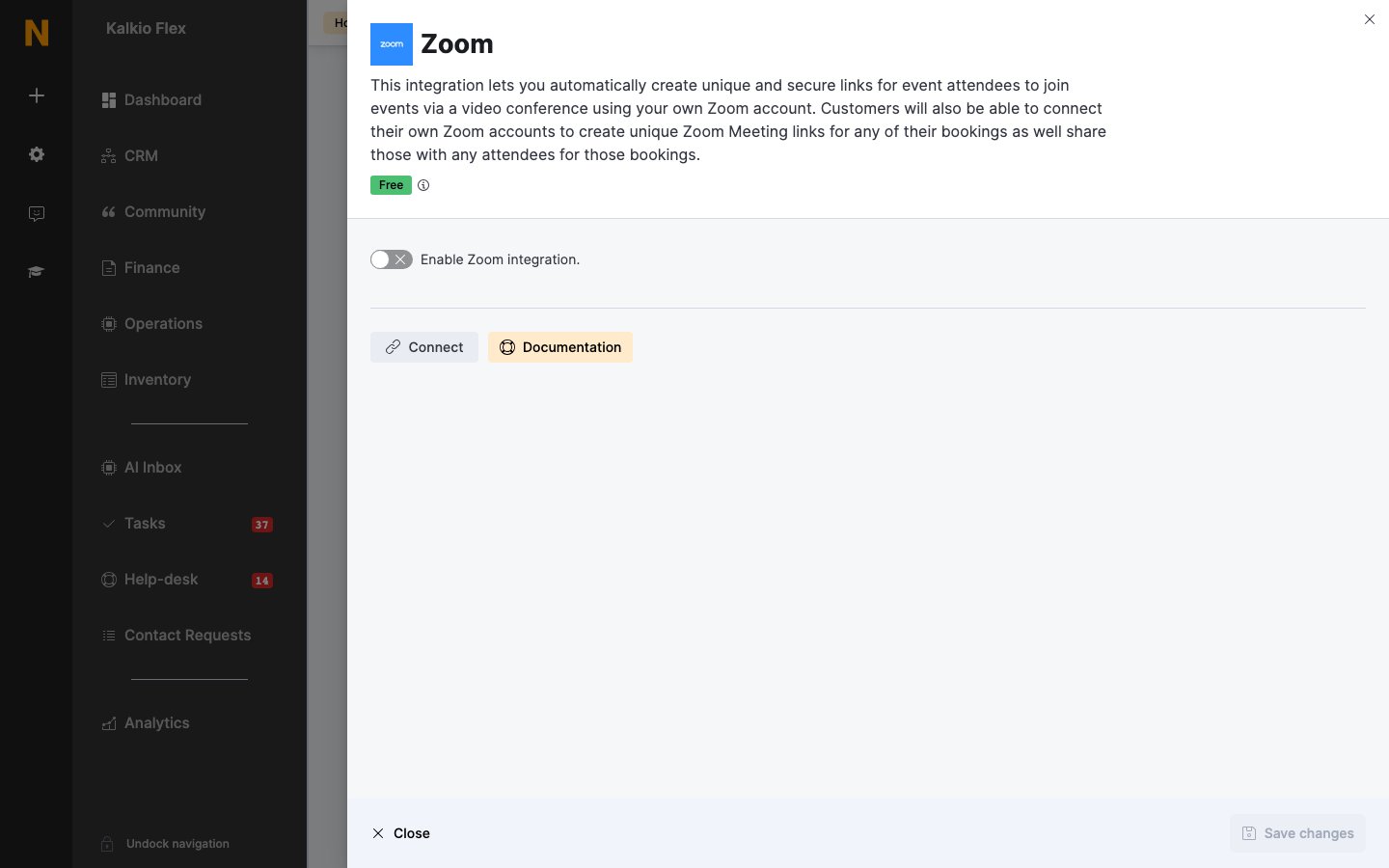
1. Go to **Settings → Integrations → Zoom** and turn on **Enable Zoom integration.**
2. Select **Connect**, sign in to Zoom, and select **Authorize**.
3. Save.
 ## Zoom links for resources
Each resource needs its **own licensed Zoom user** with a unique email address — four rooms need four users — so rooms booked at the same time don't share a meeting.
1. In Zoom, create a user for each resource and assign it a licence.
2. In Nexudus, open the resource from **Inventory → Resources** and go to its **Integrations** tab.
3. Turn on **Include a Zoom Meeting link in all bookings made for this resource.** and select **Connect this resource to Zoom**.
4. Sign in as that resource's Zoom user and select **Allow**.
Sign out of Zoom in your browser before connecting the next resource, or you may connect several resources to the same Zoom user.
To stop giving a resource Zoom links, turn off **Include a Zoom Meeting link in all bookings made for this resource.** or select **Disconnect this resource from Zoom**.
## Zoom links for events
On an event's details, turn on **Send a Zoom Meeting link to all attendees of this event.** If the event's location isn't connected yet, select **Connect this location to Zoom**. See [Events](/platform/content/events#zoom).
## Related
* [Video conferencing](/integrations/video) — all video integrations
* [Features and add-ons](/platform/billing/resources/features-and-add-ons#integrations) — a resource's Integrations tab
This documentation is built and hosted on [Mintlify](https://mintlify.com), a developer documentation platform.
## Zoom links for resources
Each resource needs its **own licensed Zoom user** with a unique email address — four rooms need four users — so rooms booked at the same time don't share a meeting.
1. In Zoom, create a user for each resource and assign it a licence.
2. In Nexudus, open the resource from **Inventory → Resources** and go to its **Integrations** tab.
3. Turn on **Include a Zoom Meeting link in all bookings made for this resource.** and select **Connect this resource to Zoom**.
4. Sign in as that resource's Zoom user and select **Allow**.
Sign out of Zoom in your browser before connecting the next resource, or you may connect several resources to the same Zoom user.
To stop giving a resource Zoom links, turn off **Include a Zoom Meeting link in all bookings made for this resource.** or select **Disconnect this resource from Zoom**.
## Zoom links for events
On an event's details, turn on **Send a Zoom Meeting link to all attendees of this event.** If the event's location isn't connected yet, select **Connect this location to Zoom**. See [Events](/platform/content/events#zoom).
## Related
* [Video conferencing](/integrations/video) — all video integrations
* [Features and add-ons](/platform/billing/resources/features-and-add-ons#integrations) — a resource's Integrations tab
This documentation is built and hosted on [Mintlify](https://mintlify.com), a developer documentation platform.