> ## Documentation Index
> Fetch the complete documentation index at: https://learn.nexudus.com/llms.txt
> Use this file to discover all available pages before exploring further.
# Wi-Fi
> Control who can use your Wi-Fi with Nexudus, check customers in automatically when they connect, and choose the right Wi-Fi integration for your hardware.
## Overview
Connecting your Wi-Fi to Nexudus lets you decide who can get online based on their [passes](/platform/billing/time-passes), and check customers in and out automatically as they join and leave your network. Customers sign in to your Wi-Fi with their Nexudus details, and visitors can use temporary [Wi-Fi access codes](/platform/operations/access-tokens).
Nexudus works with your network through one of four integrations, under **Settings → Integrations → Networking**. Which one you use depends on your Wi-Fi hardware.
| Integration | Use it if | Cost |
| - | - | - |
| [**RADIUS**](/integrations/wifi/radius) | You have business Wi-Fi from a vendor such as Cisco Meraki, Ubiquiti, Aruba, Ruckus or Fortinet. Runs through IronWiFi. | Monthly licence per location |
| [**MikroTik**](/integrations/wifi/mikrotik) | You use a MikroTik router as a hotspot with a captive portal. | Free |
| [**Layer8**](/integrations/wifi/layer8) | Layer8 manages your building's network and IT. | Free in Nexudus |
| [**Nexudus Connect**](/integrations/wifi/nexudus-connect) | Your building uses Nexudus Connect network equipment. | Free in Nexudus |
## Who can connect
Whichever integration you use, a customer can get online when:
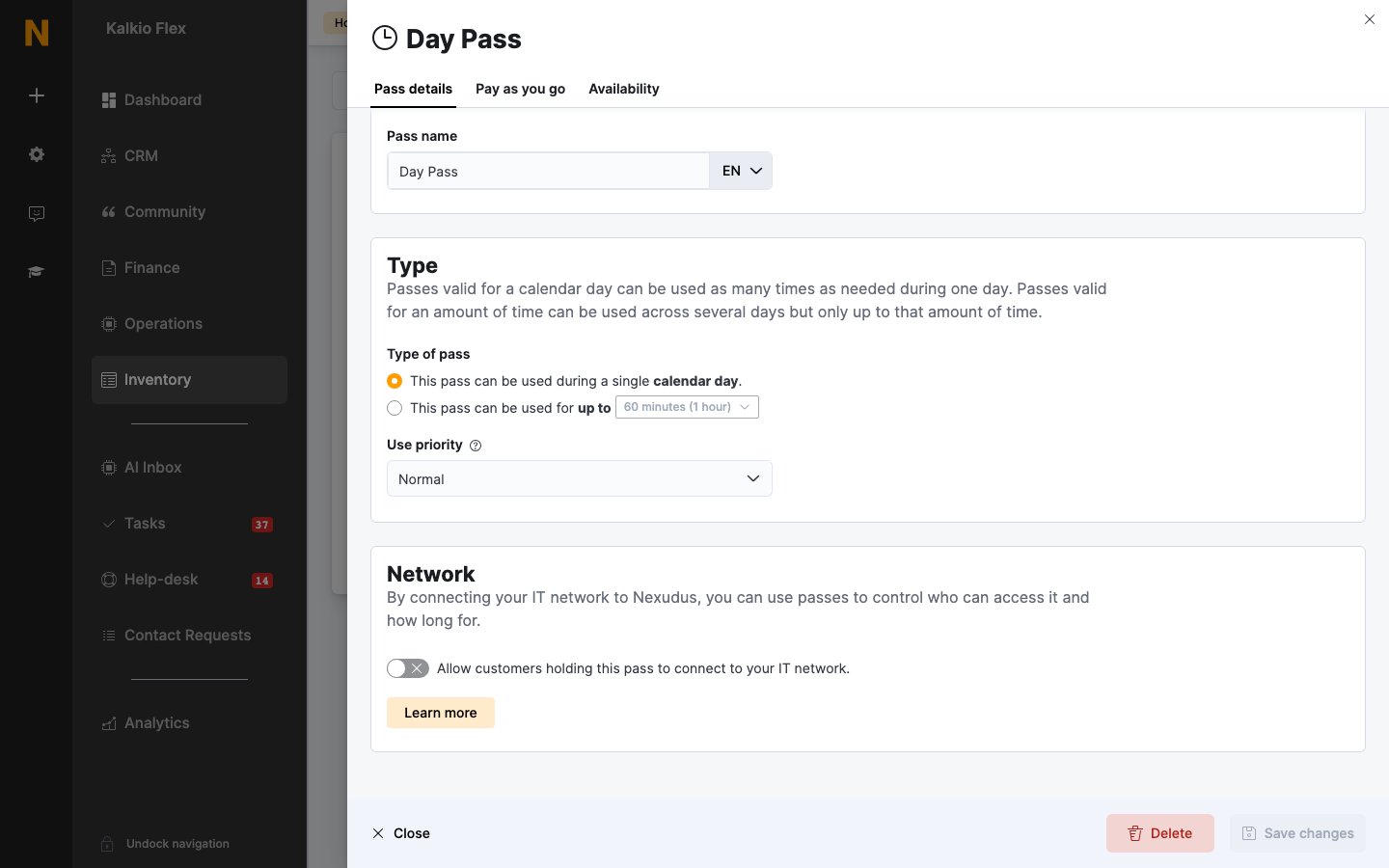
1. **They hold a valid pass that includes network access.** On each [pass](/platform/billing/time-passes) that should include Wi-Fi, turn on **Allow customers holding this pass to connect to your IT network.** under **Network**.
2. **Their own network access is on.** On the customer's **Access rights** tab, **This customer can connect to your IT network.** must be on. Turn it off to block one customer without changing their passes.
 When their pass expires or runs out, they lose access with it. Visitors don't need a pass — give them a [Wi-Fi access code](/platform/operations/access-tokens) instead.
Changing a pass's network setting doesn't update customers' access straight away. Their access changes when their passes renew or change, or when you run **Update access control** on the customer.
## Checking in through Wi-Fi
When a customer connects, Nexudus checks them in using one of their valid passes, and checks them out when they disconnect. This keeps your check-ins, occupancy reports, and the list of who's in accurate without anyone having to tap in.
Wi-Fi check-ins follow the same rules as any other check-in: customers need a valid pass, and pay-as-you-go applies if you use it. See [Check-ins](/platform/operations/check-ins) and [Check-in methods](/platform/access-control/check-in-methods).
To let customers check in automatically when one of their registered devices connects, and limit how many devices each customer can register, see [Network check-in settings](/platform/operations/check-ins#network-check-in).
## Troubleshooting
If a customer can't get online:
* **Check their passes.** Most problems are an expired or used pass, or a pass without network access turned on.
* **Check their network access.** Make sure **This customer can connect to your IT network.** is on.
* **Update their access.** If you've just changed a pass or their account, run **Update access control** on the customer.
* **Check the location.** Customers can only use passes that are valid at the location they're connecting from. See [Availability and check-in rules](/platform/billing/time-passes/availability).
## Related
* [Passes](/platform/billing/time-passes) — the passes that grant network access
* [Wi-Fi access codes](/platform/operations/access-tokens) — temporary Wi-Fi access for visitors
* [Check-ins](/platform/operations/check-ins) — check-in settings and failed check-ins
* [Access control](/platform/access-control/overview) — door access with Nexudus
This documentation is built and hosted on [Mintlify](https://mintlify.com), a developer documentation platform.
When their pass expires or runs out, they lose access with it. Visitors don't need a pass — give them a [Wi-Fi access code](/platform/operations/access-tokens) instead.
Changing a pass's network setting doesn't update customers' access straight away. Their access changes when their passes renew or change, or when you run **Update access control** on the customer.
## Checking in through Wi-Fi
When a customer connects, Nexudus checks them in using one of their valid passes, and checks them out when they disconnect. This keeps your check-ins, occupancy reports, and the list of who's in accurate without anyone having to tap in.
Wi-Fi check-ins follow the same rules as any other check-in: customers need a valid pass, and pay-as-you-go applies if you use it. See [Check-ins](/platform/operations/check-ins) and [Check-in methods](/platform/access-control/check-in-methods).
To let customers check in automatically when one of their registered devices connects, and limit how many devices each customer can register, see [Network check-in settings](/platform/operations/check-ins#network-check-in).
## Troubleshooting
If a customer can't get online:
* **Check their passes.** Most problems are an expired or used pass, or a pass without network access turned on.
* **Check their network access.** Make sure **This customer can connect to your IT network.** is on.
* **Update their access.** If you've just changed a pass or their account, run **Update access control** on the customer.
* **Check the location.** Customers can only use passes that are valid at the location they're connecting from. See [Availability and check-in rules](/platform/billing/time-passes/availability).
## Related
* [Passes](/platform/billing/time-passes) — the passes that grant network access
* [Wi-Fi access codes](/platform/operations/access-tokens) — temporary Wi-Fi access for visitors
* [Check-ins](/platform/operations/check-ins) — check-in settings and failed check-ins
* [Access control](/platform/access-control/overview) — door access with Nexudus
This documentation is built and hosted on [Mintlify](https://mintlify.com), a developer documentation platform.