> ## Documentation Index
> Fetch the complete documentation index at: https://learn.nexudus.com/llms.txt
> Use this file to discover all available pages before exploring further.
# Connect from Claude.ai
> How to connect the Nexudus MCP server to Claude.ai using the Connectors directory.
# Connect from Claude.ai
Claude.ai connects to MCP servers through its **Connectors** feature. The Nexudus MCP server appears as a custom connector you add once and reuse across chats.
## Prerequisites
* A **Claude.ai** account on a plan that supports custom connectors (Pro, Team, or Enterprise at the time of writing).
* A **Nexudus** account with API access.
* A web browser.
The Connectors feature is available on Claude.ai's paid plans. Free accounts cannot add custom MCP connectors. Check your plan on the Claude.ai
billing page if you are unsure.
## Add the Nexudus connector
Sign in to [claude.ai](https://claude.ai), open the menu, and choose **Settings**.
In the settings sidebar, open **Connectors** (sometimes labelled **Integrations**).
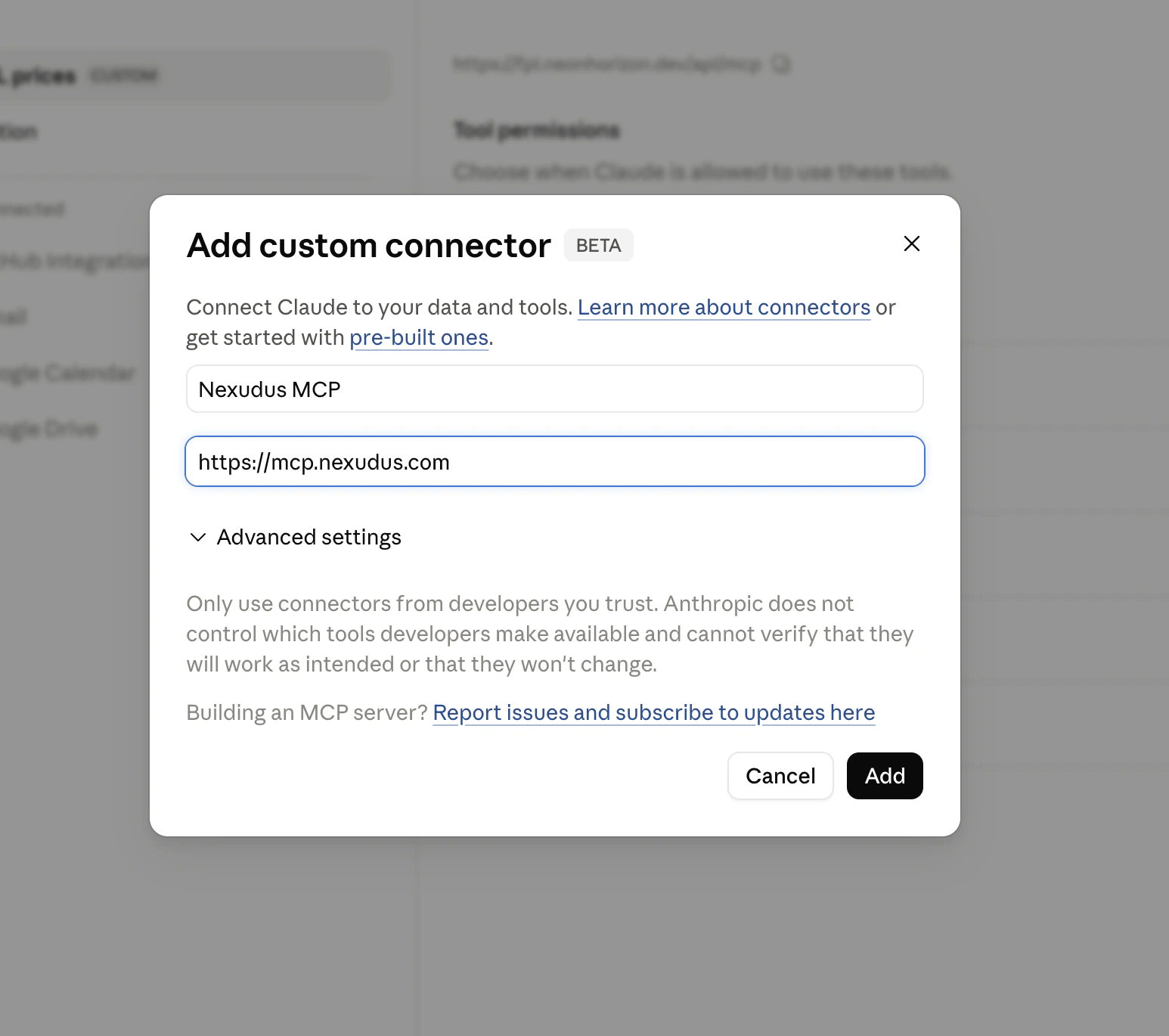
Click **Add custom connector**. A dialog appears asking for a name and a remote MCP server URL.
* **Name:** `Nexudus`
* **Remote MCP server URL:** `https://mcp.nexudus.com`
Save the connector.
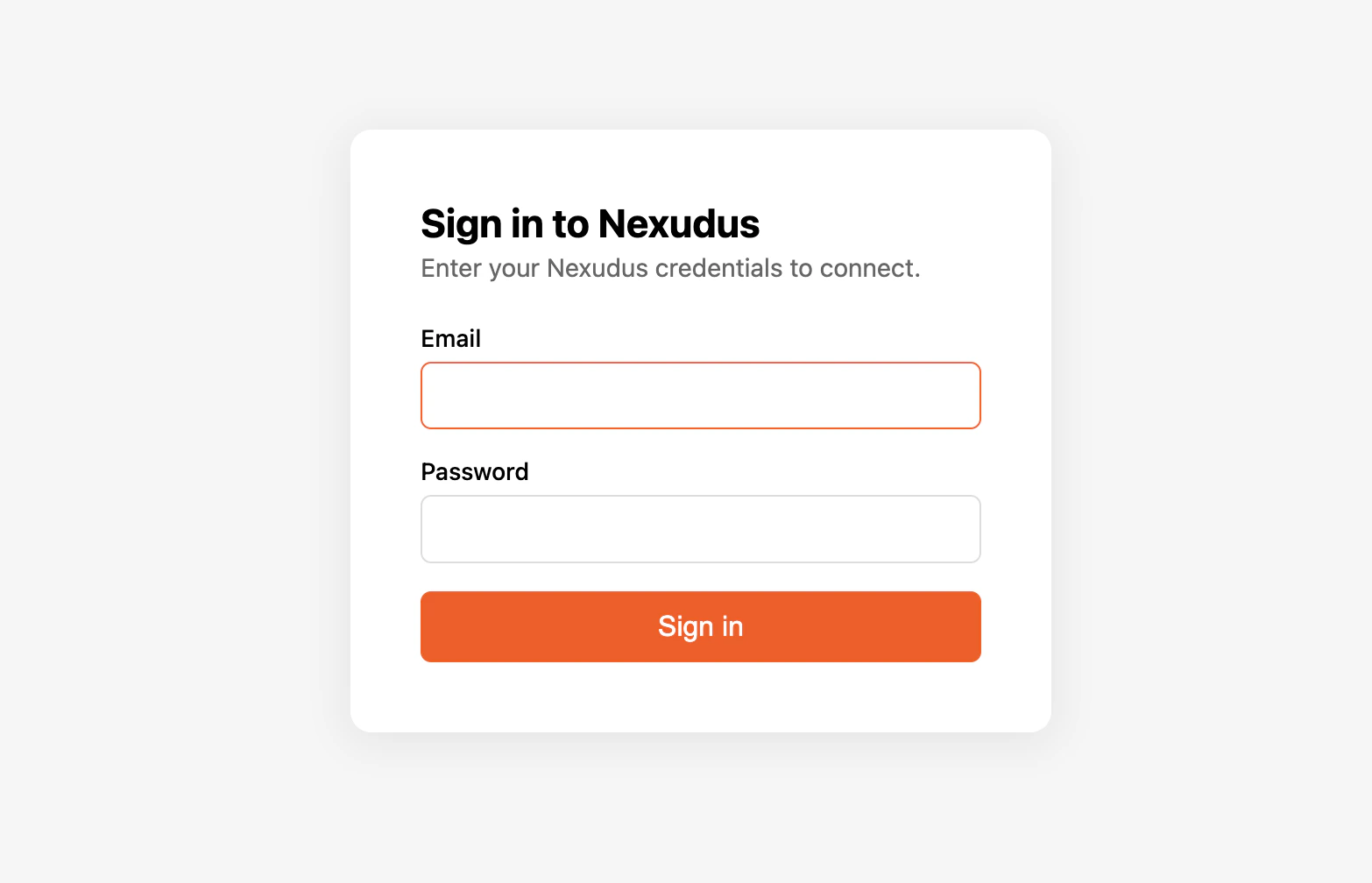
 Claude.ai opens a browser window to the Nexudus login page. Enter your Nexudus email and password and approve the connection. You are
redirected back to Claude.ai, and the connector is marked **Connected**.
Claude.ai opens a browser window to the Nexudus login page. Enter your Nexudus email and password and approve the connection. You are
redirected back to Claude.ai, and the connector is marked **Connected**.
 ## Verify it works
Start a new chat and ask:
> *"List my Nexudus locations."*
Claude should call the Nexudus connector and return your locations. If it does not, see [Troubleshooting](/mcp/troubleshooting).
## Using the connector in chats
Once connected, the Nexudus tools are available in any chat. You don't need to enable the connector each time. Some prompts to try:
* *"Show me all upcoming bookings for my main location this week."*
* *"How many visitors are expected today?"*
* *"List all members whose contracts expire next month."*
* *"Create a new product called 'Day Pass' priced at £25 at my main location."*
Claude.ai can create, update, and delete real data through the connector. Always read the proposed action before confirming, especially for
destructive operations. There is no undo button.
## Disconnect or re-authenticate
To disconnect, return to **Settings → Connectors** and click **Disconnect** next to the Nexudus connector. To re-authenticate after the 8-hour session
expires, open the connector and choose **Reconnect** — Claude.ai walks you back through the login.
## Common issues
| Issue | Solution |
| -------------------------------------------------- | ----------------------------------------------------------------------------------------------- |
| Claude says it cannot reach the Nexudus connector | Open Settings → Connectors and click **Reconnect**. The session may have expired (8 hours). |
| Claude lists no Nexudus tools | The connector finished registering but failed to load tools — disconnect and reconnect. |
| Login redirects to a Nexudus error page | Your Nexudus credentials may have changed. Try logging in directly at spaces.nexudus.com first. |
| Claude proposes the wrong field name when updating | Ask Claude to describe the entity first — *"Describe the 'products' entity before updating."* |
For more, see [Troubleshooting](/mcp/troubleshooting).
## Next steps
What the AI assistant can do for you.
Why sessions expire after 8 hours.
## Verify it works
Start a new chat and ask:
> *"List my Nexudus locations."*
Claude should call the Nexudus connector and return your locations. If it does not, see [Troubleshooting](/mcp/troubleshooting).
## Using the connector in chats
Once connected, the Nexudus tools are available in any chat. You don't need to enable the connector each time. Some prompts to try:
* *"Show me all upcoming bookings for my main location this week."*
* *"How many visitors are expected today?"*
* *"List all members whose contracts expire next month."*
* *"Create a new product called 'Day Pass' priced at £25 at my main location."*
Claude.ai can create, update, and delete real data through the connector. Always read the proposed action before confirming, especially for
destructive operations. There is no undo button.
## Disconnect or re-authenticate
To disconnect, return to **Settings → Connectors** and click **Disconnect** next to the Nexudus connector. To re-authenticate after the 8-hour session
expires, open the connector and choose **Reconnect** — Claude.ai walks you back through the login.
## Common issues
| Issue | Solution |
| -------------------------------------------------- | ----------------------------------------------------------------------------------------------- |
| Claude says it cannot reach the Nexudus connector | Open Settings → Connectors and click **Reconnect**. The session may have expired (8 hours). |
| Claude lists no Nexudus tools | The connector finished registering but failed to load tools — disconnect and reconnect. |
| Login redirects to a Nexudus error page | Your Nexudus credentials may have changed. Try logging in directly at spaces.nexudus.com first. |
| Claude proposes the wrong field name when updating | Ask Claude to describe the entity first — *"Describe the 'products' entity before updating."* |
For more, see [Troubleshooting](/mcp/troubleshooting).
## Next steps
What the AI assistant can do for you.
Why sessions expire after 8 hours.