> ## Documentation Index
> Fetch the complete documentation index at: https://learn.nexudus.com/llms.txt
> Use this file to discover all available pages before exploring further.
# Connect from Claude Desktop
> How to connect the Nexudus MCP server to Claude Desktop using a custom MCP connector.
# Connect from Claude Desktop
Claude Desktop is Anthropic's desktop application for Mac and Windows. It supports remote MCP servers through its custom connector settings.
## Prerequisites
* **Claude Desktop** installed on your machine — download from [claude.ai/download](https://claude.ai/download).
* A **Claude.ai** account signed in to the desktop app.
* A **Nexudus** account with API access.
## Add the Nexudus connector
Open Claude Desktop. From the menu bar (macOS) or the in-app menu (Windows), choose **Settings**.
In the settings sidebar, open **Connectors**.
Click **Add custom connector**.
* **Name:** `Nexudus`
* **Remote MCP server URL:** `https://mcp.nexudus.com`
Save.
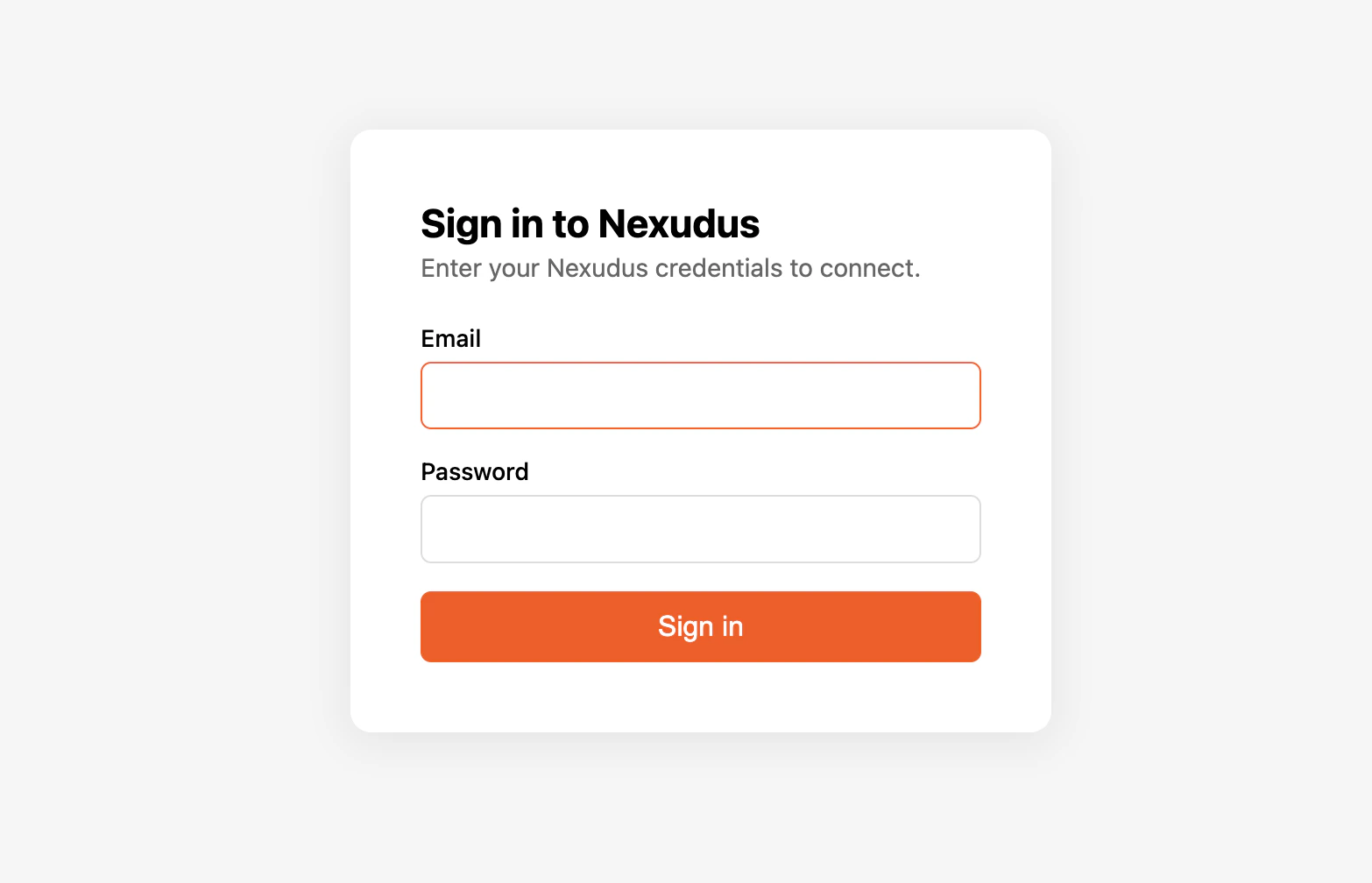
Claude Desktop opens your default browser to the Nexudus login page. Enter your Nexudus email and password and approve the connection. The
browser redirects back to Claude Desktop, and the connector is marked **Connected**.
 ## Verify it works
Start a new chat in Claude Desktop and ask:
> *"List my Nexudus locations."*
Claude Desktop should call the Nexudus connector and return your locations. If it does not, restart the app and retry — connectors are loaded at app startup.
## Things to try
* *"How many bookings do I have this week across all locations?"*
* *"Create a tentative booking for member John Doe in Meeting Room A from 2 to 3pm today."*
* *"Archive product 12345678."*
* *"List the visitors expected at my London location tomorrow."*
Claude Desktop can create, update, and delete real data through the connector. Always read the proposed action before confirming.
## Resource support
Claude Desktop currently consumes MCP **tools** but not MCP **resources**. This means the Nexudus server's per-entity documentation is fetched
through the `nexudus_get_skill_guide` and `nexudus_get_entity_guide` tools rather than directly. You will see those tool calls in the response trace — this
is normal.
## Disconnect or re-authenticate
To disconnect, open **Settings → Connectors** and remove the Nexudus connector. To re-authenticate after the 8-hour session expires, reopen the
connector and choose **Reconnect**.
## Common issues
| Issue | Solution |
| -------------------------------------------------- | ----------------------------------------------------------------------- |
| Connector appears but no tools are listed | Restart Claude Desktop — tools are loaded at app startup. |
| OAuth browser window does not open | Check that your default browser is set, then retry from settings. |
| "Authentication required" errors mid-chat | Your 8-hour session expired. Reconnect from settings. |
| Tools work but field names are guessed incorrectly | Ask Claude to describe the entity first with `nexudus_describe_entity`. |
For more, see [Troubleshooting](/mcp/troubleshooting).
## Next steps
What the AI assistant can do for you.
Why sessions expire after 8 hours.
## Verify it works
Start a new chat in Claude Desktop and ask:
> *"List my Nexudus locations."*
Claude Desktop should call the Nexudus connector and return your locations. If it does not, restart the app and retry — connectors are loaded at app startup.
## Things to try
* *"How many bookings do I have this week across all locations?"*
* *"Create a tentative booking for member John Doe in Meeting Room A from 2 to 3pm today."*
* *"Archive product 12345678."*
* *"List the visitors expected at my London location tomorrow."*
Claude Desktop can create, update, and delete real data through the connector. Always read the proposed action before confirming.
## Resource support
Claude Desktop currently consumes MCP **tools** but not MCP **resources**. This means the Nexudus server's per-entity documentation is fetched
through the `nexudus_get_skill_guide` and `nexudus_get_entity_guide` tools rather than directly. You will see those tool calls in the response trace — this
is normal.
## Disconnect or re-authenticate
To disconnect, open **Settings → Connectors** and remove the Nexudus connector. To re-authenticate after the 8-hour session expires, reopen the
connector and choose **Reconnect**.
## Common issues
| Issue | Solution |
| -------------------------------------------------- | ----------------------------------------------------------------------- |
| Connector appears but no tools are listed | Restart Claude Desktop — tools are loaded at app startup. |
| OAuth browser window does not open | Check that your default browser is set, then retry from settings. |
| "Authentication required" errors mid-chat | Your 8-hour session expired. Reconnect from settings. |
| Tools work but field names are guessed incorrectly | Ask Claude to describe the entity first with `nexudus_describe_entity`. |
For more, see [Troubleshooting](/mcp/troubleshooting).
## Next steps
What the AI assistant can do for you.
Why sessions expire after 8 hours.