> ## Documentation Index
> Fetch the complete documentation index at: https://learn.nexudus.com/llms.txt
> Use this file to discover all available pages before exploring further.
# Connect from VS Code (GitHub Copilot)
> How to connect the Nexudus MCP server to GitHub Copilot in VS Code.
# Connect from VS Code (GitHub Copilot)
GitHub Copilot in VS Code supports MCP servers through the **MCP** settings in the Copilot extension. Once added, Copilot's chat panel can call Nexudus tools alongside its other capabilities.
## Prerequisites
* **VS Code** with the **GitHub Copilot** extension installed and signed in.
* A **GitHub Copilot** subscription that supports MCP servers (Business or Enterprise at the time of writing — check your plan in VS Code).
* A **Nexudus** account with API access.
## Add the Nexudus server
VS Code stores MCP server entries in a JSON config file. The easiest way to add Nexudus is via the command palette.
From the VS Code activity bar, open **Agent Customizations** (or run **MCP: Add Server** from the command palette with **Cmd/Ctrl + Shift + P**).
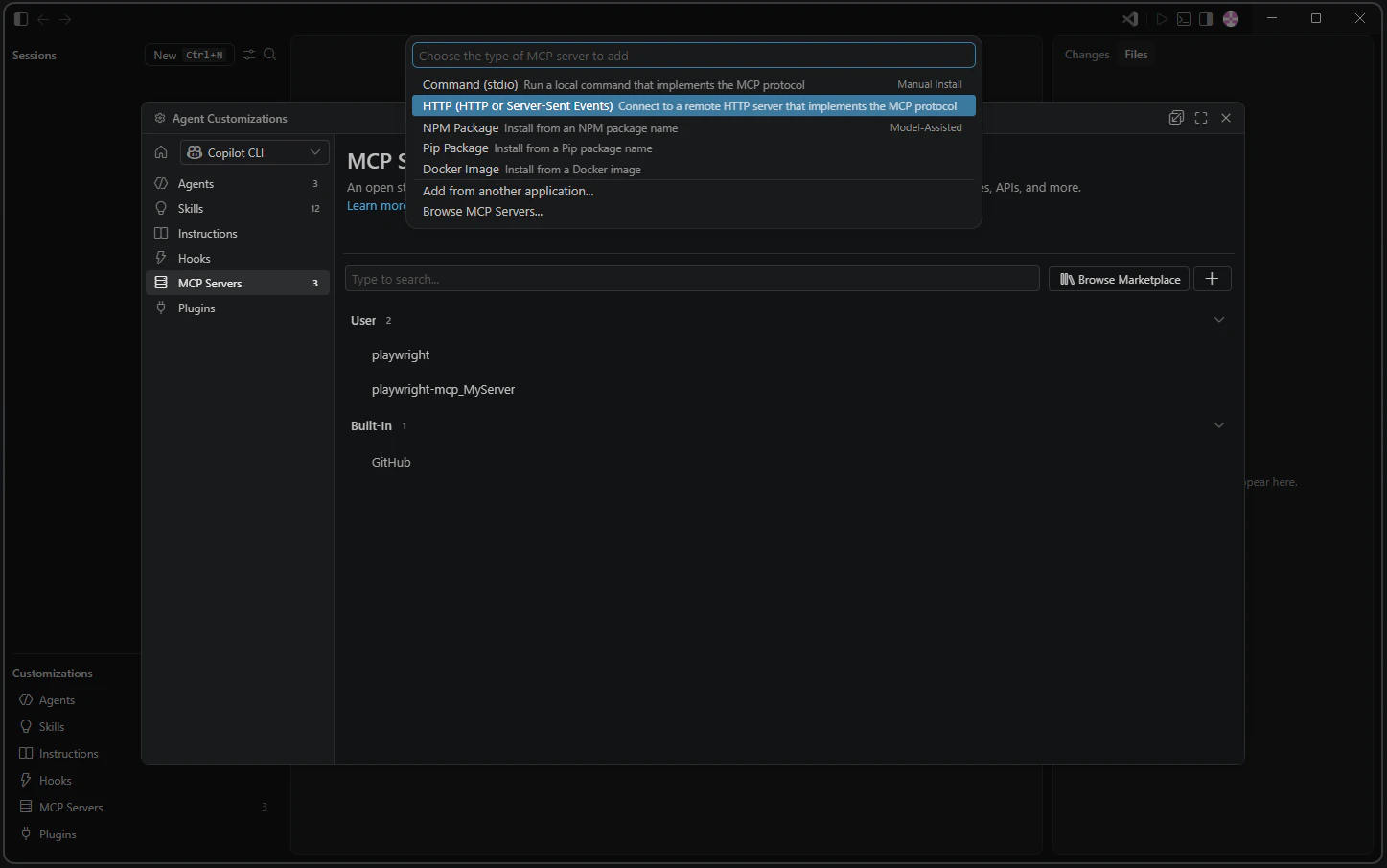
In the **MCP Servers** section, click the **+** button to add a new server.
From the list, select **HTTP (HTTP or Server-Sent Events)** — *"Connect to a remote HTTP server that implements the MCP protocol"*.
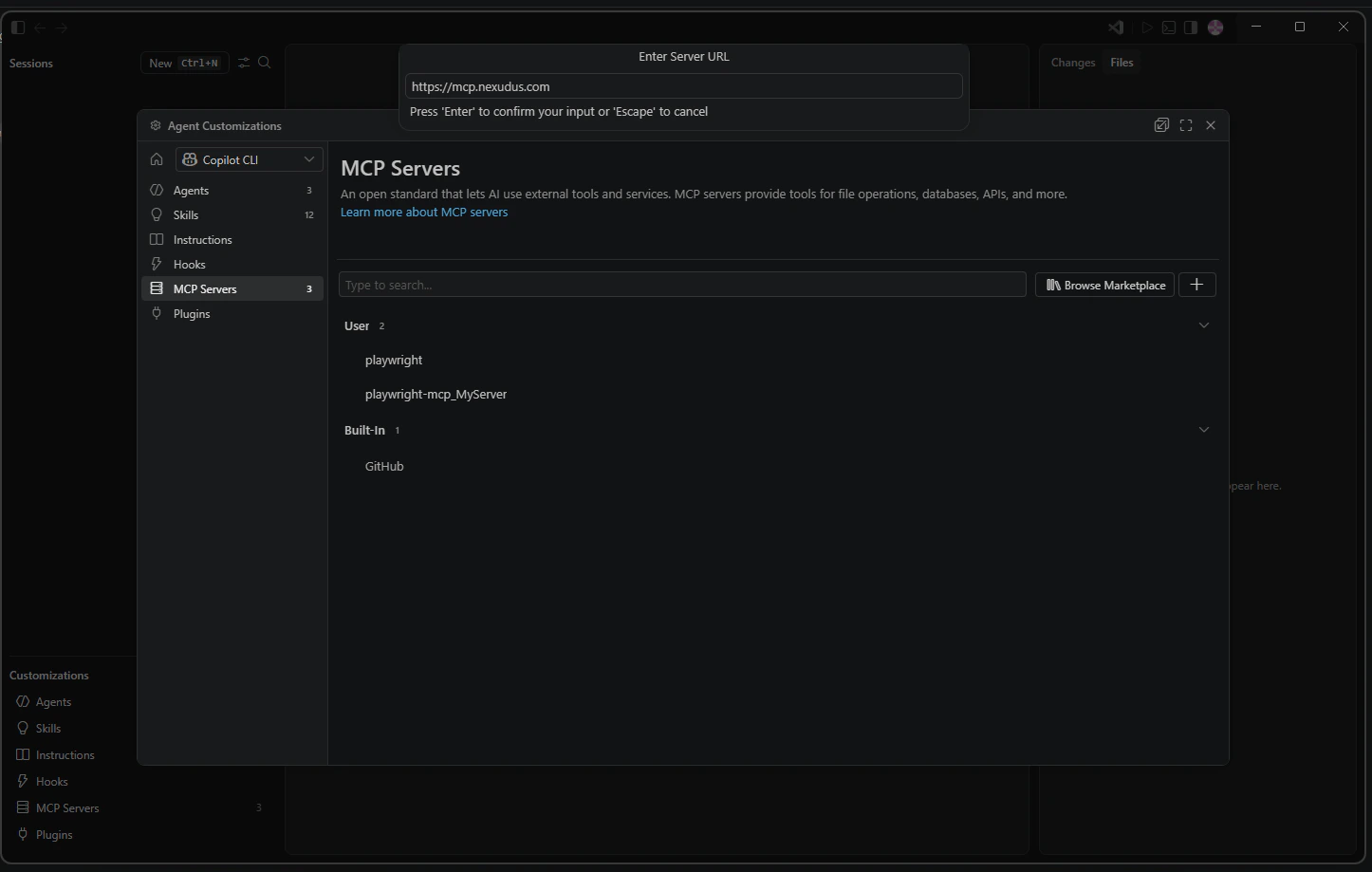
 Paste `https://mcp.nexudus.com` into the **Enter Server URL** field and press **Enter**.
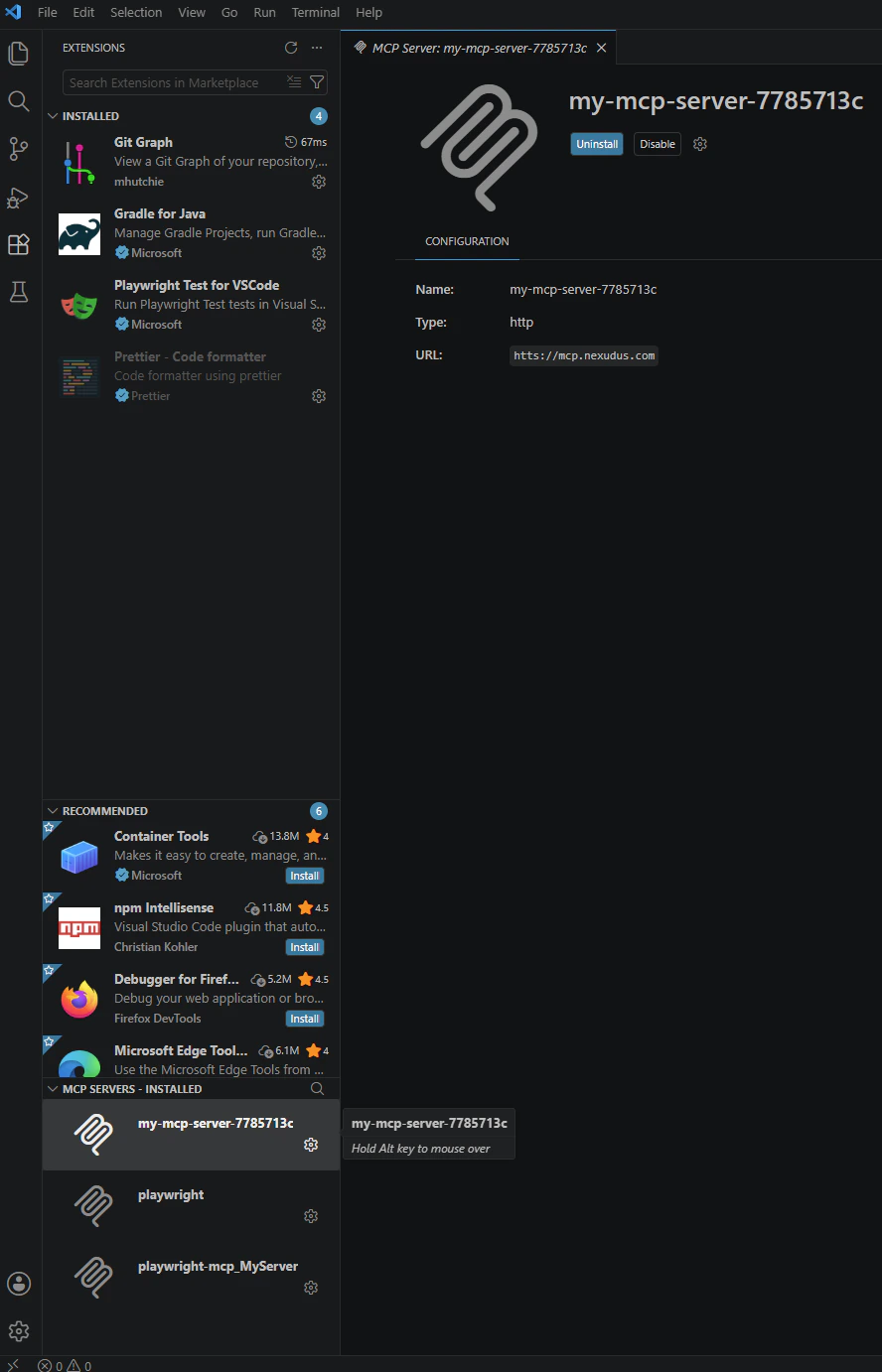
 When prompted, give the server a name (for example, `nexudus`). The server appears in the MCP Servers list once registered.
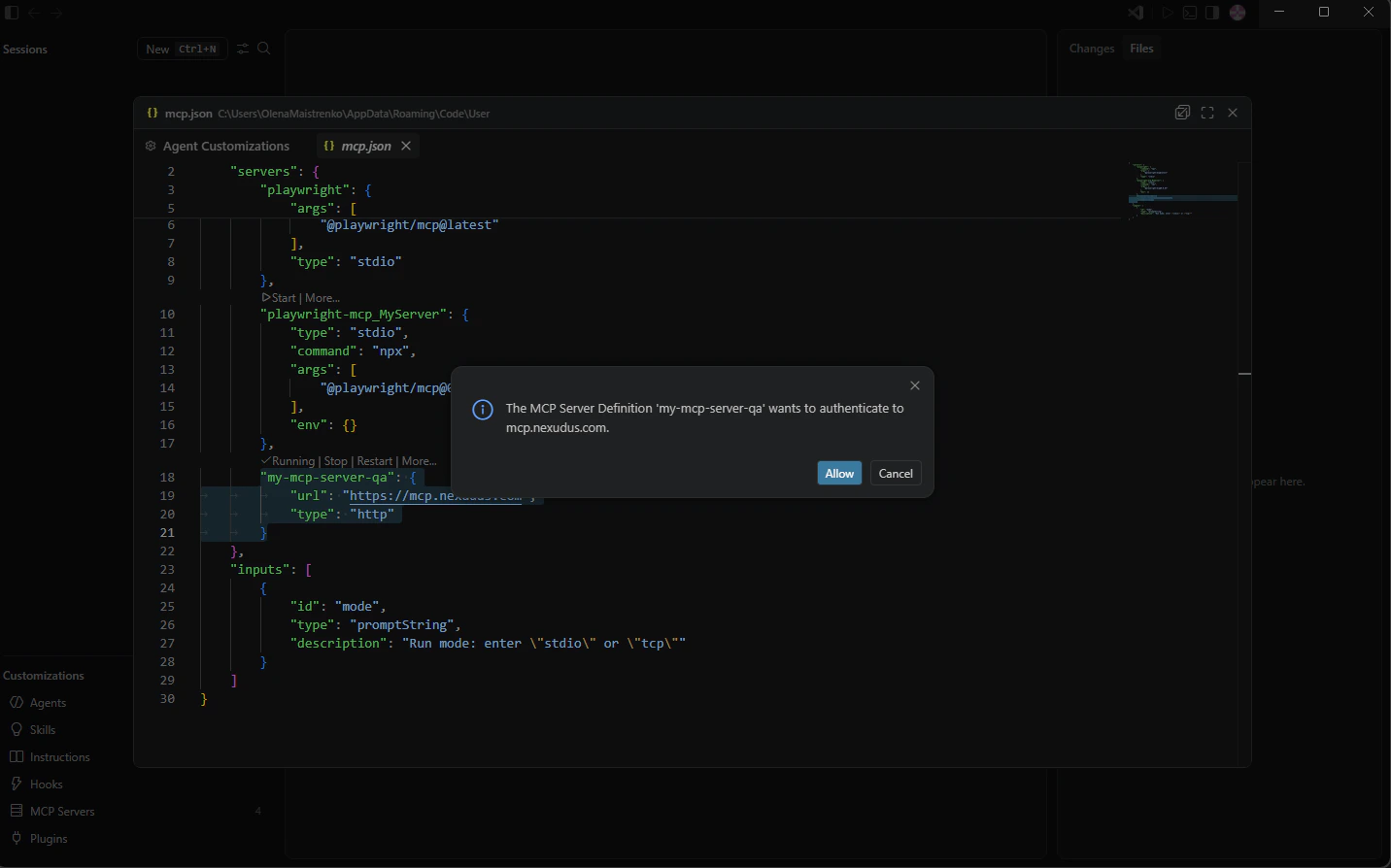
 VS Code prompts you to allow the server to authenticate. Click **Allow**.
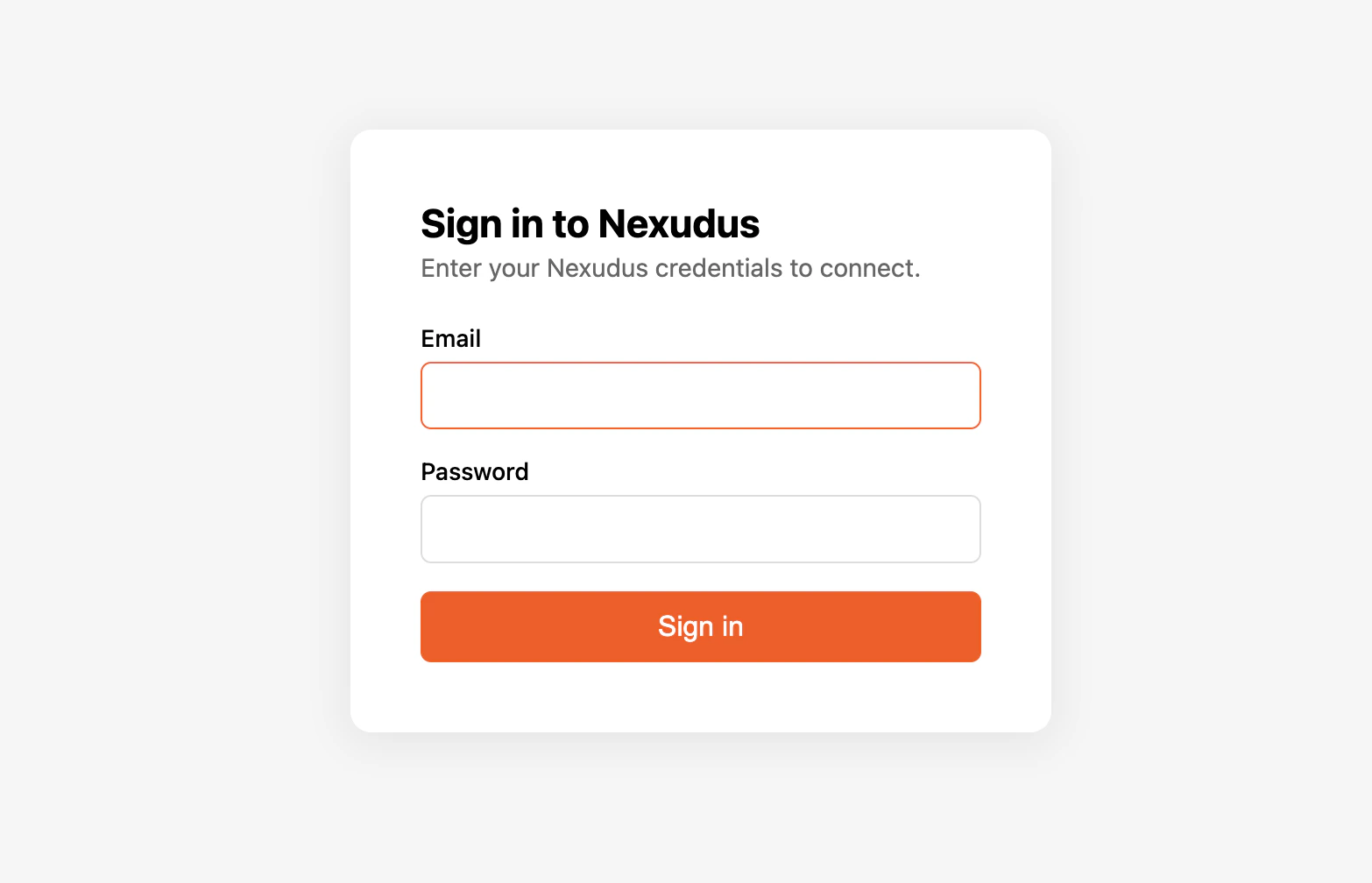
 VS Code opens your default browser to the Nexudus login page. Enter your Nexudus email and password and approve the connection. The
browser redirects back to VS Code and the server appears as **Connected**.
VS Code opens your default browser to the Nexudus login page. Enter your Nexudus email and password and approve the connection. The
browser redirects back to VS Code and the server appears as **Connected**.
 ## Add manually via settings
If you prefer to edit the config directly, open the command palette and run **MCP: Open User Configuration**. Add an entry:
```json theme={null}
{
"servers": {
"nexudus": {
"type": "http",
"url": "https://mcp.nexudus.com"
}
}
}
```
Save the file. Then run **MCP: Reload Servers** from the command palette and sign in through the browser when prompted.
## Verify it works
Open the Copilot chat panel and ask:
> *"List my Nexudus locations."*
Copilot should call the Nexudus server. The chat panel shows the tool call and the response inline.
## Things to try
* *"Generate a CSV of all bookings for last week, one row per booking."*
* *"List the meeting rooms at my main location and their hourly rates."*
* *"Create a new event called 'Community Coffee' next Friday at 10am."*
Copilot can create, update, and delete real data through the connector. Read the tool call before approving it, especially for deletions and bulk
updates.
## Disconnect or re-authenticate
Open the command palette and run **MCP: Manage Servers** to remove or reconnect Nexudus. After the 8-hour session expires, Copilot's tool calls
return an auth error — reconnect from the same menu.
## Common issues
| Issue | Solution |
| ---------------------------------------------- | ------------------------------------------------------------------------------ |
| **MCP: Add Server** command is missing | Update the GitHub Copilot extension to the latest version. |
| Nexudus server shows but no tools appear | Run **MCP: Reload Servers** from the command palette. |
| Browser does not open during sign-in | Check VS Code's output panel for the MCP server log and open the URL manually. |
| Tool calls fail with "Authentication required" | Your 8-hour session has expired. Reconnect from **MCP: Manage Servers**. |
For more, see [Troubleshooting](/mcp/troubleshooting).
## Next steps
What the AI assistant can do for you.
Why sessions expire after 8 hours.
## Add manually via settings
If you prefer to edit the config directly, open the command palette and run **MCP: Open User Configuration**. Add an entry:
```json theme={null}
{
"servers": {
"nexudus": {
"type": "http",
"url": "https://mcp.nexudus.com"
}
}
}
```
Save the file. Then run **MCP: Reload Servers** from the command palette and sign in through the browser when prompted.
## Verify it works
Open the Copilot chat panel and ask:
> *"List my Nexudus locations."*
Copilot should call the Nexudus server. The chat panel shows the tool call and the response inline.
## Things to try
* *"Generate a CSV of all bookings for last week, one row per booking."*
* *"List the meeting rooms at my main location and their hourly rates."*
* *"Create a new event called 'Community Coffee' next Friday at 10am."*
Copilot can create, update, and delete real data through the connector. Read the tool call before approving it, especially for deletions and bulk
updates.
## Disconnect or re-authenticate
Open the command palette and run **MCP: Manage Servers** to remove or reconnect Nexudus. After the 8-hour session expires, Copilot's tool calls
return an auth error — reconnect from the same menu.
## Common issues
| Issue | Solution |
| ---------------------------------------------- | ------------------------------------------------------------------------------ |
| **MCP: Add Server** command is missing | Update the GitHub Copilot extension to the latest version. |
| Nexudus server shows but no tools appear | Run **MCP: Reload Servers** from the command palette. |
| Browser does not open during sign-in | Check VS Code's output panel for the MCP server log and open the URL manually. |
| Tool calls fail with "Authentication required" | Your 8-hour session has expired. Reconnect from **MCP: Manage Servers**. |
For more, see [Troubleshooting](/mcp/troubleshooting).
## Next steps
What the AI assistant can do for you.
Why sessions expire after 8 hours.