> ## Documentation Index
> Fetch the complete documentation index at: https://learn.nexudus.com/llms.txt
> Use this file to discover all available pages before exploring further.
# Sessions and Re-authentication
> How long an MCP session lasts and what to do when it expires.
# Sessions and Re-authentication
A connection to the Nexudus MCP server is called a **session**. Each session is tied to your Nexudus account and lasts for a limited time.
## How long a session lasts
| Setting | Value |
| -------------------- | ------------------------------------------------------ |
| **Session lifetime** | 8 hours from sign-in |
| **Refresh tokens** | Not used — re-authenticate fully when expired |
| **Idle timeout** | None — sessions expire on the clock, not on inactivity |
After 8 hours, the access token your MCP client is using becomes invalid. The next tool call returns an authentication error.
## What you see when a session expires
The first failed tool call surfaces in your AI assistant's response. The wording depends on the assistant, but you will see something like:
> *"I tried to fetch your bookings, but your Nexudus connection needs to be re-authenticated."*
or:
> *"The Nexudus tools aren't loading. Could you reconnect from your client's settings?"*
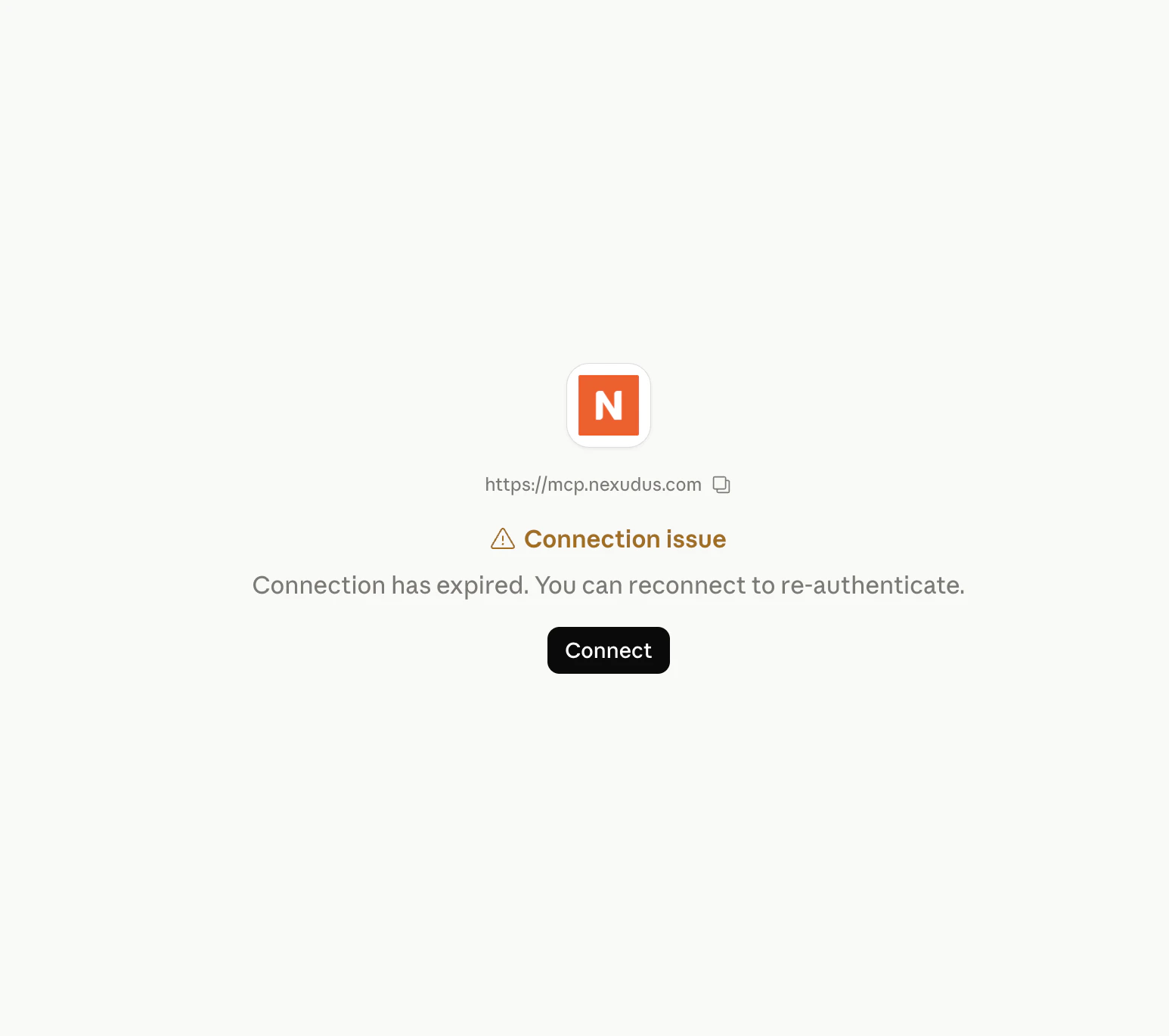
Both are signs that the 8-hour session has ended. Most clients also show a status banner next to the Nexudus connector in their settings — for example, Claude.ai displays a **Connection issue** notice with a **Connect** button that walks you back through the sign-in.
 ## How to re-authenticate
The steps depend on your MCP client, but they are always the same as the first sign-in:
| Client | How to reconnect |
| ---------------------------- | --------------------------------------------------------------------------- |
| **Claude.ai** | Settings → Connectors → Nexudus → **Reconnect**. |
| **ChatGPT** | Settings → Apps & Connectors → Advanced settings → Nexudus → **Reconnect**. |
| **Claude Desktop** | Settings → Connectors → Nexudus → **Reconnect**. |
| **Claude Code** | Run `/mcp` in the terminal, pick **nexudus**, choose to reauthenticate. |
| **VS Code (GitHub Copilot)** | Command palette → **MCP: Manage Servers** → **nexudus** → **Reconnect**. |
In every case, you sign in to Nexudus again in the browser and the session restarts for another 8 hours.
## Why sessions expire
Short-lived sessions are a security feature. If your token is ever leaked — for example, by another extension reading from the MCP client's storage — the maximum time it remains useful is 8 hours.
## Multiple clients, same account
You can connect more than one MCP client to the same Nexudus account at the same time. Each client gets its own session and token; they do not share state. Disconnecting one client does not affect the others.
## What is not preserved across sessions
The MCP server itself remembers nothing about you between sessions:
* **No chat history** — that lives in your MCP client.
* **No saved preferences** — every session starts with the same defaults.
* **No request log visible to you** — only anonymous telemetry is recorded by the server (see [Telemetry](/mcp/telemetry)).
Your Nexudus account remembers everything that was created or changed — those operations are real database writes on the Nexudus side, identical to actions taken in the admin panel.
## Next steps
What the server does with your login.
Common issues and how to fix them.
## How to re-authenticate
The steps depend on your MCP client, but they are always the same as the first sign-in:
| Client | How to reconnect |
| ---------------------------- | --------------------------------------------------------------------------- |
| **Claude.ai** | Settings → Connectors → Nexudus → **Reconnect**. |
| **ChatGPT** | Settings → Apps & Connectors → Advanced settings → Nexudus → **Reconnect**. |
| **Claude Desktop** | Settings → Connectors → Nexudus → **Reconnect**. |
| **Claude Code** | Run `/mcp` in the terminal, pick **nexudus**, choose to reauthenticate. |
| **VS Code (GitHub Copilot)** | Command palette → **MCP: Manage Servers** → **nexudus** → **Reconnect**. |
In every case, you sign in to Nexudus again in the browser and the session restarts for another 8 hours.
## Why sessions expire
Short-lived sessions are a security feature. If your token is ever leaked — for example, by another extension reading from the MCP client's storage — the maximum time it remains useful is 8 hours.
## Multiple clients, same account
You can connect more than one MCP client to the same Nexudus account at the same time. Each client gets its own session and token; they do not share state. Disconnecting one client does not affect the others.
## What is not preserved across sessions
The MCP server itself remembers nothing about you between sessions:
* **No chat history** — that lives in your MCP client.
* **No saved preferences** — every session starts with the same defaults.
* **No request log visible to you** — only anonymous telemetry is recorded by the server (see [Telemetry](/mcp/telemetry)).
Your Nexudus account remembers everything that was created or changed — those operations are real database writes on the Nexudus side, identical to actions taken in the admin panel.
## Next steps
What the server does with your login.
Common issues and how to fix them.