> ## Documentation Index
> Fetch the complete documentation index at: https://learn.nexudus.com/llms.txt
> Use this file to discover all available pages before exploring further.
# Monitoring Conversations
> How to view and analyse AI conversations and their outcomes in the Nexudus administration panel.
The Nexudus administration panel gives you a full view of every AI conversation — what was said, who said it, which channel it came from, and whether it led to a business outcome. Conversations from all channels (chat, email, WhatsApp, and voice) appear in the same place. There are two places to find this information: the **AI Conversations list** under Operations, and the **Visitor record** for tour enquiries.
## AI Conversations list
Go to **Operations > AI Conversations** to see all chat sessions.
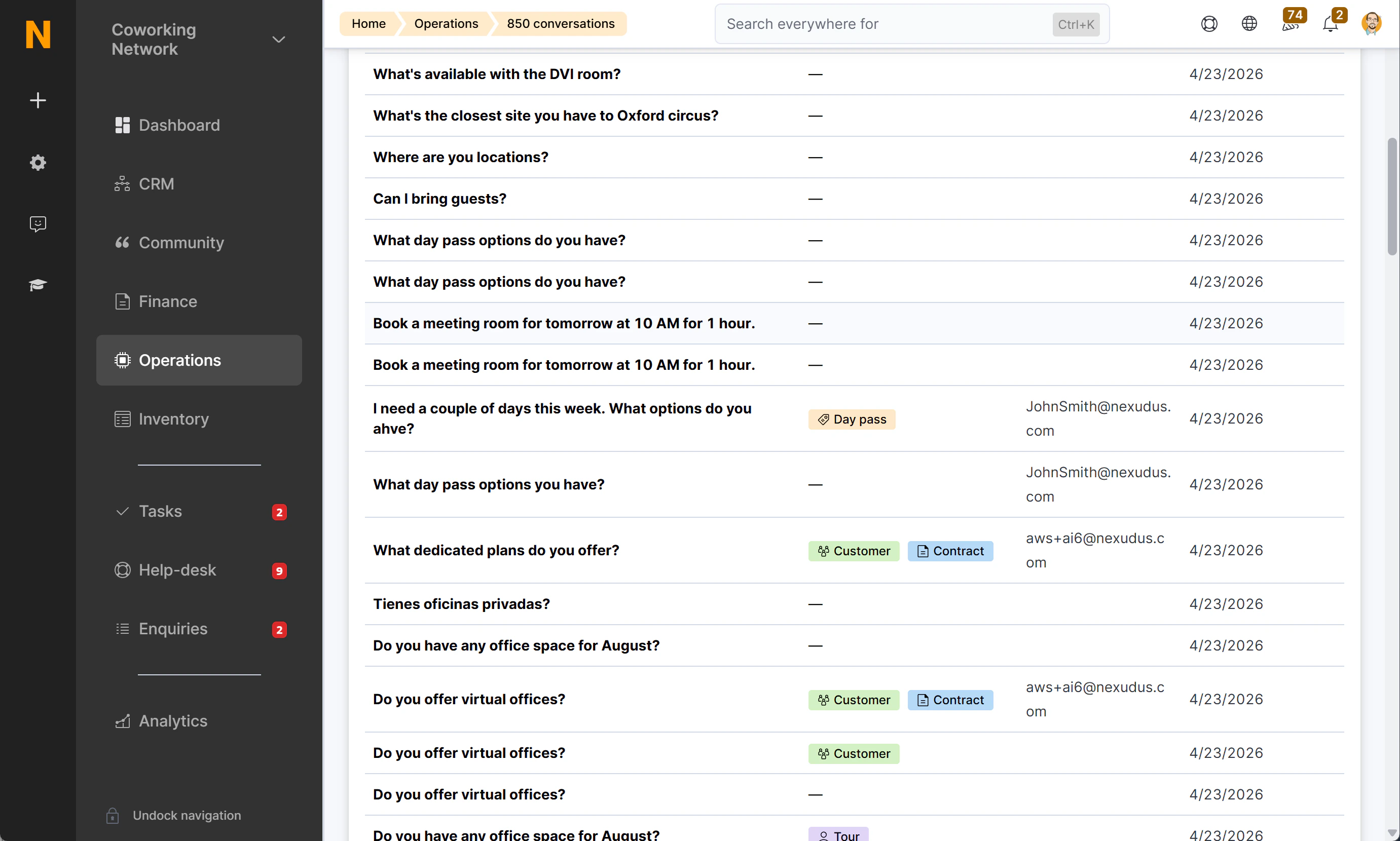 The list shows one row per conversation session (not per individual message). The columns are:
| Column | What it shows |
| -------------- | --------------------------------------------------------------------------- |
| **Message** | The opening message of the conversation, truncated to 120 characters |
| **Channel** | The channel the conversation took place on: Chat, Email, WhatsApp, or Voice |
| **Conversion** | Colour-coded badges showing what outcome the conversation produced (if any) |
| **User** | The identified user who had the conversation; blank for anonymous visitors |
| **Date** | When the conversation started, newest first |
The list defaults to the 250 most recent conversations. You can search by message content or filter by chat session ID.
## Viewing a full conversation
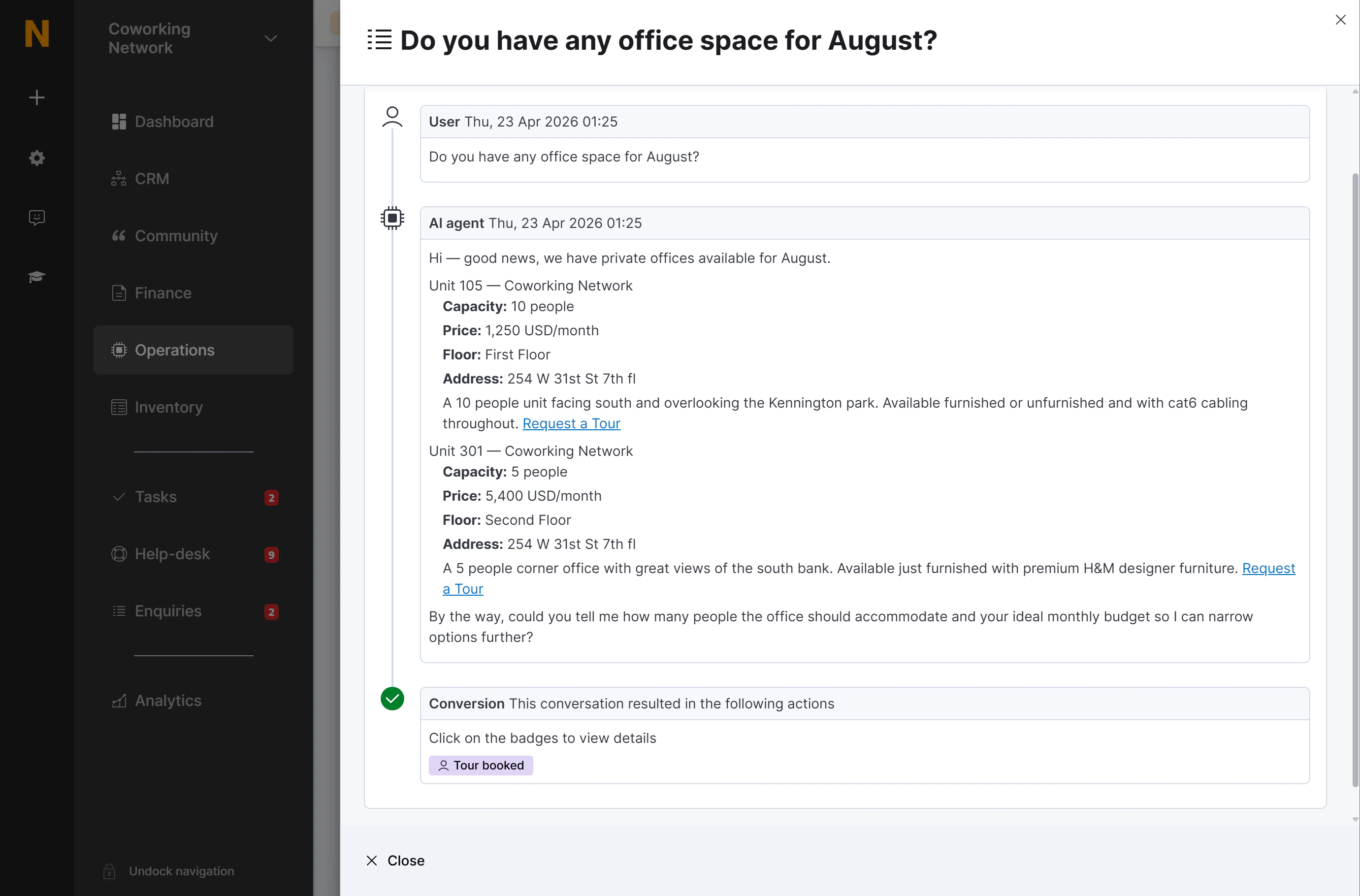
Click any row to open the conversation detail panel. This shows the complete message thread:
* **User messages** — person icon, labelled "Visitor"
* **AI responses** — computer icon, labelled "AI agent"
* Messages are rendered as formatted text (bold, links, headings as written by the AI)
* Internal tool calls are hidden — you see only the natural-language exchange, not the underlying data requests
The same conversion badges from the list view appear at the top of the detail panel, each as a clickable link to the relevant record in Nexudus.
The list shows one row per conversation session (not per individual message). The columns are:
| Column | What it shows |
| -------------- | --------------------------------------------------------------------------- |
| **Message** | The opening message of the conversation, truncated to 120 characters |
| **Channel** | The channel the conversation took place on: Chat, Email, WhatsApp, or Voice |
| **Conversion** | Colour-coded badges showing what outcome the conversation produced (if any) |
| **User** | The identified user who had the conversation; blank for anonymous visitors |
| **Date** | When the conversation started, newest first |
The list defaults to the 250 most recent conversations. You can search by message content or filter by chat session ID.
## Viewing a full conversation
Click any row to open the conversation detail panel. This shows the complete message thread:
* **User messages** — person icon, labelled "Visitor"
* **AI responses** — computer icon, labelled "AI agent"
* Messages are rendered as formatted text (bold, links, headings as written by the AI)
* Internal tool calls are hidden — you see only the natural-language exchange, not the underlying data requests
The same conversion badges from the list view appear at the top of the detail panel, each as a clickable link to the relevant record in Nexudus.
 ## Understanding conversion badges
| Badge | Colour | What it means | Click to open |
| ---------------------- | -------- | ------------------------------------------------------------- | -------------------------- |
| **Tour booked** | Lavender | A Visitor record was created as a result of this conversation | The Visitor record |
| **Customer created** | Green | A new Coworker (customer) account was created | The Coworker profile |
| **Contract created** | Blue | A membership contract was created | The contract |
| **Booking created** | Teal | A room booking was created through the AI | The Booking record |
| **Day pass purchased** | Peach | A day pass was purchased | The CoworkerProduct record |
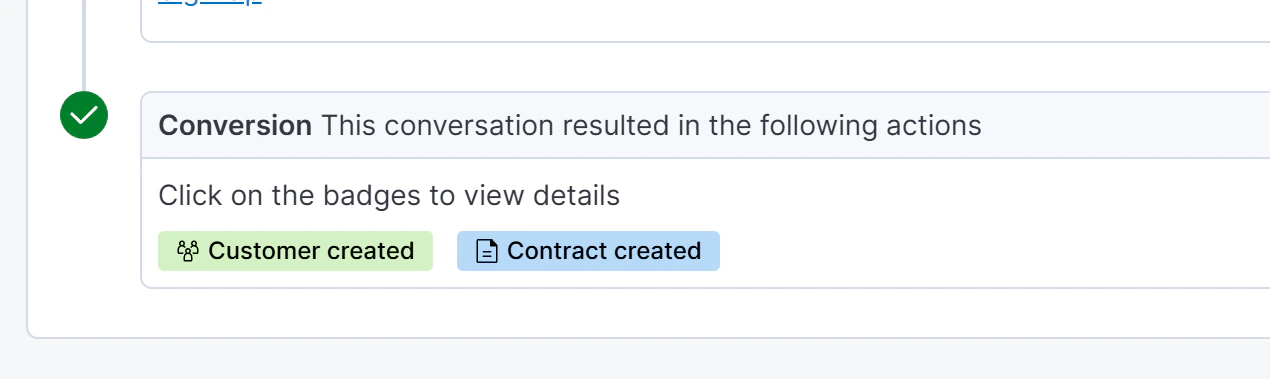
A single conversation can show multiple badges — for example, a new sign-up produces both "Customer created" and "Contract created".
## Understanding conversion badges
| Badge | Colour | What it means | Click to open |
| ---------------------- | -------- | ------------------------------------------------------------- | -------------------------- |
| **Tour booked** | Lavender | A Visitor record was created as a result of this conversation | The Visitor record |
| **Customer created** | Green | A new Coworker (customer) account was created | The Coworker profile |
| **Contract created** | Blue | A membership contract was created | The contract |
| **Booking created** | Teal | A room booking was created through the AI | The Booking record |
| **Day pass purchased** | Peach | A day pass was purchased | The CoworkerProduct record |
A single conversation can show multiple badges — for example, a new sign-up produces both "Customer created" and "Contract created".
 Conversations with no badges represent members asking informational questions or prospects who browsed without converting. These are still stored and searchable.
## AI conversations in Visitor records
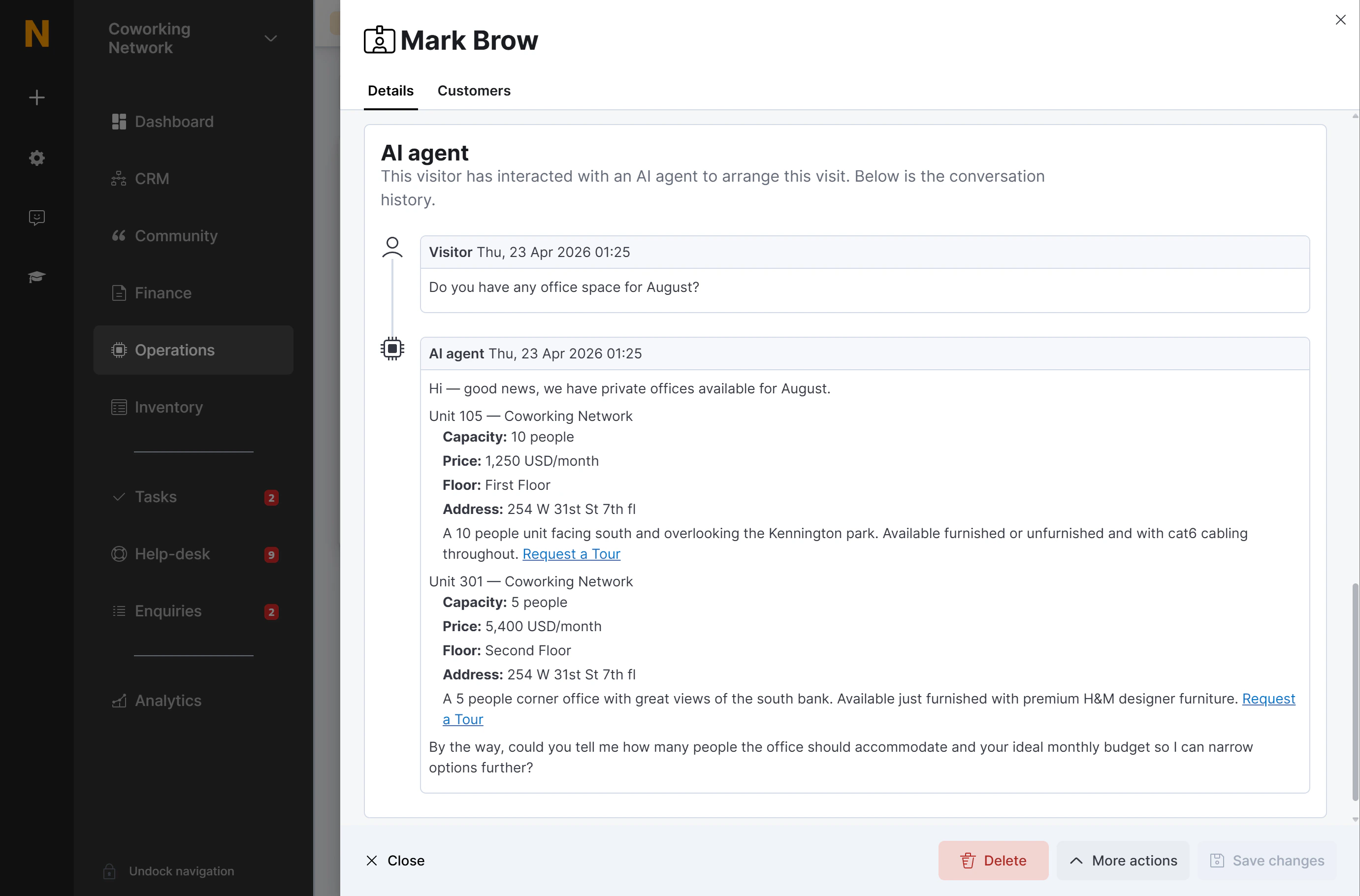
When a prospect books a tour through the AI assistant, the full chat conversation appears directly on their **Visitor record**. This gives your team context before the visit — they can see exactly what the prospect asked about, which offices interested them, and what requirements they mentioned.
To find it:
1. Go to **Spaces > Visitors** and open the relevant visitor.
2. Scroll to the **AI Agent Conversation** section.
3. The full thread is displayed with the same user / AI agent layout as in the AI Conversations list.
This section only appears for visitors who arrived through the AI assistant. Visitors added manually will not have it.
Conversations with no badges represent members asking informational questions or prospects who browsed without converting. These are still stored and searchable.
## AI conversations in Visitor records
When a prospect books a tour through the AI assistant, the full chat conversation appears directly on their **Visitor record**. This gives your team context before the visit — they can see exactly what the prospect asked about, which offices interested them, and what requirements they mentioned.
To find it:
1. Go to **Spaces > Visitors** and open the relevant visitor.
2. Scroll to the **AI Agent Conversation** section.
3. The full thread is displayed with the same user / AI agent layout as in the AI Conversations list.
This section only appears for visitors who arrived through the AI assistant. Visitors added manually will not have it.