> ## Documentation Index
> Fetch the complete documentation index at: https://learn.nexudus.com/llms.txt
> Use this file to discover all available pages before exploring further.
# Channels
> How the AI assistant works across chat, email, WhatsApp, and voice — and how to enable each channel.
The AI assistant supports four channels: **Chat**, **Email**, **WhatsApp**, and **Voice**. All four share the same capabilities, the same data, and the same visibility rules. The differences are in how conversations are started, how sessions are managed, and how responses are formatted.
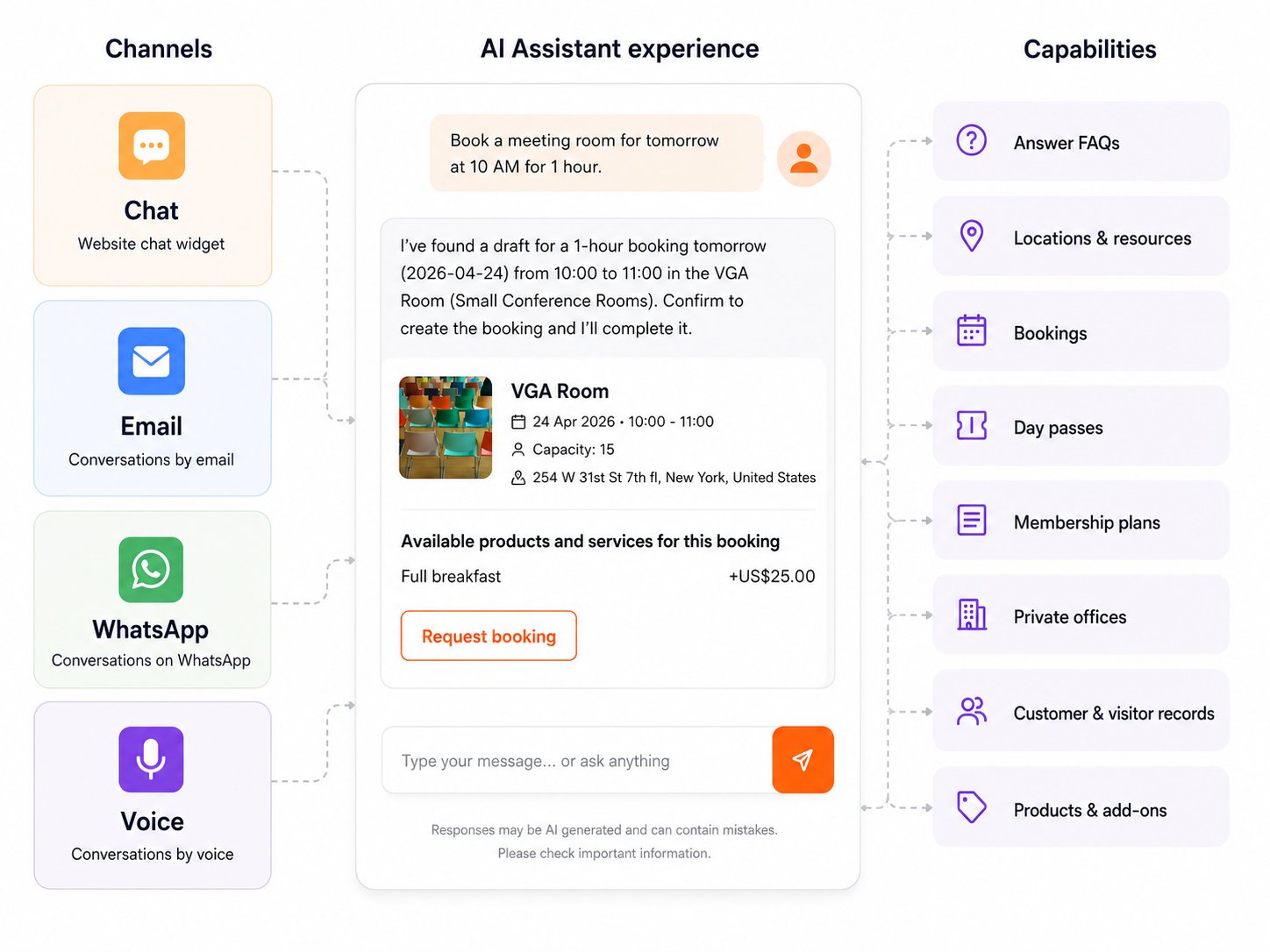 ## Channel comparison
| | Chat | Email | WhatsApp | Voice |
| ------------------------------ | ----------------------------------------------------- | -------------------------------------------------------------- | ---------------------------------------------------------- | --------------------------------------------------------------- |
| **How it works** | Floating widget on the members portal | Members email your space's AI address | Members message your space's WhatsApp number | Members call your space's phone number — links are sent via SMS |
| **Enabled by default** | Yes | No | No | No |
| **Session duration** | One session per chat window | 48 hours (same email thread) | 24 hours (same phone number) | One session per call |
| **Response format** | Rich text with markdown, tool cards, and buttons | Well-structured paragraphs, no markdown headers or code blocks | Concise text under 300 words, bold for emphasis, no tables | Spoken text, natural pacing, pauses for user response |
| **Media attachments** | Not applicable | Text only — attachments are noted but not processed | Text only — media messages are noted but not processed | Speech-to-text input, text-to-speech output |
| **Confirmation window** | 10 minutes | 4 hours | 1 hour | 10 minutes (during call) |
| **Requires customer identity** | Optional (logged-in members identified automatically) | Matched by email address | Matched by mobile phone number | Matched by caller phone number |
## Chat
The chat channel is the default. It is embedded in your members portal as a floating widget and is described in detail on the [Chat Experience](./chat-experience) page.
No additional setup is required — chat is available as soon as the AI assistant is enabled for your space.
## Email
The email channel lets members and prospects interact with the AI by sending an email to a dedicated address for your space. The AI processes the message, runs the same tools it would use in chat, and sends back a reply email.
### How it works
1. A member or prospect sends an email to your space's AI email address.
2. Nexudus identifies the sender by matching the email address to an existing customer record.
3. The AI processes the message and sends a reply email from your space.
4. Replies to that email continue the same conversation — no need to start over.
### Sessions
Email sessions last **48 hours**. All replies within the same email thread are part of the same session. If the sender starts a new email with a different subject line, a new session begins. After 48 hours of inactivity, a new session also starts automatically.
### Response formatting
Email responses use well-structured paragraphs without markdown headers, code blocks, or tables. Images and links are included where relevant. Each reply includes a footer identifying the response as coming from your space's AI assistant.
### Enabling the email channel
Enable the email channel in your business settings by switching on **AI Email**. You then configure your email provider to forward messages from your chosen address to the Nexudus AI inbox address.
See [Setting up the email channel](./setup-email) for the full step-by-step guide, including instructions for Gmail, Microsoft 365, and other email providers.
If the sender's email address matches multiple customer records, Nexudus resolves the correct one using these rules in order: default profile first, then individual records, then the most recently created record.
## WhatsApp
The WhatsApp channel lets members and prospects interact with the AI by messaging your space's WhatsApp number. The AI processes the message and replies in the same WhatsApp conversation.
### How it works
1. A member or prospect sends a WhatsApp message to your space's number.
2. Nexudus identifies the sender by matching the phone number to an existing customer record.
3. The AI processes the message and replies via WhatsApp.
4. The conversation continues naturally in the same WhatsApp thread.
### Sessions
WhatsApp sessions last **24 hours**. All messages from the same phone number within that window are part of the same session. After 24 hours of inactivity, a new session starts automatically.
### Response formatting
WhatsApp responses are concise — under 300 words — and use **bold** for emphasis. Tables, headers, and code blocks are not used. Links are placed on their own lines for easy tapping.
### Enabling the WhatsApp channel
1. Create a Twilio account and register a WhatsApp sender.
2. Configure the Twilio webhook to point to Nexudus.
3. Switch on **AI WhatsApp** in your business settings.
4. Enter your **WhatsApp phone number** — this is the Twilio-enabled number associated with your space.
The WhatsApp number is configured per location. Each location that uses WhatsApp needs its own number so that inbound messages can be routed to the correct space.
See [Setting up the WhatsApp channel](./setup-whatsapp) for the full step-by-step guide, including Twilio account setup, Meta business verification, and webhook configuration.
If the sender's phone number matches multiple customer records, Nexudus resolves the correct one using the same rules as email: default profile first, then individual records, then the most recently created record.
## Confirmation windows
When the AI performs an action that changes data — such as creating, modifying, or cancelling a booking — it asks the member to confirm before proceeding. The confirmation is valid for a limited time that depends on the channel:
| Channel | Confirmation window |
| -------- | ------------------- |
| Chat | 10 minutes |
| WhatsApp | 1 hour |
| Email | 4 hours |
If the member does not confirm within this window, they need to start the action again. The longer windows for email and WhatsApp account for the fact that members may not reply immediately on those channels.
## Customer identification
On each channel, the AI identifies the customer differently:
| Channel | How the customer is identified |
| ------------ | ----------------------------------------------------------- |
| **Chat** | Automatically, if the member is logged in to the portal |
| **Email** | By matching the sender's email address to a customer record |
| **WhatsApp** | By matching the sender's phone number to a customer record |
If no matching customer is found, the AI still responds — but capabilities that require a logged-in member (such as viewing or managing bookings) are not available.
## Voice
The Voice channel lets members and prospects interact with the AI by calling your space's phone number. The AI processes the caller's spoken words and replies using text-to-speech, creating a natural voice conversation.
### How it works
1. A member or prospect calls your space's phone number.
2. Nexudus identifies the caller by matching the incoming phone number to an existing customer record.
3. The AI processes the caller's spoken request and replies using text-to-speech.
4. The conversation continues naturally — the caller speaks, the AI responds, just like a regular phone call.
### Sessions
Voice sessions last for the duration of a single call. When the caller hangs up, the session ends. A new call from the same number starts a new session. The full conversation is transcribed and stored in Nexudus, visible in the [AI Conversations list](./admin-panel).
### Interaction style
Voice responses are spoken aloud — they need to be concise and easy to follow. The AI uses natural pacing with brief pauses between points. Complex information (like room details or pricing) is broken into digestible chunks. If the caller needs to see information (such as a map or a list of options), the AI offers to send it via email or WhatsApp instead.
### Confirmation windows
When the AI performs an action that changes data during a voice call — such as creating or modifying a booking — it asks the caller to confirm verbally. The confirmation must be given before the call ends. If the caller hangs up without confirming, the action is not completed.
### SMS link delivery
When the AI assistant provides links or URLs during a voice conversation — such as booking confirmations, pass details, or membership plan pages — it doesn't read them aloud. Instead, it sends the links via SMS to the caller's phone number and mentions in the voice response that a text message has been sent.
This improves the caller experience because spoken URLs are difficult to remember or use. After the AI mentions that an SMS has been sent, the caller receives a text message containing:
* A short label describing each link (e.g., "Your booking confirmation")
* The full URL on a separate line for easy tapping
If multiple links are returned in a single response, they are combined into one SMS message. If the link list is very long, it may be split across multiple SMS segments.
The AI response during the call will sound something like: "I've just sent you a text message with the link to your booking confirmation."
SMS link delivery requires that your Twilio number has SMS capabilities enabled. If SMS is not configured, the voice channel continues to work normally — the AI will simply mention the link verbally without sending an SMS.
If the caller's phone number matches multiple customer records, Nexudus resolves the correct one using the same rules as email and WhatsApp: default profile first, then individual records, then the most recently created record.
## Channel comparison
| | Chat | Email | WhatsApp | Voice |
| ------------------------------ | ----------------------------------------------------- | -------------------------------------------------------------- | ---------------------------------------------------------- | --------------------------------------------------------------- |
| **How it works** | Floating widget on the members portal | Members email your space's AI address | Members message your space's WhatsApp number | Members call your space's phone number — links are sent via SMS |
| **Enabled by default** | Yes | No | No | No |
| **Session duration** | One session per chat window | 48 hours (same email thread) | 24 hours (same phone number) | One session per call |
| **Response format** | Rich text with markdown, tool cards, and buttons | Well-structured paragraphs, no markdown headers or code blocks | Concise text under 300 words, bold for emphasis, no tables | Spoken text, natural pacing, pauses for user response |
| **Media attachments** | Not applicable | Text only — attachments are noted but not processed | Text only — media messages are noted but not processed | Speech-to-text input, text-to-speech output |
| **Confirmation window** | 10 minutes | 4 hours | 1 hour | 10 minutes (during call) |
| **Requires customer identity** | Optional (logged-in members identified automatically) | Matched by email address | Matched by mobile phone number | Matched by caller phone number |
## Chat
The chat channel is the default. It is embedded in your members portal as a floating widget and is described in detail on the [Chat Experience](./chat-experience) page.
No additional setup is required — chat is available as soon as the AI assistant is enabled for your space.
## Email
The email channel lets members and prospects interact with the AI by sending an email to a dedicated address for your space. The AI processes the message, runs the same tools it would use in chat, and sends back a reply email.
### How it works
1. A member or prospect sends an email to your space's AI email address.
2. Nexudus identifies the sender by matching the email address to an existing customer record.
3. The AI processes the message and sends a reply email from your space.
4. Replies to that email continue the same conversation — no need to start over.
### Sessions
Email sessions last **48 hours**. All replies within the same email thread are part of the same session. If the sender starts a new email with a different subject line, a new session begins. After 48 hours of inactivity, a new session also starts automatically.
### Response formatting
Email responses use well-structured paragraphs without markdown headers, code blocks, or tables. Images and links are included where relevant. Each reply includes a footer identifying the response as coming from your space's AI assistant.
### Enabling the email channel
Enable the email channel in your business settings by switching on **AI Email**. You then configure your email provider to forward messages from your chosen address to the Nexudus AI inbox address.
See [Setting up the email channel](./setup-email) for the full step-by-step guide, including instructions for Gmail, Microsoft 365, and other email providers.
If the sender's email address matches multiple customer records, Nexudus resolves the correct one using these rules in order: default profile first, then individual records, then the most recently created record.
## WhatsApp
The WhatsApp channel lets members and prospects interact with the AI by messaging your space's WhatsApp number. The AI processes the message and replies in the same WhatsApp conversation.
### How it works
1. A member or prospect sends a WhatsApp message to your space's number.
2. Nexudus identifies the sender by matching the phone number to an existing customer record.
3. The AI processes the message and replies via WhatsApp.
4. The conversation continues naturally in the same WhatsApp thread.
### Sessions
WhatsApp sessions last **24 hours**. All messages from the same phone number within that window are part of the same session. After 24 hours of inactivity, a new session starts automatically.
### Response formatting
WhatsApp responses are concise — under 300 words — and use **bold** for emphasis. Tables, headers, and code blocks are not used. Links are placed on their own lines for easy tapping.
### Enabling the WhatsApp channel
1. Create a Twilio account and register a WhatsApp sender.
2. Configure the Twilio webhook to point to Nexudus.
3. Switch on **AI WhatsApp** in your business settings.
4. Enter your **WhatsApp phone number** — this is the Twilio-enabled number associated with your space.
The WhatsApp number is configured per location. Each location that uses WhatsApp needs its own number so that inbound messages can be routed to the correct space.
See [Setting up the WhatsApp channel](./setup-whatsapp) for the full step-by-step guide, including Twilio account setup, Meta business verification, and webhook configuration.
If the sender's phone number matches multiple customer records, Nexudus resolves the correct one using the same rules as email: default profile first, then individual records, then the most recently created record.
## Confirmation windows
When the AI performs an action that changes data — such as creating, modifying, or cancelling a booking — it asks the member to confirm before proceeding. The confirmation is valid for a limited time that depends on the channel:
| Channel | Confirmation window |
| -------- | ------------------- |
| Chat | 10 minutes |
| WhatsApp | 1 hour |
| Email | 4 hours |
If the member does not confirm within this window, they need to start the action again. The longer windows for email and WhatsApp account for the fact that members may not reply immediately on those channels.
## Customer identification
On each channel, the AI identifies the customer differently:
| Channel | How the customer is identified |
| ------------ | ----------------------------------------------------------- |
| **Chat** | Automatically, if the member is logged in to the portal |
| **Email** | By matching the sender's email address to a customer record |
| **WhatsApp** | By matching the sender's phone number to a customer record |
If no matching customer is found, the AI still responds — but capabilities that require a logged-in member (such as viewing or managing bookings) are not available.
## Voice
The Voice channel lets members and prospects interact with the AI by calling your space's phone number. The AI processes the caller's spoken words and replies using text-to-speech, creating a natural voice conversation.
### How it works
1. A member or prospect calls your space's phone number.
2. Nexudus identifies the caller by matching the incoming phone number to an existing customer record.
3. The AI processes the caller's spoken request and replies using text-to-speech.
4. The conversation continues naturally — the caller speaks, the AI responds, just like a regular phone call.
### Sessions
Voice sessions last for the duration of a single call. When the caller hangs up, the session ends. A new call from the same number starts a new session. The full conversation is transcribed and stored in Nexudus, visible in the [AI Conversations list](./admin-panel).
### Interaction style
Voice responses are spoken aloud — they need to be concise and easy to follow. The AI uses natural pacing with brief pauses between points. Complex information (like room details or pricing) is broken into digestible chunks. If the caller needs to see information (such as a map or a list of options), the AI offers to send it via email or WhatsApp instead.
### Confirmation windows
When the AI performs an action that changes data during a voice call — such as creating or modifying a booking — it asks the caller to confirm verbally. The confirmation must be given before the call ends. If the caller hangs up without confirming, the action is not completed.
### SMS link delivery
When the AI assistant provides links or URLs during a voice conversation — such as booking confirmations, pass details, or membership plan pages — it doesn't read them aloud. Instead, it sends the links via SMS to the caller's phone number and mentions in the voice response that a text message has been sent.
This improves the caller experience because spoken URLs are difficult to remember or use. After the AI mentions that an SMS has been sent, the caller receives a text message containing:
* A short label describing each link (e.g., "Your booking confirmation")
* The full URL on a separate line for easy tapping
If multiple links are returned in a single response, they are combined into one SMS message. If the link list is very long, it may be split across multiple SMS segments.
The AI response during the call will sound something like: "I've just sent you a text message with the link to your booking confirmation."
SMS link delivery requires that your Twilio number has SMS capabilities enabled. If SMS is not configured, the voice channel continues to work normally — the AI will simply mention the link verbally without sending an SMS.
If the caller's phone number matches multiple customer records, Nexudus resolves the correct one using the same rules as email and WhatsApp: default profile first, then individual records, then the most recently created record.