> ## Documentation Index
> Fetch the complete documentation index at: https://learn.nexudus.com/llms.txt
> Use this file to discover all available pages before exploring further.
# Chat Experience
> How members and visitors interact with the AI assistant via the chat widget in the members portal.
The chat widget is the default channel for the AI assistant — a floating button embedded on every page of the members portal. This page covers how it looks and behaves from the member's perspective. For the email, WhatsApp, and voice channels, see [Channels](./channels).
## The chat button
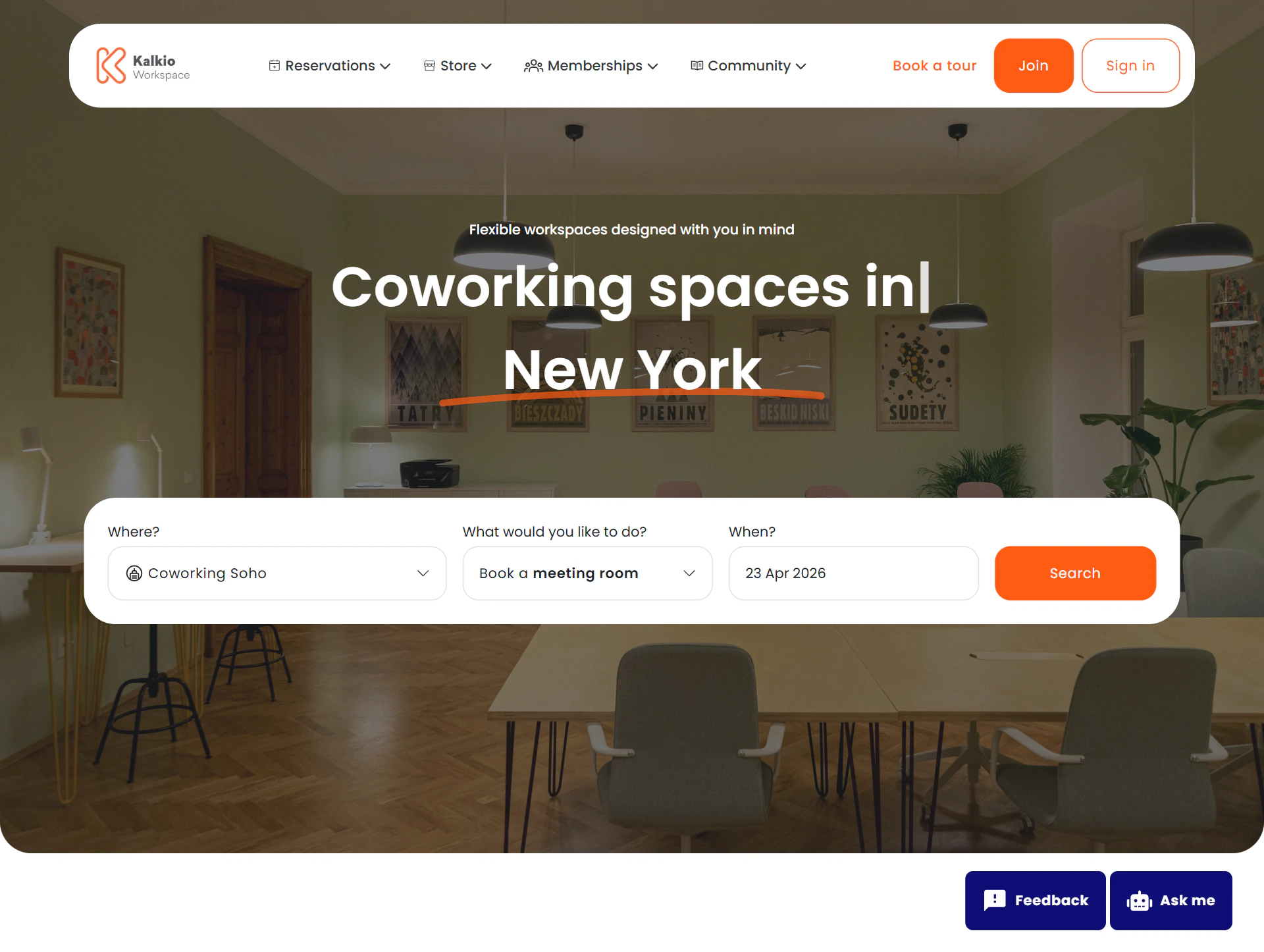
The **"Ask me"** button with a robot icon floats in the bottom corner of every portal page. It automatically hides when a member scrolls down a page and reappears when they scroll back up, keeping it unobtrusive on content-heavy pages.
 ## Opening the chat
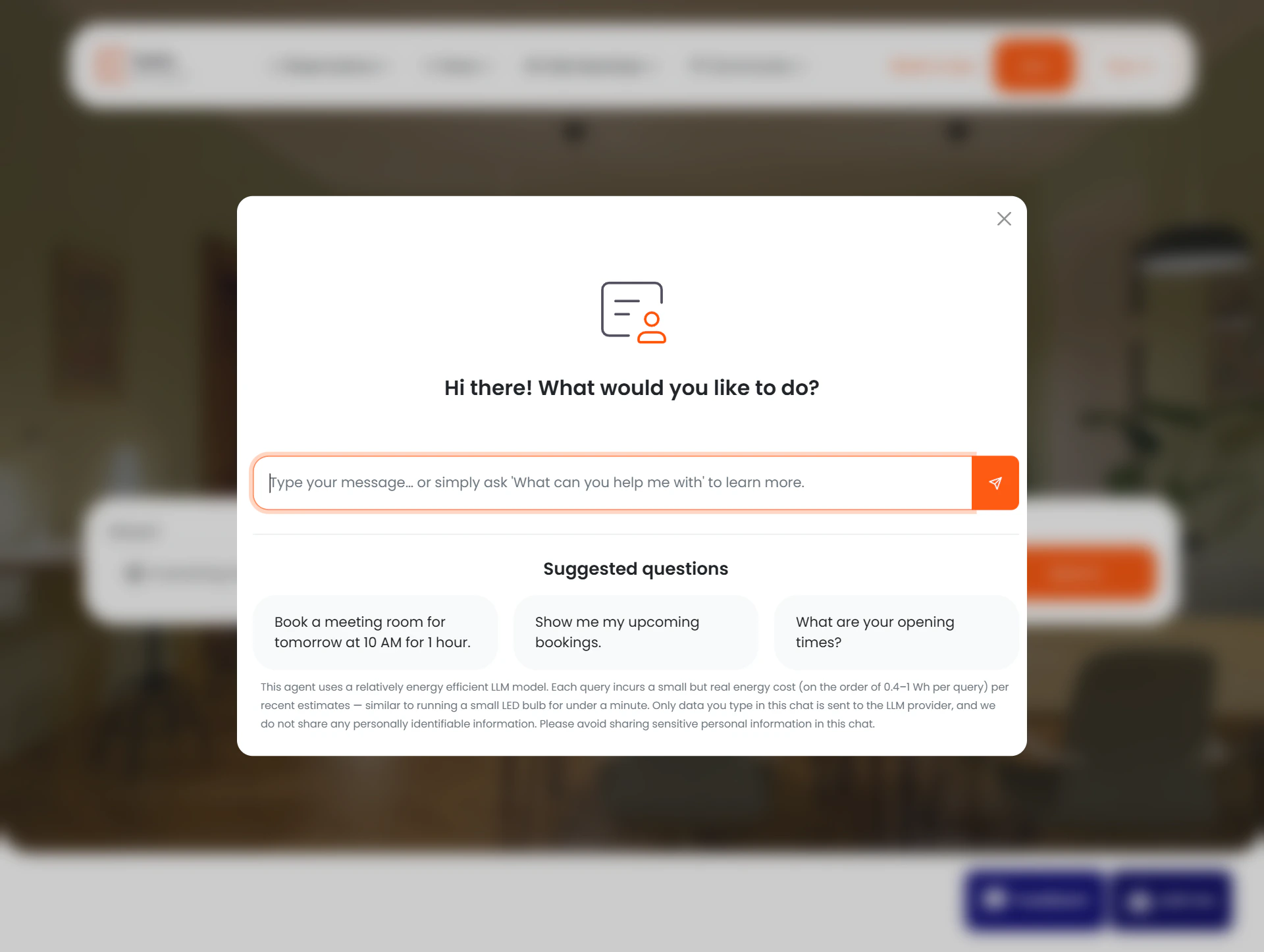
Clicking the button opens a chat modal. If it is a fresh session, the modal shows a greeting and three **suggested prompts** to help members get started quickly:
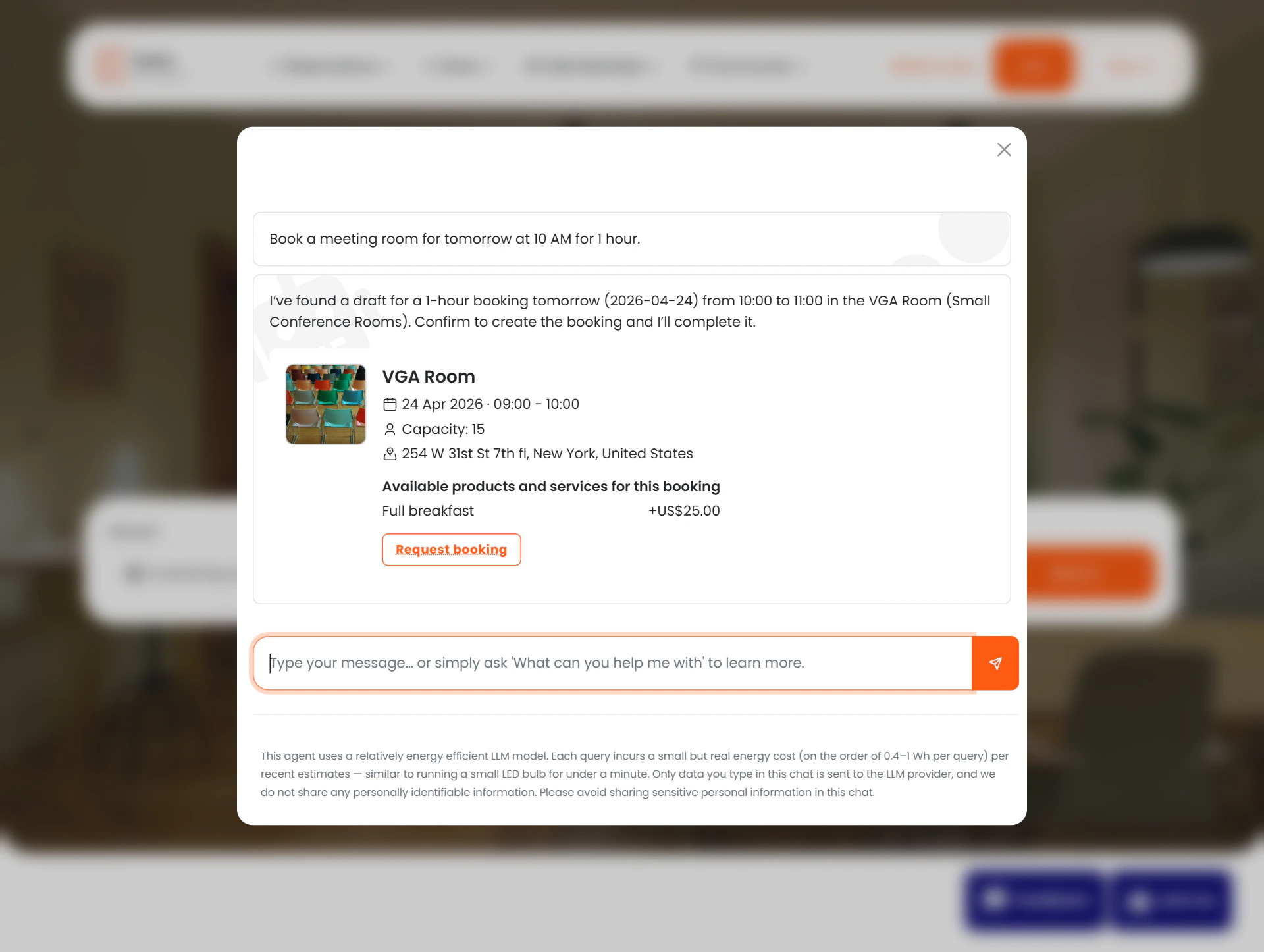
* "Book a meeting room for tomorrow at 10 AM for 1 hour."
* "Show me my upcoming bookings."
* "What are your opening times?"
Clicking a suggested prompt sends it immediately — no typing required.
## Opening the chat
Clicking the button opens a chat modal. If it is a fresh session, the modal shows a greeting and three **suggested prompts** to help members get started quickly:
* "Book a meeting room for tomorrow at 10 AM for 1 hour."
* "Show me my upcoming bookings."
* "What are your opening times?"
Clicking a suggested prompt sends it immediately — no typing required.
 ## Sending a message
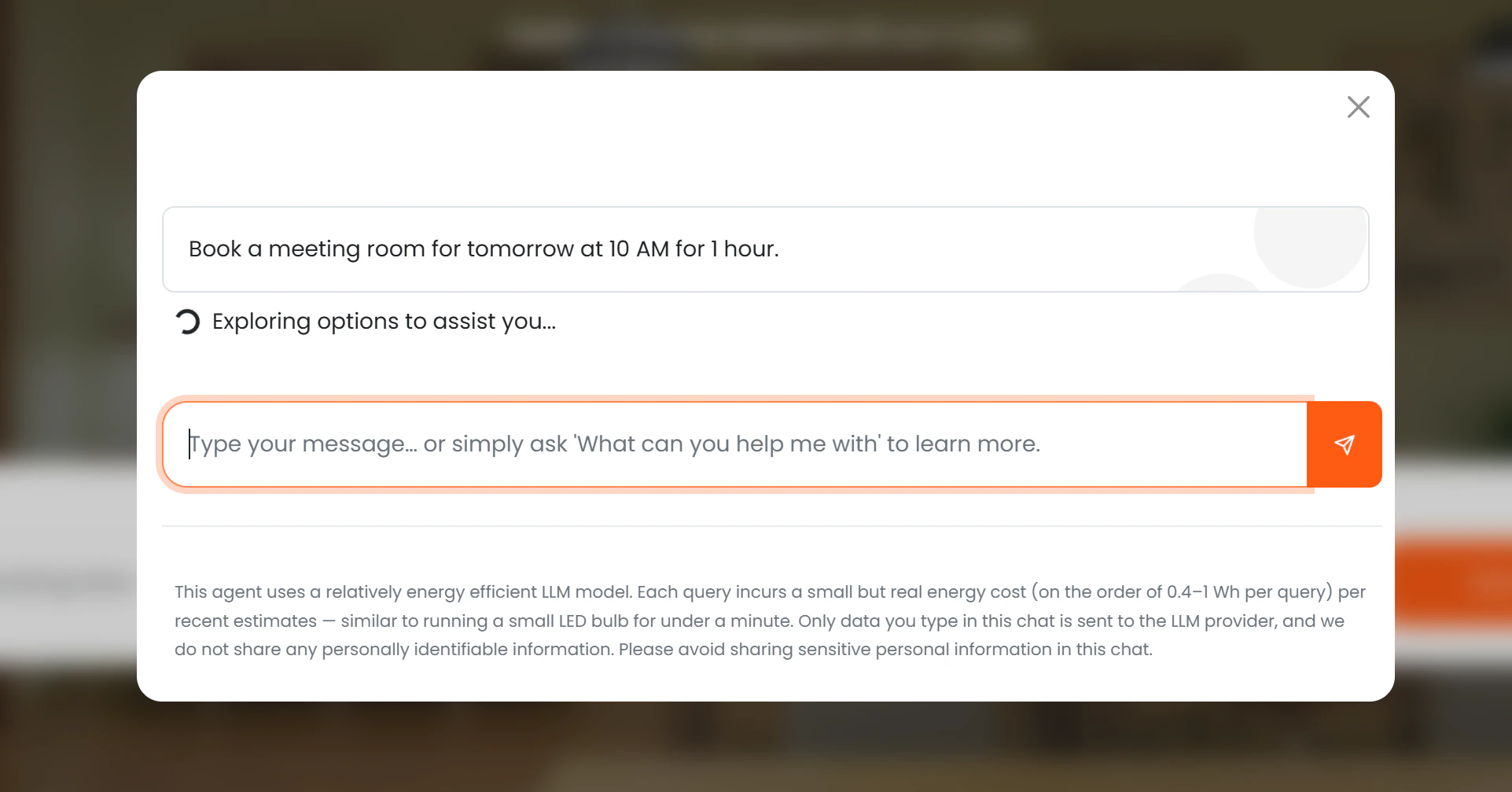
Members type in the input box at the bottom and press Enter (or click Send). Pressing Shift+Enter expands the input into a multi-line text area for longer messages. Messages can be up to 4,000 characters.
## Sending a message
Members type in the input box at the bottom and press Enter (or click Send). Pressing Shift+Enter expands the input into a multi-line text area for longer messages. Messages can be up to 4,000 characters.
 ## Loading and typing animation
While the AI processes the request, a loading message is shown — for example *"Thinking about the best way to assist you..."* or *"Finding your options..."*. Once the response arrives, the text types out character by character, giving the conversation a natural, back-and-forth feel.
## Loading and typing animation
While the AI processes the request, a loading message is shown — for example *"Thinking about the best way to assist you..."* or *"Finding your options..."*. Once the response arrives, the text types out character by character, giving the conversation a natural, back-and-forth feel.
 ## Tool cards
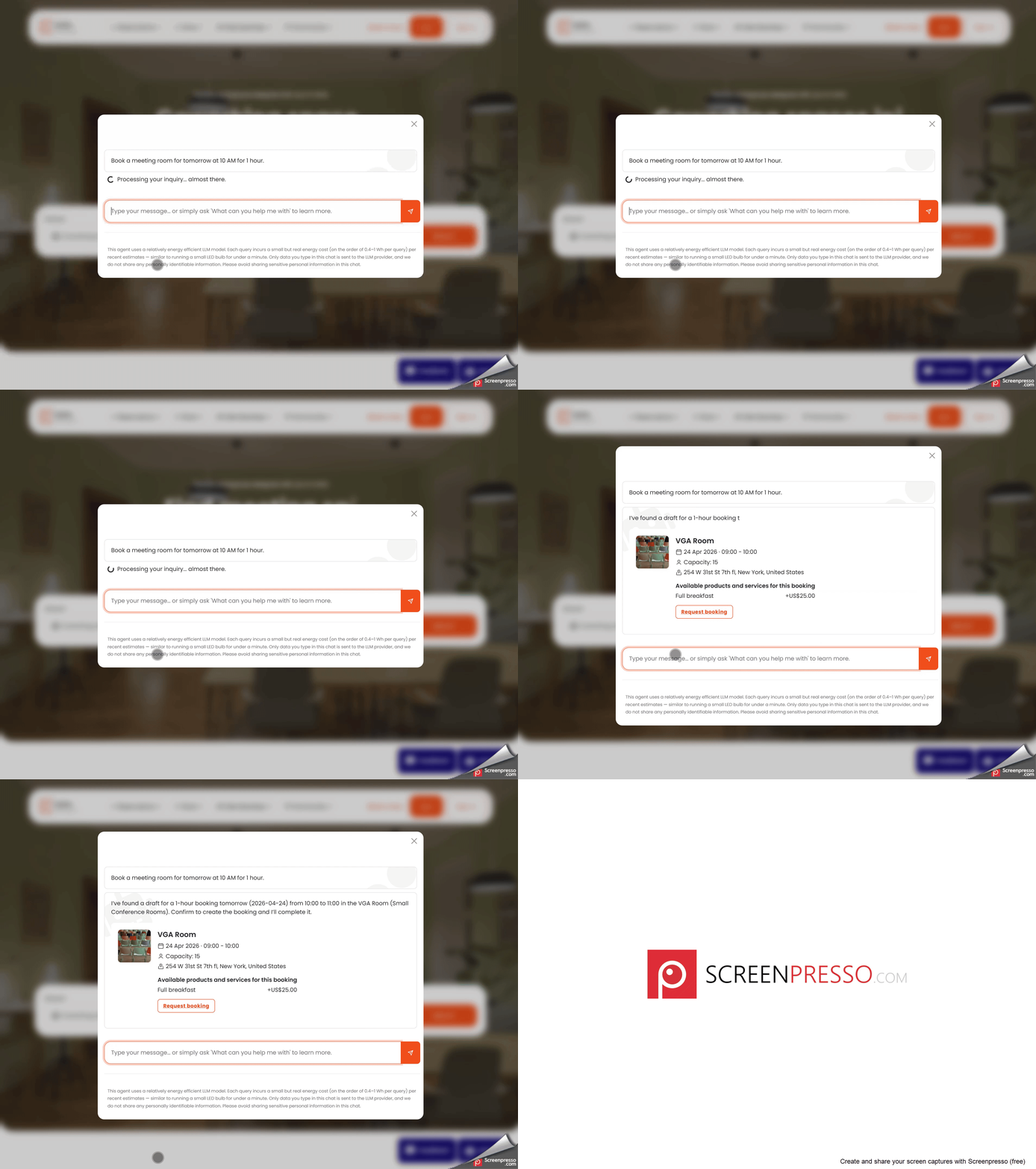
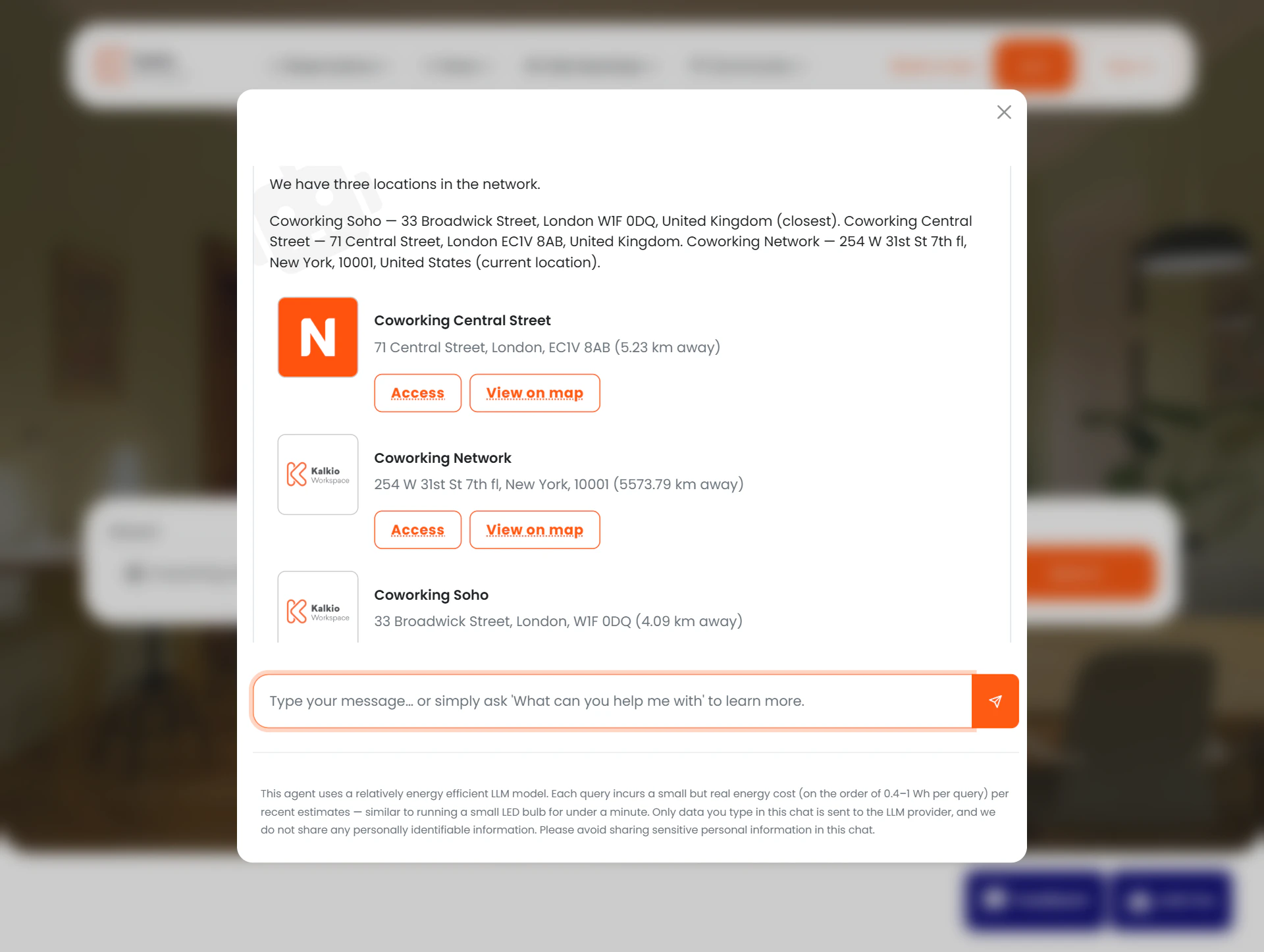
For certain responses, the AI shows a **visual card** alongside its text reply:
| Card type | When shown | What it contains |
| ----------------- | --------------------------------------- | ------------------------------------------------------------------------------------------------------------------------------ |
| **Booking card** | After a booking is drafted or confirmed | Room name, desk, start and end time, price, capacity, address; action buttons (Request booking / Pay to confirm / View on map) |
| **Location card** | After a location search | Business logo, location name, full address, distance; Access and View on map buttons |
| **Room card** | After a room search | Room photo, name, location, capacity, features; Request booking button |
For day passes, membership plans, and private offices the AI renders rich formatted text with links and call-to-action buttons directly in the chat — these do not use a separate card.
## Tool cards
For certain responses, the AI shows a **visual card** alongside its text reply:
| Card type | When shown | What it contains |
| ----------------- | --------------------------------------- | ------------------------------------------------------------------------------------------------------------------------------ |
| **Booking card** | After a booking is drafted or confirmed | Room name, desk, start and end time, price, capacity, address; action buttons (Request booking / Pay to confirm / View on map) |
| **Location card** | After a location search | Business logo, location name, full address, distance; Access and View on map buttons |
| **Room card** | After a room search | Room photo, name, location, capacity, features; Request booking button |
For day passes, membership plans, and private offices the AI renders rich formatted text with links and call-to-action buttons directly in the chat — these do not use a separate card.
 ## Session management
Each chat session is independent. Closing and reopening the modal starts a fresh conversation — the previous exchange is not shown again in the UI. However, it is permanently stored in Nexudus and visible to operators in the [AI Conversations list](./admin-panel).
If a member or prospect arrives at the portal with an `?aiChat` parameter in the URL — for example, from a marketing link or email — the chat window opens automatically.
The AI uses the member's browser location (if they grant permission) to calculate distances when presenting rooms, locations, and offices. No location permission is required for the chat to work — distance information is simply omitted when unavailable.
## Session management
Each chat session is independent. Closing and reopening the modal starts a fresh conversation — the previous exchange is not shown again in the UI. However, it is permanently stored in Nexudus and visible to operators in the [AI Conversations list](./admin-panel).
If a member or prospect arrives at the portal with an `?aiChat` parameter in the URL — for example, from a marketing link or email — the chat window opens automatically.
The AI uses the member's browser location (if they grant permission) to calculate distances when presenting rooms, locations, and offices. No location permission is required for the chat to work — distance information is simply omitted when unavailable.