> ## Documentation Index
> Fetch the complete documentation index at: https://learn.nexudus.com/llms.txt
> Use this file to discover all available pages before exploring further.
# Escalating to Human Support
> How the AI escalates conversations to your help desk when it cannot resolve a request or when the user asks for human assistance.
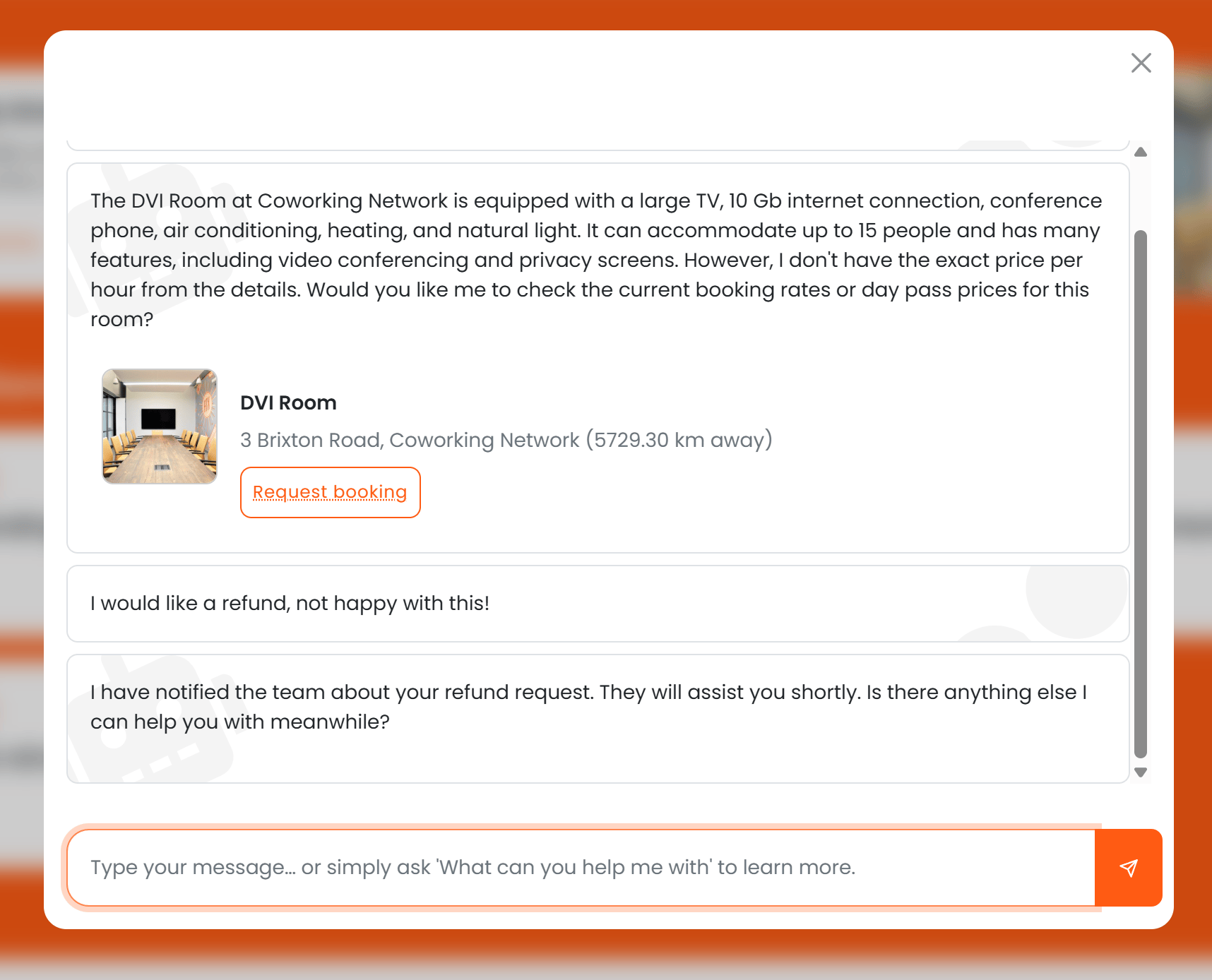
When the AI cannot resolve a member's question or when the user explicitly requests human assistance, it can escalate the conversation to your help desk team. This creates a support ticket with full conversation context so your team can pick up where the AI left off.
## How escalation works
Escalation is **opt-in** for location operators. When enabled, the AI monitors conversations for signals that human help is needed:
* The user explicitly asks to speak to a person ("I need to talk to someone", "this isn't working", "help desk")
* The AI determines the question is outside its knowledge or capabilities
* The AI encounters a technical issue it cannot resolve
When escalation is triggered, the AI:
1. Summarises the user's issue in its own words
2. Creates a **Help Desk ticket** in Nexudus with the conversation context
3. Informs the user that their request has been passed to the team and provides an estimated response time (if configured)
 ## Configuration
Escalation settings are found under **Settings > AI Assistants (preview) > Channels > AI escalation** in your location settings.
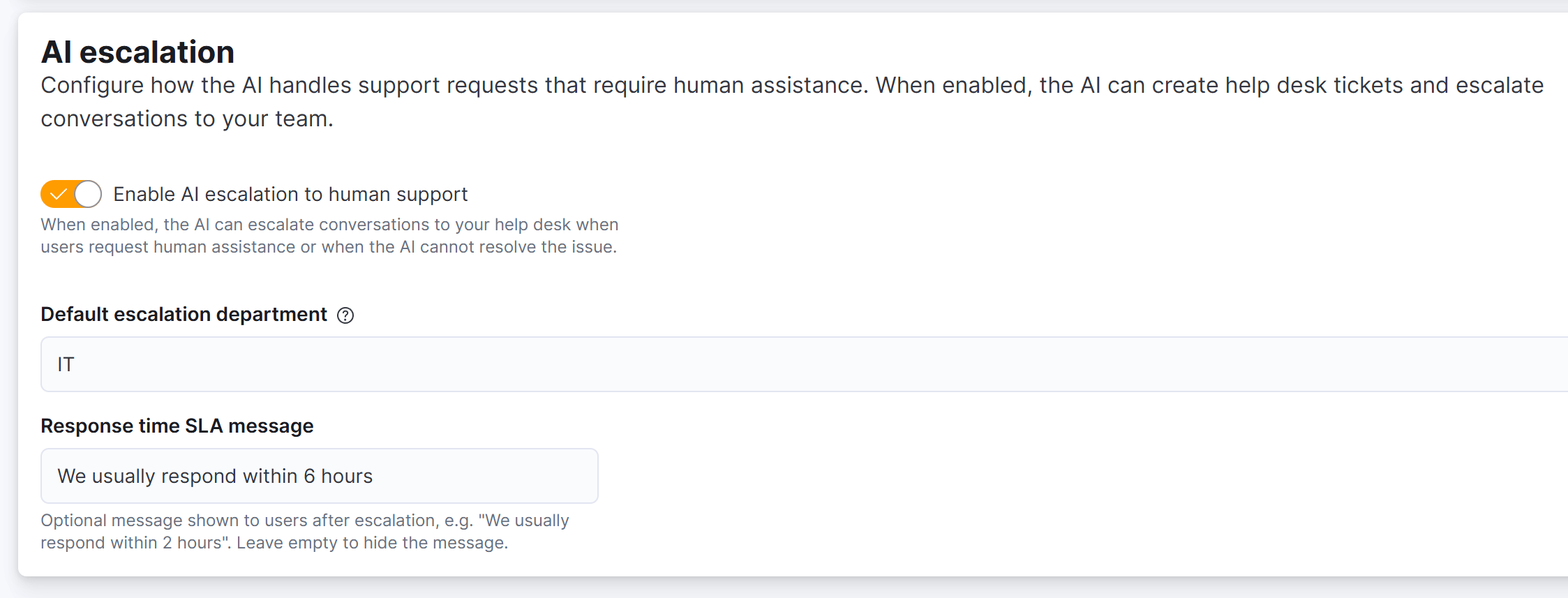
### Enable AI escalation to human support
Toggle this on to allow the AI to create help desk tickets when it needs to escalate. When disabled, the AI will respond with a message that it cannot connect the user to a human agent.
* **Default:** Enabled
## Configuration
Escalation settings are found under **Settings > AI Assistants (preview) > Channels > AI escalation** in your location settings.
### Enable AI escalation to human support
Toggle this on to allow the AI to create help desk tickets when it needs to escalate. When disabled, the AI will respond with a message that it cannot connect the user to a human agent.
* **Default:** Enabled
 ### Default escalation department
Select the **Help Desk department** where escalation tickets are created by default. If left empty, the system default department is used.
This lets you route AI escalations to a specific team — for example, a "Technical Support" department or your general "Help Desk" team.
### Response time SLA message
An optional message shown to users after escalation, such as "We usually respond within 2 hours." This sets expectations and reduces follow-up messages.
Leave empty to hide the response time message entirely.
## What the help desk ticket contains
When the AI creates an escalation ticket, it includes:
* **Subject:** A concise summary of the user's issue
* **Message text:** The AI's summary of the conversation, channel, and session details
* **Link to conversation:** A direct link to the full AI conversation in **AI Channel Sessions**
* **Priority:** Normal by default, or High if the user appeared frustrated or the issue was time-sensitive
The full conversation transcript is stored in the **AI Channel Sessions** interface, not in the ticket itself. This avoids duplication since the session already contains all the OpenAI messages. Your team clicks the link in the ticket to access the complete conversation history.
## Department matching
The AI can optionally suggest a department based on the conversation content. It uses a fuzzy match against department names:
| User mentions | AI suggests |
| ---------------------------------- | ----------- |
| Payment, invoice, pricing, billing | Billing |
| Booking, access, facilities, room | Operations |
| Contract, plan, membership, tariff | Membership |
If a match is found, the AI includes it as a hint when creating the ticket. Your configured **default escalation department** is still used as the final destination.
## Conversation history
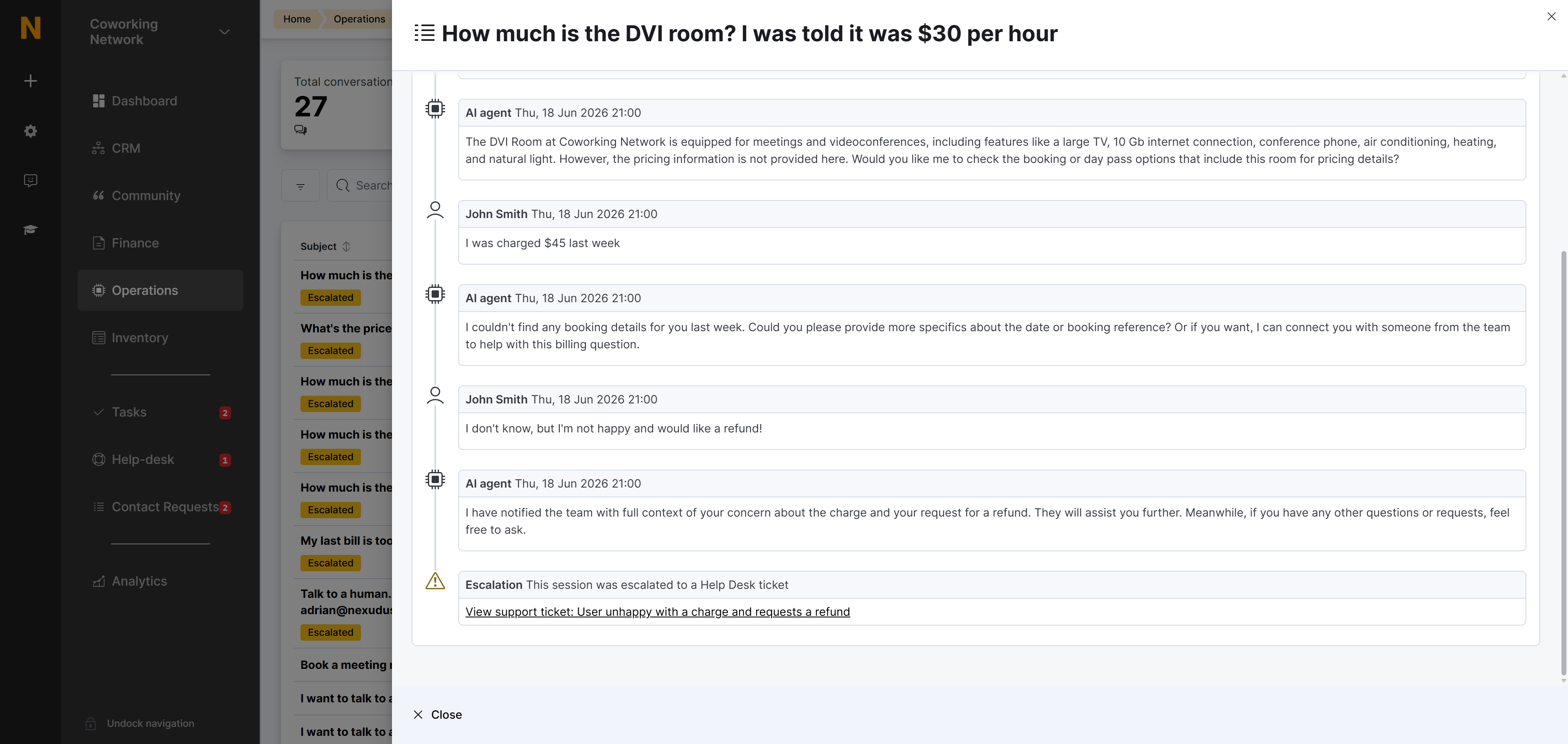
Escalated conversations appear in the [AI Conversations list](https://dashboard.nexudus.comoperations/aiConversations/aiChannelSessions) with a **"Escalated"** badge (orange colour). The conversation record includes:
* A timeline entry showing when the escalation occurred
* A direct link to the created Help Desk ticket for quick access
* The complete conversation history accessible in the **Conversation** section
From the Help Desk ticket, your team can also link back to the full AI conversation. See [Conversion Tracking](./conversion-tracking) for a full explanation of session IDs and how conversations are tracked.
## Bidirectional links
The escalation creates a permanent two-way connection between the AI conversation and the Help Desk ticket:
**In the AI Conversations view:**
* A **"Escalated to Help Desk"** callout appears at the top of the conversation, with a link to the support ticket
* A **timeline entry** at the bottom of the conversation shows the escalation event and links to the ticket
### Default escalation department
Select the **Help Desk department** where escalation tickets are created by default. If left empty, the system default department is used.
This lets you route AI escalations to a specific team — for example, a "Technical Support" department or your general "Help Desk" team.
### Response time SLA message
An optional message shown to users after escalation, such as "We usually respond within 2 hours." This sets expectations and reduces follow-up messages.
Leave empty to hide the response time message entirely.
## What the help desk ticket contains
When the AI creates an escalation ticket, it includes:
* **Subject:** A concise summary of the user's issue
* **Message text:** The AI's summary of the conversation, channel, and session details
* **Link to conversation:** A direct link to the full AI conversation in **AI Channel Sessions**
* **Priority:** Normal by default, or High if the user appeared frustrated or the issue was time-sensitive
The full conversation transcript is stored in the **AI Channel Sessions** interface, not in the ticket itself. This avoids duplication since the session already contains all the OpenAI messages. Your team clicks the link in the ticket to access the complete conversation history.
## Department matching
The AI can optionally suggest a department based on the conversation content. It uses a fuzzy match against department names:
| User mentions | AI suggests |
| ---------------------------------- | ----------- |
| Payment, invoice, pricing, billing | Billing |
| Booking, access, facilities, room | Operations |
| Contract, plan, membership, tariff | Membership |
If a match is found, the AI includes it as a hint when creating the ticket. Your configured **default escalation department** is still used as the final destination.
## Conversation history
Escalated conversations appear in the [AI Conversations list](https://dashboard.nexudus.comoperations/aiConversations/aiChannelSessions) with a **"Escalated"** badge (orange colour). The conversation record includes:
* A timeline entry showing when the escalation occurred
* A direct link to the created Help Desk ticket for quick access
* The complete conversation history accessible in the **Conversation** section
From the Help Desk ticket, your team can also link back to the full AI conversation. See [Conversion Tracking](./conversion-tracking) for a full explanation of session IDs and how conversations are tracked.
## Bidirectional links
The escalation creates a permanent two-way connection between the AI conversation and the Help Desk ticket:
**In the AI Conversations view:**
* A **"Escalated to Help Desk"** callout appears at the top of the conversation, with a link to the support ticket
* A **timeline entry** at the bottom of the conversation shows the escalation event and links to the ticket
 **In the Help Desk ticket:**
* A **"AI Conversation"** callout appears at the top of the ticket, with a link to the full AI session
* This lets your team quickly jump back to the complete conversation history when responding to the ticket
**In the Help Desk ticket:**
* A **"AI Conversation"** callout appears at the top of the ticket, with a link to the full AI session
* This lets your team quickly jump back to the complete conversation history when responding to the ticket
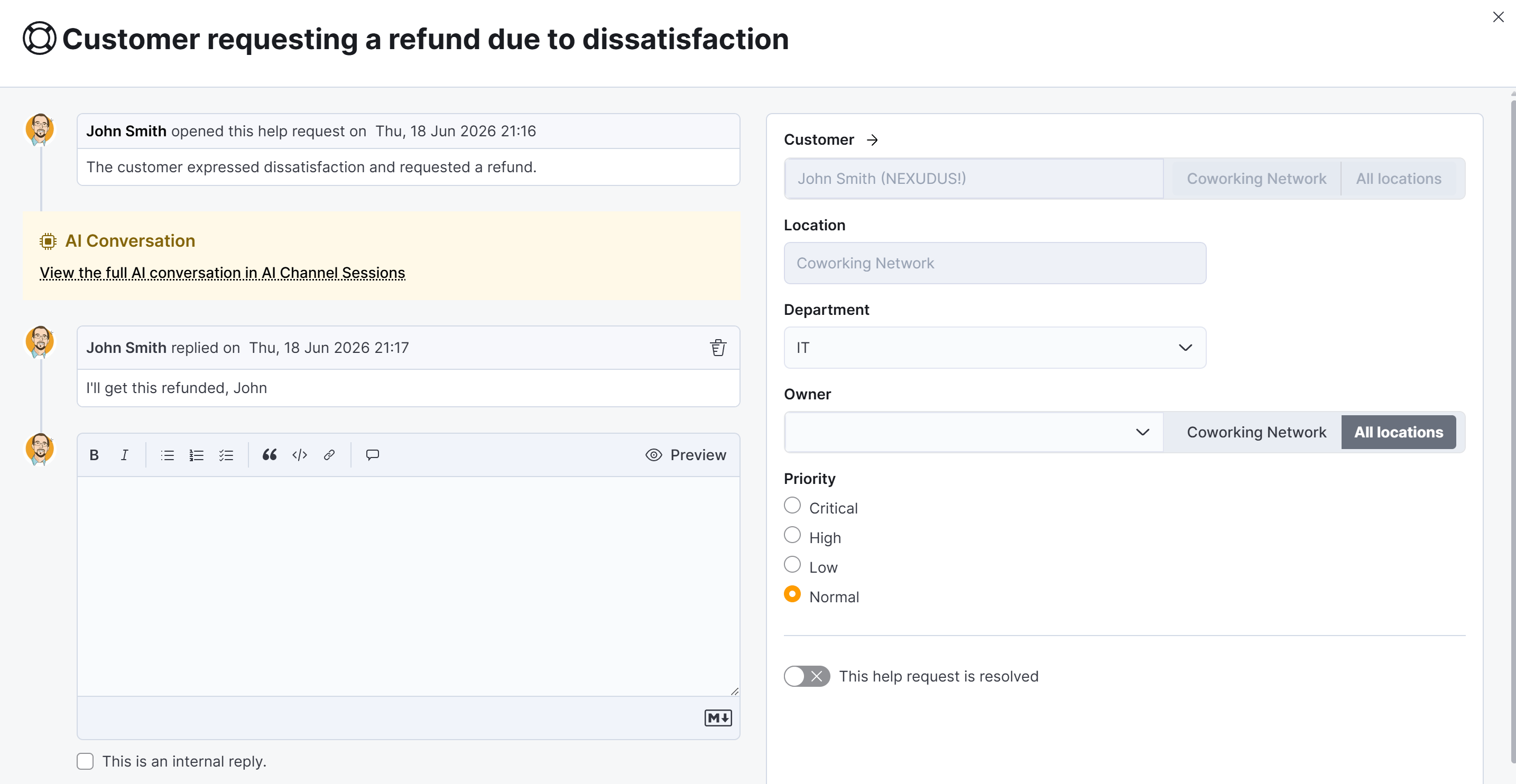 This bidirectional linking makes it easy for your team to understand the full context without having to search for related records.