> ## Documentation Index
> Fetch the complete documentation index at: https://learn.nexudus.com/llms.txt
> Use this file to discover all available pages before exploring further.
# Setting Up the Voice Channel
> Step-by-step guide to connecting the AI assistant to voice calls through ElevenLabs and Twilio, so members and prospects can interact with the AI by phone.
The Voice channel lets members and prospects interact with your AI assistant by calling your space's phone number. The AI processes the caller's spoken words using speech-to-text and replies using text-to-speech — creating a natural voice conversation, with all the same capabilities as the chat widget.
Setting up the Voice channel requires an **ElevenLabs account** and a **Twilio account** with Voice capabilities. This guide walks through the full process from account configuration to making a test call.
The Voice channel requires paid accounts on ElevenLabs and Twilio. Twilio charges per minute of call usage. See [Twilio's Voice pricing](https://www.twilio.com/en-us/voice/pricing) for current rates. The cost is typically low for conversational AI use cases, especially during after-hours when the AI handles routine inquiries.
## Before you start
You need:
* **Administrator access** to your Nexudus account.
* **An ElevenLabs account** — provides the AI agent, speech-to-text (STT), and text-to-speech (TTS) engine. Sign up at [elevenlabs.io](https://elevenlabs.io).
* **A paid Twilio account** with Voice capabilities enabled (free trial accounts have limited Voice capabilities).
* **A phone number** that can receive inbound voice calls. This can be a new number purchased through Twilio or an existing number you own.
Make sure the AI assistant is already enabled for your space. The Voice channel is an extension of the existing AI assistant — it will not work unless the base AI assistant is active.
## Overview
The setup involves four main stages:
 1. **Create an ElevenLabs agent** — Configure the AI agent with a prompt and the Nexudus webhook tool.
2. **Configure the webhook tool** — Point the agent's webhook to your Nexudus portal.
3. **Acquire a Twilio phone number** — Purchase or port a number for voice calls.
4. **Connect to Nexudus** — Link your Twilio number to the ElevenLabs agent, then enter credentials in Nexudus settings.
Each stage is covered in detail below.
***
## ElevenLabs credentials overview
The Voice channel uses **two separate credentials**, each serving a different purpose:
| Credential | Used for | Where to find it |
| -------------------------------- | -------------------------------------------------------------------------------------------------------------------- | ------------------------------------------------------------------------------------- |
| **ElevenLabs Auth Token** | Outbound calls — authenticates API requests when the AI initiates calls to members or prospects | ElevenLabs → Account Settings → API Keys |
| **ElevenLabs Tool Bearer Token** | Inbound calls — a secret you create yourself to authenticate webhook requests from ElevenLabs to your Nexudus portal | [Nexudus → Settings > Channels > Voice](https://dashboard.nexudus.com/settings/5/0/3) |
The **ElevenLabs Tool Bearer Token** is required as soon as you enable the Voice channel for inbound calls. The **ElevenLabs Auth Token** is required only if you plan to use **outbound calling** — for example, when the AI proactively contacts a member about a booking confirmation, tour reminder, or follow-up.
Outbound calling also requires the **Agent ID** (your ElevenLabs agent's unique identifier) and the **Phone Number ID** (the ElevenLabs phone number linked to your Twilio number). These are configured in the same ElevenLabs account. See [Outbound calling](#outbound-calling) below for details.
***
## Stage 1 — Create an ElevenLabs agent
Your AI voice agent is created in ElevenLabs. You will configure the agent with a prompt and a webhook tool that connects to your Nexudus portal.
In your ElevenLabs account, navigate to [https://elevenlabs.io/app/agents](https://elevenlabs.io/app/agents).
Click **Create Agent** and give it a name such as "Nexudus Voice Assistant" or your space's name followed by "AI Assistant".
In the agent's **Instructions** field, paste the following prompt:
```
You are a helpful assistant.
- Forward user requests to the "nexudus" tool when you need information you have not already gathered. Do not make any answers up and always forward requests to the tool to get the proper answers.
- Never read out links, these are sent by SMS automatically.
```
This prompt instructs the agent to delegate all user requests to Nexudus through the webhook tool you will configure next.
Select a voice from the ElevenLabs voice library. Choose a voice that matches your brand personality — professional, friendly, or energetic.
Adjust the **stability** and **similarity** settings to your preference. Lower stability gives more expressive speech; higher stability sounds more consistent.
***
## Stage 2 — Configure the webhook tool
The webhook tool is how your ElevenLabs agent communicates with your Nexudus portal. It sends user requests to Nexudus and receives AI responses back.
In your ElevenLabs agent configuration, go to the **Tools** section and click **Add Tool**.
Select **Webhook** as the tool type.
Name the tool `nexudus`. This name must match the tool name referenced in your agent's prompt.
Set the following parameters:
| Setting | Value |
| ---------- | -------------------------------------------------------------------------------------------------------------- |
| **Method** | `GET` |
| **URL** | `https://{portal_sub_domain}.spaces.nexudus.com/api/public/ai/chats/elevenlabs/{eleventlabel_conversation_id}` |
Replace `{portal_sub_domain}` with your Nexudus portal sub-domain. Go to **Settings > Website** in your Nexudus admin panel (e.g., `https://dashboard.nexudus.com/settings/2/0/0`) and copy the domain shown there. For example, if your portal is `mymembers.nexudus.com`, use `mymembers`.
**Do not replace** `{eleventlabel_conversation_id}` — it is a path variable, not a placeholder. In the webhook tool settings below, you will map this variable to the `system__conversation_id` system variable so ElevenLabs passes the conversation ID at runtime.
Add the following header:
| Header | Value |
| ----------------- | -------------------------- |
| **Authorization** | `Bearer {your_secret_key}` |
Replace `{your_secret_key}` with the value from the **Elevenlabs Tool Bearer Token** field. This is a secret you create yourself — go to [Settings > Channels > Voice](https://dashboard.nexudus.com/settings/5/0/3) in your Nexudus admin panel, type a strong secret key into the **Elevenlabs Tool Bearer Token** field, and save. Then use that same secret key here in your ElevenLabs webhook configuration. This ensures that only your Nexudus portal can verify incoming webhook requests from ElevenLabs.
In the tool configuration, set the following:
| Setting | Value |
| ------------------- | --------- |
| **Pre-tool speech** | Force |
| **Execution mode** | Immediate |
Add the following path parameter:
| Parameter | Value Type | Variable Name |
| ------------------------------ | ---------------- | ------------------------- |
| `eleventlabel_conversation_id` | Dynamic Variable | `system__conversation_id` |
This tells ElevenLabs to substitute the conversation ID at runtime. The `system__conversation_id` is a built-in ElevenLabs variable that holds the unique ID for each conversation.
Add the following query parameters:
| Parameter | Required | Value Type | Variable Name / Description |
| ------------ | -------- | ---------------- | --------------------------------- |
| `prompt` | Yes | LLM Prompt | The actual question from the user |
| `caller_id` | Yes | Dynamic Variable | `system__caller_id` |
| `session_id` | No | Dynamic Variable | `session_id` |
In the **Dynamic Variable Assignments** section of the webhook tool configuration, add a new variable:
| Setting | Value |
| ----------------- | ------------ |
| **Variable Name** | `session_id` |
| **JSON Path** | `session_id` |
The **session\_id** variable is used to identify the caller's session context. This is separate from the query parameters section — ElevenLabs stores variable assignments in their own dedicated section in the tool configuration.
Click **Save** to add the webhook tool to your agent.
The webhook uses the **GET** method because ElevenLabs voice conversations send user input as query parameters. The `{portal_sub_domain}` placeholder must be replaced with your actual portal domain. The `{eleventlabel_conversation_id}` path variable is mapped to `system__conversation_id` in the webhook tool settings and is substituted at runtime by ElevenLabs.
***
## Stage 3 — Acquire a Twilio phone number
In the Twilio Console, go to **Account > Settings > Capabilities** and ensure that **Voice** is enabled for your account.
If Voice is not enabled, contact Twilio support to activate it. Free trial accounts may need to be upgraded to a paid plan first.
In the Twilio Console, go to **Account > API keys & tokens**. You need two values:
* **Account SID** — your account identifier
* **Auth Token** — your account secret
Keep these values safe. You will enter them in Nexudus later.
***
## Stage 4 — Acquire a phone number
You need a phone number that can receive inbound voice calls. You have two options:
| Option | Best for | Details |
| ------------------------------- | ------------------------------------------ | -------------------------------------------------------------------------------------------------------------------------------------- |
| **Buy a number through Twilio** | Most operators | Twilio provides the number. No need to port an existing number. Go to **Phone Numbers > Manage > Buy a number** in the Twilio Console. |
| **Port your own number** | Operators with an existing business number | You can keep your current number and port it to Twilio. This may take several business days. |
The phone number should be able to receive inbound voice calls. Most Twilio numbers support this by default, but verify when purchasing.
***
## Stage 4 — Connect to Nexudus
ElevenLabs can automatically configure all Twilio webhook settings for you:
1. In ElevenLabs, go to [**Deploy > Phone numbers**](https://elevenlabs.io/app/agents/phone-numbers).
2. Click **Import Number > From Twilio**.
3. Add a label, enter your phone number, and select or type a new **Twilio Account SID**.
This configures all webhook settings in Twilio automatically — incoming calls will be routed to your ElevenLabs agent without any manual Twilio Console configuration.
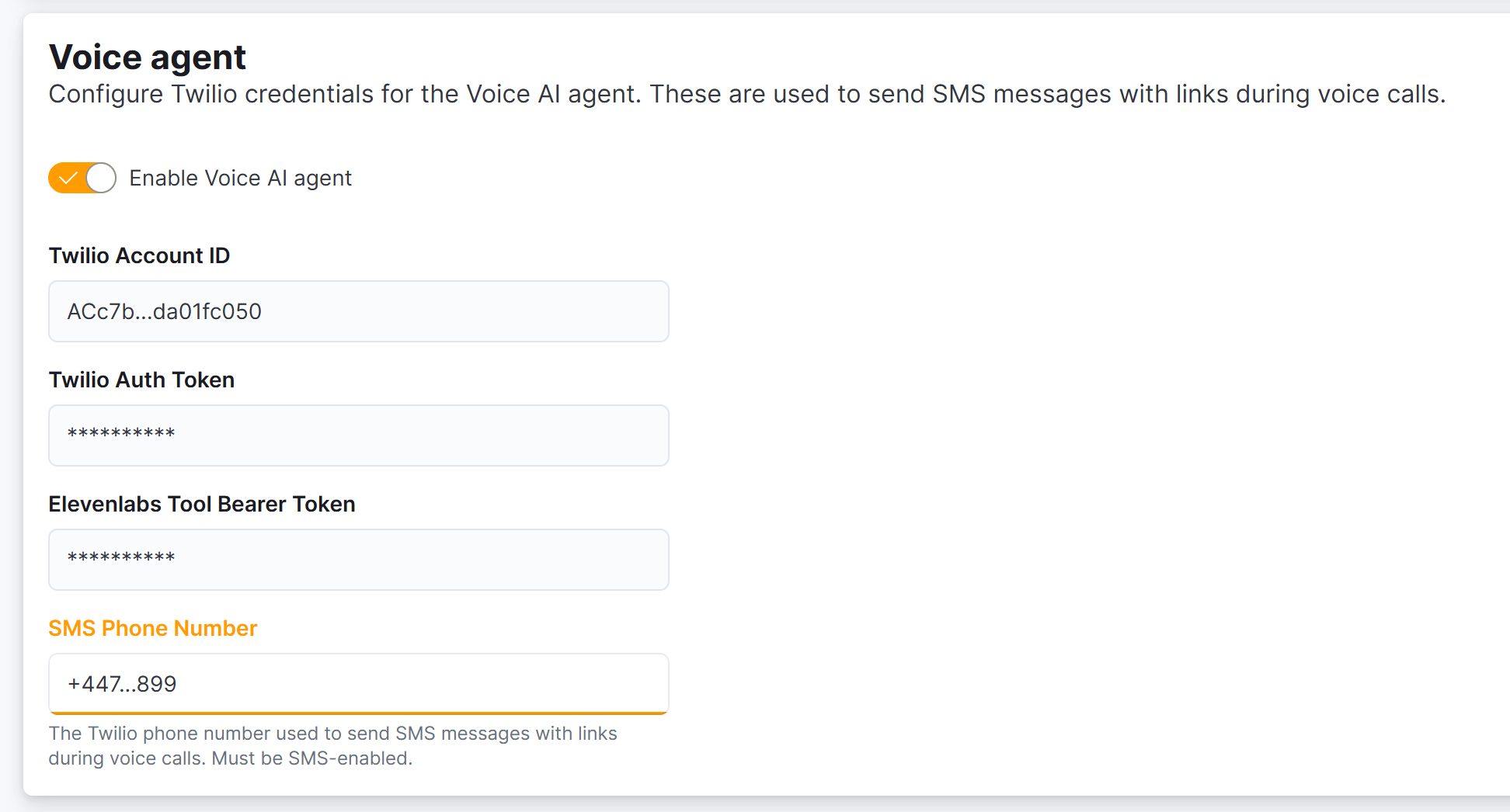
In the Nexudus administration panel, go to [**Settings > Channels > Voice**](https://dashboard.nexudus.com/settings/5/0/3).
Toggle the **AI Voice** setting to on. This activates the voice channel for your space.
Enter the following values in the corresponding fields:
* **Twilio Account ID** — your Twilio Account SID (found in the Twilio Console under **Account > API keys & tokens**)
* **Twilio Auth Token** — your Twilio Auth Token (found in the Twilio Console under **Account > API keys & tokens**)
* **SMS Phone Number** — the Twilio phone number in E.164 format (e.g., `+14155551234`). This number is used for SMS link delivery. See [SMS link delivery](/member-portal/ai/channels#sms-link-delivery) for details.
1. **Create an ElevenLabs agent** — Configure the AI agent with a prompt and the Nexudus webhook tool.
2. **Configure the webhook tool** — Point the agent's webhook to your Nexudus portal.
3. **Acquire a Twilio phone number** — Purchase or port a number for voice calls.
4. **Connect to Nexudus** — Link your Twilio number to the ElevenLabs agent, then enter credentials in Nexudus settings.
Each stage is covered in detail below.
***
## ElevenLabs credentials overview
The Voice channel uses **two separate credentials**, each serving a different purpose:
| Credential | Used for | Where to find it |
| -------------------------------- | -------------------------------------------------------------------------------------------------------------------- | ------------------------------------------------------------------------------------- |
| **ElevenLabs Auth Token** | Outbound calls — authenticates API requests when the AI initiates calls to members or prospects | ElevenLabs → Account Settings → API Keys |
| **ElevenLabs Tool Bearer Token** | Inbound calls — a secret you create yourself to authenticate webhook requests from ElevenLabs to your Nexudus portal | [Nexudus → Settings > Channels > Voice](https://dashboard.nexudus.com/settings/5/0/3) |
The **ElevenLabs Tool Bearer Token** is required as soon as you enable the Voice channel for inbound calls. The **ElevenLabs Auth Token** is required only if you plan to use **outbound calling** — for example, when the AI proactively contacts a member about a booking confirmation, tour reminder, or follow-up.
Outbound calling also requires the **Agent ID** (your ElevenLabs agent's unique identifier) and the **Phone Number ID** (the ElevenLabs phone number linked to your Twilio number). These are configured in the same ElevenLabs account. See [Outbound calling](#outbound-calling) below for details.
***
## Stage 1 — Create an ElevenLabs agent
Your AI voice agent is created in ElevenLabs. You will configure the agent with a prompt and a webhook tool that connects to your Nexudus portal.
In your ElevenLabs account, navigate to [https://elevenlabs.io/app/agents](https://elevenlabs.io/app/agents).
Click **Create Agent** and give it a name such as "Nexudus Voice Assistant" or your space's name followed by "AI Assistant".
In the agent's **Instructions** field, paste the following prompt:
```
You are a helpful assistant.
- Forward user requests to the "nexudus" tool when you need information you have not already gathered. Do not make any answers up and always forward requests to the tool to get the proper answers.
- Never read out links, these are sent by SMS automatically.
```
This prompt instructs the agent to delegate all user requests to Nexudus through the webhook tool you will configure next.
Select a voice from the ElevenLabs voice library. Choose a voice that matches your brand personality — professional, friendly, or energetic.
Adjust the **stability** and **similarity** settings to your preference. Lower stability gives more expressive speech; higher stability sounds more consistent.
***
## Stage 2 — Configure the webhook tool
The webhook tool is how your ElevenLabs agent communicates with your Nexudus portal. It sends user requests to Nexudus and receives AI responses back.
In your ElevenLabs agent configuration, go to the **Tools** section and click **Add Tool**.
Select **Webhook** as the tool type.
Name the tool `nexudus`. This name must match the tool name referenced in your agent's prompt.
Set the following parameters:
| Setting | Value |
| ---------- | -------------------------------------------------------------------------------------------------------------- |
| **Method** | `GET` |
| **URL** | `https://{portal_sub_domain}.spaces.nexudus.com/api/public/ai/chats/elevenlabs/{eleventlabel_conversation_id}` |
Replace `{portal_sub_domain}` with your Nexudus portal sub-domain. Go to **Settings > Website** in your Nexudus admin panel (e.g., `https://dashboard.nexudus.com/settings/2/0/0`) and copy the domain shown there. For example, if your portal is `mymembers.nexudus.com`, use `mymembers`.
**Do not replace** `{eleventlabel_conversation_id}` — it is a path variable, not a placeholder. In the webhook tool settings below, you will map this variable to the `system__conversation_id` system variable so ElevenLabs passes the conversation ID at runtime.
Add the following header:
| Header | Value |
| ----------------- | -------------------------- |
| **Authorization** | `Bearer {your_secret_key}` |
Replace `{your_secret_key}` with the value from the **Elevenlabs Tool Bearer Token** field. This is a secret you create yourself — go to [Settings > Channels > Voice](https://dashboard.nexudus.com/settings/5/0/3) in your Nexudus admin panel, type a strong secret key into the **Elevenlabs Tool Bearer Token** field, and save. Then use that same secret key here in your ElevenLabs webhook configuration. This ensures that only your Nexudus portal can verify incoming webhook requests from ElevenLabs.
In the tool configuration, set the following:
| Setting | Value |
| ------------------- | --------- |
| **Pre-tool speech** | Force |
| **Execution mode** | Immediate |
Add the following path parameter:
| Parameter | Value Type | Variable Name |
| ------------------------------ | ---------------- | ------------------------- |
| `eleventlabel_conversation_id` | Dynamic Variable | `system__conversation_id` |
This tells ElevenLabs to substitute the conversation ID at runtime. The `system__conversation_id` is a built-in ElevenLabs variable that holds the unique ID for each conversation.
Add the following query parameters:
| Parameter | Required | Value Type | Variable Name / Description |
| ------------ | -------- | ---------------- | --------------------------------- |
| `prompt` | Yes | LLM Prompt | The actual question from the user |
| `caller_id` | Yes | Dynamic Variable | `system__caller_id` |
| `session_id` | No | Dynamic Variable | `session_id` |
In the **Dynamic Variable Assignments** section of the webhook tool configuration, add a new variable:
| Setting | Value |
| ----------------- | ------------ |
| **Variable Name** | `session_id` |
| **JSON Path** | `session_id` |
The **session\_id** variable is used to identify the caller's session context. This is separate from the query parameters section — ElevenLabs stores variable assignments in their own dedicated section in the tool configuration.
Click **Save** to add the webhook tool to your agent.
The webhook uses the **GET** method because ElevenLabs voice conversations send user input as query parameters. The `{portal_sub_domain}` placeholder must be replaced with your actual portal domain. The `{eleventlabel_conversation_id}` path variable is mapped to `system__conversation_id` in the webhook tool settings and is substituted at runtime by ElevenLabs.
***
## Stage 3 — Acquire a Twilio phone number
In the Twilio Console, go to **Account > Settings > Capabilities** and ensure that **Voice** is enabled for your account.
If Voice is not enabled, contact Twilio support to activate it. Free trial accounts may need to be upgraded to a paid plan first.
In the Twilio Console, go to **Account > API keys & tokens**. You need two values:
* **Account SID** — your account identifier
* **Auth Token** — your account secret
Keep these values safe. You will enter them in Nexudus later.
***
## Stage 4 — Acquire a phone number
You need a phone number that can receive inbound voice calls. You have two options:
| Option | Best for | Details |
| ------------------------------- | ------------------------------------------ | -------------------------------------------------------------------------------------------------------------------------------------- |
| **Buy a number through Twilio** | Most operators | Twilio provides the number. No need to port an existing number. Go to **Phone Numbers > Manage > Buy a number** in the Twilio Console. |
| **Port your own number** | Operators with an existing business number | You can keep your current number and port it to Twilio. This may take several business days. |
The phone number should be able to receive inbound voice calls. Most Twilio numbers support this by default, but verify when purchasing.
***
## Stage 4 — Connect to Nexudus
ElevenLabs can automatically configure all Twilio webhook settings for you:
1. In ElevenLabs, go to [**Deploy > Phone numbers**](https://elevenlabs.io/app/agents/phone-numbers).
2. Click **Import Number > From Twilio**.
3. Add a label, enter your phone number, and select or type a new **Twilio Account SID**.
This configures all webhook settings in Twilio automatically — incoming calls will be routed to your ElevenLabs agent without any manual Twilio Console configuration.
In the Nexudus administration panel, go to [**Settings > Channels > Voice**](https://dashboard.nexudus.com/settings/5/0/3).
Toggle the **AI Voice** setting to on. This activates the voice channel for your space.
Enter the following values in the corresponding fields:
* **Twilio Account ID** — your Twilio Account SID (found in the Twilio Console under **Account > API keys & tokens**)
* **Twilio Auth Token** — your Twilio Auth Token (found in the Twilio Console under **Account > API keys & tokens**)
* **SMS Phone Number** — the Twilio phone number in E.164 format (e.g., `+14155551234`). This number is used for SMS link delivery. See [SMS link delivery](/member-portal/ai/channels#sms-link-delivery) for details.
 ***
## Outbound calling
In addition to answering incoming calls, the AI can **initiate outbound calls** to members and prospects. Outbound calling is used for:
* Booking confirmations and reminders
* Tour reminders
* Follow-up inquiries
* Payment notifications
### How it works
When the AI needs to make an outbound call, it uses your ElevenLabs agent configuration to place the call through your linked Twilio phone number. The caller experiences the call the same way as an inbound call — they hear the AI's voice and can respond naturally.
### Required credentials
Outbound calling requires the following values configured in Nexudus:
| Setting in Nexudus | Where to find it |
| ------------------------------ | --------------------------------------------------------------------------------------------- |
| **ElevenLabs Auth Token** | ElevenLabs → Account Settings → API Keys → New Personal API Key |
| **ElevenLabs Agent ID** | ElevenLabs → Agents → click your agent → copy the Agent ID from the URL or agent details page |
| **ElevenLabs Phone Number ID** | ElevenLabs → Voice → Phone Numbers → select your number → copy the Phone Number ID |
The **ElevenLabs Tool Bearer Token** (used for inbound call authentication) is a secret you create yourself in Nexudus — it is **not** an ElevenLabs API key. See [Stage 2 — Configure the webhook tool](#stage-2---configure-the-webhook-tool) for details.
The **Agent ID** and **Phone Number ID** are unique identifiers that tell ElevenLabs which agent and phone number to use when placing outbound calls. Without these, the AI can answer inbound calls but cannot initiate outbound ones.
### Enabling outbound calls
1. Enter the ElevenLabs credentials in [**Settings > Channels > Voice**](https://dashboard.nexudus.com/settings/5/0/3) in your Nexudus admin panel.
2. Configure calling hours in the same settings page to control when outbound calls are made.
3. Use the **Test Outbound Call** button (shown when Agent ID and Phone Number ID are both configured) to verify your setup.
Outbound calls respect the calling hours configured in Nexudus by default. Calls outside the calling window are automatically deferred until the next available window. You can disable this enforcement for testing purposes, but it is not recommended for production use.
***
## Test the Voice channel
From any phone, call your space's AI voice number. The AI should answer and greet you.
Ask a basic question like "What are your opening hours?" or "Where are you located?" to verify the AI responds correctly.
After the call, go to **Operations > AI Conversations** in Nexudus to verify the conversation was recorded. You should see a new entry with the Voice channel badge.
***
## Troubleshooting
| Problem | Possible cause | Solution |
| --------------------------------- | ---------------------------------------------------- | ------------------------------------------------------------------------------------- |
| Call connects but no audio | Webhook not configured correctly | Verify the Twilio webhook URL matches what Nexudus provides |
| AI doesn't understand the caller | Speech-to-text accuracy varies with noise/background | Encourage callers to use a quiet environment; ensure the phone number has good signal |
| AI responds but caller can't hear | Text-to-speech not configured | Verify Twilio Voice capabilities are active; check Twilio logs for errors |
| Wrong location's AI answers | Multiple locations sharing a number | Ensure each location has its own dedicated phone number |
***
## What the caller can do
On the Voice channel, callers can:
* Ask about opening hours, location, and facilities
* Browse and book meeting rooms and desks
* Inquire about day passes and membership plans
* Request a tour of private offices
* View and manage their existing bookings
For complex actions (like purchasing a day pass or signing up for a membership), the AI describes the options and offers to send a link via email or WhatsApp that the caller can follow on their device.
***
## Outbound calling
In addition to answering incoming calls, the AI can **initiate outbound calls** to members and prospects. Outbound calling is used for:
* Booking confirmations and reminders
* Tour reminders
* Follow-up inquiries
* Payment notifications
### How it works
When the AI needs to make an outbound call, it uses your ElevenLabs agent configuration to place the call through your linked Twilio phone number. The caller experiences the call the same way as an inbound call — they hear the AI's voice and can respond naturally.
### Required credentials
Outbound calling requires the following values configured in Nexudus:
| Setting in Nexudus | Where to find it |
| ------------------------------ | --------------------------------------------------------------------------------------------- |
| **ElevenLabs Auth Token** | ElevenLabs → Account Settings → API Keys → New Personal API Key |
| **ElevenLabs Agent ID** | ElevenLabs → Agents → click your agent → copy the Agent ID from the URL or agent details page |
| **ElevenLabs Phone Number ID** | ElevenLabs → Voice → Phone Numbers → select your number → copy the Phone Number ID |
The **ElevenLabs Tool Bearer Token** (used for inbound call authentication) is a secret you create yourself in Nexudus — it is **not** an ElevenLabs API key. See [Stage 2 — Configure the webhook tool](#stage-2---configure-the-webhook-tool) for details.
The **Agent ID** and **Phone Number ID** are unique identifiers that tell ElevenLabs which agent and phone number to use when placing outbound calls. Without these, the AI can answer inbound calls but cannot initiate outbound ones.
### Enabling outbound calls
1. Enter the ElevenLabs credentials in [**Settings > Channels > Voice**](https://dashboard.nexudus.com/settings/5/0/3) in your Nexudus admin panel.
2. Configure calling hours in the same settings page to control when outbound calls are made.
3. Use the **Test Outbound Call** button (shown when Agent ID and Phone Number ID are both configured) to verify your setup.
Outbound calls respect the calling hours configured in Nexudus by default. Calls outside the calling window are automatically deferred until the next available window. You can disable this enforcement for testing purposes, but it is not recommended for production use.
***
## Test the Voice channel
From any phone, call your space's AI voice number. The AI should answer and greet you.
Ask a basic question like "What are your opening hours?" or "Where are you located?" to verify the AI responds correctly.
After the call, go to **Operations > AI Conversations** in Nexudus to verify the conversation was recorded. You should see a new entry with the Voice channel badge.
***
## Troubleshooting
| Problem | Possible cause | Solution |
| --------------------------------- | ---------------------------------------------------- | ------------------------------------------------------------------------------------- |
| Call connects but no audio | Webhook not configured correctly | Verify the Twilio webhook URL matches what Nexudus provides |
| AI doesn't understand the caller | Speech-to-text accuracy varies with noise/background | Encourage callers to use a quiet environment; ensure the phone number has good signal |
| AI responds but caller can't hear | Text-to-speech not configured | Verify Twilio Voice capabilities are active; check Twilio logs for errors |
| Wrong location's AI answers | Multiple locations sharing a number | Ensure each location has its own dedicated phone number |
***
## What the caller can do
On the Voice channel, callers can:
* Ask about opening hours, location, and facilities
* Browse and book meeting rooms and desks
* Inquire about day passes and membership plans
* Request a tour of private offices
* View and manage their existing bookings
For complex actions (like purchasing a day pass or signing up for a membership), the AI describes the options and offers to send a link via email or WhatsApp that the caller can follow on their device.