> ## Documentation Index
> Fetch the complete documentation index at: https://learn.nexudus.com/llms.txt
> Use this file to discover all available pages before exploring further.
# Setting Up the WhatsApp Channel
> Step-by-step guide to connecting the AI assistant to WhatsApp through Twilio, so members and prospects can interact with the AI via WhatsApp messages.
The WhatsApp channel lets members and prospects interact with your AI assistant by sending a WhatsApp message to your space's number. The AI processes the message and replies in the same WhatsApp conversation — with all the same capabilities as the chat widget.
Setting up the WhatsApp channel requires a **Twilio account** and a **WhatsApp Business Account** through Meta. This guide walks through the full process from account creation to sending a test message.
The WhatsApp channel requires a paid Twilio account. Twilio charges per message sent and received. See [Twilio's WhatsApp pricing](https://www.twilio.com/en-us/whatsapp/pricing) for current rates. The cost is typically low for conversational AI use cases.
## Before you start
You need:
* **Administrator access** to your Nexudus account.
* **A credit card** for the Twilio account (free trial accounts are too limited for production use).
* **A phone number** that is not already registered with WhatsApp. This can be a new number purchased through Twilio or an existing number you own.
* **Administrator access to a Meta Business Portfolio** (or the ability to create one).
Make sure the AI assistant is already enabled for your space. The WhatsApp channel is an extension of the existing AI assistant — it will not work unless the base AI assistant is active.
## Overview
The setup involves four main stages:
 1. **Create a Twilio account** and upgrade to a paid plan.
2. **Register a WhatsApp sender** — connect a phone number to a WhatsApp Business Account through Twilio.
3. **Configure the webhook** — point Twilio to Nexudus so inbound messages reach the AI assistant.
4. **Connect to Nexudus** — enter your Twilio credentials and phone number in Nexudus settings.
Each stage is covered in detail below.
***
## Stage 1 — Create and upgrade your Twilio account
Go to [twilio.com/try-twilio](https://www.twilio.com/try-twilio) and create an account.
The sign-up process asks you to:
* Verify your email address.
* Verify your personal phone number.
* Answer a few questions about your project (select **Messaging** as your use case).
A free trial account can only message pre-verified numbers and has a single phone number limit — this is not suitable for a production AI assistant.
To upgrade, in the Twilio Console, click **Upgrade** at the top of the page, or go to **Admin > Account billing** and click **Upgrade account**.
You will need to:
* Add a payment method (credit card).
* Load a starting balance (the minimum depends on your region).
Do not skip the upgrade step. WhatsApp sender registration requires a paid Twilio account, and trial accounts cannot receive messages from unverified numbers.
In the Twilio Console, go to **Account > API keys & tokens**. You need two values:
* **Account SID** — your account identifier
* **Auth Token** — your account secret
Keep these values safe. You will enter them in Nexudus later.
***
## Stage 2 — Register a WhatsApp sender
A **WhatsApp sender** is a phone number connected to a WhatsApp Business Account (WABA) through Twilio. This is the number your members will message on WhatsApp.
### Choose a phone number
You have two options:
| Option | Best for | Details |
| ------------------------------- | ------------------------------------------ | --------------------------------------------------------------------------------------------------------------------------------------------------------------------------- |
| **Buy a number through Twilio** | Most operators | Twilio provides the number. No need to port an existing number. Go to **Phone Numbers > Manage > Buy a number** in the Twilio Console. |
| **Use your own number** | Operators with an existing business number | You can register a number you already own, as long as it is not already registered with WhatsApp. The number must be able to receive an SMS or voice call for verification. |
If the phone number you want to use is currently registered with the regular WhatsApp or WhatsApp Business app, you must [delete that WhatsApp account](https://faq.whatsapp.com/2138515194215842) first. A number can only be registered with one WhatsApp platform at a time.
### Register the sender via self sign-up
In the Twilio Console, go to [**Products & Services / Numbers & senders / Overview / WhatsApp**](https://console.twilio.com/us1/develop/sms/senders/whatsapp-senders).
Click **Create new sender**.
Under **Select a phone number to register**, choose a Twilio phone number or enter your own non-Twilio number.
Click **Continue**.
Click **Continue with Facebook**. A pop-up window opens for Meta's self sign-up flow.
Complete all the following steps in the same browser. Do not share the pop-up URL. Keep both the Twilio Console and the Meta pop-up windows open throughout the process.
In the pop-up, log in to your Facebook account (or click **Continue as \[your name]** if already logged in).
Review and accept the permissions that allow Twilio to manage your WhatsApp Business Account.
Click **Get started**.
If your company already has a Meta Business Portfolio, select it from the dropdown. If not, create a new one.
If your company already has a Meta Business Portfolio (for example, from Facebook advertising), select the existing one. You will need administrator access with full permissions. If you cannot get access, you can create a new portfolio during this step.
Click **Next**.
* If this is your **first WhatsApp sender** on Twilio, create a new WABA (WhatsApp Business Account).
* If you are adding **another sender** to an existing Twilio account, select the same WABA you used previously. Twilio requires all senders in one account to use the same WABA.
Select **Create a new WhatsApp Business profile**.
Click **Next**.
Fill in the following:
| Field | Required | Description |
| ---------------- | ----------- | ------------------------------------------------------------------------------------------------------------------------------------------------------------------------------------------------------------- |
| **Display name** | Yes | The name members see when they receive messages. Must comply with [Meta's display name guidelines](https://www.facebook.com/business/help/757569725593362). Use your space's name (e.g. "The Hub Coworking"). |
| **Category** | Yes | Your business category (e.g. "Office Space", "Business Service"). |
| **Description** | Recommended | A short description of your space shown in your WhatsApp profile. |
| **Website** | Recommended | Your space's website URL. |
Click **Next**.
Meta needs to verify that you own the phone number. The process depends on the number type:
**For a Twilio phone number (SMS-capable):**
1. Copy the phone number from the Twilio Console window.
2. In the Meta pop-up, select **Add a new phone number** and paste it.
3. Select **Text message** as the verification method and click **Next**.
4. The verification code appears in the Twilio Console — copy it.
5. Paste the code in the Meta pop-up and click **Next**.
**For a non-Twilio phone number:**
1. Enter the phone number in the Meta pop-up.
2. Choose **Text message** or **Phone call** as the verification method.
3. Receive the code on your device and enter it in the pop-up.
The Meta pop-up shows a summary of Twilio's access to your WABA. Review it and click **Confirm**.
The pop-up closes and Twilio begins the registration process. This takes a few minutes. Once complete, the Twilio Console shows your new WhatsApp sender.
### Complete Meta business verification
If you created a new Meta Business Portfolio during the sign-up, or if your existing portfolio has not been verified, you must complete Meta business verification before you can use the WhatsApp channel in production.
Business verification is **free** (it is not the same as Meta's paid "Meta Verified" subscription) and is required to:
* Remove the 250-message daily limit on business-initiated messages.
* Add more than two WhatsApp senders.
* Request an Official Business Account (green checkmark).
To verify:
1. Go to [Meta's Security Centre](https://business.facebook.com/settings/security).
2. Follow the steps in [How to verify your business on Meta](https://www.facebook.com/business/help/2058515294227817).
Meta's processing time varies by region and can take **several days to a few weeks**. Start this process early.
***
## Stage 3 — Configure the webhook
The webhook tells Twilio where to send inbound WhatsApp messages. You need to point it at the Nexudus API so that incoming messages reach the AI assistant.
In the Twilio Console, go to **Messaging > Senders > WhatsApp Senders**. Click **Edit Sender** on the sender you just registered.
In the **Sender configuration** section, find the **A message comes in** field. Enter the Nexudus WhatsApp webhook URL:
```
https://spaces.nexudus.com/api/integrations/twilio/whatsapp
```
Set the HTTP method to **POST**.
1. **Create a Twilio account** and upgrade to a paid plan.
2. **Register a WhatsApp sender** — connect a phone number to a WhatsApp Business Account through Twilio.
3. **Configure the webhook** — point Twilio to Nexudus so inbound messages reach the AI assistant.
4. **Connect to Nexudus** — enter your Twilio credentials and phone number in Nexudus settings.
Each stage is covered in detail below.
***
## Stage 1 — Create and upgrade your Twilio account
Go to [twilio.com/try-twilio](https://www.twilio.com/try-twilio) and create an account.
The sign-up process asks you to:
* Verify your email address.
* Verify your personal phone number.
* Answer a few questions about your project (select **Messaging** as your use case).
A free trial account can only message pre-verified numbers and has a single phone number limit — this is not suitable for a production AI assistant.
To upgrade, in the Twilio Console, click **Upgrade** at the top of the page, or go to **Admin > Account billing** and click **Upgrade account**.
You will need to:
* Add a payment method (credit card).
* Load a starting balance (the minimum depends on your region).
Do not skip the upgrade step. WhatsApp sender registration requires a paid Twilio account, and trial accounts cannot receive messages from unverified numbers.
In the Twilio Console, go to **Account > API keys & tokens**. You need two values:
* **Account SID** — your account identifier
* **Auth Token** — your account secret
Keep these values safe. You will enter them in Nexudus later.
***
## Stage 2 — Register a WhatsApp sender
A **WhatsApp sender** is a phone number connected to a WhatsApp Business Account (WABA) through Twilio. This is the number your members will message on WhatsApp.
### Choose a phone number
You have two options:
| Option | Best for | Details |
| ------------------------------- | ------------------------------------------ | --------------------------------------------------------------------------------------------------------------------------------------------------------------------------- |
| **Buy a number through Twilio** | Most operators | Twilio provides the number. No need to port an existing number. Go to **Phone Numbers > Manage > Buy a number** in the Twilio Console. |
| **Use your own number** | Operators with an existing business number | You can register a number you already own, as long as it is not already registered with WhatsApp. The number must be able to receive an SMS or voice call for verification. |
If the phone number you want to use is currently registered with the regular WhatsApp or WhatsApp Business app, you must [delete that WhatsApp account](https://faq.whatsapp.com/2138515194215842) first. A number can only be registered with one WhatsApp platform at a time.
### Register the sender via self sign-up
In the Twilio Console, go to [**Products & Services / Numbers & senders / Overview / WhatsApp**](https://console.twilio.com/us1/develop/sms/senders/whatsapp-senders).
Click **Create new sender**.
Under **Select a phone number to register**, choose a Twilio phone number or enter your own non-Twilio number.
Click **Continue**.
Click **Continue with Facebook**. A pop-up window opens for Meta's self sign-up flow.
Complete all the following steps in the same browser. Do not share the pop-up URL. Keep both the Twilio Console and the Meta pop-up windows open throughout the process.
In the pop-up, log in to your Facebook account (or click **Continue as \[your name]** if already logged in).
Review and accept the permissions that allow Twilio to manage your WhatsApp Business Account.
Click **Get started**.
If your company already has a Meta Business Portfolio, select it from the dropdown. If not, create a new one.
If your company already has a Meta Business Portfolio (for example, from Facebook advertising), select the existing one. You will need administrator access with full permissions. If you cannot get access, you can create a new portfolio during this step.
Click **Next**.
* If this is your **first WhatsApp sender** on Twilio, create a new WABA (WhatsApp Business Account).
* If you are adding **another sender** to an existing Twilio account, select the same WABA you used previously. Twilio requires all senders in one account to use the same WABA.
Select **Create a new WhatsApp Business profile**.
Click **Next**.
Fill in the following:
| Field | Required | Description |
| ---------------- | ----------- | ------------------------------------------------------------------------------------------------------------------------------------------------------------------------------------------------------------- |
| **Display name** | Yes | The name members see when they receive messages. Must comply with [Meta's display name guidelines](https://www.facebook.com/business/help/757569725593362). Use your space's name (e.g. "The Hub Coworking"). |
| **Category** | Yes | Your business category (e.g. "Office Space", "Business Service"). |
| **Description** | Recommended | A short description of your space shown in your WhatsApp profile. |
| **Website** | Recommended | Your space's website URL. |
Click **Next**.
Meta needs to verify that you own the phone number. The process depends on the number type:
**For a Twilio phone number (SMS-capable):**
1. Copy the phone number from the Twilio Console window.
2. In the Meta pop-up, select **Add a new phone number** and paste it.
3. Select **Text message** as the verification method and click **Next**.
4. The verification code appears in the Twilio Console — copy it.
5. Paste the code in the Meta pop-up and click **Next**.
**For a non-Twilio phone number:**
1. Enter the phone number in the Meta pop-up.
2. Choose **Text message** or **Phone call** as the verification method.
3. Receive the code on your device and enter it in the pop-up.
The Meta pop-up shows a summary of Twilio's access to your WABA. Review it and click **Confirm**.
The pop-up closes and Twilio begins the registration process. This takes a few minutes. Once complete, the Twilio Console shows your new WhatsApp sender.
### Complete Meta business verification
If you created a new Meta Business Portfolio during the sign-up, or if your existing portfolio has not been verified, you must complete Meta business verification before you can use the WhatsApp channel in production.
Business verification is **free** (it is not the same as Meta's paid "Meta Verified" subscription) and is required to:
* Remove the 250-message daily limit on business-initiated messages.
* Add more than two WhatsApp senders.
* Request an Official Business Account (green checkmark).
To verify:
1. Go to [Meta's Security Centre](https://business.facebook.com/settings/security).
2. Follow the steps in [How to verify your business on Meta](https://www.facebook.com/business/help/2058515294227817).
Meta's processing time varies by region and can take **several days to a few weeks**. Start this process early.
***
## Stage 3 — Configure the webhook
The webhook tells Twilio where to send inbound WhatsApp messages. You need to point it at the Nexudus API so that incoming messages reach the AI assistant.
In the Twilio Console, go to **Messaging > Senders > WhatsApp Senders**. Click **Edit Sender** on the sender you just registered.
In the **Sender configuration** section, find the **A message comes in** field. Enter the Nexudus WhatsApp webhook URL:
```
https://spaces.nexudus.com/api/integrations/twilio/whatsapp
```
Set the HTTP method to **POST**.
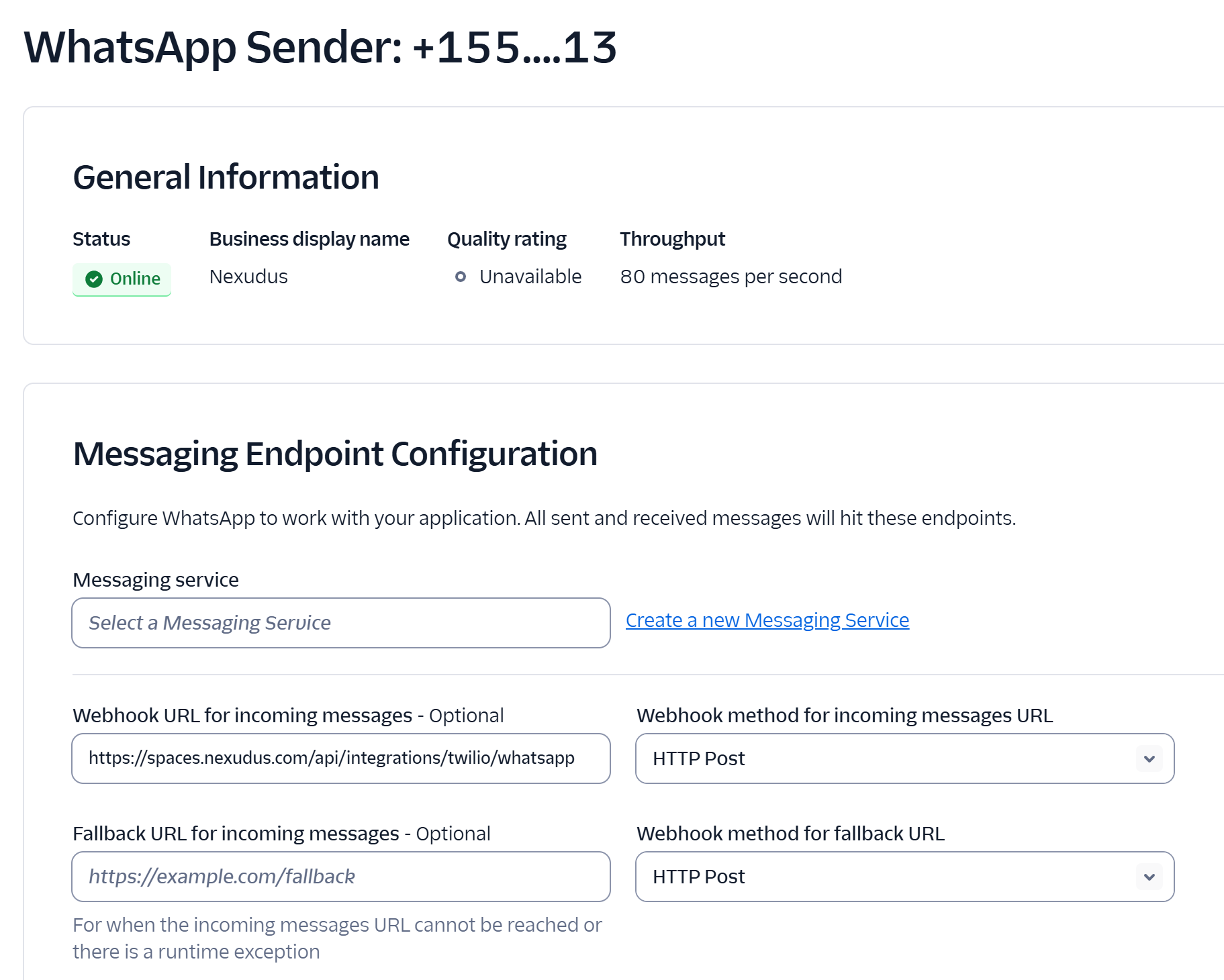 Click **Save** to apply the webhook configuration.
The webhook URL must be entered exactly as shown. If the URL is incorrect, inbound WhatsApp messages will not reach Nexudus and the AI assistant will not respond.
***
## Stage 4 — Connect to Nexudus
Now connect your Twilio account and WhatsApp number to Nexudus.
In the Nexudus administration panel, go to [**Settings > Channels > WhatsApp**](https://dashboard.nexudus.com/settings/5/0/2).
Toggle the **AI WhatsApp** setting to on.
Enter the following values from your Twilio Console:
| Field | Where to find it |
| ---------------------- | -------------------------------------------- |
| **Twilio Account SID** | Twilio Console > Account > API keys & tokens |
| **Twilio Auth Token** | Twilio Console > Account > API keys & tokens |
Click **Save** to apply the webhook configuration.
The webhook URL must be entered exactly as shown. If the URL is incorrect, inbound WhatsApp messages will not reach Nexudus and the AI assistant will not respond.
***
## Stage 4 — Connect to Nexudus
Now connect your Twilio account and WhatsApp number to Nexudus.
In the Nexudus administration panel, go to [**Settings > Channels > WhatsApp**](https://dashboard.nexudus.com/settings/5/0/2).
Toggle the **AI WhatsApp** setting to on.
Enter the following values from your Twilio Console:
| Field | Where to find it |
| ---------------------- | -------------------------------------------- |
| **Twilio Account SID** | Twilio Console > Account > API keys & tokens |
| **Twilio Auth Token** | Twilio Console > Account > API keys & tokens |
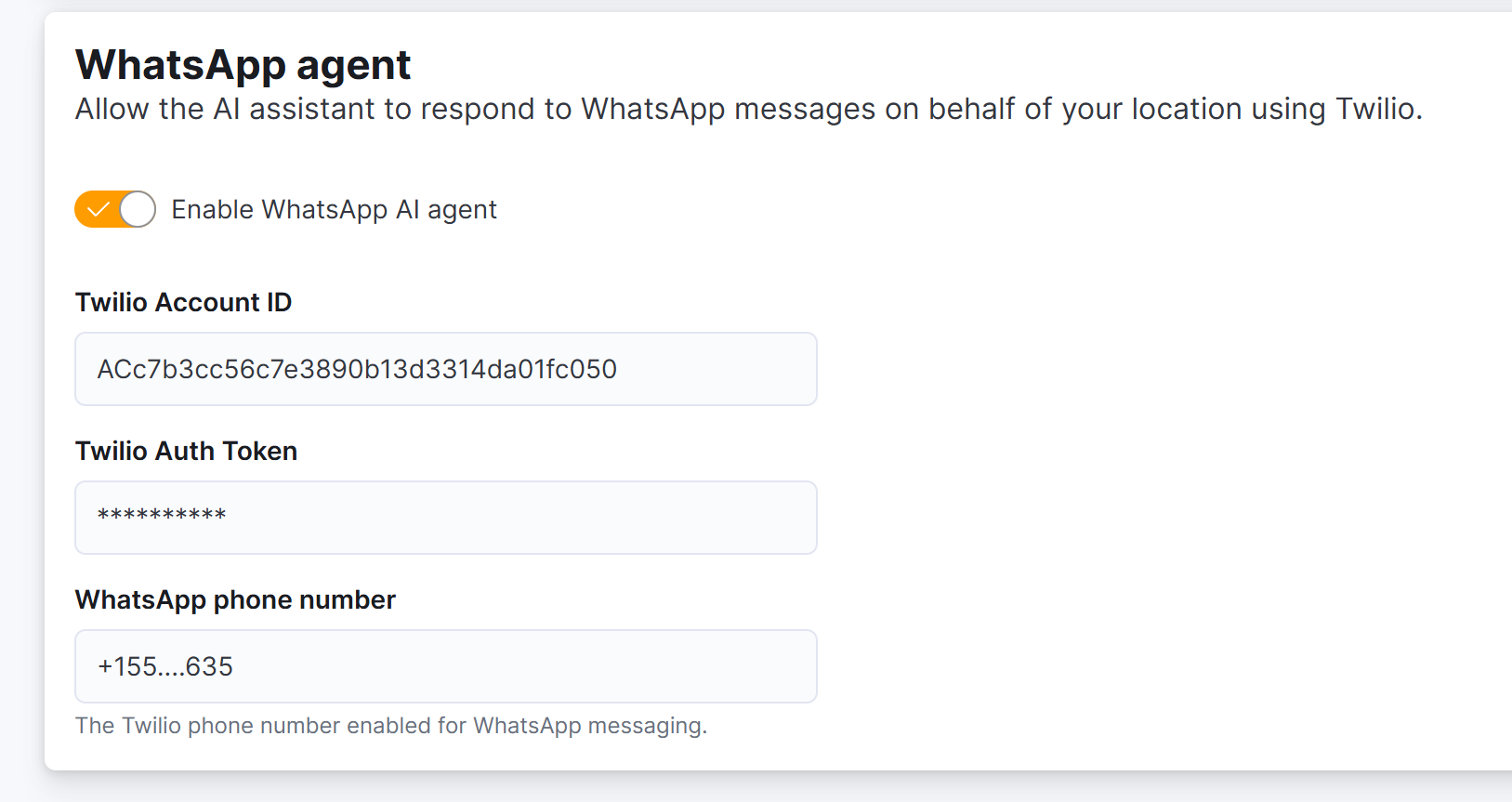 Enter the phone number you registered as a WhatsApp sender, in international format with the country code (for example, `+14155238886` or `+442071234567`).
Click **Save**. The WhatsApp channel is now active for your space.
***
## Stage 4b — Configure outbound messaging (optional)
Outbound messaging lets you send proactive notifications to members and prospects via WhatsApp — for example, booking confirmations, payment reminders, or event announcements.
WhatsApp enforces a **24-hour messaging window**: you can send free-form messages to customers who have messaged you within the last 24 hours. Outside that window, you must send a pre-approved template message first, and the customer must reply with a keyword to confirm they want to receive your message.
Outbound messaging is optional. If you only need to respond to inbound messages (the default behavior), you can skip this section.
### Configure the opt-in template
Before sending outbound messages outside the 24-hour window, you need to create a template in your Twilio account and configure the settings in Nexudus.
In the Twilio Console, go to **Content > Templates** and click **Create Template**.
Create a template with the following structure:
```
Hi {{1}}, this is {{2}}. We have an update for you regarding your membership. Reply **YES** to receive it.
```
The template uses two variables:
* `{{1}}` — customer's name
* `{{2}}` — your space's name
After creating the template, note its **Content SID** (it starts with `HX`). You'll need this value in Nexudus.
In the Nexudus administration panel, go to [**Settings > Channels > WhatsApp**](https://dashboard.nexudus.com/settings/5/0/2) and scroll to the **Outbound messaging** section.
Enter the following:
| Field | Description |
| ------------------------ | ------------------------------------------------------------------------------------------------------------------------- |
| **Template Content SID** | The Content SID from your Twilio template (starts with `HX`). Required for outbound messaging outside the 24-hour window. |
| **Opt-in keyword** | The keyword customers must reply with to receive outbound messages (case-insensitive). Default: `yes`. |
Click **Save** to apply the outbound messaging configuration.
### How outbound messaging works
When you send a proactive notification via WhatsApp:
1. **If the customer messaged you within the last 24 hours** (on any WhatsApp conversation), the message is sent directly as a free-form message.
2. **If the customer has not messaged you recently**, Nexudus sends the opt-in template first. The customer must reply with the keyword (e.g., "YES") to receive your actual message. If they don't reply within 24 hours, the message expires.
This approach respects WhatsApp's policies while still allowing you to reach customers who haven't initiated contact recently.
***
## Step 5 — Test the WhatsApp channel
From your personal WhatsApp, send a message to the phone number you just configured. Try a simple question like:
> What meeting rooms do you have?
Within a minute, you should receive a reply from the AI assistant in your WhatsApp conversation.
Enter the phone number you registered as a WhatsApp sender, in international format with the country code (for example, `+14155238886` or `+442071234567`).
Click **Save**. The WhatsApp channel is now active for your space.
***
## Stage 4b — Configure outbound messaging (optional)
Outbound messaging lets you send proactive notifications to members and prospects via WhatsApp — for example, booking confirmations, payment reminders, or event announcements.
WhatsApp enforces a **24-hour messaging window**: you can send free-form messages to customers who have messaged you within the last 24 hours. Outside that window, you must send a pre-approved template message first, and the customer must reply with a keyword to confirm they want to receive your message.
Outbound messaging is optional. If you only need to respond to inbound messages (the default behavior), you can skip this section.
### Configure the opt-in template
Before sending outbound messages outside the 24-hour window, you need to create a template in your Twilio account and configure the settings in Nexudus.
In the Twilio Console, go to **Content > Templates** and click **Create Template**.
Create a template with the following structure:
```
Hi {{1}}, this is {{2}}. We have an update for you regarding your membership. Reply **YES** to receive it.
```
The template uses two variables:
* `{{1}}` — customer's name
* `{{2}}` — your space's name
After creating the template, note its **Content SID** (it starts with `HX`). You'll need this value in Nexudus.
In the Nexudus administration panel, go to [**Settings > Channels > WhatsApp**](https://dashboard.nexudus.com/settings/5/0/2) and scroll to the **Outbound messaging** section.
Enter the following:
| Field | Description |
| ------------------------ | ------------------------------------------------------------------------------------------------------------------------- |
| **Template Content SID** | The Content SID from your Twilio template (starts with `HX`). Required for outbound messaging outside the 24-hour window. |
| **Opt-in keyword** | The keyword customers must reply with to receive outbound messages (case-insensitive). Default: `yes`. |
Click **Save** to apply the outbound messaging configuration.
### How outbound messaging works
When you send a proactive notification via WhatsApp:
1. **If the customer messaged you within the last 24 hours** (on any WhatsApp conversation), the message is sent directly as a free-form message.
2. **If the customer has not messaged you recently**, Nexudus sends the opt-in template first. The customer must reply with the keyword (e.g., "YES") to receive your actual message. If they don't reply within 24 hours, the message expires.
This approach respects WhatsApp's policies while still allowing you to reach customers who haven't initiated contact recently.
***
## Step 5 — Test the WhatsApp channel
From your personal WhatsApp, send a message to the phone number you just configured. Try a simple question like:
> What meeting rooms do you have?
Within a minute, you should receive a reply from the AI assistant in your WhatsApp conversation.
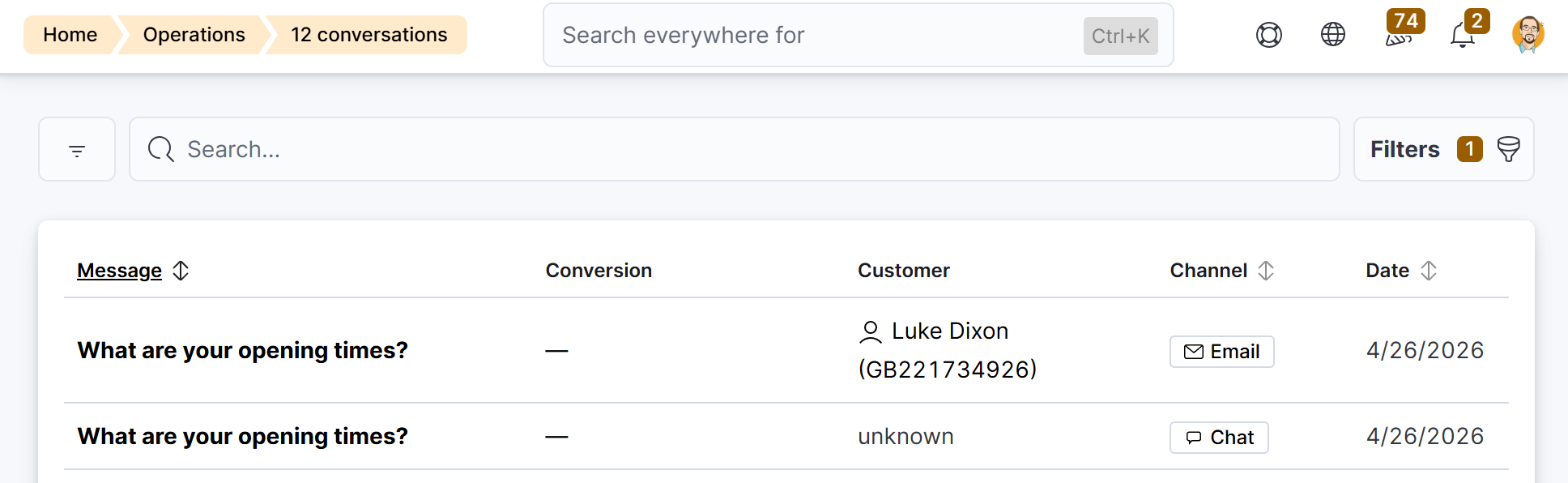
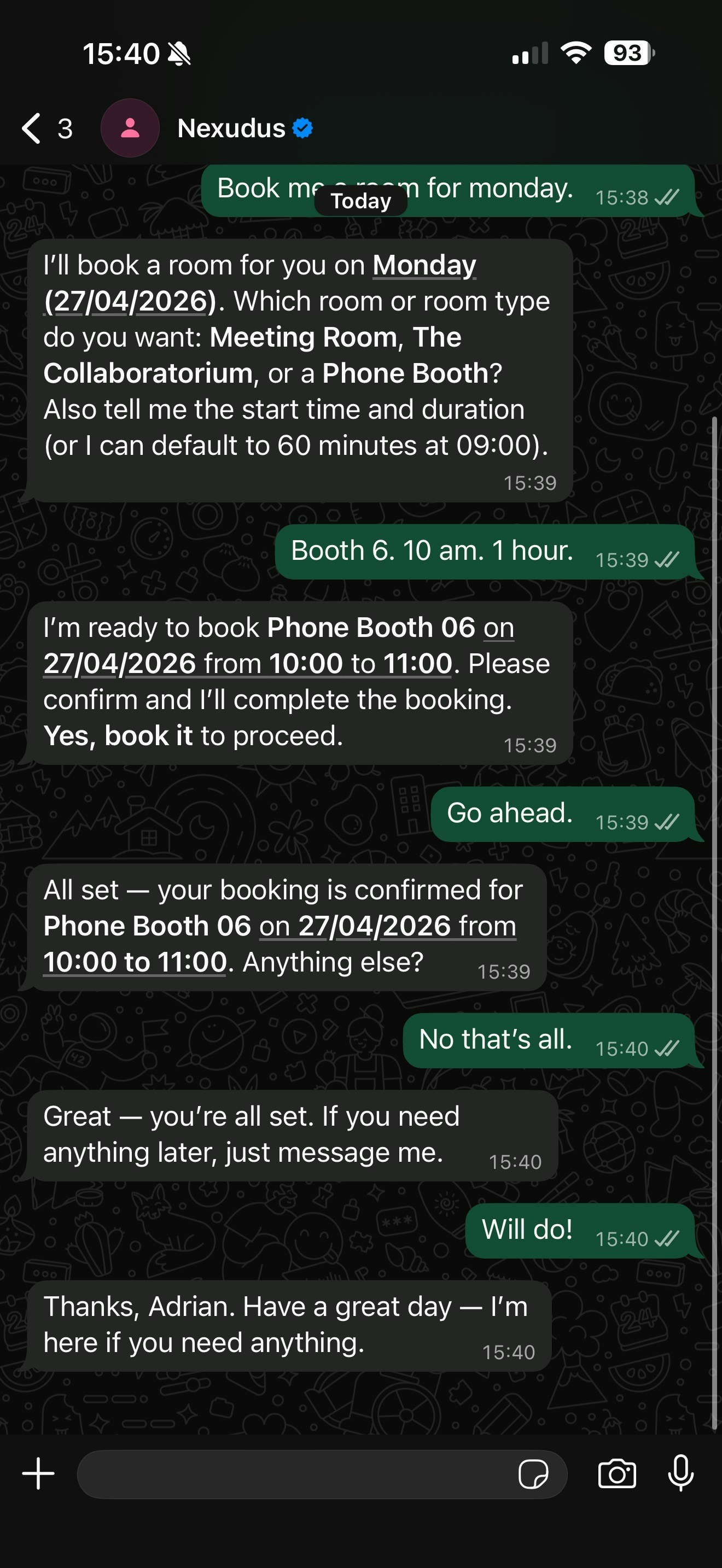 In the Nexudus administration panel, go to **Operations > AI Conversations**. You should see a new conversation with your test message. The **Channel** column will show **WhatsApp**.
 If you do not receive a reply, check the following:
* The webhook URL in Twilio is correct (`https://spaces.nexudus.com/api/integrations/twilio/whatsapp`).
* The phone number in Nexudus settings matches the number registered in Twilio (including the country code).
* AI WhatsApp is enabled in Nexudus.
* Your Twilio account is upgraded (not on a free trial).
***
## Share the WhatsApp number with your members
Once the channel is working, let your members know how to reach the AI assistant on WhatsApp:
* **Add a WhatsApp link to your website.** Use the format `https://wa.me/{number}` (without the `+`). For example: `https://wa.me/14155238886`. This opens a WhatsApp conversation directly when tapped on a mobile device.
* **Display the number on signage** in your space, alongside a QR code that links to the WhatsApp conversation.
* **Include it in your welcome email** and member handbook.
* **Add a "Message us on WhatsApp" button** to your website. See [WhatsApp's brand guidelines](https://www.facebook.com/business/help/940953542898498) for official button assets.
You can generate a WhatsApp QR code from [wa.me](https://wa.me/) by creating a link with a pre-filled message — for example, `https://wa.me/14155238886?text=Hi%2C%20I%20have%20a%20question`. When a member scans the code, WhatsApp opens with the message pre-filled and ready to send.
***
## Multiple locations
Each WhatsApp number is connected to a specific location. This means when a message arrives on that number, the AI knows exactly which location is being discussed and can answer questions about that location's bookings, FAQs, and details.
If you operate multiple locations and want each to have its own WhatsApp number:
1. Each location needs its own **phone number** registered as a WhatsApp sender in Twilio. All senders must be under the same WhatsApp Business Account (WABA).
2. In each location's Nexudus settings, enter that location's specific WhatsApp number.
3. Set the same webhook URL for all senders — Nexudus routes messages to the correct location based on which phone number received the message.
You can manage all your WhatsApp numbers on a single device by using the **multi-account feature** in the WhatsApp Business mobile app.
### Network locations
You can also connect a WhatsApp number to a **network location** (a parent location). When you do this, the AI has access to inventory for that location and all its children. This is ideal for operators who want a single entry point that can answer questions about bookings, FAQs, or location details across a group of locations.
### How inventory works across locations
When it comes to selling Day Passes, Private Offices, and Membership plans, the AI always searches across **all locations** regardless of which number received the message — unless the customer asks about a specific location. This means no matter which number a prospect writes to, they can get information about plans and availability at any of your locations.
***
## Costs
The WhatsApp channel incurs charges from Twilio based on WhatsApp's conversation-based pricing model:
| Cost type | Description |
| ------------------------ | -------------------------------------------------------------------------------------------------------------------------------------------------------------------------------------------------------------------------------------- |
| **Phone number** | Monthly fee for the Twilio phone number (varies by country, typically \$1–2/month) |
| **Conversation charges** | WhatsApp charges per 24-hour conversation window, not per message. Rates vary by country and conversation type (user-initiated vs business-initiated). See [Twilio's WhatsApp pricing](https://www.twilio.com/en-us/whatsapp/pricing). |
For a typical coworking space, expect costs in the range of a few dollars per month for moderate usage. Nexudus does not add any additional charges for the WhatsApp channel.
***
## Troubleshooting
* Verify the webhook URL in your Twilio sender settings matches `https://spaces.nexudus.com/api/integrations/twilio/whatsapp` exactly.
* Check the [Twilio Error Logs](https://console.twilio.com/us1/monitor/logs/debugger/errors) for webhook delivery failures.
* Make sure your Twilio account is active and has a positive balance.
* Confirm that **AI WhatsApp** is enabled in [**Settings > Channels > WhatsApp**](https://dashboard.nexudus.com/settings/5/0/2).
* Confirm that the phone number in Nexudus matches the sender's number in Twilio (including the country code and `+` prefix).
* Check that the Twilio Auth Token in Nexudus is correct and has not been rotated since setup.
Meta reviews the display name you set during registration. If rejected, your sender is limited to 250 business-initiated messages per day. Update your display name to comply with [Meta's guidelines](https://www.facebook.com/business/help/757569725593362) — it must clearly represent your business and not be generic or misleading.
A phone number can only be registered with one WhatsApp platform at a time. If the number is registered with the personal WhatsApp or WhatsApp Business app, you must [delete the WhatsApp account](https://faq.whatsapp.com/2138515194215842) from that number first. If it is registered with another WhatsApp Business Platform provider, you need to migrate it — see [Twilio's migration guide](https://www.twilio.com/docs/whatsapp/migrate-numbers-and-senders).
The AI processes text messages only. If a member sends an image, video, document, or voice message, the AI acknowledges the attachment but informs the sender that only text messages are supported at this time.
Yes. Switch off **AI WhatsApp** in [**Settings > Channels > WhatsApp**](https://dashboard.nexudus.com/settings/5/0/2). You may also want to remove or reconfigure the webhook in Twilio to stop messages from being forwarded.
Each WhatsApp number is connected to a specific location, so you cannot assign one number to multiple locations simultaneously. However, you can connect a number to a **network location** (parent), which gives the AI access to that location and all its children — effectively covering multiple locations with a single number.
For selling Day Passes, Private Offices, and Membership plans, the AI searches across all locations regardless of which number received the message, so prospects can always get information about any plan at any location.
If you prefer a separate number per location, use the multi-account feature in the WhatsApp Business mobile app to manage all numbers on a single device.
***
## Quick reference
| Item | Value |
| -------------------------------- | ---------------------------------------------------------------------------------------------------------------------------------- |
| **Twilio sign-up** | [twilio.com/try-twilio](https://www.twilio.com/try-twilio) |
| **WhatsApp senders page** | [console.twilio.com/us1/develop/sms/senders/whatsapp-senders](https://console.twilio.com/us1/develop/sms/senders/whatsapp-senders) |
| **Nexudus webhook URL** | `https://spaces.nexudus.com/api/integrations/twilio/whatsapp` |
| **Meta business verification** | [business.facebook.com/settings/security](https://business.facebook.com/settings/security) |
| **Meta display name guidelines** | [facebook.com/business/help/757569725593362](https://www.facebook.com/business/help/757569725593362) |
| **Twilio WhatsApp pricing** | [twilio.com/en-us/whatsapp/pricing](https://www.twilio.com/en-us/whatsapp/pricing) |
| **WhatsApp link format** | `https://wa.me/{number without +}` |
If you do not receive a reply, check the following:
* The webhook URL in Twilio is correct (`https://spaces.nexudus.com/api/integrations/twilio/whatsapp`).
* The phone number in Nexudus settings matches the number registered in Twilio (including the country code).
* AI WhatsApp is enabled in Nexudus.
* Your Twilio account is upgraded (not on a free trial).
***
## Share the WhatsApp number with your members
Once the channel is working, let your members know how to reach the AI assistant on WhatsApp:
* **Add a WhatsApp link to your website.** Use the format `https://wa.me/{number}` (without the `+`). For example: `https://wa.me/14155238886`. This opens a WhatsApp conversation directly when tapped on a mobile device.
* **Display the number on signage** in your space, alongside a QR code that links to the WhatsApp conversation.
* **Include it in your welcome email** and member handbook.
* **Add a "Message us on WhatsApp" button** to your website. See [WhatsApp's brand guidelines](https://www.facebook.com/business/help/940953542898498) for official button assets.
You can generate a WhatsApp QR code from [wa.me](https://wa.me/) by creating a link with a pre-filled message — for example, `https://wa.me/14155238886?text=Hi%2C%20I%20have%20a%20question`. When a member scans the code, WhatsApp opens with the message pre-filled and ready to send.
***
## Multiple locations
Each WhatsApp number is connected to a specific location. This means when a message arrives on that number, the AI knows exactly which location is being discussed and can answer questions about that location's bookings, FAQs, and details.
If you operate multiple locations and want each to have its own WhatsApp number:
1. Each location needs its own **phone number** registered as a WhatsApp sender in Twilio. All senders must be under the same WhatsApp Business Account (WABA).
2. In each location's Nexudus settings, enter that location's specific WhatsApp number.
3. Set the same webhook URL for all senders — Nexudus routes messages to the correct location based on which phone number received the message.
You can manage all your WhatsApp numbers on a single device by using the **multi-account feature** in the WhatsApp Business mobile app.
### Network locations
You can also connect a WhatsApp number to a **network location** (a parent location). When you do this, the AI has access to inventory for that location and all its children. This is ideal for operators who want a single entry point that can answer questions about bookings, FAQs, or location details across a group of locations.
### How inventory works across locations
When it comes to selling Day Passes, Private Offices, and Membership plans, the AI always searches across **all locations** regardless of which number received the message — unless the customer asks about a specific location. This means no matter which number a prospect writes to, they can get information about plans and availability at any of your locations.
***
## Costs
The WhatsApp channel incurs charges from Twilio based on WhatsApp's conversation-based pricing model:
| Cost type | Description |
| ------------------------ | -------------------------------------------------------------------------------------------------------------------------------------------------------------------------------------------------------------------------------------- |
| **Phone number** | Monthly fee for the Twilio phone number (varies by country, typically \$1–2/month) |
| **Conversation charges** | WhatsApp charges per 24-hour conversation window, not per message. Rates vary by country and conversation type (user-initiated vs business-initiated). See [Twilio's WhatsApp pricing](https://www.twilio.com/en-us/whatsapp/pricing). |
For a typical coworking space, expect costs in the range of a few dollars per month for moderate usage. Nexudus does not add any additional charges for the WhatsApp channel.
***
## Troubleshooting
* Verify the webhook URL in your Twilio sender settings matches `https://spaces.nexudus.com/api/integrations/twilio/whatsapp` exactly.
* Check the [Twilio Error Logs](https://console.twilio.com/us1/monitor/logs/debugger/errors) for webhook delivery failures.
* Make sure your Twilio account is active and has a positive balance.
* Confirm that **AI WhatsApp** is enabled in [**Settings > Channels > WhatsApp**](https://dashboard.nexudus.com/settings/5/0/2).
* Confirm that the phone number in Nexudus matches the sender's number in Twilio (including the country code and `+` prefix).
* Check that the Twilio Auth Token in Nexudus is correct and has not been rotated since setup.
Meta reviews the display name you set during registration. If rejected, your sender is limited to 250 business-initiated messages per day. Update your display name to comply with [Meta's guidelines](https://www.facebook.com/business/help/757569725593362) — it must clearly represent your business and not be generic or misleading.
A phone number can only be registered with one WhatsApp platform at a time. If the number is registered with the personal WhatsApp or WhatsApp Business app, you must [delete the WhatsApp account](https://faq.whatsapp.com/2138515194215842) from that number first. If it is registered with another WhatsApp Business Platform provider, you need to migrate it — see [Twilio's migration guide](https://www.twilio.com/docs/whatsapp/migrate-numbers-and-senders).
The AI processes text messages only. If a member sends an image, video, document, or voice message, the AI acknowledges the attachment but informs the sender that only text messages are supported at this time.
Yes. Switch off **AI WhatsApp** in [**Settings > Channels > WhatsApp**](https://dashboard.nexudus.com/settings/5/0/2). You may also want to remove or reconfigure the webhook in Twilio to stop messages from being forwarded.
Each WhatsApp number is connected to a specific location, so you cannot assign one number to multiple locations simultaneously. However, you can connect a number to a **network location** (parent), which gives the AI access to that location and all its children — effectively covering multiple locations with a single number.
For selling Day Passes, Private Offices, and Membership plans, the AI searches across all locations regardless of which number received the message, so prospects can always get information about any plan at any location.
If you prefer a separate number per location, use the multi-account feature in the WhatsApp Business mobile app to manage all numbers on a single device.
***
## Quick reference
| Item | Value |
| -------------------------------- | ---------------------------------------------------------------------------------------------------------------------------------- |
| **Twilio sign-up** | [twilio.com/try-twilio](https://www.twilio.com/try-twilio) |
| **WhatsApp senders page** | [console.twilio.com/us1/develop/sms/senders/whatsapp-senders](https://console.twilio.com/us1/develop/sms/senders/whatsapp-senders) |
| **Nexudus webhook URL** | `https://spaces.nexudus.com/api/integrations/twilio/whatsapp` |
| **Meta business verification** | [business.facebook.com/settings/security](https://business.facebook.com/settings/security) |
| **Meta display name guidelines** | [facebook.com/business/help/757569725593362](https://www.facebook.com/business/help/757569725593362) |
| **Twilio WhatsApp pricing** | [twilio.com/en-us/whatsapp/pricing](https://www.twilio.com/en-us/whatsapp/pricing) |
| **WhatsApp link format** | `https://wa.me/{number without +}` |