> ## Documentation Index
> Fetch the complete documentation index at: https://learn.nexudus.com/llms.txt
> Use this file to discover all available pages before exploring further.
# Cart
> The multi-item shopping cart where customers review, manage, and check out multiple items at once.
The cart allows customers to collect multiple items — bookings, products, events, and courses — and purchase them together in a single checkout.
 ## How the cart works
Customers can add items to their cart from any checkout page (bookings, products, events, or courses) using the **Add to Cart** button. Once they have collected everything they need, they can review and pay for all items in one go.
The cart is persistent — items are saved in the browser for 30 minutes, so customers won't lose their selections if they navigate away.
### What customers see
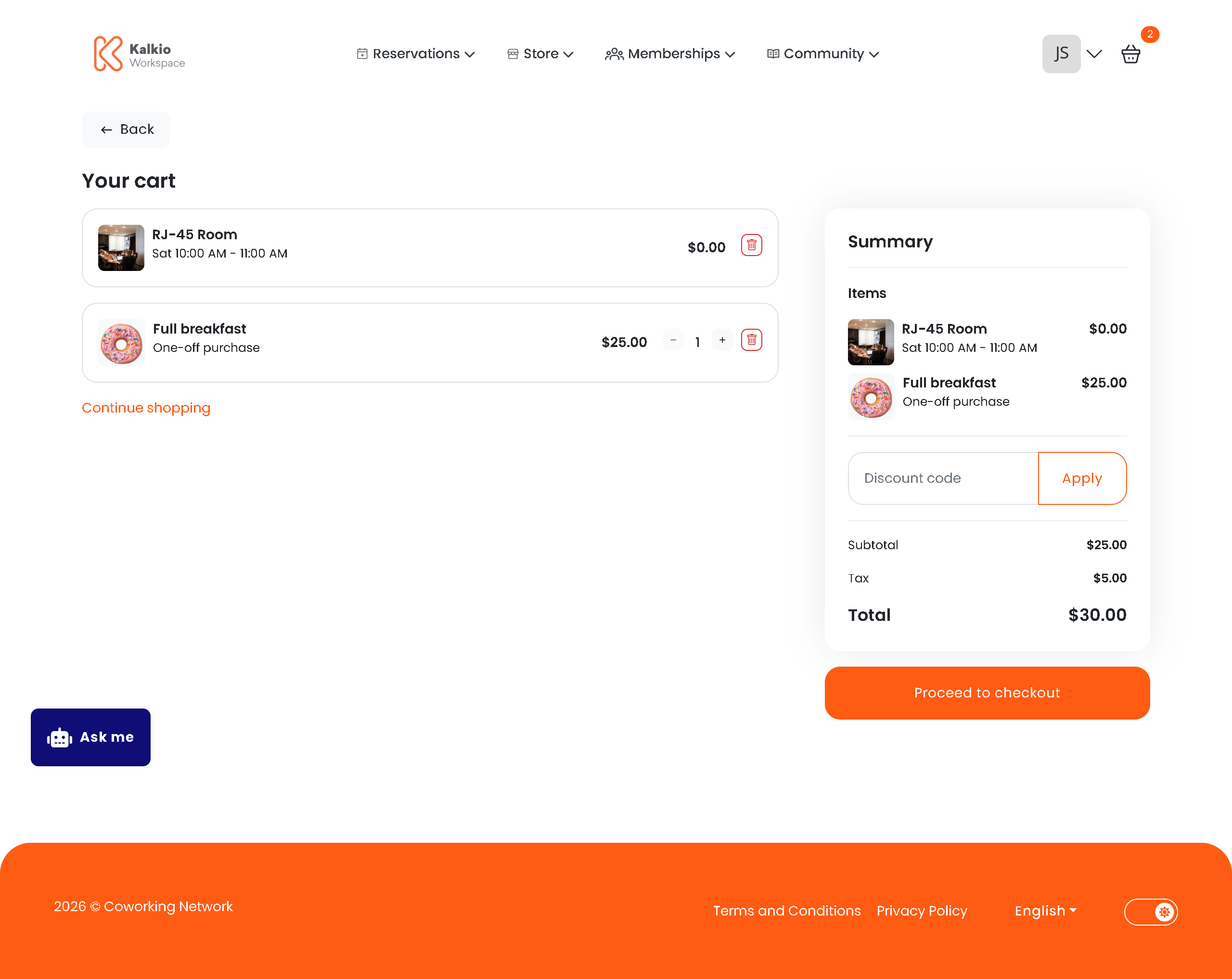
The cart page uses a two-column layout:
| Section | Description |
| ------------------------- | ----------------------------------------------------------------------------- |
| **Item list** (left) | Each item in the cart shown with its details, price, and a remove button |
| **Order summary** (right) | Running totals including subtotal, taxes, applied credits, and discount codes |
| **Proceed to checkout** | Button to move to the payment step |
| **Continue shopping** | Link back to the store to add more items |
### Item types supported
The cart can hold any combination of:
* **Bookings** — resource reservations with date, time, and resource details
* **Products** — store items with adjustable quantities
* **Events** — event registrations
* **Courses** — course enrolments
### Quantity controls
For products, customers can adjust the quantity directly from the cart using the + and − buttons. Other item types (bookings, events, courses) have a fixed quantity of one.
## Conflict detection
If a booking in the cart becomes unavailable (e.g. another customer booked the same time slot), the cart automatically detects this and shows an alert. Customers can remove the conflicting booking and continue with the rest of their order.
## Order summary
The order summary sidebar shows:
* **Subtotal** — total before tax
* **Tax** — applicable taxes
* **Applied credits** — any booking credits or benefits automatically applied
* **Discount codes** — customers can enter a discount code before checkout
* **Total** — final amount due
## Cart checkout
When the customer clicks **Proceed to checkout**, they are taken to the payment page.
## How the cart works
Customers can add items to their cart from any checkout page (bookings, products, events, or courses) using the **Add to Cart** button. Once they have collected everything they need, they can review and pay for all items in one go.
The cart is persistent — items are saved in the browser for 30 minutes, so customers won't lose their selections if they navigate away.
### What customers see
The cart page uses a two-column layout:
| Section | Description |
| ------------------------- | ----------------------------------------------------------------------------- |
| **Item list** (left) | Each item in the cart shown with its details, price, and a remove button |
| **Order summary** (right) | Running totals including subtotal, taxes, applied credits, and discount codes |
| **Proceed to checkout** | Button to move to the payment step |
| **Continue shopping** | Link back to the store to add more items |
### Item types supported
The cart can hold any combination of:
* **Bookings** — resource reservations with date, time, and resource details
* **Products** — store items with adjustable quantities
* **Events** — event registrations
* **Courses** — course enrolments
### Quantity controls
For products, customers can adjust the quantity directly from the cart using the + and − buttons. Other item types (bookings, events, courses) have a fixed quantity of one.
## Conflict detection
If a booking in the cart becomes unavailable (e.g. another customer booked the same time slot), the cart automatically detects this and shows an alert. Customers can remove the conflicting booking and continue with the rest of their order.
## Order summary
The order summary sidebar shows:
* **Subtotal** — total before tax
* **Tax** — applicable taxes
* **Applied credits** — any booking credits or benefits automatically applied
* **Discount codes** — customers can enter a discount code before checkout
* **Total** — final amount due
## Cart checkout
When the customer clicks **Proceed to checkout**, they are taken to the payment page.
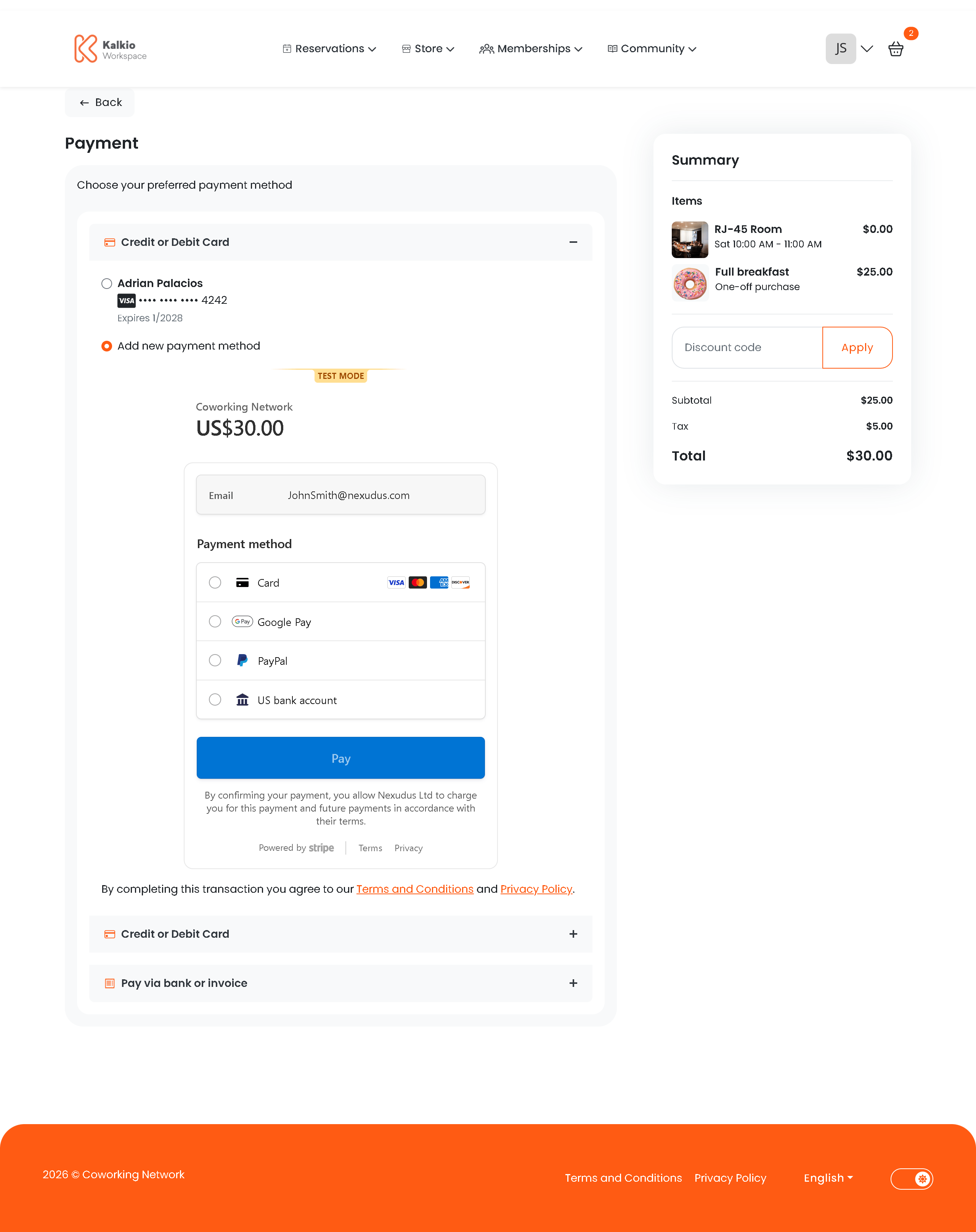 The payment page shows the full order summary and offers the available payment methods configured for your location:
| Payment method | Description |
| -------------------------------- | ------------------------------------------ |
| **Credit/debit card (Stripe)** | Pay immediately with a saved or new card |
| **Credit/debit card (Spreedly)** | Alternative card payment gateway |
| **PayPal** | Redirect to PayPal for payment |
| **Invoice** | Place the order and pay later (if enabled) |
The available payment methods depend on your location's payment gateway configuration. If no payment is required (e.g. credits cover the full amount), the order is placed immediately without a payment step.
### After payment
Once payment is complete:
1. The cart is automatically cleared
2. The customer is redirected to a confirmation page
3. All items are processed (bookings confirmed, event registrations created, etc.)
## Guest checkout
Customers who are not logged in can also use the cart. They will be prompted to either log in or continue as a guest before payment. Guest checkout is available when a card payment gateway (Stripe, Spreedly, or PayPal) is enabled.
## Localisation
In British English locales, the cart is labelled as "Basket" throughout the portal. All other English locales use "Cart".
The payment page shows the full order summary and offers the available payment methods configured for your location:
| Payment method | Description |
| -------------------------------- | ------------------------------------------ |
| **Credit/debit card (Stripe)** | Pay immediately with a saved or new card |
| **Credit/debit card (Spreedly)** | Alternative card payment gateway |
| **PayPal** | Redirect to PayPal for payment |
| **Invoice** | Place the order and pay later (if enabled) |
The available payment methods depend on your location's payment gateway configuration. If no payment is required (e.g. credits cover the full amount), the order is placed immediately without a payment step.
### After payment
Once payment is complete:
1. The cart is automatically cleared
2. The customer is redirected to a confirmation page
3. All items are processed (bookings confirmed, event registrations created, etc.)
## Guest checkout
Customers who are not logged in can also use the cart. They will be prompted to either log in or continue as a guest before payment. Guest checkout is available when a card payment gateway (Stripe, Spreedly, or PayPal) is enabled.
## Localisation
In British English locales, the cart is labelled as "Basket" throughout the portal. All other English locales use "Cart".