> ## Documentation Index
> Fetch the complete documentation index at: https://learn.nexudus.com/llms.txt
> Use this file to discover all available pages before exploring further.
# Guest Invoice Payment
> How to send a payment link for an existing invoice so customers can pay without logging in.
Guest invoice payment lets you share a direct payment link with a customer so they can pay an outstanding invoice without needing to log in to the Members Portal. This is useful when a customer does not have an account, has forgotten their credentials, or when you want to send a quick payment reminder via email or messaging.
## How it works
When you view an unpaid invoice in the Nexudus dashboard, a **Payment link** field appears in the Payments section. Copy this link and send it to your customer through any channel — email, WhatsApp, SMS, or your CRM.
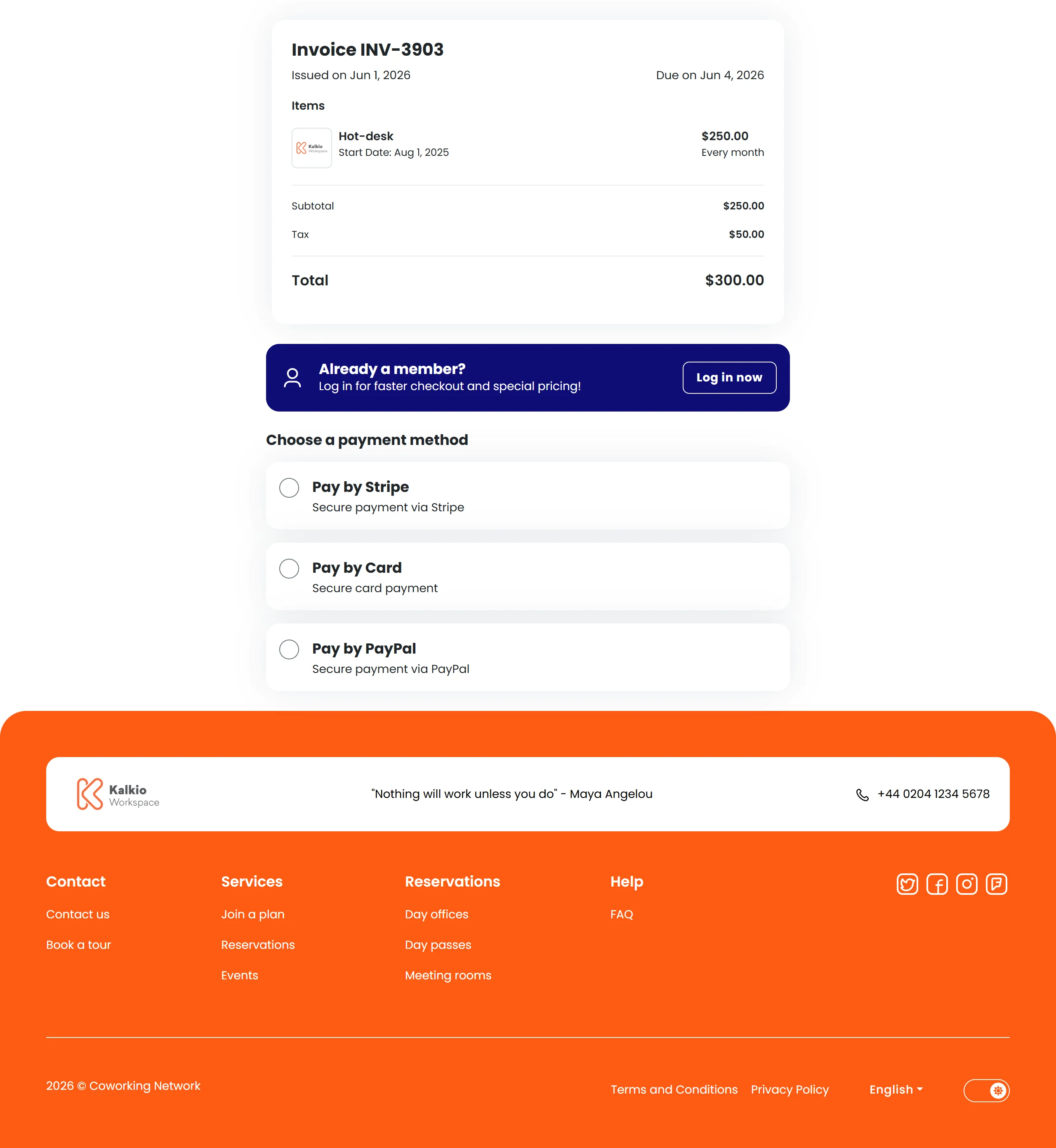 When the customer opens the link, they see:
1. A summary of the invoice (items, amounts, due balance).
2. The available payment methods for your location.
3. An option to log in if they are already a member (for faster checkout and saved payment methods).
No account or password is required to complete the payment.
The payment link is only shown for locations running the latest version of the Members Portal.
## Invoice notification links
When invoice notifications are sent, Nexudus selects the link automatically based on whether the customer has portal access:
* **Customer has portal access**: the email includes a magic log-in link so they can sign in and access the invoice in their account.
* **Customer does not have portal access**: the email includes the guest invoice payment link, so they can pay directly without logging in.
You do not need to choose this manually. Nexudus decides which link to include for each customer.
## Payment methods available
The guest invoice payment page supports the same payment gateways as your regular checkout:
| Gateway | Supported |
| ---------------------------- | ----------------------------------- |
| **Stripe** | Yes |
| **Spreedly** (card payments) | Yes |
| **PayPal** | Yes |
| **GoCardless** | No — requires a linked bank account |
At least one of the supported gateways must be enabled in your location settings for the payment link to work.
## Security
The payment link contains two unique identifiers (the customer's internal ID and the invoice's internal ID). Both must match for the page to load. This means:
* The link cannot be guessed or enumerated.
* It only works for the specific invoice it was generated for.
* Once the invoice is paid, the page shows a confirmation message and the link can no longer be used for payment.
Treat payment links like any other sensitive URL. Only share them with the intended recipient.
## What the customer sees
### Before payment
The customer sees a summary of the invoice including line items, total amount, and due balance. Below the summary, they choose a payment method and complete the transaction — no login required.
If the customer is already a member, a banner invites them to **log in** for a faster experience with saved payment methods and special pricing.
### After payment
Once payment is confirmed, the customer is taken to a confirmation page showing:
* Transaction ID (invoice number)
* Date
* Payment method used
* Total amount paid
* Items purchased
* A link to download the invoice as PDF
* A **Continue** button to return to the portal home page
Unlike the regular guest checkout, the guest invoice payment confirmation page does not show a "Create an account" prompt — since the customer already has a record in your system.
## Downloading the invoice PDF
The confirmation page includes a **Download invoice** button that works without authentication. The customer can download their invoice PDF directly from the confirmation page without needing to log in.
## Where to find the payment link
In the Nexudus dashboard:
Go to **Finance → Invoices** and open the unpaid invoice you want to share.
Scroll down to the **Payments** section. The **Payment link** field shows the URL with a copy button.
Click the copy button and send the link to your customer.
The Payment link only appears for unpaid invoices on locations running the latest portal version.
## Frequently asked questions
The payment page shows a message confirming the invoice has already been paid. No further action is required.
No. The payment link only works for issued (non-draft, non-void) invoices with an outstanding balance.
No. The customer can pay without any account. However, if they are already a member, the page suggests they log in for a better experience.
After payment, the standard payment confirmation email is sent (if enabled in your email templates). The customer also sees an on-screen confirmation immediately after paying.
The link is based on the invoice itself — it cannot be regenerated independently. If you void the invoice, the link will stop working. Creating a new invoice generates a new link.
When the customer opens the link, they see:
1. A summary of the invoice (items, amounts, due balance).
2. The available payment methods for your location.
3. An option to log in if they are already a member (for faster checkout and saved payment methods).
No account or password is required to complete the payment.
The payment link is only shown for locations running the latest version of the Members Portal.
## Invoice notification links
When invoice notifications are sent, Nexudus selects the link automatically based on whether the customer has portal access:
* **Customer has portal access**: the email includes a magic log-in link so they can sign in and access the invoice in their account.
* **Customer does not have portal access**: the email includes the guest invoice payment link, so they can pay directly without logging in.
You do not need to choose this manually. Nexudus decides which link to include for each customer.
## Payment methods available
The guest invoice payment page supports the same payment gateways as your regular checkout:
| Gateway | Supported |
| ---------------------------- | ----------------------------------- |
| **Stripe** | Yes |
| **Spreedly** (card payments) | Yes |
| **PayPal** | Yes |
| **GoCardless** | No — requires a linked bank account |
At least one of the supported gateways must be enabled in your location settings for the payment link to work.
## Security
The payment link contains two unique identifiers (the customer's internal ID and the invoice's internal ID). Both must match for the page to load. This means:
* The link cannot be guessed or enumerated.
* It only works for the specific invoice it was generated for.
* Once the invoice is paid, the page shows a confirmation message and the link can no longer be used for payment.
Treat payment links like any other sensitive URL. Only share them with the intended recipient.
## What the customer sees
### Before payment
The customer sees a summary of the invoice including line items, total amount, and due balance. Below the summary, they choose a payment method and complete the transaction — no login required.
If the customer is already a member, a banner invites them to **log in** for a faster experience with saved payment methods and special pricing.
### After payment
Once payment is confirmed, the customer is taken to a confirmation page showing:
* Transaction ID (invoice number)
* Date
* Payment method used
* Total amount paid
* Items purchased
* A link to download the invoice as PDF
* A **Continue** button to return to the portal home page
Unlike the regular guest checkout, the guest invoice payment confirmation page does not show a "Create an account" prompt — since the customer already has a record in your system.
## Downloading the invoice PDF
The confirmation page includes a **Download invoice** button that works without authentication. The customer can download their invoice PDF directly from the confirmation page without needing to log in.
## Where to find the payment link
In the Nexudus dashboard:
Go to **Finance → Invoices** and open the unpaid invoice you want to share.
Scroll down to the **Payments** section. The **Payment link** field shows the URL with a copy button.
Click the copy button and send the link to your customer.
The Payment link only appears for unpaid invoices on locations running the latest portal version.
## Frequently asked questions
The payment page shows a message confirming the invoice has already been paid. No further action is required.
No. The payment link only works for issued (non-draft, non-void) invoices with an outstanding balance.
No. The customer can pay without any account. However, if they are already a member, the page suggests they log in for a better experience.
After payment, the standard payment confirmation email is sent (if enabled in your email templates). The customer also sees an on-screen confirmation immediately after paying.
The link is based on the invoice itself — it cannot be regenerated independently. If you void the invoice, the link will stop working. Creating a new invoice generates a new link.