> ## Documentation Index
> Fetch the complete documentation index at: https://learn.nexudus.com/llms.txt
> Use this file to discover all available pages before exploring further.
# Credentials & Security
> Where members manage their password and access PINs.
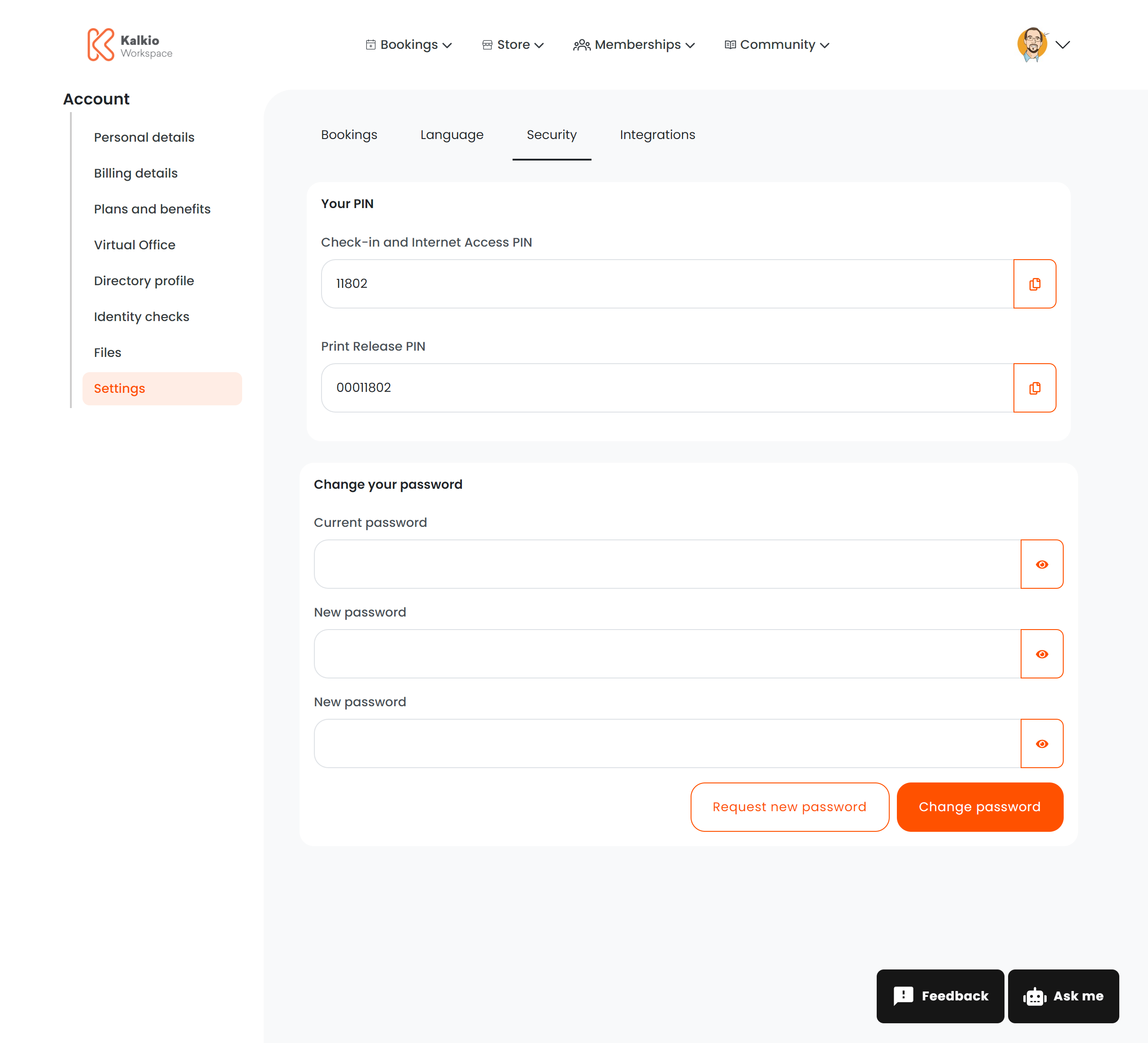
The credentials page lets members manage their account security — changing passwords and viewing access PINs.
 ## What members see
### PIN codes
A read-only section displaying the member's access PINs with copy-to-clipboard buttons:
| PIN | Description |
| ----------------------- | ------------------------------------------------------------------------------------------------ |
| **Check-in PIN** | Used for signing in at the space (e.g. kiosks) |
| **Internet access PIN** | Used for Wi-Fi or network authentication |
| **Print release PIN** | Used for releasing print jobs (shown if different from internet PIN — e.g. PaperCut integration) |
### Change password
A form to update the member's account password:
| Field | Description |
| -------------------- | ------------------------------- |
| Current password | Verify identity before changing |
| New password | Must meet strength requirements |
| Confirm new password | Re-enter to confirm |
Password strength is validated in real time. If the current password is incorrect, a specific error message is shown.
### Request new password
An alternative to manual password changes — sends a password reset link to the member's email address. This is useful when the member has forgotten their current password but is still signed in.
## Configurable sections
| Setting | Default | Effect |
| ---------------------------- | ------- | ----------------------------------- |
| Show PIN section | On | Display the access PINs |
| Show password section | On | Display the change password form |
| Show request password button | On | Display the email reset link option |
PINs are automatically generated. If you use PaperCut for printing, the print release PIN is displayed separately.
## What members see
### PIN codes
A read-only section displaying the member's access PINs with copy-to-clipboard buttons:
| PIN | Description |
| ----------------------- | ------------------------------------------------------------------------------------------------ |
| **Check-in PIN** | Used for signing in at the space (e.g. kiosks) |
| **Internet access PIN** | Used for Wi-Fi or network authentication |
| **Print release PIN** | Used for releasing print jobs (shown if different from internet PIN — e.g. PaperCut integration) |
### Change password
A form to update the member's account password:
| Field | Description |
| -------------------- | ------------------------------- |
| Current password | Verify identity before changing |
| New password | Must meet strength requirements |
| Confirm new password | Re-enter to confirm |
Password strength is validated in real time. If the current password is incorrect, a specific error message is shown.
### Request new password
An alternative to manual password changes — sends a password reset link to the member's email address. This is useful when the member has forgotten their current password but is still signed in.
## Configurable sections
| Setting | Default | Effect |
| ---------------------------- | ------- | ----------------------------------- |
| Show PIN section | On | Display the access PINs |
| Show password section | On | Display the change password form |
| Show request password button | On | Display the email reset link option |
PINs are automatically generated. If you use PaperCut for printing, the print release PIN is displayed separately.