> ## Documentation Index
> Fetch the complete documentation index at: https://learn.nexudus.com/llms.txt
> Use this file to discover all available pages before exploring further.
# Widget Embedding
> Embed the members portal directly into your coworking space's marketing website for seamless customer experience.
## Overview
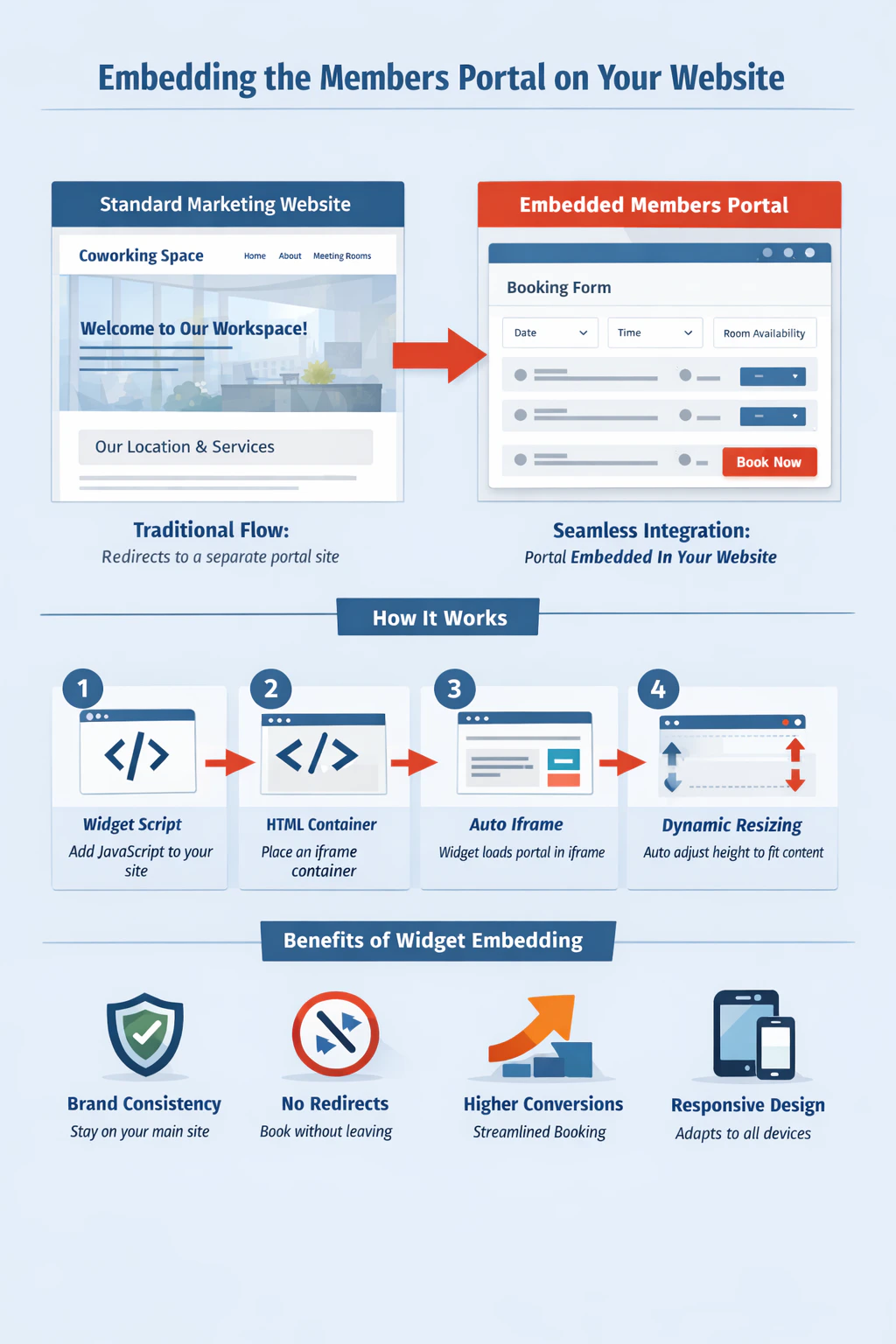
Widget embedding allows you to integrate specific sections of your members portal directly into your coworking space's marketing website. Instead of redirecting customers to a separate portal domain, they can access booking forms, member directories, or other portal features while staying on your main website.
This creates a seamless experience where customers never leave your brand environment, improving conversion rates and maintaining consistent visual identity throughout their journey.
 ## Purpose
Coworking spaces often maintain separate marketing websites to showcase their brand, location, and services. However, when customers want to book a meeting room or view available desks, they typically need to navigate to a different portal domain, breaking the user experience flow.
Widget embedding solves this by allowing you to:
* **Maintain brand consistency** - Customers stay within your website's design and navigation
* **Reduce friction** - No redirects or separate login processes required
* **Improve conversion** - Streamlined booking flows directly on your marketing pages
## How It Works
The widget system uses an iframe-based architecture with intelligent communication between your website and the embedded portal content. Here's what happens technically:
Your marketing website includes a lightweight JavaScript file that handles all iframe communication and dynamic resizing.
You place a simple HTML container on your page that specifies which portal section to embed and display preferences.
The widget script automatically creates and configures an iframe pointing to your portal, handling security
permissions for features like geolocation and camera access.
The embedded portal communicates its content height back to your website, automatically resizing the iframe to prevent
scrollbars and maintain a native feel.
The widget tracks scroll position between your website and the embedded content, ensuring smooth navigation and proper positioning of sticky elements.
## Implementation Process
### Basic Setup
Add the widget script to your website's HTML head section:
```html theme={null}
```
### Embedding Portal Sections
Create a container element where you want the portal to appear:
```html theme={null}
```
You can also use the class name instead of an ID, which allows you to embed multiple widgets on the same page:
```html theme={null}
```
The widget script automatically detects all containers matching either the `nexudus-widget-iframe` ID or class and creates the embedded iframes when the page loads.
### Configuration Options
The full URL to the portal section you want to embed. This should point to your location's portal domain and the
specific page you want to display.
Set to "true" to hide the portal's header navigation, creating a more integrated appearance within your website.
Defaults to showing the header if omitted.
Set to "true" to hide the portal's footer, creating a more streamlined appearance. Defaults to showing the footer if
omitted.
Set to "true" to hide the portal's logo, useful when you want to maintain full brand control. Defaults to showing the
logo if omitted.
## Styling embedded widgets with URL parameters
When you embed the portal into another website, you can control the embedded look and mode directly from the widget `url` value.
This is useful when you want the embedded experience to match your website branding for a specific campaign, landing page, or partner page.
For full details and all supported parameters, see:
* [URL color overrides](/member-portal/styling/url-color-overrides)
* [URL Parameters Reference](/member-portal/public/url-parameters)
### Example: force dark mode with campaign colors
```html theme={null}
```
### Example: force light mode for a branded landing page
```html theme={null}
```
If you use hex colors, encode `#` as `%23` in the URL.
## Core Behavior
### Multiple Widgets on a Single Page
You can embed multiple portal sections on the same page by creating multiple container divs with the `nexudus-widget-iframe` class:
```html theme={null}
## Purpose
Coworking spaces often maintain separate marketing websites to showcase their brand, location, and services. However, when customers want to book a meeting room or view available desks, they typically need to navigate to a different portal domain, breaking the user experience flow.
Widget embedding solves this by allowing you to:
* **Maintain brand consistency** - Customers stay within your website's design and navigation
* **Reduce friction** - No redirects or separate login processes required
* **Improve conversion** - Streamlined booking flows directly on your marketing pages
## How It Works
The widget system uses an iframe-based architecture with intelligent communication between your website and the embedded portal content. Here's what happens technically:
Your marketing website includes a lightweight JavaScript file that handles all iframe communication and dynamic resizing.
You place a simple HTML container on your page that specifies which portal section to embed and display preferences.
The widget script automatically creates and configures an iframe pointing to your portal, handling security
permissions for features like geolocation and camera access.
The embedded portal communicates its content height back to your website, automatically resizing the iframe to prevent
scrollbars and maintain a native feel.
The widget tracks scroll position between your website and the embedded content, ensuring smooth navigation and proper positioning of sticky elements.
## Implementation Process
### Basic Setup
Add the widget script to your website's HTML head section:
```html theme={null}
```
### Embedding Portal Sections
Create a container element where you want the portal to appear:
```html theme={null}
```
You can also use the class name instead of an ID, which allows you to embed multiple widgets on the same page:
```html theme={null}
```
The widget script automatically detects all containers matching either the `nexudus-widget-iframe` ID or class and creates the embedded iframes when the page loads.
### Configuration Options
The full URL to the portal section you want to embed. This should point to your location's portal domain and the
specific page you want to display.
Set to "true" to hide the portal's header navigation, creating a more integrated appearance within your website.
Defaults to showing the header if omitted.
Set to "true" to hide the portal's footer, creating a more streamlined appearance. Defaults to showing the footer if
omitted.
Set to "true" to hide the portal's logo, useful when you want to maintain full brand control. Defaults to showing the
logo if omitted.
## Styling embedded widgets with URL parameters
When you embed the portal into another website, you can control the embedded look and mode directly from the widget `url` value.
This is useful when you want the embedded experience to match your website branding for a specific campaign, landing page, or partner page.
For full details and all supported parameters, see:
* [URL color overrides](/member-portal/styling/url-color-overrides)
* [URL Parameters Reference](/member-portal/public/url-parameters)
### Example: force dark mode with campaign colors
```html theme={null}
```
### Example: force light mode for a branded landing page
```html theme={null}
```
If you use hex colors, encode `#` as `%23` in the URL.
## Core Behavior
### Multiple Widgets on a Single Page
You can embed multiple portal sections on the same page by creating multiple container divs with the `nexudus-widget-iframe` class:
```html theme={null}
Book a Meeting Room
Upcoming Events
Our Community
```
Each widget operates independently with its own iframe, height management, and communication channel. The widget script handles scroll synchronization for all embedded sections simultaneously.
### The `in-iframe` CSS Class
When the portal detects it is running inside an iframe, it automatically adds the `in-iframe` class to the `` element. You can use this in your [custom CSS](/editor/custom-web-injector#targeting-embedded-iframe-mode) (`styles.css`) to apply styles only when the portal is embedded:
```css theme={null}
/* Reduce spacing when embedded in a host page */
html.in-iframe .page-wrapper {
padding-top: 0;
}
```
The class is added synchronously before the portal renders, so there is no flash of unstyled content.
### Responsive Design
The embedded portal automatically adapts to your website's container width while maintaining its responsive behavior. The iframe adjusts its height dynamically as content changes, such as when filtering booking options or expanding details.
### Navigation Handling
When customers navigate within the embedded portal, the iframe height automatically adjusts to accommodate the new content. The widget also handles scroll-to-top behavior, ensuring customers see new pages from the beginning.
### Permission Management
The widget automatically grants necessary permissions for portal features that require device access:
* **Geolocation** - For location-based features and maps
* **Camera** - For profile photos and document uploads
* **Microphone** - For video calling integrations
### Security Considerations
All communication between your website and the embedded portal happens through secure postMessage APIs. The iframe operates in a sandboxed environment while still allowing necessary functionality.
## Live Example
The following is a live example of a marketing page that embeds the portal booking page without a header or footer. You can also [open the example in a new tab](https://musical-salamander-fcf864.netlify.app).
## Common Integration Patterns
Embed booking forms directly on your "Meeting Rooms" marketing page, allowing visitors to check availability and reserve spaces without leaving your site.
Display your coworking community directly on your "Community" page, showcasing the vibrant network of professionals at
your location.
Show upcoming events and workshops on your homepage or dedicated events page, with integrated registration
capabilities.
Add real-time desk booking to your "Hot Desks" page, letting customers see and reserve available workspace immediately.
## Important Considerations
### Content Height Management
The widget continuously monitors content height changes and automatically adjusts the iframe size. This handles dynamic content like expanding forms, loading states, and pagination without requiring manual configuration.
### Cross-Domain Communication
Since the embedded portal runs on your Nexudus domain while being displayed on your marketing website, all interactions use secure cross-domain messaging protocols to maintain functionality.
### Mobile Responsiveness
The embedded portal inherits responsive behavior from both your website's container styling and the portal's internal responsive design. Test across different screen sizes to ensure optimal display.
### Content Security Policy (CSP) Headers
If your website uses Content Security Policy headers, they may block the embedded portal from loading or functioning correctly. CSP headers control which external resources your page is allowed to load, and overly restrictive policies can prevent the iframe from rendering or communicating with your website.
To ensure the widget works correctly, your CSP headers must allow the following:
* **`frame-src`** - Must include your portal domain (e.g. `https://your-location.nexudus.site`) to allow the iframe to load.
* **`script-src`** - Must include `https://cdn.nexudus.site` to allow the widget script to execute.
* **`connect-src`** - Must include your portal domain to allow cross-domain communication between the widget and the embedded portal.
For example, if your existing CSP header looks like this:
```
Content-Security-Policy: frame-src 'self'; script-src 'self';
```
You would need to update it to:
```
Content-Security-Policy: frame-src 'self' https://your-location.nexudus.site; script-src 'self' https://cdn.nexudus.site; connect-src 'self' https://your-location.nexudus.site;
```
If the embedded portal appears as a blank space or your browser console shows "Refused to frame" errors, your CSP headers are likely blocking the iframe. Check your hosting platform's security settings or ask your web developer to update the CSP policy.
### SEO Implications
Content within the iframe is not directly indexable by search engines as part of your main website. Consider this when planning which sections to embed versus link to directly.
### Performance Impact
Each embedded widget adds an additional HTTP request and iframe to your page. Consider the performance trade-offs, especially if embedding multiple portal sections on a single page.
Always test embedded widgets thoroughly across different devices and browsers, particularly for critical booking flows
that directly impact your revenue.
## Troubleshooting
### Widget Not Appearing
* Verify the widget script loads successfully from the CDN
* Check that the container element uses either the `nexudus-widget-iframe` ID or class
* Ensure the URL attribute points to a valid portal page
* Check your browser console for CSP-related errors (messages containing "Refused to frame" or "Blocked by Content-Security-Policy") and update your CSP headers accordingly
### Height Issues
* The widget automatically manages height, but complex layouts might need additional CSS styling on your container
* Check browser console for any cross-domain communication errors
### Mobile Display Problems
* Ensure your website's viewport meta tag includes appropriate scaling settings:
```html theme={null}
```
* Check that your container element has adequate padding and doesn't constrain the iframe width
* Test on actual mobile devices, not just browser emulation, as iframe behavior can differ
* Verify touch events and gestures work correctly within the embedded portal
* Consider adding CSS media queries to adjust container sizing for smaller screens