> ## Documentation Index
> Fetch the complete documentation index at: https://learn.nexudus.com/llms.txt
> Use this file to discover all available pages before exploring further.
# AI Conversations
> View all AI conversations with your customers across email, WhatsApp, chat, and voice channels — with full conversation history and conversion tracking.
## What are AI Conversations?
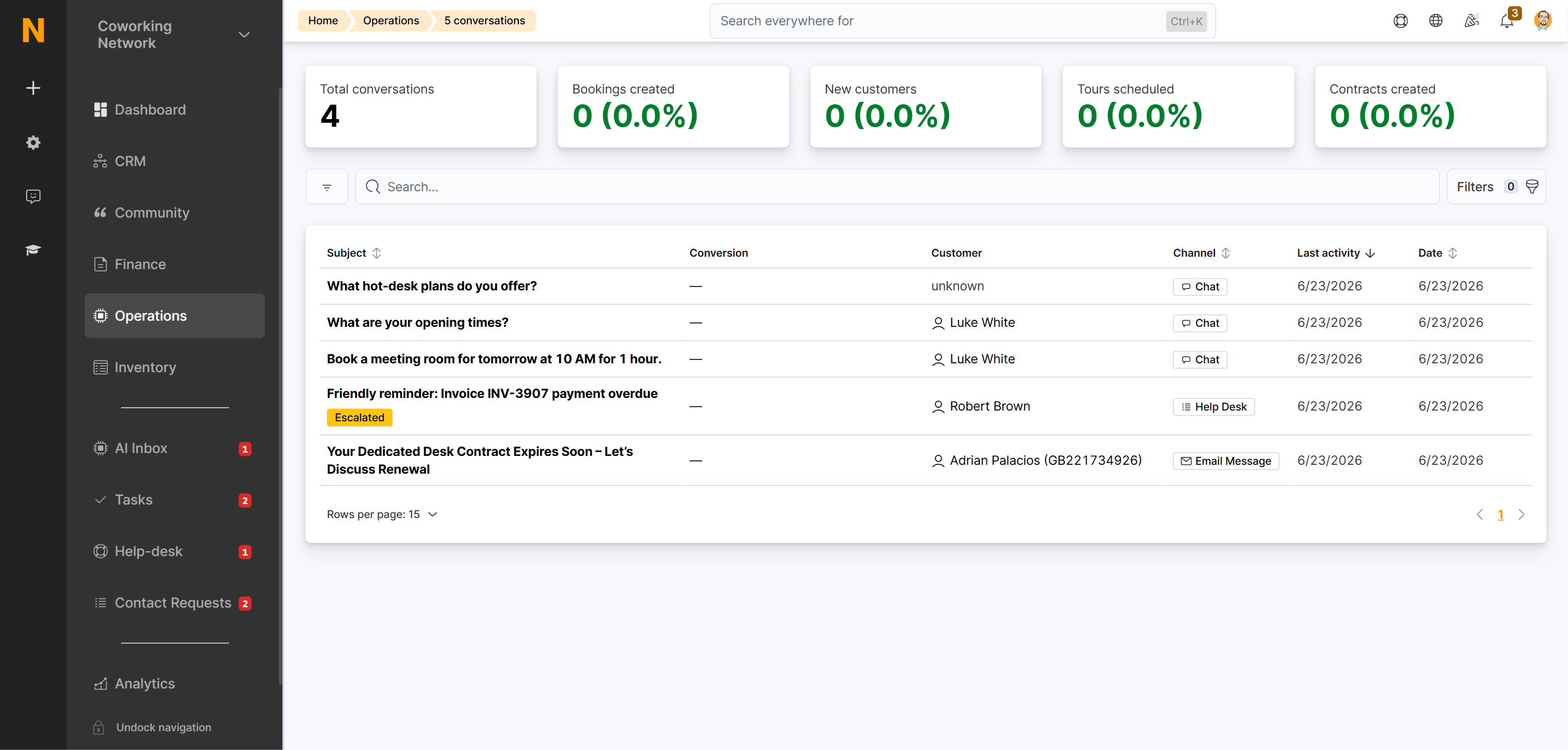
AI Conversations is your workspace for viewing all conversations between your customers and the AI assistant. Each conversation includes the full message history, customer information, and any conversions (tours, bookings, new customers, or contracts) that resulted from the interaction.
Conversations can start from:
* A proactive outbound message from the [AI Inbox](/platform/ai/inbox)
* An inbound chat in the Members Portal
* A customer reply to an AI email, WhatsApp message, or voice call
* An operator message sent via [operator takeover](/platform/ai/operator-takeover)
 ## How to Access
1. In the Dashboard navigation, go to **Operations** → **AI Assistant** → **AI Conversations**.
2. Or use the [direct link](https://dashboard.nexudus.com/operations/aiConversations).
**Permissions:** You need the **aiChannelSession** role (typically included in Administrator or custom roles with AI access).
## Conversion Metrics
At the top of the page, you'll see five key metrics showing what your AI conversations have achieved:
| Metric | What it shows |
| ----------------------- | ------------------------------------------------------------------------------ |
| **Total conversations** | Number of all AI conversations across all channels |
| **Bookings created** | Number and percentage of conversations that resulted in a booking |
| **New customers** | Number and percentage of conversations that resulted in a new customer account |
| **Tours scheduled** | Number and percentage of conversations that resulted in a tour booking |
| **Contracts created** | Number and percentage of conversations that resulted in a membership contract |
These metrics update automatically and help you measure the ROI of your AI assistant.
## Understanding the Interface
### Conversation List View
The main list shows one row per conversation. Each row displays:
| Column | What it shows | Example |
| ----------------- | ----------------------------------------------- | ----------------------------------- |
| **Subject** | The conversation subject or first line | "Payment inquiry for invoice #1234" |
| **Conversion** | Badges showing any conversions that resulted | 🎫 Tour · 👥 Customer · 📅 Booking |
| **Customer** | Customer name and company if linked | Sarah Johnson • Acme Corp |
| **Channel** | How the conversation started | Email (AI) / WhatsApp / Chat |
| **Last activity** | When the most recent message was sent | 15 minutes ago |
| **Escalated** | Whether conversation was escalated to help desk | Warning badge if escalated |
### Channel Filters
Quick filter tabs at the top let you view conversations by channel:
| Filter | What it shows |
| ------------ | ---------------------------------------------------- |
| **Chat** | Conversations from the Members Portal chat widget |
| **Email** | Conversations via AI-composed emails |
| **WhatsApp** | Conversations via WhatsApp messages |
| **All** | All conversations across all channels (default view) |
### Conversion Badges
Each conversation row shows color-coded badges for any conversions:
| Badge | Color | Meaning | Linkto |
| ------------ | ------ | -------------------------------- | ------------------- |
| **Tour** | Purple | Customer scheduled a tour visit | Visitor detail page |
| **Customer** | Green | New customer account was created | Customer profile |
| **Contract** | Blue | Membership contract was signed | Contract detail |
| **Booking** | Orange | Resource or room was booked | Booking detail |
Click any badge to jump directly to the related record.
## The Conversation Timeline
Click any conversation from the list to open the detail view. The timeline shows every message in chronological order.
### Message Types and Indicators
Each message shows which channel was used and who sent it:
| Sender | Icon | Channel Label | Description |
| ------------ | -------- | ---------------------- | --------------------------------------------------------------------------- |
| **AI agent** | 🤖 Robot | — | Message automatically composed and sent by the AI |
| **Operator** | ✉️ Email | Sent via Message | Operator sent via [CoworkerMessage](/platform/ai/operator-takeover) channel |
| **Operator** | 🎫 Help | Escalated to Help Desk | Operator escalated via [Help Desk](/platform/ai/operator-takeover) channel |
| **Customer** | 👤 User | — | Message received from the customer (inbound) |
| **Customer** | ✉️ Email | Replied via email | Customer replied to a CoworkerMessage |
| **Customer** | 🎫 Help | Replied via Help Desk | Customer replied to a help desk ticket |
Each message is clickable — if it links to a CoworkerMessage or HelpDeskMessage, clicking the message takes you to the source entity.
### Conversation Context
At the top of the conversation detail, you'll see:
* **Channel badge** — Chat, Email (AI), WhatsApp, Email Message, or Help Desk
* **Customer avatar** — Links to the customer profile if the conversation is linked to a customer
* **External identifier** — For unauthenticated conversations, shows the email address or phone number used
### Linked AI Inbox Items
If the conversation originated from or resulted in a proposed action in the AI Inbox, you'll see a blue callout showing:
* **Number of linked actions** — How many AI Inbox items are connected
* **Action status** — Pending, Approved, Rejected, Expired, Auto-executed, or Snoozed
* **Link to inbox item** — Click to jump to the proposed action in the AI Inbox
This lets you trace the conversation back to the original proactive agent that initiated contact.
### Escalated Tickets
If the conversation was escalated to the help desk, you'll see a warning callout with:
* **Ticket subject** — The help desk message subject
* **Link to ticket** — Click to view the full help desk ticket
## Reading Messages
Messages appear in chronological order with user messages on the left and AI/operator messages indented.
### Message Content
* **Plain text messages** — Displayed as-is
* **HTML messages** — Rendered with proper formatting for emails
* **Markdown messages** — Converted from HTML with tables, lists, and emphasis preserved
### Timestamps
Each message shows a relative timestamp (e.g., "15 minutes ago"). Hover over the timestamp to see the exact date and time.
## Searching and Filtering
Use the search bar to find conversations by:
* **Customer name** — Search for a specific customer
* **Subject** — Search conversation titles or first messages
* **External identifier** — Search by email address or phone number
Combine search with channel filters to narrow results further.
## Use Cases
### Use Case 1: Tracking Conversion Performance
**Scenario:** You want to see how many tours were scheduled through AI conversations this month.
**Flow:**
1. Go to **AI Conversations**
2. Look at the **Tours scheduled** metric at the top
3. Click any conversation with a 🎫 **Tour** badge to see the full conversation
4. Follow the link to the tour booking to see booking details
### Use Case 2: Reviewing Escalated Conversations
**Scenario:** Your support team escalated several AI conversations to help desk. You want to see what triggered the escalations.
**Flow:**
1. Go to **AI Conversations**
2. Look for conversations with a warning badge labeled **Escalated**
3. Open each conversation to see the full timeline
4. Review what the customer asked that required human intervention
5. Use this feedback to improve AI training or agent thresholds
### Use Case 3: Finding a Customer's AI Interaction History
**Scenario:** A customer mentions they already spoke to the AI assistant about booking a room. You want to find that conversation.
**Flow:**
1. Go to **AI Conversations**
2. Type the customer name in the search bar
3. Review the list of conversations for that customer
4. Open the relevant conversation to see what was discussed
5. Click any conversion badges to see what bookings were made
### Use Case 4: Measuring WhatsApp Engagement
**Scenario:** You recently enabled WhatsApp and want to see how customers are using it.
**Flow:**
1. Go to **AI Conversations**
2. Click the **WhatsApp** filter tab
3. Review the total conversations count
4. Check conversion badges to see what actions resulted from WhatsApp conversations
5. Compare conversion rates with other channels
## Limitations
* **No editing:** Conversations are read-only. You cannot edit or delete messages.
* **No manual replies:** To continue a conversation, use the [AI Inbox](/platform/ai/inbox) to send a follow-up proposed action, or link the conversation to a help desk ticket or CoworkerMessage.
* **No status management:** Conversations don't have "Active," "Resolved," or "Archived" statuses. All conversations remain visible.
* **No assignment:** You cannot assign conversations to specific team members from this page.
## Permissions
| Action | Required Role | Description |
| --------------------------- | ------------------ | ------------------------------------------------------------------------------------- |
| **View conversations** | `aiChannelSession` | See conversation list and timelines |
| **View conversion metrics** | `aiChannelSession` | See conversion statistics at the top |
| **View linked records** | Role-specific | You need the appropriate role to open linked bookings, customers, tours, or contracts |
Administrators have all these roles by default.
## Related Documentation
Send your own messages through different channels
Review and approve proposed actions from proactive agents
Using the help desk system for support tickets
Configure connected email accounts for reply tracking
## How to Access
1. In the Dashboard navigation, go to **Operations** → **AI Assistant** → **AI Conversations**.
2. Or use the [direct link](https://dashboard.nexudus.com/operations/aiConversations).
**Permissions:** You need the **aiChannelSession** role (typically included in Administrator or custom roles with AI access).
## Conversion Metrics
At the top of the page, you'll see five key metrics showing what your AI conversations have achieved:
| Metric | What it shows |
| ----------------------- | ------------------------------------------------------------------------------ |
| **Total conversations** | Number of all AI conversations across all channels |
| **Bookings created** | Number and percentage of conversations that resulted in a booking |
| **New customers** | Number and percentage of conversations that resulted in a new customer account |
| **Tours scheduled** | Number and percentage of conversations that resulted in a tour booking |
| **Contracts created** | Number and percentage of conversations that resulted in a membership contract |
These metrics update automatically and help you measure the ROI of your AI assistant.
## Understanding the Interface
### Conversation List View
The main list shows one row per conversation. Each row displays:
| Column | What it shows | Example |
| ----------------- | ----------------------------------------------- | ----------------------------------- |
| **Subject** | The conversation subject or first line | "Payment inquiry for invoice #1234" |
| **Conversion** | Badges showing any conversions that resulted | 🎫 Tour · 👥 Customer · 📅 Booking |
| **Customer** | Customer name and company if linked | Sarah Johnson • Acme Corp |
| **Channel** | How the conversation started | Email (AI) / WhatsApp / Chat |
| **Last activity** | When the most recent message was sent | 15 minutes ago |
| **Escalated** | Whether conversation was escalated to help desk | Warning badge if escalated |
### Channel Filters
Quick filter tabs at the top let you view conversations by channel:
| Filter | What it shows |
| ------------ | ---------------------------------------------------- |
| **Chat** | Conversations from the Members Portal chat widget |
| **Email** | Conversations via AI-composed emails |
| **WhatsApp** | Conversations via WhatsApp messages |
| **All** | All conversations across all channels (default view) |
### Conversion Badges
Each conversation row shows color-coded badges for any conversions:
| Badge | Color | Meaning | Linkto |
| ------------ | ------ | -------------------------------- | ------------------- |
| **Tour** | Purple | Customer scheduled a tour visit | Visitor detail page |
| **Customer** | Green | New customer account was created | Customer profile |
| **Contract** | Blue | Membership contract was signed | Contract detail |
| **Booking** | Orange | Resource or room was booked | Booking detail |
Click any badge to jump directly to the related record.
## The Conversation Timeline
Click any conversation from the list to open the detail view. The timeline shows every message in chronological order.
### Message Types and Indicators
Each message shows which channel was used and who sent it:
| Sender | Icon | Channel Label | Description |
| ------------ | -------- | ---------------------- | --------------------------------------------------------------------------- |
| **AI agent** | 🤖 Robot | — | Message automatically composed and sent by the AI |
| **Operator** | ✉️ Email | Sent via Message | Operator sent via [CoworkerMessage](/platform/ai/operator-takeover) channel |
| **Operator** | 🎫 Help | Escalated to Help Desk | Operator escalated via [Help Desk](/platform/ai/operator-takeover) channel |
| **Customer** | 👤 User | — | Message received from the customer (inbound) |
| **Customer** | ✉️ Email | Replied via email | Customer replied to a CoworkerMessage |
| **Customer** | 🎫 Help | Replied via Help Desk | Customer replied to a help desk ticket |
Each message is clickable — if it links to a CoworkerMessage or HelpDeskMessage, clicking the message takes you to the source entity.
### Conversation Context
At the top of the conversation detail, you'll see:
* **Channel badge** — Chat, Email (AI), WhatsApp, Email Message, or Help Desk
* **Customer avatar** — Links to the customer profile if the conversation is linked to a customer
* **External identifier** — For unauthenticated conversations, shows the email address or phone number used
### Linked AI Inbox Items
If the conversation originated from or resulted in a proposed action in the AI Inbox, you'll see a blue callout showing:
* **Number of linked actions** — How many AI Inbox items are connected
* **Action status** — Pending, Approved, Rejected, Expired, Auto-executed, or Snoozed
* **Link to inbox item** — Click to jump to the proposed action in the AI Inbox
This lets you trace the conversation back to the original proactive agent that initiated contact.
### Escalated Tickets
If the conversation was escalated to the help desk, you'll see a warning callout with:
* **Ticket subject** — The help desk message subject
* **Link to ticket** — Click to view the full help desk ticket
## Reading Messages
Messages appear in chronological order with user messages on the left and AI/operator messages indented.
### Message Content
* **Plain text messages** — Displayed as-is
* **HTML messages** — Rendered with proper formatting for emails
* **Markdown messages** — Converted from HTML with tables, lists, and emphasis preserved
### Timestamps
Each message shows a relative timestamp (e.g., "15 minutes ago"). Hover over the timestamp to see the exact date and time.
## Searching and Filtering
Use the search bar to find conversations by:
* **Customer name** — Search for a specific customer
* **Subject** — Search conversation titles or first messages
* **External identifier** — Search by email address or phone number
Combine search with channel filters to narrow results further.
## Use Cases
### Use Case 1: Tracking Conversion Performance
**Scenario:** You want to see how many tours were scheduled through AI conversations this month.
**Flow:**
1. Go to **AI Conversations**
2. Look at the **Tours scheduled** metric at the top
3. Click any conversation with a 🎫 **Tour** badge to see the full conversation
4. Follow the link to the tour booking to see booking details
### Use Case 2: Reviewing Escalated Conversations
**Scenario:** Your support team escalated several AI conversations to help desk. You want to see what triggered the escalations.
**Flow:**
1. Go to **AI Conversations**
2. Look for conversations with a warning badge labeled **Escalated**
3. Open each conversation to see the full timeline
4. Review what the customer asked that required human intervention
5. Use this feedback to improve AI training or agent thresholds
### Use Case 3: Finding a Customer's AI Interaction History
**Scenario:** A customer mentions they already spoke to the AI assistant about booking a room. You want to find that conversation.
**Flow:**
1. Go to **AI Conversations**
2. Type the customer name in the search bar
3. Review the list of conversations for that customer
4. Open the relevant conversation to see what was discussed
5. Click any conversion badges to see what bookings were made
### Use Case 4: Measuring WhatsApp Engagement
**Scenario:** You recently enabled WhatsApp and want to see how customers are using it.
**Flow:**
1. Go to **AI Conversations**
2. Click the **WhatsApp** filter tab
3. Review the total conversations count
4. Check conversion badges to see what actions resulted from WhatsApp conversations
5. Compare conversion rates with other channels
## Limitations
* **No editing:** Conversations are read-only. You cannot edit or delete messages.
* **No manual replies:** To continue a conversation, use the [AI Inbox](/platform/ai/inbox) to send a follow-up proposed action, or link the conversation to a help desk ticket or CoworkerMessage.
* **No status management:** Conversations don't have "Active," "Resolved," or "Archived" statuses. All conversations remain visible.
* **No assignment:** You cannot assign conversations to specific team members from this page.
## Permissions
| Action | Required Role | Description |
| --------------------------- | ------------------ | ------------------------------------------------------------------------------------- |
| **View conversations** | `aiChannelSession` | See conversation list and timelines |
| **View conversion metrics** | `aiChannelSession` | See conversion statistics at the top |
| **View linked records** | Role-specific | You need the appropriate role to open linked bookings, customers, tours, or contracts |
Administrators have all these roles by default.
## Related Documentation
Send your own messages through different channels
Review and approve proposed actions from proactive agents
Using the help desk system for support tickets
Configure connected email accounts for reply tracking