> ## Documentation Index
> Fetch the complete documentation index at: https://learn.nexudus.com/llms.txt
> Use this file to discover all available pages before exploring further.
# AI Inbox
> Review, edit, approve, and manage all AI-proposed actions from your proactive agents in one central workspace.
## What is the AI Inbox?
The AI Inbox is your central workspace for reviewing all proposed actions from proactive agents. Think of it as a smart drafts folder where the AI prepares messages for you to review and approve before anything reaches your customers.
**Key difference from AI Conversations:**
* **AI Inbox** — Outbound messages *proposed* by agents for you to review (you → customer).
* **AI Conversations** — Inbound conversations your customers have with the AI assistant (customer ↔ AI).
The inbox gives you full control over every message: you can approve as-is, edit for personalization, reject with feedback, or snooze for later. Over time, you can enable auto-execute for agents you trust so high-confidence actions send automatically without manual review.
 ## How to Access
1. In the Dashboard navigation, go to **Operations** → **AI Assistant** → **AI Inbox**.
2. Or use the [direct link](https://dashboard.nexudus.com/operations/inbox).
**Permissions:** You need the **proposedAction** role (typically included in Administrator or custom roles with AI access).
## Understanding the Inbox Interface
### Metrics Bar
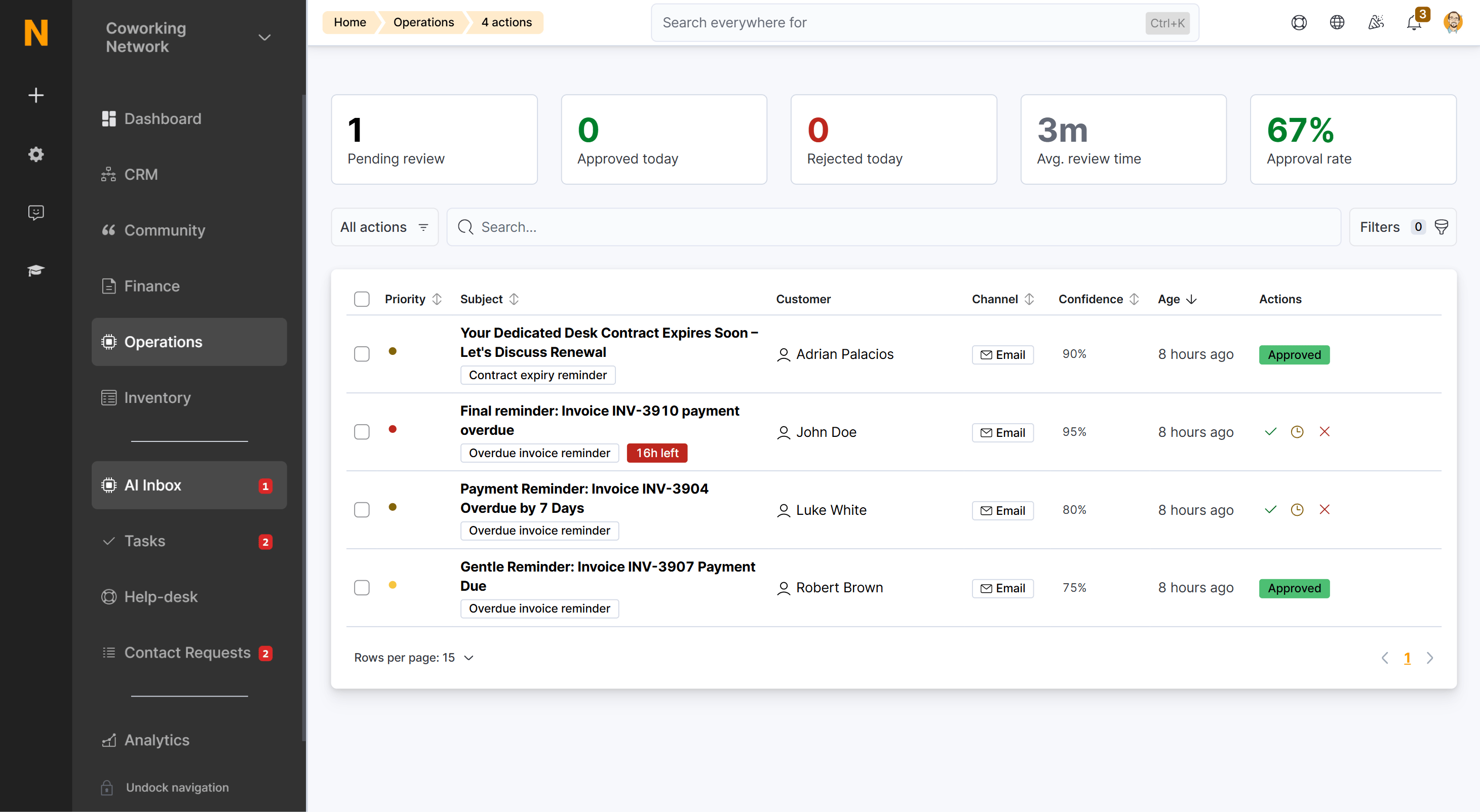
At the top of the inbox you'll see five key metrics at a glance:
| Metric | What it shows |
| -------------------- | ------------------------------------------------------------------------------- |
| **Pending review** | Number of actions awaiting your review. Updated in real-time. |
| **Approved today** | Actions you approved in the last 24 hours — shows your outreach volume. |
| **Rejected today** | Actions dismissed today — helps identify agents that may need tuning. |
| **Avg. review time** | Mean time from action creation to your first review (tracked over 7 days). |
| **Approval rate** | Percentage of reviewed actions that you approved (approved vs. total reviewed). |
These metrics update automatically as you process actions. Click any metric tile to filter the list to matching items.
### Action List
The main list shows one row per proposed action. Each row displays:
| Column | What it shows | Example |
| ----------------- | ---------------------------------------------------------------------------------------- | ---------------------------------- |
| **Subject** | The proposed subject line (email) or opening line (WhatsApp/voice), truncated for space. | "Payment reminder: Invoice #1234…" |
| **Customer** | Customer full name, company, and type. | "John Smith • Acme Corp • Member" |
| **Criteria type** | Which agent created this action. | "Due Invoice Reminders" |
| **Action type** | The kind of action — Draft Message, Voice Outreach, Internal Note, or Task Reminder. | Draft Message |
| **Channel** | Email, WhatsApp, or Voice. | ✉️ Email |
| **Confidence** | The AI's confidence score (0–100%). | 87% |
| **Priority** | Urgency level: Low, Medium, High, or Critical. | 🔴 High |
| **Status** | Current state of the action. | Pending |
| **Created** | When the action was proposed. | 2 hours ago |
| **Expires** | When this action will expire if not reviewed. | 3 days remaining |
#### Status Badges
| Status | Meaning |
| ---------------- | -------------------------------------------------------------------------- |
| **Pending** | Awaiting your review. This is the default view. |
| **Approved** | You reviewed and sent the action. |
| **Rejected** | You dismissed the action, optionally with a reason. |
| **Snoozed** | Deferred for later — will return to pending after the snooze period. |
| **Deferred** | Held until a specific time (e.g., outside business hours). |
| **Expired** | The time window to act on this has passed. |
| **AutoExecuted** | Sent automatically without manual review (agent has auto-execute enabled). |
### Filtering and Segments
Quick filter tabs at the top let you jump between predefined segments:
| Segment | What it shows |
| ---------------- | --------------------------------------------------------------- |
| **Pending** | Default view — actions awaiting your review. |
| **Approved** | History of actions you've sent. |
| **Rejected** | Dismissed actions — useful for analyzing patterns. |
| **Snoozed** | Deferred actions that will return to pending. |
| **Expired** | Actions whose time window has passed. |
| **AutoExecuted** | Actions sent automatically by agents with auto-execute enabled. |
You can refine the view further with custom filters:
* **Criteria type** — Show only actions from a specific agent.
* **Customer** — Search by customer name or company.
* **Confidence** — Filter by score range.
* **Priority** — Show only High or Critical actions.
* **Channel** — Email, WhatsApp, or Voice.
* **Date range** — Filter by created or expiry date.
The search bar searches across subject lines, message body content, and customer names in real time.
### Sorting
Click any column header to sort ascending or descending. The default sort is **Created** (newest first).
### Empty States
When the inbox is clear, you'll see one of two helpful messages:
* **"No pending actions"** — All caught up! No actions need review right now. The page invites you to [configure AI agents](/platform/ai/configuring-agents) to generate more activity.
* **"No results found"** — No actions match your current filters. Try adjusting or clearing your filters.
## Taking Action on Proposed Items
Click any row in the inbox to open the action detail panel. The panel is split into two sections: **Context & History** on the left, and the **Message Draft** on the right.
### Left Panel — Context & History
This section helps you understand *why* the action was proposed:
* **Customer information** — Full name, profile photo, company, customer type (Member, Contact, or Lead), active plan, and a link to the full customer profile.
* **Why this was proposed** — The agent name, the trigger criteria (e.g., "Invoice #1234 is 5 days overdue. Customer has good payment history but missed this payment."), and supporting data like amounts and dates.
* **Customer history** — Recent activity (check-ins, bookings, last visit), communication history, payment history, support tickets, and any previous proactive actions sent to this customer.
* **Confidence score** — The overall percentage plus factors that contributed to the score (e.g., strong payment history, clear trigger, high engagement).
### Right Panel — Message Draft
#### For Email Actions (Draft Message)
Shows:
* **To:** Customer email address
* **From:** Your location's default sending address
* **Subject:** Proposed subject line (editable)
* **Body:** Full message content with formatting (editable)
* **Variables:** Placeholders replaced with actual customer data
* **Signature:** Your default email signature
#### For Voice Actions (Voice Outreach)
Shows:
* **To:** Customer phone number
* **Script:** What the AI will say in the call (editable)
* **Tone:** Friendly, professional, or urgent (based on context)
* **Duration:** Estimated call length
#### Preview Mode
Click **Preview** to see exactly what the customer will receive — all variables are filled in with real data and formatting is preserved.
## Four Ways to Respond
Every proposed action gives you four options:
### ✅ Approve & Send
Use when the message is accurate, the tone matches your brand, and no changes are needed.
1. Review the message and customer context.
2. Click **Approve & Send**.
3. Confirm in the modal.
The action is sent immediately. The customer receives the email, WhatsApp message, or voice call, and the action status changes to **Approved**. Any reply from the customer starts a two-way conversation in [AI Conversations](/platform/ai/ai-conversations).
### ✏️ Edit & Approve
Use when the message is good but needs minor tweaks or a personal touch.
1. Click **Edit** on the message draft.
2. Modify the subject line and body using the rich text editor:
* Add or remove content
* Apply bold, italic, bullets, or links
* Insert variables from the sidebar
3. Preview your changes.
4. Click **Save & Send** and confirm.
**Tip:** Variables (like `{{customer_name}}`, `{{invoice_number}}`) are shown in the right sidebar. Click one to insert it at your cursor position. Variables are auto-replaced with real values when the action is sent.
### ❌ Reject
Use when the action isn't appropriate — the issue is already resolved, the timing is wrong, or you'd prefer to handle it personally.
1. Click **Reject**.
2. Select a rejection reason from the dropdown (this helps train the system):
* Already resolved
* Poor timing
* Incorrect information
* Not appropriate
* Prefer manual handling
* Other (custom note)
3. Optionally add internal notes.
4. Click **Reject**.
The action is dismissed and removed from the pending queue. Rejections are logged for analytics and help improve future proposals.
**When to adjust an agent:** If you're rejecting many actions from the same agent, consider [adjusting its configuration](/platform/ai/configuring-agents) — for example, increasing the cooldown period or raising the confidence threshold.
### ⏰ Snooze
Use when you're not ready to decide right now but want the action to come back automatically.
1. Click **Snooze**.
2. Select a duration:
* 1 hour
* 4 hours
* 1 day
* 3 days
* Custom date and time
3. Optionally add a reminder note.
4. Click **Snooze**.
The action moves to the **Snoozed** segment and returns to pending after the selected period. You'll see it again in your inbox when the snooze expires.
## Bulk Operations
Select multiple actions using the checkboxes on the left of each row. A bulk action bar appears at the bottom with:
* **Bulk Approve** — Send all selected actions at once. Use cautiously and only for low-risk, similar actions (e.g., payment reminders).
* **Bulk Reject** — Dismiss all selected actions.
* **Bulk Snooze** — Defer all selected actions to the same time.
**Best practice:** Always review actions individually before bulk approving. Bulk operations are convenient but skip the detailed context review.
## Introduction Screen
When you first open the AI Inbox, you'll see an introduction screen that explains the workflow:
> Your AI assistant continuously monitors your space and identifies opportunities to engage with customers — from payment reminders to lead follow-ups. Each proposed action appears here for your review and approval before anything is sent. You can edit messages, approve them as-is, or dismiss them. Over time, you can enable auto-execute for specific action types you trust.
Dismiss this screen to access the inbox list. You can always return to it by refreshing the page.
## Action History
To review past actions:
1. Switch to the **Approved** or **Rejected** segment.
2. Click any action to see:
* What was sent (or the rejection reason)
* When it was sent or rejected
* The outcome (if tracked — e.g., payment made, conversation started)
* Any customer response linked to the action
This history helps you measure the effectiveness of your proactive agents over time and identify which agents deliver the best results.
## Related Pages
* [Proactive Agents](/platform/ai/proactive-agents) — How agents work and how to access the configuration page.
* [Configuring Agents](/platform/ai/configuring-agents) — Step-by-step guide to enabling and customizing individual agents.
* [Agent Types Reference](/platform/ai/agent-types) — Detailed reference for all available agents.
* [AI Conversations](/platform/ai/ai-conversations) — Two-way conversations with customers, including replies to approved actions.
## How to Access
1. In the Dashboard navigation, go to **Operations** → **AI Assistant** → **AI Inbox**.
2. Or use the [direct link](https://dashboard.nexudus.com/operations/inbox).
**Permissions:** You need the **proposedAction** role (typically included in Administrator or custom roles with AI access).
## Understanding the Inbox Interface
### Metrics Bar
At the top of the inbox you'll see five key metrics at a glance:
| Metric | What it shows |
| -------------------- | ------------------------------------------------------------------------------- |
| **Pending review** | Number of actions awaiting your review. Updated in real-time. |
| **Approved today** | Actions you approved in the last 24 hours — shows your outreach volume. |
| **Rejected today** | Actions dismissed today — helps identify agents that may need tuning. |
| **Avg. review time** | Mean time from action creation to your first review (tracked over 7 days). |
| **Approval rate** | Percentage of reviewed actions that you approved (approved vs. total reviewed). |
These metrics update automatically as you process actions. Click any metric tile to filter the list to matching items.
### Action List
The main list shows one row per proposed action. Each row displays:
| Column | What it shows | Example |
| ----------------- | ---------------------------------------------------------------------------------------- | ---------------------------------- |
| **Subject** | The proposed subject line (email) or opening line (WhatsApp/voice), truncated for space. | "Payment reminder: Invoice #1234…" |
| **Customer** | Customer full name, company, and type. | "John Smith • Acme Corp • Member" |
| **Criteria type** | Which agent created this action. | "Due Invoice Reminders" |
| **Action type** | The kind of action — Draft Message, Voice Outreach, Internal Note, or Task Reminder. | Draft Message |
| **Channel** | Email, WhatsApp, or Voice. | ✉️ Email |
| **Confidence** | The AI's confidence score (0–100%). | 87% |
| **Priority** | Urgency level: Low, Medium, High, or Critical. | 🔴 High |
| **Status** | Current state of the action. | Pending |
| **Created** | When the action was proposed. | 2 hours ago |
| **Expires** | When this action will expire if not reviewed. | 3 days remaining |
#### Status Badges
| Status | Meaning |
| ---------------- | -------------------------------------------------------------------------- |
| **Pending** | Awaiting your review. This is the default view. |
| **Approved** | You reviewed and sent the action. |
| **Rejected** | You dismissed the action, optionally with a reason. |
| **Snoozed** | Deferred for later — will return to pending after the snooze period. |
| **Deferred** | Held until a specific time (e.g., outside business hours). |
| **Expired** | The time window to act on this has passed. |
| **AutoExecuted** | Sent automatically without manual review (agent has auto-execute enabled). |
### Filtering and Segments
Quick filter tabs at the top let you jump between predefined segments:
| Segment | What it shows |
| ---------------- | --------------------------------------------------------------- |
| **Pending** | Default view — actions awaiting your review. |
| **Approved** | History of actions you've sent. |
| **Rejected** | Dismissed actions — useful for analyzing patterns. |
| **Snoozed** | Deferred actions that will return to pending. |
| **Expired** | Actions whose time window has passed. |
| **AutoExecuted** | Actions sent automatically by agents with auto-execute enabled. |
You can refine the view further with custom filters:
* **Criteria type** — Show only actions from a specific agent.
* **Customer** — Search by customer name or company.
* **Confidence** — Filter by score range.
* **Priority** — Show only High or Critical actions.
* **Channel** — Email, WhatsApp, or Voice.
* **Date range** — Filter by created or expiry date.
The search bar searches across subject lines, message body content, and customer names in real time.
### Sorting
Click any column header to sort ascending or descending. The default sort is **Created** (newest first).
### Empty States
When the inbox is clear, you'll see one of two helpful messages:
* **"No pending actions"** — All caught up! No actions need review right now. The page invites you to [configure AI agents](/platform/ai/configuring-agents) to generate more activity.
* **"No results found"** — No actions match your current filters. Try adjusting or clearing your filters.
## Taking Action on Proposed Items
Click any row in the inbox to open the action detail panel. The panel is split into two sections: **Context & History** on the left, and the **Message Draft** on the right.
### Left Panel — Context & History
This section helps you understand *why* the action was proposed:
* **Customer information** — Full name, profile photo, company, customer type (Member, Contact, or Lead), active plan, and a link to the full customer profile.
* **Why this was proposed** — The agent name, the trigger criteria (e.g., "Invoice #1234 is 5 days overdue. Customer has good payment history but missed this payment."), and supporting data like amounts and dates.
* **Customer history** — Recent activity (check-ins, bookings, last visit), communication history, payment history, support tickets, and any previous proactive actions sent to this customer.
* **Confidence score** — The overall percentage plus factors that contributed to the score (e.g., strong payment history, clear trigger, high engagement).
### Right Panel — Message Draft
#### For Email Actions (Draft Message)
Shows:
* **To:** Customer email address
* **From:** Your location's default sending address
* **Subject:** Proposed subject line (editable)
* **Body:** Full message content with formatting (editable)
* **Variables:** Placeholders replaced with actual customer data
* **Signature:** Your default email signature
#### For Voice Actions (Voice Outreach)
Shows:
* **To:** Customer phone number
* **Script:** What the AI will say in the call (editable)
* **Tone:** Friendly, professional, or urgent (based on context)
* **Duration:** Estimated call length
#### Preview Mode
Click **Preview** to see exactly what the customer will receive — all variables are filled in with real data and formatting is preserved.
## Four Ways to Respond
Every proposed action gives you four options:
### ✅ Approve & Send
Use when the message is accurate, the tone matches your brand, and no changes are needed.
1. Review the message and customer context.
2. Click **Approve & Send**.
3. Confirm in the modal.
The action is sent immediately. The customer receives the email, WhatsApp message, or voice call, and the action status changes to **Approved**. Any reply from the customer starts a two-way conversation in [AI Conversations](/platform/ai/ai-conversations).
### ✏️ Edit & Approve
Use when the message is good but needs minor tweaks or a personal touch.
1. Click **Edit** on the message draft.
2. Modify the subject line and body using the rich text editor:
* Add or remove content
* Apply bold, italic, bullets, or links
* Insert variables from the sidebar
3. Preview your changes.
4. Click **Save & Send** and confirm.
**Tip:** Variables (like `{{customer_name}}`, `{{invoice_number}}`) are shown in the right sidebar. Click one to insert it at your cursor position. Variables are auto-replaced with real values when the action is sent.
### ❌ Reject
Use when the action isn't appropriate — the issue is already resolved, the timing is wrong, or you'd prefer to handle it personally.
1. Click **Reject**.
2. Select a rejection reason from the dropdown (this helps train the system):
* Already resolved
* Poor timing
* Incorrect information
* Not appropriate
* Prefer manual handling
* Other (custom note)
3. Optionally add internal notes.
4. Click **Reject**.
The action is dismissed and removed from the pending queue. Rejections are logged for analytics and help improve future proposals.
**When to adjust an agent:** If you're rejecting many actions from the same agent, consider [adjusting its configuration](/platform/ai/configuring-agents) — for example, increasing the cooldown period or raising the confidence threshold.
### ⏰ Snooze
Use when you're not ready to decide right now but want the action to come back automatically.
1. Click **Snooze**.
2. Select a duration:
* 1 hour
* 4 hours
* 1 day
* 3 days
* Custom date and time
3. Optionally add a reminder note.
4. Click **Snooze**.
The action moves to the **Snoozed** segment and returns to pending after the selected period. You'll see it again in your inbox when the snooze expires.
## Bulk Operations
Select multiple actions using the checkboxes on the left of each row. A bulk action bar appears at the bottom with:
* **Bulk Approve** — Send all selected actions at once. Use cautiously and only for low-risk, similar actions (e.g., payment reminders).
* **Bulk Reject** — Dismiss all selected actions.
* **Bulk Snooze** — Defer all selected actions to the same time.
**Best practice:** Always review actions individually before bulk approving. Bulk operations are convenient but skip the detailed context review.
## Introduction Screen
When you first open the AI Inbox, you'll see an introduction screen that explains the workflow:
> Your AI assistant continuously monitors your space and identifies opportunities to engage with customers — from payment reminders to lead follow-ups. Each proposed action appears here for your review and approval before anything is sent. You can edit messages, approve them as-is, or dismiss them. Over time, you can enable auto-execute for specific action types you trust.
Dismiss this screen to access the inbox list. You can always return to it by refreshing the page.
## Action History
To review past actions:
1. Switch to the **Approved** or **Rejected** segment.
2. Click any action to see:
* What was sent (or the rejection reason)
* When it was sent or rejected
* The outcome (if tracked — e.g., payment made, conversation started)
* Any customer response linked to the action
This history helps you measure the effectiveness of your proactive agents over time and identify which agents deliver the best results.
## Related Pages
* [Proactive Agents](/platform/ai/proactive-agents) — How agents work and how to access the configuration page.
* [Configuring Agents](/platform/ai/configuring-agents) — Step-by-step guide to enabling and customizing individual agents.
* [Agent Types Reference](/platform/ai/agent-types) — Detailed reference for all available agents.
* [AI Conversations](/platform/ai/ai-conversations) — Two-way conversations with customers, including replies to approved actions.