> ## Documentation Index
> Fetch the complete documentation index at: https://learn.nexudus.com/llms.txt
> Use this file to discover all available pages before exploring further.
# Proactive Agents
> Learn about all available proactive AI agents, how to access the configuration page, and understand what each agent monitors.
## Overview
Proactive AI Agents are automated monitoring rules that watch for specific patterns in your coworking space — like an overdue invoice, a contract approaching expiry, or a member who hasn't checked in for two weeks — and then propose the right action at the right time.
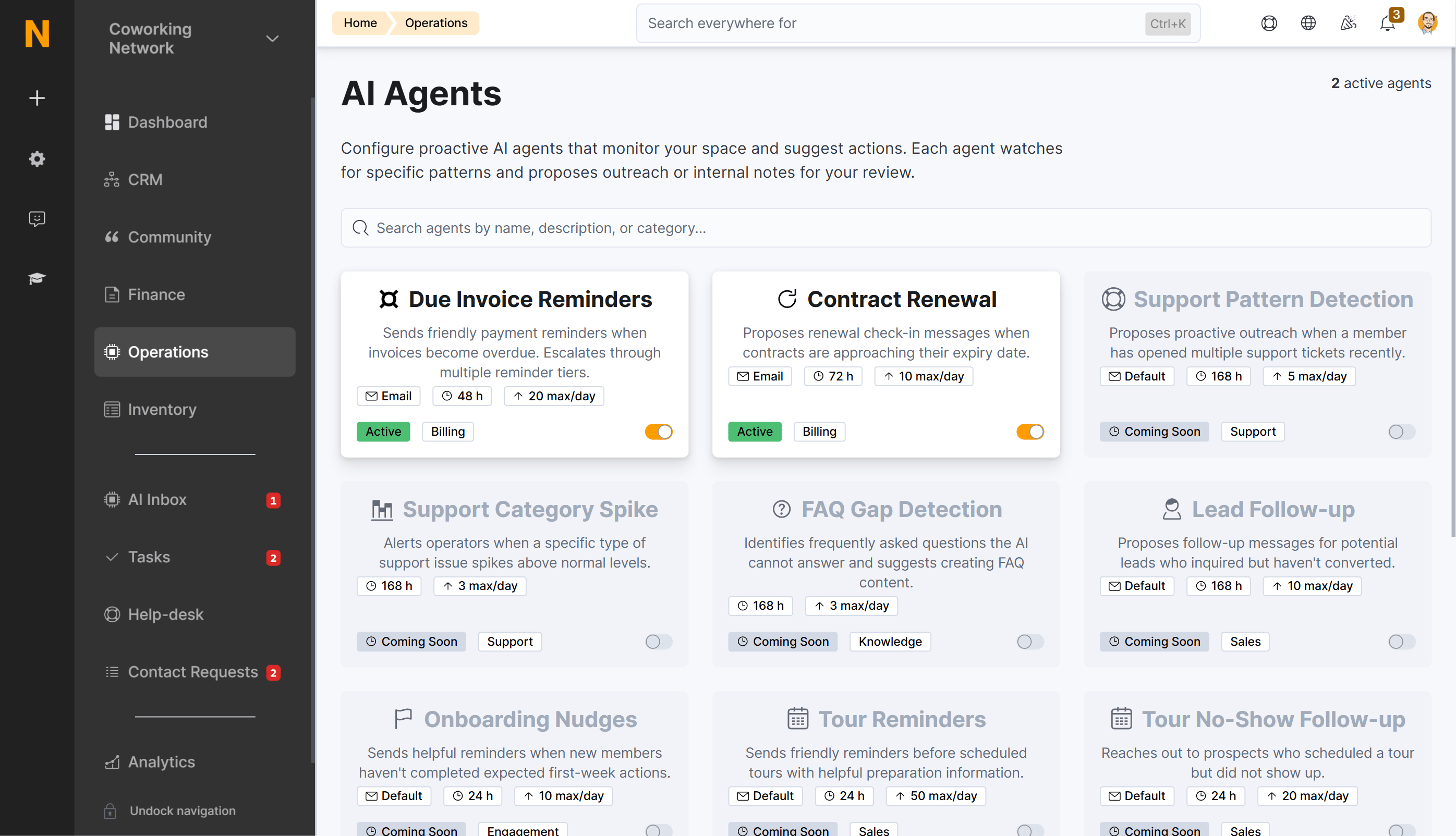
The **AI Agents Configuration** page is where you enable, disable, and customize each agent. You can access it by navigating to **Operations > AI Agents** in the Dashboard, or by clicking **Configure Agents** from the AI Inbox page.
 **Route:** [Configure Agents](https://dashboard.nexudus.com/operations/configureAgents)
***
## How to Access
1. Log in to your [Dashboard](https://dashboard.nexudus.com).
2. Navigate to **Operations** in the left sidebar
3. Click **AI Agents** under the **AI Inbox** section
* Alternatively, go to **AI Inbox**, then click **Configure Agents** in the right sidebar
**Required permissions:** You need Administrator access or a role with **AI Agent configuration** permissions. The feature requires the AI Assistant module to be enabled for your location.
***
## The Configuration Interface
The AI Agents page displays all available agents as cards in a grid layout. Each card shows:
* **Agent icon** — Represents the agent's category (e.g., currency for billing, refresh for contracts)
* **Agent name** — The display name of the agent
* **Description** — A brief explanation of what the agent monitors
* **Status badge** — Shows **Active** (green) when enabled, **Inactive** (grey) when disabled
* **Auto badge** — Appears in yellow when auto-execute is enabled for that agent
* **Category badge** — Shows the agent's category (Billing, Sales, Engagement, etc.)
* **Toggle switch** — Enable or disable the agent with a single click
* **Channel badge** — Shows the configured communication channel (Email, WhatsApp, Voice, or Default)
* **Cooldown badge** — Displays the cooldown period in hours
* **Max actions badge** — Shows the maximum number of actions allowed per day
At the top of the page:
* **Search bar** — Filter agents by name, category, or description
* **Active agent counter** — Shows how many agents are currently enabled
* **Agent definitions** — Agents are loaded from the frontend registry (`agentDefinitions.ts`) and map 1:1 to backend criteria evaluators
Understand what each agent card displays and how to read the badges.
Step-by-step guide to enabling agents and customizing their behavior.
Comprehensive reference for all available agent types and their settings.
***
## Agent Lifecycle
Each agent follows a consistent lifecycle:
1. **Monitoring** — The agent continuously watches for patterns defined in its criteria (e.g., invoices past due date, contracts within 30 days of expiry)
2. **Evaluation** — When a pattern is detected, the agent calculates a confidence score based on how strongly the situation matches the criteria
3. **Proposal** — A proposed action appears in your **AI Inbox** with a suggested message or note
4. **Review** — You approve, edit, or reject the proposed action (unless auto-execute is enabled)
5. **Execution** — Once approved, the action is sent through the configured channel (email, WhatsApp, voice call, or internal note)
***
## Agent Categories
Agents are organized into categories that reflect the area of your business they monitor:
| Category | What It Watches | Example Agents |
| -------------- | --------------------------------- | ------------------------------------------------------ |
| **Billing** | Invoices, contracts, payments | Due Invoice Reminders, Contract Renewal |
| **Sales** | Leads, tours, inquiries | Lead Follow-up, Tour Reminders, Tour No-Show Follow-up |
| **Engagement** | Member activity and onboarding | Onboarding Nudges, Booking No-Show Follow-up |
| **Retention** | Declining usage and churn signals | At-Risk Member Detection |
| **Support** | Help desk tickets and patterns | Support Pattern Detection, Support Category Spike |
| **Revenue** | Upsell and upgrade opportunities | Upsell Opportunities |
| **Knowledge** | FAQ gaps and content suggestions | FAQ Gap Detection |
Some agents are available now; others are marked as **Coming Soon**. The full list with detailed information is on the [Agent Types Reference](/platform/ai/agent-types) page.
***
## Key Concepts
| Term | Meaning |
| ----------------------- | ------------------------------------------------------------------------------------------------------------------------------------------------------------------------------------------------------------------ |
| **Agent** | A monitoring rule that watches for specific patterns in your space data. Each agent focuses on one type of situation (e.g., overdue invoices). |
| **Criteria** | The conditions that trigger an agent. For example, "invoice is 7+ days overdue" is the criteria for the Due Invoice Reminders agent. |
| **Confidence Score** | A percentage (0–100%) that represents how strongly the detected situation matches the agent's criteria. Higher scores mean the AI is more certain the action is appropriate. |
| **Auto-Execute** | When enabled, actions meeting the minimum confidence threshold are sent automatically without manual review. |
| **Cooldown** | A time period (in hours) that prevents the same agent from acting on the same customer repeatedly. For example, a 48-hour cooldown means the agent won't propose another action for that customer within 48 hours. |
| **Channel** | The communication method used to deliver the action — Email, WhatsApp, Voice, or Internal note. |
| **Max Actions Per Day** | The upper limit on how many actions an agent can propose across all customers in a single day. |
| **Coming Soon** | Agents marked as "Coming Soon" are planned features that are not yet available. They appear in the grid but cannot be enabled. |
## Best Practices
### Getting Started
1. **Start slow** — Enable one or two agents at a time to understand how they work
2. **Use manual review first** — Keep auto-execute disabled for the first 1–2 weeks while you monitor the quality of proposed actions
3. **Review your AI Inbox daily** — Get familiar with the types of actions each agent proposes
4. **Test voice calls** — If enabling voice agents, use the test call feature to verify quality before going live
### Optimization
* **Adjust cooldowns** — If you're seeing too many or too few actions, adjust the cooldown period
* **Monitor approval rates** — Track how often you approve vs. reject actions to calibrate confidence thresholds
* **Customize prompts** — Once comfortable, customize first messages and system prompts to match your location's tone
* **Review metrics weekly** — Check which agents are most active and which generate the most value
### Safety Tips
* Never enable auto-execute immediately — test with manual review first
* Start with conservative rate limits (higher cooldown, lower max actions per day)
* Test voice calls thoroughly before enabling auto-execute for voice agents
* Monitor customer feedback and adjust accordingly
* Remember that Coming Soon agents cannot be enabled — they're planned features
***
## What's Next?
* Learn how to [configure individual agents](/platform/ai/configuring-agents) with step-by-step instructions
* Browse the [Agent Types Reference](/platform/ai/agent-types) for detailed information on each agent
* Understand how to [review and manage proposed actions](/platform/ai/inbox) in the AI Inbox
**Route:** [Configure Agents](https://dashboard.nexudus.com/operations/configureAgents)
***
## How to Access
1. Log in to your [Dashboard](https://dashboard.nexudus.com).
2. Navigate to **Operations** in the left sidebar
3. Click **AI Agents** under the **AI Inbox** section
* Alternatively, go to **AI Inbox**, then click **Configure Agents** in the right sidebar
**Required permissions:** You need Administrator access or a role with **AI Agent configuration** permissions. The feature requires the AI Assistant module to be enabled for your location.
***
## The Configuration Interface
The AI Agents page displays all available agents as cards in a grid layout. Each card shows:
* **Agent icon** — Represents the agent's category (e.g., currency for billing, refresh for contracts)
* **Agent name** — The display name of the agent
* **Description** — A brief explanation of what the agent monitors
* **Status badge** — Shows **Active** (green) when enabled, **Inactive** (grey) when disabled
* **Auto badge** — Appears in yellow when auto-execute is enabled for that agent
* **Category badge** — Shows the agent's category (Billing, Sales, Engagement, etc.)
* **Toggle switch** — Enable or disable the agent with a single click
* **Channel badge** — Shows the configured communication channel (Email, WhatsApp, Voice, or Default)
* **Cooldown badge** — Displays the cooldown period in hours
* **Max actions badge** — Shows the maximum number of actions allowed per day
At the top of the page:
* **Search bar** — Filter agents by name, category, or description
* **Active agent counter** — Shows how many agents are currently enabled
* **Agent definitions** — Agents are loaded from the frontend registry (`agentDefinitions.ts`) and map 1:1 to backend criteria evaluators
Understand what each agent card displays and how to read the badges.
Step-by-step guide to enabling agents and customizing their behavior.
Comprehensive reference for all available agent types and their settings.
***
## Agent Lifecycle
Each agent follows a consistent lifecycle:
1. **Monitoring** — The agent continuously watches for patterns defined in its criteria (e.g., invoices past due date, contracts within 30 days of expiry)
2. **Evaluation** — When a pattern is detected, the agent calculates a confidence score based on how strongly the situation matches the criteria
3. **Proposal** — A proposed action appears in your **AI Inbox** with a suggested message or note
4. **Review** — You approve, edit, or reject the proposed action (unless auto-execute is enabled)
5. **Execution** — Once approved, the action is sent through the configured channel (email, WhatsApp, voice call, or internal note)
***
## Agent Categories
Agents are organized into categories that reflect the area of your business they monitor:
| Category | What It Watches | Example Agents |
| -------------- | --------------------------------- | ------------------------------------------------------ |
| **Billing** | Invoices, contracts, payments | Due Invoice Reminders, Contract Renewal |
| **Sales** | Leads, tours, inquiries | Lead Follow-up, Tour Reminders, Tour No-Show Follow-up |
| **Engagement** | Member activity and onboarding | Onboarding Nudges, Booking No-Show Follow-up |
| **Retention** | Declining usage and churn signals | At-Risk Member Detection |
| **Support** | Help desk tickets and patterns | Support Pattern Detection, Support Category Spike |
| **Revenue** | Upsell and upgrade opportunities | Upsell Opportunities |
| **Knowledge** | FAQ gaps and content suggestions | FAQ Gap Detection |
Some agents are available now; others are marked as **Coming Soon**. The full list with detailed information is on the [Agent Types Reference](/platform/ai/agent-types) page.
***
## Key Concepts
| Term | Meaning |
| ----------------------- | ------------------------------------------------------------------------------------------------------------------------------------------------------------------------------------------------------------------ |
| **Agent** | A monitoring rule that watches for specific patterns in your space data. Each agent focuses on one type of situation (e.g., overdue invoices). |
| **Criteria** | The conditions that trigger an agent. For example, "invoice is 7+ days overdue" is the criteria for the Due Invoice Reminders agent. |
| **Confidence Score** | A percentage (0–100%) that represents how strongly the detected situation matches the agent's criteria. Higher scores mean the AI is more certain the action is appropriate. |
| **Auto-Execute** | When enabled, actions meeting the minimum confidence threshold are sent automatically without manual review. |
| **Cooldown** | A time period (in hours) that prevents the same agent from acting on the same customer repeatedly. For example, a 48-hour cooldown means the agent won't propose another action for that customer within 48 hours. |
| **Channel** | The communication method used to deliver the action — Email, WhatsApp, Voice, or Internal note. |
| **Max Actions Per Day** | The upper limit on how many actions an agent can propose across all customers in a single day. |
| **Coming Soon** | Agents marked as "Coming Soon" are planned features that are not yet available. They appear in the grid but cannot be enabled. |
## Best Practices
### Getting Started
1. **Start slow** — Enable one or two agents at a time to understand how they work
2. **Use manual review first** — Keep auto-execute disabled for the first 1–2 weeks while you monitor the quality of proposed actions
3. **Review your AI Inbox daily** — Get familiar with the types of actions each agent proposes
4. **Test voice calls** — If enabling voice agents, use the test call feature to verify quality before going live
### Optimization
* **Adjust cooldowns** — If you're seeing too many or too few actions, adjust the cooldown period
* **Monitor approval rates** — Track how often you approve vs. reject actions to calibrate confidence thresholds
* **Customize prompts** — Once comfortable, customize first messages and system prompts to match your location's tone
* **Review metrics weekly** — Check which agents are most active and which generate the most value
### Safety Tips
* Never enable auto-execute immediately — test with manual review first
* Start with conservative rate limits (higher cooldown, lower max actions per day)
* Test voice calls thoroughly before enabling auto-execute for voice agents
* Monitor customer feedback and adjust accordingly
* Remember that Coming Soon agents cannot be enabled — they're planned features
***
## What's Next?
* Learn how to [configure individual agents](/platform/ai/configuring-agents) with step-by-step instructions
* Browse the [Agent Types Reference](/platform/ai/agent-types) for detailed information on each agent
* Understand how to [review and manage proposed actions](/platform/ai/inbox) in the AI Inbox