> ## Documentation Index
> Fetch the complete documentation index at: https://learn.nexudus.com/llms.txt
> Use this file to discover all available pages before exploring further.
# Limits
> Control when a resource can be booked, how many people can book it at once, how far ahead, for how long, by whom, and the fees for late cancellations.
## Overview
The **Limits** tab on a resource sets the booking rules that apply to everyone: opening days and times, capacity, how far in advance and how late customers can book or cancel, how long bookings can be, who can book, which other resources it blocks, and gaps between bookings.
Limits apply to bookings customers make in the Members Portal and app. Admins can override them when booking on a customer's behalf.
To apply a limit only in some situations, such as to contacts, at weekends or for expensive bookings, add a [resource rule](/platform/billing/resource-rules) on the resource's **Rules** tab instead.
## How to access
Go to **Inventory → Resources**, open the resource and open the **Limits** tab. Each section opens separately; change what you need and select **Save changes**.
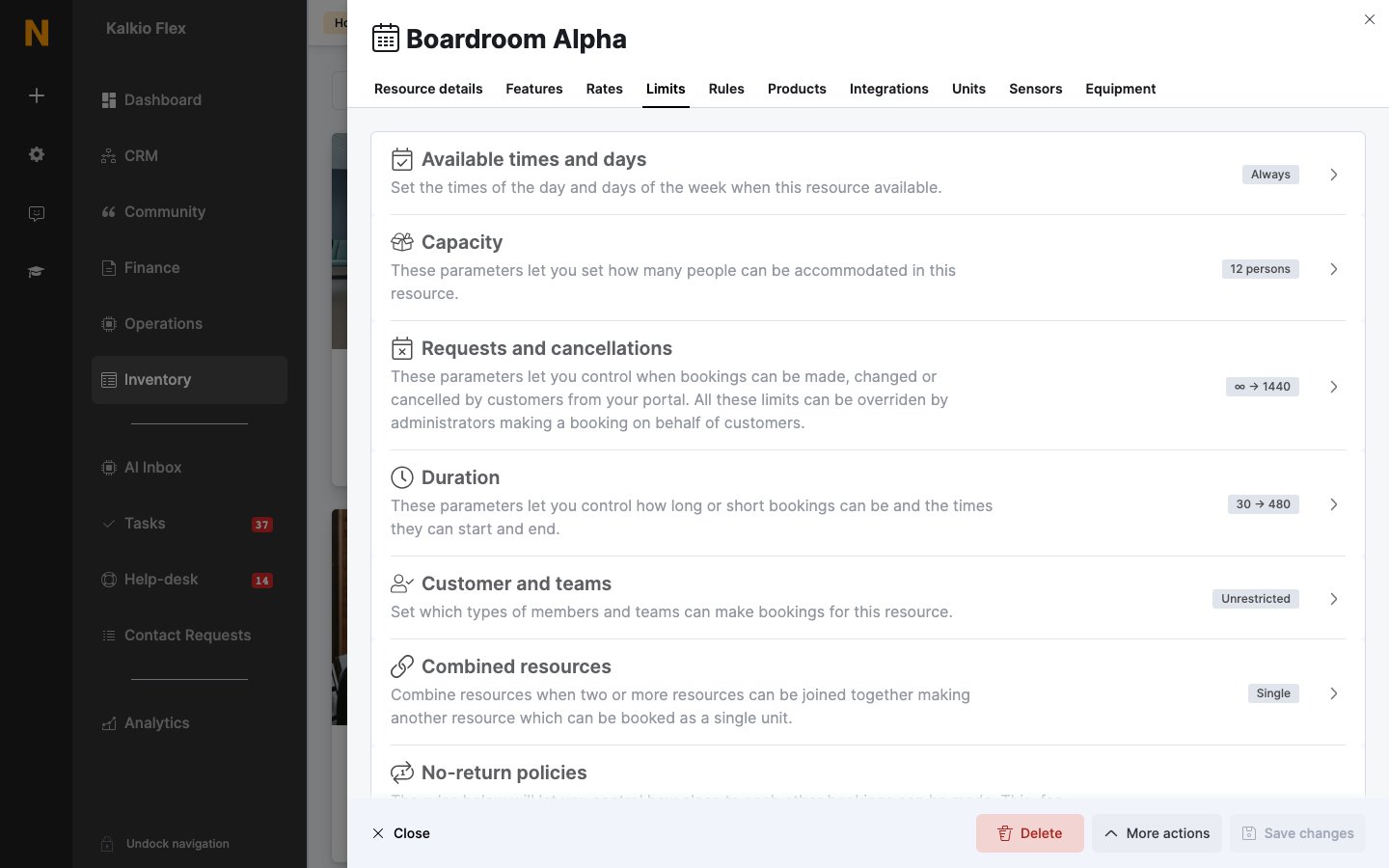 ## Available times and days
When the resource can be booked. Resources are available at any time by default. Restrict them to set days of the week and times, for example weekdays 08:00–18:00.
## Closures and unavailability periods
To stop customers booking during holidays, renovations or other closures, while still letting them book before and after, add an **availability exception**. Exceptions are set for your location, not on the resource itself.
1. Go to **Settings → General settings → General settings → Opening times**. Exceptions are listed under **Booking availability exceptions**.
2. Select **Add availability exception**.
3. Choose the **Location** and the **Resources**. Leave **Resources** empty to block all of them.
4. Set the **Start / end times**. Make sure the times cover the whole closure, not just the dates.
5. Enter the **Message** customers see if they try to book in that period.
6. Turn on **This exception is active**. For a closure that happens every year, also turn on **Apply this exception every year (e.g. 25th December)**.
7. Save.
Exceptions created in a network location apply to every location in the network. If a location has its own exceptions as well, the location's exceptions take precedence.
To close a resource until further notice, set an end date a few years ahead and shorten it once you know the reopening date. To close it permanently, block it from the closing date and [archive it](/platform/billing/resources) on the day.
Exceptions don't cancel bookings already made for that period. Check the [bookings calendar](/platform/operations/bookings) and [cancel](/platform/operations/bookings/approve-and-cancel#cancel-a-booking) any that are affected.
## Capacity
| Setting | Description |
| - | - |
| **Simultaneous bookings** | Whether the resource can be booked just once at a time, or up to a number of times at the same time. Resources with units follow their number of units instead. |
| **Capacity** (or **Capacity per unit**) | How many people the resource holds. |
| **Limit the number of guests in each booking based on the capacity** | Stops customers and admins adding more guests than the resource holds. |
## Requests and cancellations
| Setting | Options |
| - | - |
| **Advanced bookings** | Allow bookings any time ahead, or reject bookings made more than a number of hours before they start. |
| **Late bookings** | Allow bookings right up to the start, or reject bookings made less than a number of hours before they start. Enter a negative number to allow bookings that start up to that long in the past. |
| **Late cancellations** | Allow cancelling or shortening any time before the start; reject cancellations within a set time of the start; or charge a cancellation fee for cancellations within that time. |
| **Repeat bookings** | Let customers make a series of repeat bookings in one go, up to a number of bookings over a number of months (30 bookings over 3 months by default), or turn repeat bookings off. |
| **Bookings for this resource must be always confirmed by an administrator** | New bookings wait for an admin to confirm them. |
### Late cancellation fees
To charge customers who cancel at the last minute:
Go to **Inventory → Products** and add a product named as you want the fee to appear on invoices, such as "Late cancellation fee". Leave its price at zero; the amount is set on the resource. Add a financial account and tax rate if your invoicing needs them. You can reuse one fee product for all your resources.
On the resource's **Limits → Requests and cancellations**, under **Late cancellations**, choose to charge a cancellation fee and set how close to the start it applies.
Choose the fee **Product**, then the **Type**: **Absolute** for a fixed **Cancellation fee amount**, or **Percentage** for a **Cancellation fee percentage** of the booking's cost.
Select **Save changes**.
Customers who cancel inside the window see the fee before they confirm, and can keep their booking instead. The fee is added to their next invoice using the fee product.
To charge different fees for different windows, such as 25% within 48 hours and 50% within 24 hours, use the **Stepped cancellation fees** wizard in [Resource rules](/platform/billing/resource-rules#stepped-cancellation-fees).
## Duration
| Setting | Options |
| - | - |
| **Use timeslots** | Only let customers book set blocks of time, such as "Morning" or "Full day". Pick a template or add your own slots with a name, start and end time. Customers then choose a slot instead of start and end times. |
| **Maximum duration** | Allow bookings of any length, or reject bookings longer than a number of minutes. |
| **Minimum duration** | Allow bookings of any length, or reject bookings shorter than a number of minutes. |
| **Fixed interval** | Allow any start and end time, or require bookings in fixed steps, such as 30-minute intervals. |
Timeslots suit hot desks: customers book a half or full day in one click, and you avoid gaps of unsellable time.
## Customer and teams
| Setting | Description |
| - | - |
| **This resource can be booked by:** | All customers, only members, only contacts, or members on specific plans. |
| **Restrict the teams which can book this resource to:** | Only members of the teams you choose can book. Leave empty to allow members of any team. |
| **This resource can only be booked by customers with a home location of '…'** | Hides the resource from customers whose home location is a different location. Shown when you manage more than one location. |
## Combined resources
**This resource locks other resources when booked** lists the resources that become unavailable whenever this one is booked. Use it for rooms that can be joined together. See [Combined resources](/platform/billing/resources/features-and-add-ons#combined-resources).
## No-return policies
Gaps you require between bookings, for example to clean or reset a room. Choose one option in each group:
| Group | Options |
| - | - |
| **This resource** | Bookings don't need a gap, or must be separated by a number of minutes. |
| **Same user or team, this resource** | A customer's or team's back-to-back bookings of this resource don't need a gap, or must be separated by a number of minutes. |
| **Same user or team, this and any other resource** | A customer's or team's bookings of this resource and any other resource don't need a gap, or must be separated by a number of minutes. |
For example, allow a 10-minute gap when the same customer books the room twice in a row, but require 60 minutes between different customers so staff can reset it.
The admin booking calendar shows the gaps as shaded buffers around each booking. Customers who try to book inside a gap see a message explaining why.
## Related
* [Resources](/platform/billing/resources)
* [Resource rules](/platform/billing/resource-rules)
* [Rates](/platform/billing/resources/rates)
* [Bookings](/platform/operations/bookings)
This documentation is built and hosted on [Mintlify](https://mintlify.com), a developer documentation platform.
## Available times and days
When the resource can be booked. Resources are available at any time by default. Restrict them to set days of the week and times, for example weekdays 08:00–18:00.
## Closures and unavailability periods
To stop customers booking during holidays, renovations or other closures, while still letting them book before and after, add an **availability exception**. Exceptions are set for your location, not on the resource itself.
1. Go to **Settings → General settings → General settings → Opening times**. Exceptions are listed under **Booking availability exceptions**.
2. Select **Add availability exception**.
3. Choose the **Location** and the **Resources**. Leave **Resources** empty to block all of them.
4. Set the **Start / end times**. Make sure the times cover the whole closure, not just the dates.
5. Enter the **Message** customers see if they try to book in that period.
6. Turn on **This exception is active**. For a closure that happens every year, also turn on **Apply this exception every year (e.g. 25th December)**.
7. Save.
Exceptions created in a network location apply to every location in the network. If a location has its own exceptions as well, the location's exceptions take precedence.
To close a resource until further notice, set an end date a few years ahead and shorten it once you know the reopening date. To close it permanently, block it from the closing date and [archive it](/platform/billing/resources) on the day.
Exceptions don't cancel bookings already made for that period. Check the [bookings calendar](/platform/operations/bookings) and [cancel](/platform/operations/bookings/approve-and-cancel#cancel-a-booking) any that are affected.
## Capacity
| Setting | Description |
| - | - |
| **Simultaneous bookings** | Whether the resource can be booked just once at a time, or up to a number of times at the same time. Resources with units follow their number of units instead. |
| **Capacity** (or **Capacity per unit**) | How many people the resource holds. |
| **Limit the number of guests in each booking based on the capacity** | Stops customers and admins adding more guests than the resource holds. |
## Requests and cancellations
| Setting | Options |
| - | - |
| **Advanced bookings** | Allow bookings any time ahead, or reject bookings made more than a number of hours before they start. |
| **Late bookings** | Allow bookings right up to the start, or reject bookings made less than a number of hours before they start. Enter a negative number to allow bookings that start up to that long in the past. |
| **Late cancellations** | Allow cancelling or shortening any time before the start; reject cancellations within a set time of the start; or charge a cancellation fee for cancellations within that time. |
| **Repeat bookings** | Let customers make a series of repeat bookings in one go, up to a number of bookings over a number of months (30 bookings over 3 months by default), or turn repeat bookings off. |
| **Bookings for this resource must be always confirmed by an administrator** | New bookings wait for an admin to confirm them. |
### Late cancellation fees
To charge customers who cancel at the last minute:
Go to **Inventory → Products** and add a product named as you want the fee to appear on invoices, such as "Late cancellation fee". Leave its price at zero; the amount is set on the resource. Add a financial account and tax rate if your invoicing needs them. You can reuse one fee product for all your resources.
On the resource's **Limits → Requests and cancellations**, under **Late cancellations**, choose to charge a cancellation fee and set how close to the start it applies.
Choose the fee **Product**, then the **Type**: **Absolute** for a fixed **Cancellation fee amount**, or **Percentage** for a **Cancellation fee percentage** of the booking's cost.
Select **Save changes**.
Customers who cancel inside the window see the fee before they confirm, and can keep their booking instead. The fee is added to their next invoice using the fee product.
To charge different fees for different windows, such as 25% within 48 hours and 50% within 24 hours, use the **Stepped cancellation fees** wizard in [Resource rules](/platform/billing/resource-rules#stepped-cancellation-fees).
## Duration
| Setting | Options |
| - | - |
| **Use timeslots** | Only let customers book set blocks of time, such as "Morning" or "Full day". Pick a template or add your own slots with a name, start and end time. Customers then choose a slot instead of start and end times. |
| **Maximum duration** | Allow bookings of any length, or reject bookings longer than a number of minutes. |
| **Minimum duration** | Allow bookings of any length, or reject bookings shorter than a number of minutes. |
| **Fixed interval** | Allow any start and end time, or require bookings in fixed steps, such as 30-minute intervals. |
Timeslots suit hot desks: customers book a half or full day in one click, and you avoid gaps of unsellable time.
## Customer and teams
| Setting | Description |
| - | - |
| **This resource can be booked by:** | All customers, only members, only contacts, or members on specific plans. |
| **Restrict the teams which can book this resource to:** | Only members of the teams you choose can book. Leave empty to allow members of any team. |
| **This resource can only be booked by customers with a home location of '…'** | Hides the resource from customers whose home location is a different location. Shown when you manage more than one location. |
## Combined resources
**This resource locks other resources when booked** lists the resources that become unavailable whenever this one is booked. Use it for rooms that can be joined together. See [Combined resources](/platform/billing/resources/features-and-add-ons#combined-resources).
## No-return policies
Gaps you require between bookings, for example to clean or reset a room. Choose one option in each group:
| Group | Options |
| - | - |
| **This resource** | Bookings don't need a gap, or must be separated by a number of minutes. |
| **Same user or team, this resource** | A customer's or team's back-to-back bookings of this resource don't need a gap, or must be separated by a number of minutes. |
| **Same user or team, this and any other resource** | A customer's or team's bookings of this resource and any other resource don't need a gap, or must be separated by a number of minutes. |
For example, allow a 10-minute gap when the same customer books the room twice in a row, but require 60 minutes between different customers so staff can reset it.
The admin booking calendar shows the gaps as shaded buffers around each booking. Customers who try to book inside a gap see a message explaining why.
## Related
* [Resources](/platform/billing/resources)
* [Resource rules](/platform/billing/resource-rules)
* [Rates](/platform/billing/resources/rates)
* [Bookings](/platform/operations/bookings)
This documentation is built and hosted on [Mintlify](https://mintlify.com), a developer documentation platform.