> ## Documentation Index
> Fetch the complete documentation index at: https://learn.nexudus.com/llms.txt
> Use this file to discover all available pages before exploring further.
# Pay as you go
> Let customers without a pass check in anyway and charge them for the time they spend on site, with special prices for members of certain plans.
## Overview
With **pay as you go**, customers who check in without a valid pass aren't turned away. Nexudus gives them a pay-as-you-go pass and, when they check out, charges them for their visit — by the minute for a time-based pass, or a flat rate for a day pass.
## Setting up pay as you go
Go to **Inventory → Passes**, click **Add pass**, and choose the **Pay As You Go Pass** shortcut — enter a name and an hourly price. Or set up any pass yourself as described below.
On the pass's **Pay as you go** tab, turn on **Automatically sell this pass to contacts (customers with no active contracts) checking in without a valid pass.**, **Automatically sell this pass to members (customers with an active contract) checking in without a valid pass.**, or both.
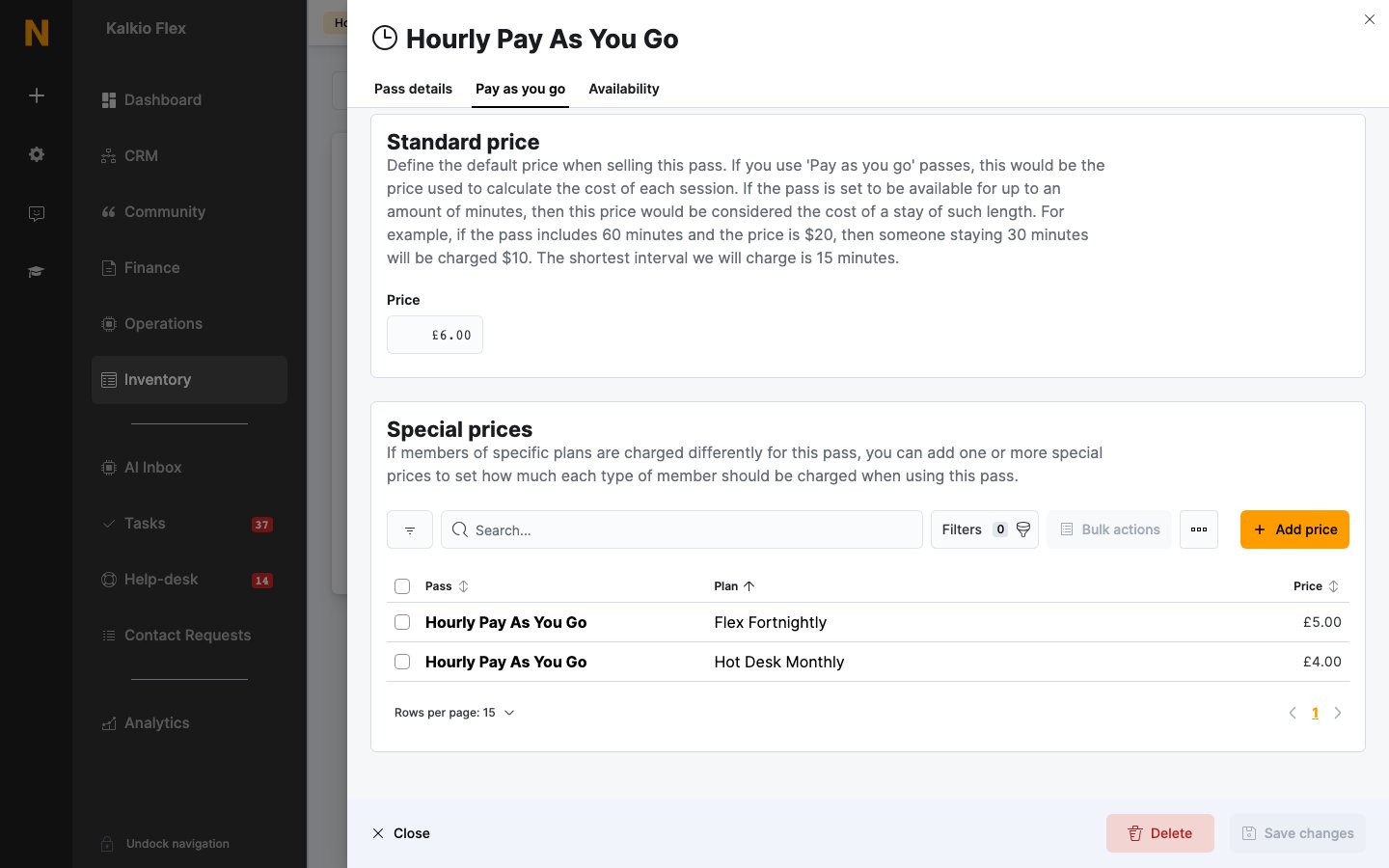
Under **Standard price**, set the **Price** — for a time-based pass, the price of the full number of minutes it includes.
Go to **Settings → Features → Check-in settings → Pay as you go** and turn on **Enable 'pay as you go' access.** Pay-as-you-go passes aren't used until this is on.
 Set pay-as-you-go passes to **Low** use priority, so customers' other passes are always used first.
## How customers are charged
When the customer checks out, Nexudus works out the charge from the pass:
| Pass type | Charge |
| - | - |
| **Time-based pass** | The price divided by the pass's minutes, multiplied by how long the customer was checked in. A £6 one-hour pass charges £3 for 30 minutes and £15 for 2.5 hours. |
| **Day pass** | The full price, however long the customer stays. |
Check-in and check-out times are rounded to the nearest 15 minutes, so the shortest visit charged is 15 minutes.
If more than one pay-as-you-go pass applies, Nexudus uses the one with the highest **Use priority**, then the one that's cheapest per minute for that customer.
Contacts' charges are invoiced the day after their visit. Members' charges are invoiced the same way unless you turn on **Members pay the 'pay as you go' charges via their contract.**, which adds them to their next contract invoice instead.
### Special prices
To charge members of certain plans a different rate, open the pass's **Pay as you go** tab and use **Add price** under **Special prices**. Choose the plan under **Offer this price to members of** and enter the **Price**. Members on that plan are charged the special price; everyone else pays the standard price.
### Daily limits and bookings
These settings sit with **Enable 'pay as you go' access.** in **Settings → Features → Check-in settings → Pay as you go**:
| Setting | Effect |
| - | - |
| **Minimum daily price.** | The least a customer pays for a day of pay-as-you-go visits. |
| **Maximum daily price.** | The most a customer pays for a day — useful for capping hourly charges at your day rate. |
| **Exclude time used in bookings when calculating how long users were checked in.** | Takes time spent in the customer's bookings off the charge, so they don't pay twice. |
## Related
* [Passes](/platform/billing/time-passes) — creating and managing passes
* [Availability and check-in rules](/platform/billing/time-passes/availability) — which pass is used at check-in
* [Check-ins](/platform/operations/check-ins#pay-as-you-go-access) — check-in settings and failed check-ins
This documentation is built and hosted on [Mintlify](https://mintlify.com), a developer documentation platform.
Set pay-as-you-go passes to **Low** use priority, so customers' other passes are always used first.
## How customers are charged
When the customer checks out, Nexudus works out the charge from the pass:
| Pass type | Charge |
| - | - |
| **Time-based pass** | The price divided by the pass's minutes, multiplied by how long the customer was checked in. A £6 one-hour pass charges £3 for 30 minutes and £15 for 2.5 hours. |
| **Day pass** | The full price, however long the customer stays. |
Check-in and check-out times are rounded to the nearest 15 minutes, so the shortest visit charged is 15 minutes.
If more than one pay-as-you-go pass applies, Nexudus uses the one with the highest **Use priority**, then the one that's cheapest per minute for that customer.
Contacts' charges are invoiced the day after their visit. Members' charges are invoiced the same way unless you turn on **Members pay the 'pay as you go' charges via their contract.**, which adds them to their next contract invoice instead.
### Special prices
To charge members of certain plans a different rate, open the pass's **Pay as you go** tab and use **Add price** under **Special prices**. Choose the plan under **Offer this price to members of** and enter the **Price**. Members on that plan are charged the special price; everyone else pays the standard price.
### Daily limits and bookings
These settings sit with **Enable 'pay as you go' access.** in **Settings → Features → Check-in settings → Pay as you go**:
| Setting | Effect |
| - | - |
| **Minimum daily price.** | The least a customer pays for a day of pay-as-you-go visits. |
| **Maximum daily price.** | The most a customer pays for a day — useful for capping hourly charges at your day rate. |
| **Exclude time used in bookings when calculating how long users were checked in.** | Takes time spent in the customer's bookings off the charge, so they don't pay twice. |
## Related
* [Passes](/platform/billing/time-passes) — creating and managing passes
* [Availability and check-in rules](/platform/billing/time-passes/availability) — which pass is used at check-in
* [Check-ins](/platform/operations/check-ins#pay-as-you-go-access) — check-in settings and failed check-ins
This documentation is built and hosted on [Mintlify](https://mintlify.com), a developer documentation platform.