> ## Documentation Index
> Fetch the complete documentation index at: https://learn.nexudus.com/llms.txt
> Use this file to discover all available pages before exploring further.
# Deposits
> Take security deposits and one-off fees with plans and contracts, keep them out of your revenue with a deposits account, and refund them when a contract ends.
## Overview
A **deposit** is money a customer pays as a guarantee, typically when they start a contract for an office or desk. Deposits aren't revenue: you usually give them back at the end of the contract, less any deductions. Nexudus handles them as products assigned to a **Deposits** financial account, so they stay separate from your income in reports and your accounting system.
## How to access
* **Deposit products**: **Inventory → Products**.
* **Deposits on a contract**: open the contract from **Finance → Contracts**, or from the customer's **Sales → Contracts**, and go to its **Deposits / fees** tab.
* **A customer's deposits**: the **Deposits** tab on the customer record, which shows their current deposit balance.
## Key concepts
| Term | Meaning |
| - | - |
| **Deposit product** | A product used for deposits. Its price can be zero, with the amount set on each contract. |
| **Deposits financial account** | A financial account of type **Deposits**. Assigning it to deposit products keeps deposits out of revenue. |
| **Refundable deposit** | A deposit with **Credit this fee when the contract ends** turned on. |
| **Fee** | A one-off, non-refundable charge added the same way, such as a key card fee. |
## Set up deposit products
Go to **Inventory → Products**, select **Add product** and choose the **Deposit** template. Enter a **Product name** and either pick an existing **Financial account (Deposit type)** or turn on **Create a new deposits type financial account** and enter its name and **Account code**.
If you sync with an accounting system, use the same account name and code there.
One deposit product with a zero price is enough if you set each deposit's amount on the contract. Create several products or accounts if you want deposits broken down in your reports, for example by plan.
Always give deposit products a **Deposits** financial account. Otherwise deposits are counted as revenue, which distorts your reports and accounts.
To use a product you already have, create a financial account with **Account type** set to **Deposits** in your chart of accounts, then assign it to the product.
## Add a deposit to a plan
On the plan's **Deposits** tab, add the deposit product and amount. Every new contract on the plan then includes the deposit on its first invoice. See [Plans](/platform/billing/plans#deposits-and-sign-up-fees).
## Add a deposit to a contract
1. Open the contract and go to the **Deposits / fees** tab.
2. Select **Add fee/deposit**.
3. Choose the **Deposit / fee product** and set the **Price**.
4. Turn on **Credit this fee when the contract ends** to make it refundable.
5. Save.
The deposit is invoiced with the contract on its next invoice.
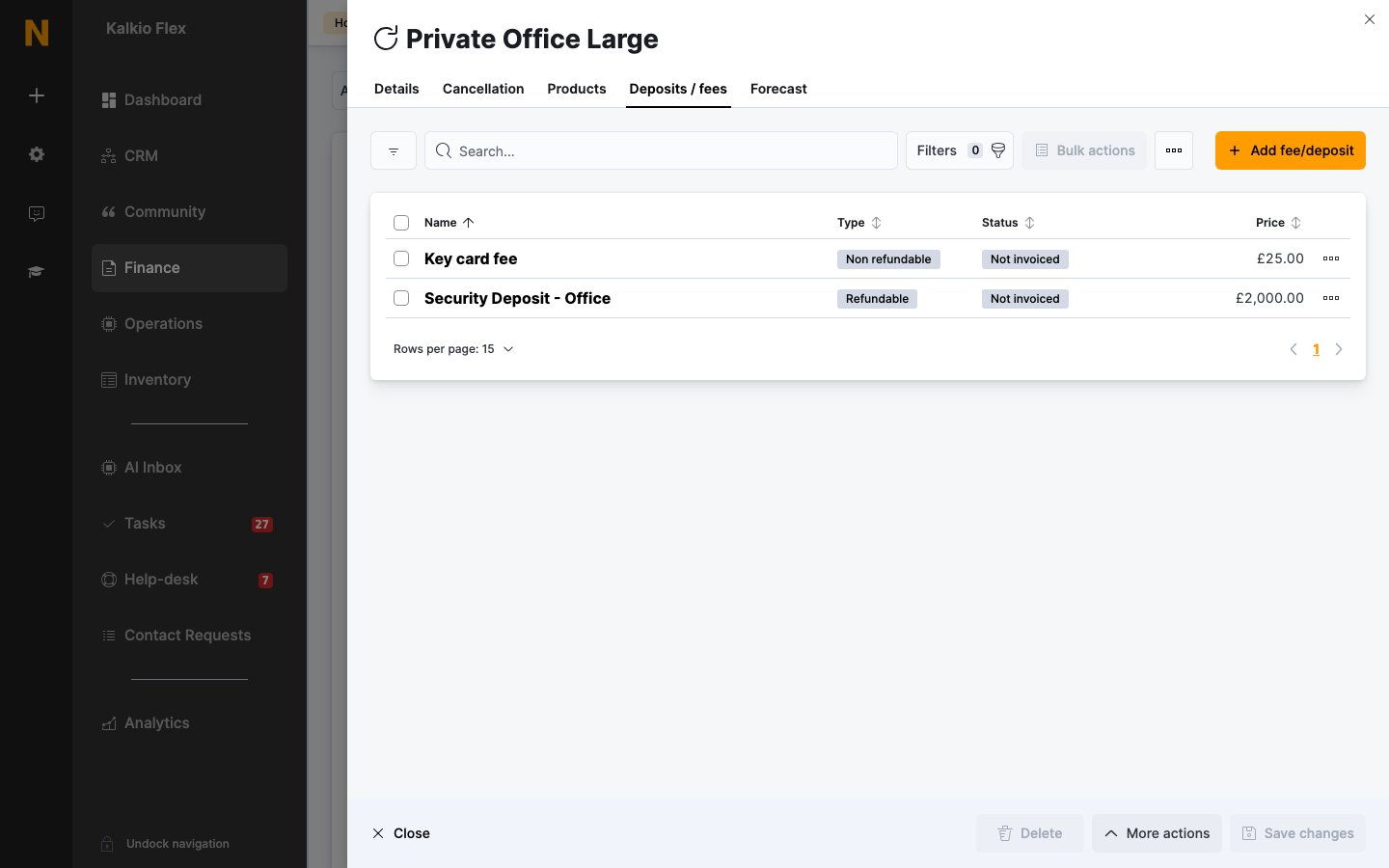 The tab shows whether each deposit or fee is **Refundable** or **Non refundable**, and its status: **Not invoiced**, **Invoiced** or **Credited**.
## When a contract ends
When a contract is cancelled, Nexudus credits its refundable deposits automatically, as long as:
* the deposit has been invoiced and hasn't already been credited, and
* the customer has no other contract that's still running or due to start.
The credit is added to the customer's account and included in their final invoice, so it's set against anything they still owe. You can then keep back any deductions, such as damage or exit fees, or refund the rest.
If the customer has another contract, for example because they're moving to a new plan, their deposits aren't credited. They stay on account for the new contract, or you can credit or refund them yourself.
## Refund a deposit
To credit a deposit yourself, open the contract's **Deposits / fees** tab and use **Refund deposit** on the deposit. You can choose to create a credit note, which the customer can use against unpaid or future invoices. Only refundable deposits that haven't been credited yet can be refunded this way.
To pay money back, refund the deposit's invoice line from the invoice itself and choose the payment method. If you choose a method outside Nexudus, such as bank transfer or check, send the money to the customer that way too. See [Invoices](/platform/finance/invoices).
To keep part of a deposit, for example for damage, refund only part of the amount.
## Related
* [Contracts](/platform/finance/contracts)
* [Plans](/platform/billing/plans)
* [Products](/platform/billing/products)
* [Invoices](/platform/finance/invoices)
This documentation is built and hosted on [Mintlify](https://mintlify.com), a developer documentation platform.
The tab shows whether each deposit or fee is **Refundable** or **Non refundable**, and its status: **Not invoiced**, **Invoiced** or **Credited**.
## When a contract ends
When a contract is cancelled, Nexudus credits its refundable deposits automatically, as long as:
* the deposit has been invoiced and hasn't already been credited, and
* the customer has no other contract that's still running or due to start.
The credit is added to the customer's account and included in their final invoice, so it's set against anything they still owe. You can then keep back any deductions, such as damage or exit fees, or refund the rest.
If the customer has another contract, for example because they're moving to a new plan, their deposits aren't credited. They stay on account for the new contract, or you can credit or refund them yourself.
## Refund a deposit
To credit a deposit yourself, open the contract's **Deposits / fees** tab and use **Refund deposit** on the deposit. You can choose to create a credit note, which the customer can use against unpaid or future invoices. Only refundable deposits that haven't been credited yet can be refunded this way.
To pay money back, refund the deposit's invoice line from the invoice itself and choose the payment method. If you choose a method outside Nexudus, such as bank transfer or check, send the money to the customer that way too. See [Invoices](/platform/finance/invoices).
To keep part of a deposit, for example for damage, refund only part of the amount.
## Related
* [Contracts](/platform/finance/contracts)
* [Plans](/platform/billing/plans)
* [Products](/platform/billing/products)
* [Invoices](/platform/finance/invoices)
This documentation is built and hosted on [Mintlify](https://mintlify.com), a developer documentation platform.