> ## Documentation Index
> Fetch the complete documentation index at: https://learn.nexudus.com/llms.txt
> Use this file to discover all available pages before exploring further.
# Financial Accounts
> Group your income into financial accounts for reporting and for posting invoices to your accounting system.
## Overview
**Financial accounts** group your income into categories, such as membership revenue, meeting room revenue or deposits. Every line on an invoice carries a financial account. Nexudus's financial reports are based on them, and accounting integrations use them to post invoices to the right accounts.
You create your accounts once, then assign them to everything you sell in the [chart of accounts](/platform/finance/chart-of-accounts).
## How to access
Go to **Settings → Billing and payments → Invoices and tax** and open the **Accounts** tab.
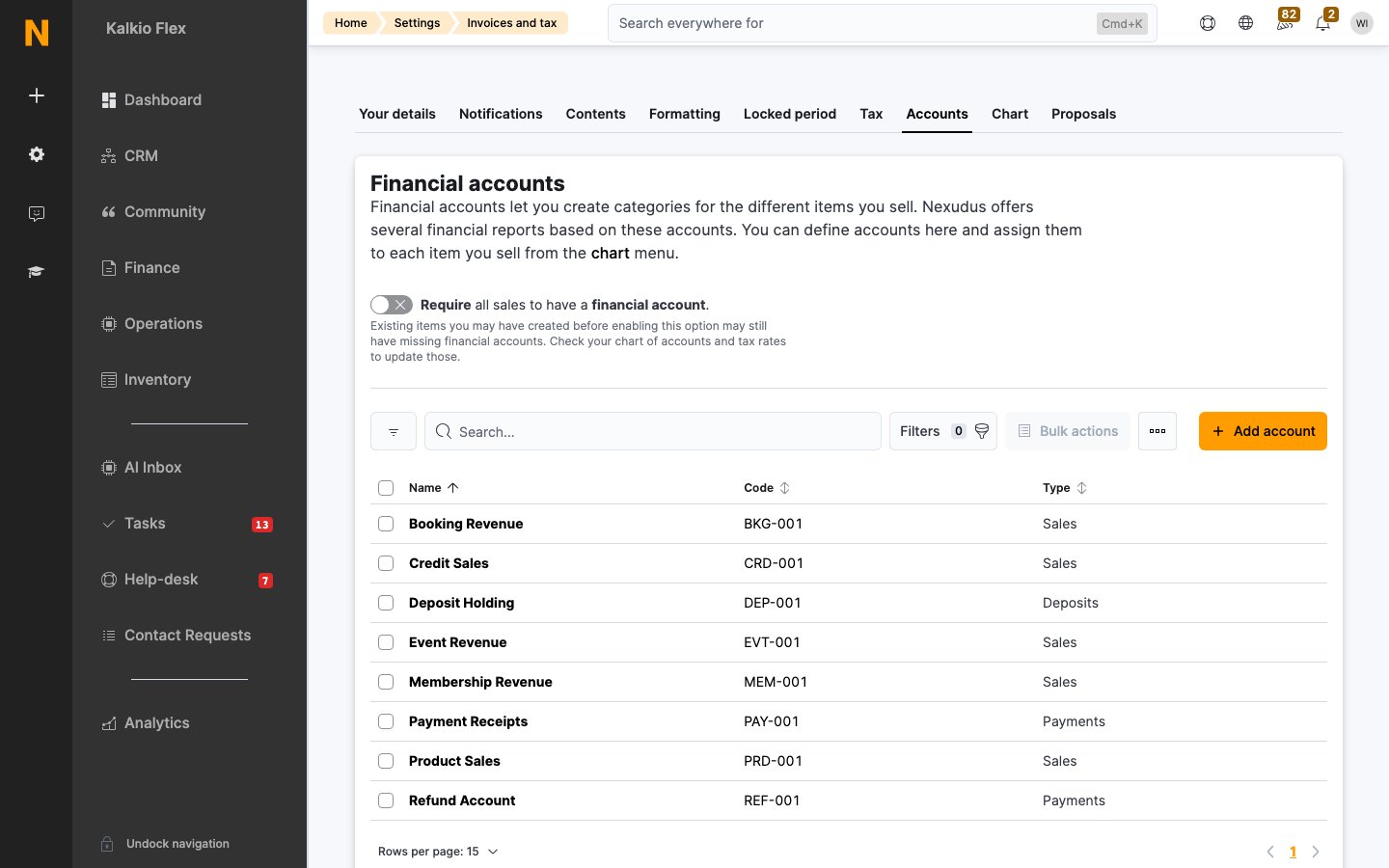 ## Add a financial account
1. On the **Accounts** tab, select **Add account**.
2. Enter a **Name**, a unique **Code** and, optionally, a **Description**.
3. Choose the **Account type**:
* **Sales**: income from anything you sell.
* **Payments**: money received through Nexudus or a payment provider.
* **Deposits**: deposits you hold.
4. Save.
Then assign the account to the items it covers in the [chart of accounts](/platform/finance/chart-of-accounts).
If you use an accounting integration, give each account exactly the same name and code as the matching account in your accounting system.
## Require an account on every sale
Turn on **Require all sales to have a financial account** to stop anything being sold without one. Items created before you turn this on may still be missing an account, so check the [chart of accounts](/platform/finance/chart-of-accounts).
## Edit or delete accounts
Editing an account applies to every item that uses it, but not to invoices already issued.
You can't delete an account while items still use it. Assign those items to another account in the chart of accounts first.
## Accounting integrations
To send your invoices to an accounting system, connect it from **Settings → Integrations**. Set up your financial accounts and [tax rates](/platform/finance/tax-rates) to match the accounting system first. Each integration has its own guide:
* **Xero**
* **QuickBooks Online**
* **Moloni**
* **E-invoicing**, including VERIFACTU in Spain
These guides are coming soon. To take payments through Xero, see [Xero payment links](/platform/finance/payment-gateways/xero).
## Related
* [Chart of accounts](/platform/finance/chart-of-accounts): assign accounts to everything you sell
* [Tax rates](/platform/finance/tax-rates): the tax on each invoice line
* [Ledger](/platform/finance/ledger): your record of charges and payments
* [Deposits](/platform/finance/deposits): money held against a deposits account
This documentation is built and hosted on [Mintlify](https://mintlify.com), a developer documentation platform.
## Add a financial account
1. On the **Accounts** tab, select **Add account**.
2. Enter a **Name**, a unique **Code** and, optionally, a **Description**.
3. Choose the **Account type**:
* **Sales**: income from anything you sell.
* **Payments**: money received through Nexudus or a payment provider.
* **Deposits**: deposits you hold.
4. Save.
Then assign the account to the items it covers in the [chart of accounts](/platform/finance/chart-of-accounts).
If you use an accounting integration, give each account exactly the same name and code as the matching account in your accounting system.
## Require an account on every sale
Turn on **Require all sales to have a financial account** to stop anything being sold without one. Items created before you turn this on may still be missing an account, so check the [chart of accounts](/platform/finance/chart-of-accounts).
## Edit or delete accounts
Editing an account applies to every item that uses it, but not to invoices already issued.
You can't delete an account while items still use it. Assign those items to another account in the chart of accounts first.
## Accounting integrations
To send your invoices to an accounting system, connect it from **Settings → Integrations**. Set up your financial accounts and [tax rates](/platform/finance/tax-rates) to match the accounting system first. Each integration has its own guide:
* **Xero**
* **QuickBooks Online**
* **Moloni**
* **E-invoicing**, including VERIFACTU in Spain
These guides are coming soon. To take payments through Xero, see [Xero payment links](/platform/finance/payment-gateways/xero).
## Related
* [Chart of accounts](/platform/finance/chart-of-accounts): assign accounts to everything you sell
* [Tax rates](/platform/finance/tax-rates): the tax on each invoice line
* [Ledger](/platform/finance/ledger): your record of charges and payments
* [Deposits](/platform/finance/deposits): money held against a deposits account
This documentation is built and hosted on [Mintlify](https://mintlify.com), a developer documentation platform.