> ## Documentation Index
> Fetch the complete documentation index at: https://learn.nexudus.com/llms.txt
> Use this file to discover all available pages before exploring further.
# WiFi Access Tokens
> Create WiFi access codes with a set amount of time and number of devices, and give booking guests, event attendees and visitors WiFi access automatically.
## Overview
A **WiFi access token** is a code that lets someone use your WiFi for a set amount of time, on a limited number of devices. Tokens are handy for guests, event attendees or anyone without a customer account. They work with network check-in integrations such as MikroTik, IronWifi and Layer8: people enter the code on your WiFi's sign-in page.
You can create tokens yourself, one at a time or in bulk, or have Nexudus create them automatically for [bookings, event tickets and visitors](#create-tokens-automatically).
## How to access
Go to **Operations → Access & Check-in → WiFi Access tokens**.
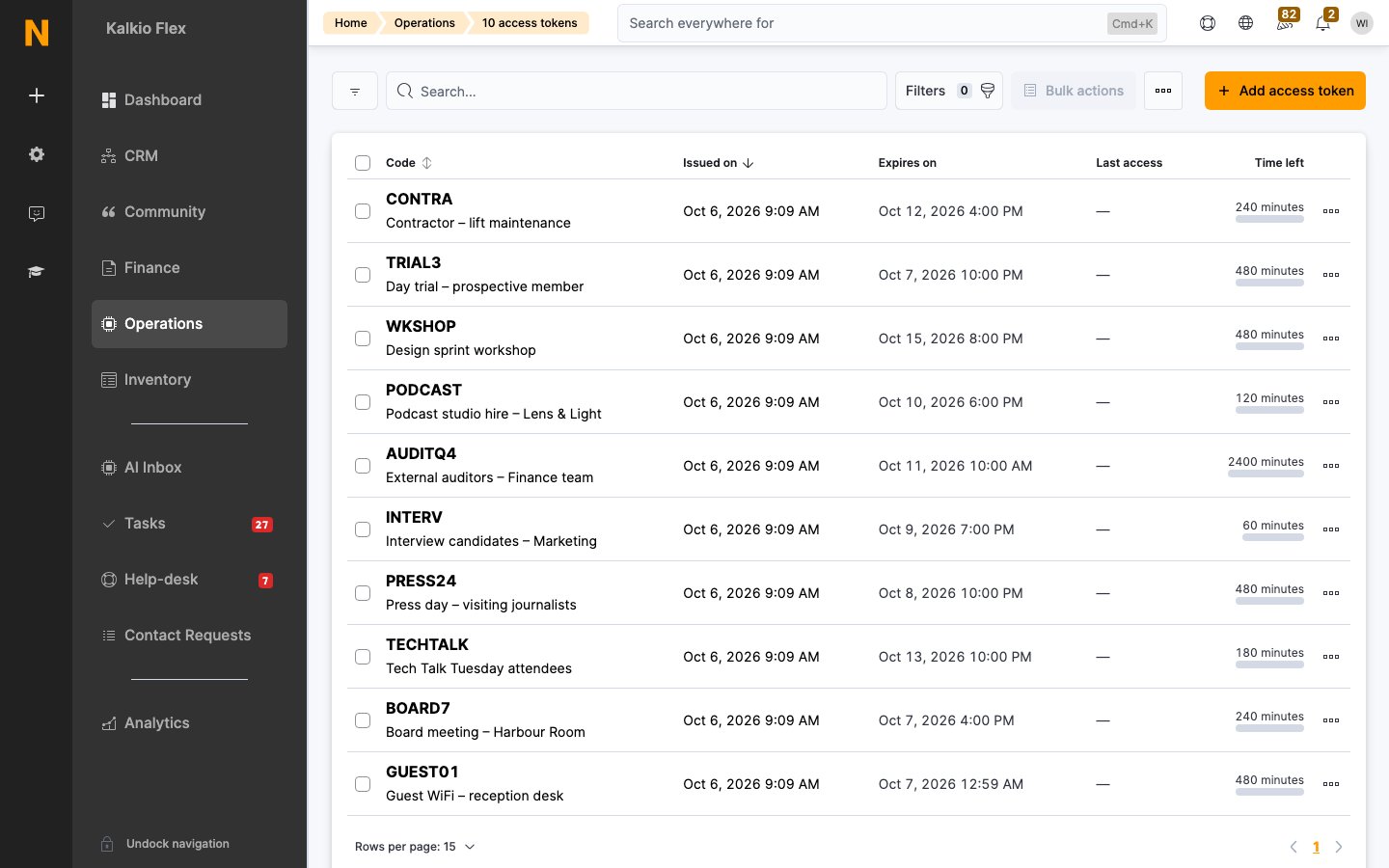 The list shows each token's **Code** and notes, when it was **Issued on**, when it **Expires on**, its **Last access** and the **Time left**. Use the **Current** and **Expired** views to switch between tokens that can still be used and those past their **Valid until** date.
## Create an access token
1. Select **Add access token**, then **Manual entry**.
2. If you manage more than one location, choose the **Location**.
3. Nexudus generates a 6-character **Code**. You can change it to something easier to share, but not after you save the token.
4. Add **Notes** if needed, for example who the token is for. Customers can't see notes.
5. Choose the **Included time**: 15, 30 or 60 minutes, or 2, 4 or 8 hours. To enter any other number of minutes, choose **Custom**. You can't change the included time after you save the token.
6. Set when it's **Valid from** and **Valid until**. By default, a token is valid from now until the end of the day.
7. Set the **Maximum number of devices** that can use the token. For example, for a team of 5 with two devices each, allow 10.
8. Save.
Once saved, the token shows its **Remaining time**, which goes down while devices are connected with it. When it reaches zero, or the **Valid until** date passes, the token stops working.
## Create tokens in bulk
To create many tokens at once, for example for an event:
1. Select **Add access token**, then **Create in bulk**.
2. Enter how many tokens to generate, up to 100.
3. Enter how many minutes each token should have. The default is 60.
4. Enter how many devices each token should be valid for. The default is 1.
Bulk tokens are created in your current location, with random codes. They're valid from when they're created and don't expire: they stop working once their time is used up. To limit when one can be used, open it and set **Valid until**.
## Create tokens automatically
Nexudus can create a token for each booking, event ticket or pre-registered visitor and send it to them by email.
| Who | Setting | Token details |
| - | - | - |
| **Booking guests** | **Settings → Features → Bookings and calendar settings → Notifications**: **Include an Internet Access Token in booking confirmation and reminder emails** | Valid from 15 minutes before the booking starts to 15 minutes after it ends. Devices are limited to the capacity of the resource booked. The token is updated if the booking changes, and deleted if it's cancelled. |
| **Event attendees** | **Settings → Features → Modules → Events**: **Include an internet access code in each ticket confirmation email** | Valid from 1 hour before the event starts to 1 hour after it ends. The notes show the event's name. |
| **Visitors** | **Settings → Features → Check-in settings → Network check-in**: **Generate an access token for every pre-registered visitor** | Uses the visitor's PIN as the code, so the PIN in their registration email also works for WiFi. See [WiFi access for visitors](#wifi-access-for-visitors). |
### WiFi access for visitors
With **Generate an access token for every pre-registered visitor** turned on, also set:
| Setting | Effect |
| - | - |
| **Default duration for visitor access tokens** | How many minutes of WiFi each visitor gets, counted from their expected arrival time. If you leave it empty, visitors get 60 minutes. |
| **Maximum number of devices per visitor** | How many devices each visitor can connect, for example 2 for a phone and a laptop. If you leave it empty, visitors can connect 1 device. |
Visitors registered before you turn this on don't get a token. Register them again if they need WiFi. If visitors need to be approved by their host, their token only works once they're approved.
Edit the visitor registration email in the email templates editor to tell visitors their PIN also works for WiFi.
## Related
* [Visitors](/platform/operations/visitors)
* [Check-ins](/platform/operations/check-ins)
* [WiFi](/platform/access-control/wifi)
This documentation is built and hosted on [Mintlify](https://mintlify.com), a developer documentation platform.
The list shows each token's **Code** and notes, when it was **Issued on**, when it **Expires on**, its **Last access** and the **Time left**. Use the **Current** and **Expired** views to switch between tokens that can still be used and those past their **Valid until** date.
## Create an access token
1. Select **Add access token**, then **Manual entry**.
2. If you manage more than one location, choose the **Location**.
3. Nexudus generates a 6-character **Code**. You can change it to something easier to share, but not after you save the token.
4. Add **Notes** if needed, for example who the token is for. Customers can't see notes.
5. Choose the **Included time**: 15, 30 or 60 minutes, or 2, 4 or 8 hours. To enter any other number of minutes, choose **Custom**. You can't change the included time after you save the token.
6. Set when it's **Valid from** and **Valid until**. By default, a token is valid from now until the end of the day.
7. Set the **Maximum number of devices** that can use the token. For example, for a team of 5 with two devices each, allow 10.
8. Save.
Once saved, the token shows its **Remaining time**, which goes down while devices are connected with it. When it reaches zero, or the **Valid until** date passes, the token stops working.
## Create tokens in bulk
To create many tokens at once, for example for an event:
1. Select **Add access token**, then **Create in bulk**.
2. Enter how many tokens to generate, up to 100.
3. Enter how many minutes each token should have. The default is 60.
4. Enter how many devices each token should be valid for. The default is 1.
Bulk tokens are created in your current location, with random codes. They're valid from when they're created and don't expire: they stop working once their time is used up. To limit when one can be used, open it and set **Valid until**.
## Create tokens automatically
Nexudus can create a token for each booking, event ticket or pre-registered visitor and send it to them by email.
| Who | Setting | Token details |
| - | - | - |
| **Booking guests** | **Settings → Features → Bookings and calendar settings → Notifications**: **Include an Internet Access Token in booking confirmation and reminder emails** | Valid from 15 minutes before the booking starts to 15 minutes after it ends. Devices are limited to the capacity of the resource booked. The token is updated if the booking changes, and deleted if it's cancelled. |
| **Event attendees** | **Settings → Features → Modules → Events**: **Include an internet access code in each ticket confirmation email** | Valid from 1 hour before the event starts to 1 hour after it ends. The notes show the event's name. |
| **Visitors** | **Settings → Features → Check-in settings → Network check-in**: **Generate an access token for every pre-registered visitor** | Uses the visitor's PIN as the code, so the PIN in their registration email also works for WiFi. See [WiFi access for visitors](#wifi-access-for-visitors). |
### WiFi access for visitors
With **Generate an access token for every pre-registered visitor** turned on, also set:
| Setting | Effect |
| - | - |
| **Default duration for visitor access tokens** | How many minutes of WiFi each visitor gets, counted from their expected arrival time. If you leave it empty, visitors get 60 minutes. |
| **Maximum number of devices per visitor** | How many devices each visitor can connect, for example 2 for a phone and a laptop. If you leave it empty, visitors can connect 1 device. |
Visitors registered before you turn this on don't get a token. Register them again if they need WiFi. If visitors need to be approved by their host, their token only works once they're approved.
Edit the visitor registration email in the email templates editor to tell visitors their PIN also works for WiFi.
## Related
* [Visitors](/platform/operations/visitors)
* [Check-ins](/platform/operations/check-ins)
* [WiFi](/platform/access-control/wifi)
This documentation is built and hosted on [Mintlify](https://mintlify.com), a developer documentation platform.