> ## Documentation Index
> Fetch the complete documentation index at: https://learn.nexudus.com/llms.txt
> Use this file to discover all available pages before exploring further.
# Approve and Cancel Bookings
> Confirm tentative bookings, start, transfer and cancel bookings, credit or refund cancelled bookings, and see cancelled bookings.
## Overview
Bookings can wait for your approval before they're confirmed, and you can cancel any booking, with or without a credit note or refund. Nexudus keeps a record of every cancelled booking.
## Approve tentative bookings
To make online bookings wait for approval, go to **Settings → Features → Bookings and calendar settings → General** and turn on **Bookings made by members must be confirmed first by an administrator**, **Bookings made by contacts must be confirmed first by an administrator**, or both. You can also require approval for a single resource on its [limits](/platform/billing/resources/limits#requests-and-cancellations).
Tentative bookings hold their slot, but aren't charged. They're grey on the calendar, and listed in the **Tentative** view of the bookings list.
To approve bookings:
* **One booking**: open it and turn off **This booking is not yet confirmed / tentative**, then save.
* **Several bookings**: tick them in the bookings list and choose **Confirm booking** from **Bulk actions**.
The customer gets their booking confirmation email once the booking is confirmed, not before.
When a customer changes a tentative booking, it needs approving again.
To decline a tentative booking, [cancel it](#cancel-a-booking).
## Start a booking
Select **Start booking** on a booking to mark it as started. If you use **Require attendees to check in using NexBoard and cancel bookings if they don't do so in the first 15 minutes of a booking**, a started booking isn't cancelled automatically.
## Transfer a booking to another customer
Select **Transfer booking** on a booking and choose the **Customer** to move it to. You can't transfer a booking that's already been charged: [remove its charges](/platform/operations/bookings/create-and-edit#edit-a-booking) first.
## Cancel a booking
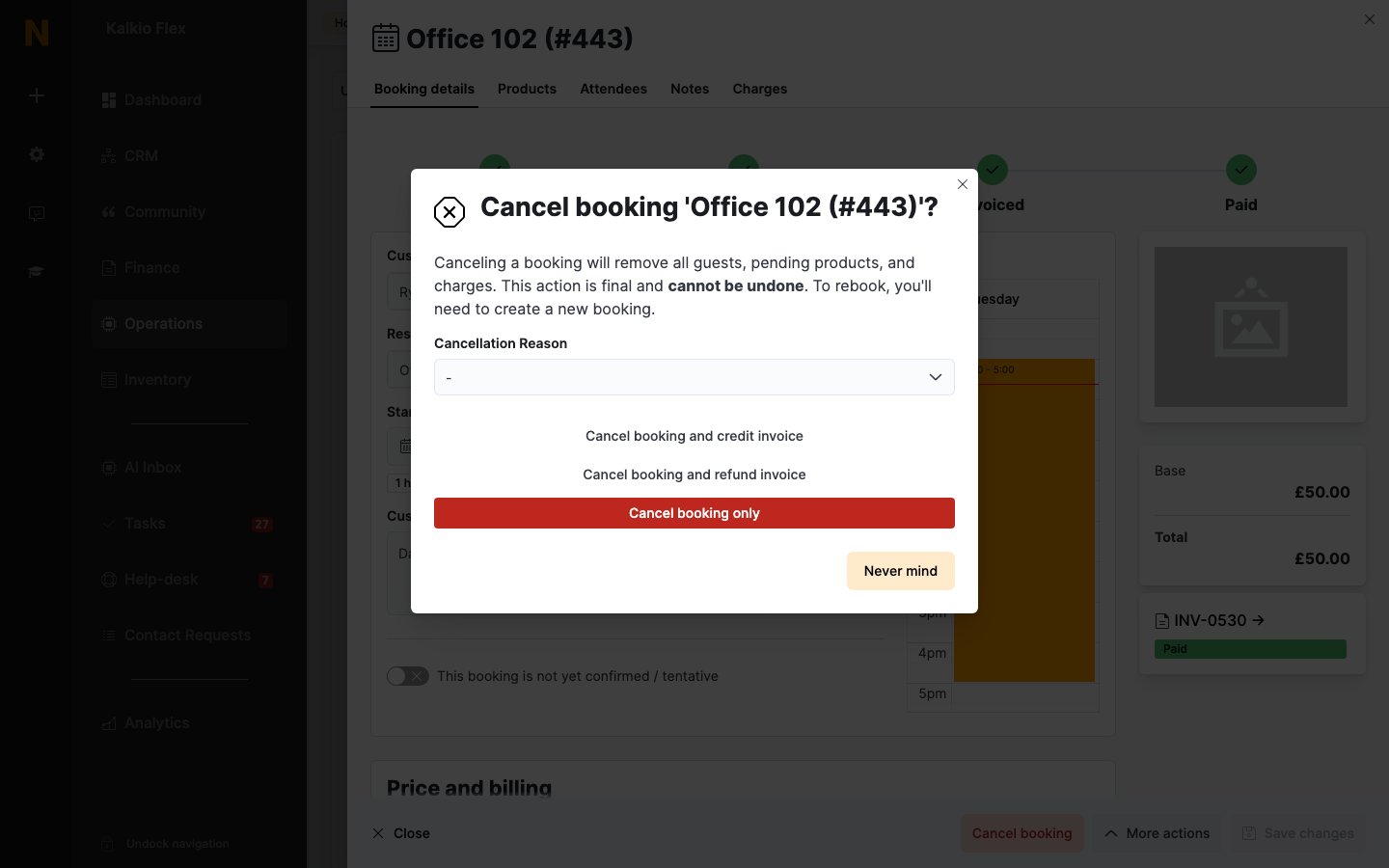 1. Open the booking and select **Cancel booking**, or tick several bookings in the list and choose **Cancel booking** from **Bulk actions**.
2. Choose a **Cancellation Reason**: **No longer needed**, **Too expensive**, **Bad previous experience**, **Rebooked for a different time**, **Failed to pay upfront**, **Integration (Office 365 or GCal)** or **Other**.
3. If a [late cancellation fee](/platform/billing/resources/limits#late-cancellation-fees) applies, the dialog shows the amount. Under **Cancellation fee**, choose **Charge cancellation fee** to charge it, or **Void cancellation fee** to waive it. When you cancel several bookings at once, choose **Charge cancellation fee if applicable** or **Void cancellation fee**.
4. If the booking is part of a series, choose which bookings to cancel: **Cancel only this booking**, **Cancel this booking and all following bookings**, **Cancel all bookings in this series** or **Cancel all bookings in this series which have not yet been charged to the customer**
5. Choose how to cancel. The options depend on the booking's status.
Cancelling removes the booking's guests, products and charges. It can't be undone: to rebook, create a new booking.
### What happens to the money
| Booking status | Options |
| - | - |
| **Tentative**, **Confirmed** or **Charged** | **Cancel booking**. Any charges are removed from the customer's account. |
| **Invoiced** | **Cancel booking and credit invoice** issues a credit note for the booking. **Cancel booking only** leaves the invoice as it is. |
| **Paid** | **Cancel booking and refund invoice** refunds the booking's payment. **Cancel booking and credit invoice** issues a credit note instead, which becomes credit on the customer's account. **Cancel booking only** leaves the invoice as it is. |
If a late cancellation fee applies, the credit note or refund is for the booking's value minus the fee, and the fee is invoiced separately.
A credit note on an unpaid invoice reduces what the customer owes. It only becomes credit they can spend if the invoice was already paid. See [Credits, refunds and cancellations](/platform/finance/invoices/credits-refunds-and-cancellations).
To control what customers can do when they cancel or change an invoiced booking themselves in the Members Portal or app, see [Booking payment settings](/platform/operations/bookings/charges-and-billing#charges-and-credit).
## Cancelled bookings
Every cancelled booking is kept under **Operations → Bookings → Cancelled Bookings**. Open one to see its original details, products, attendees and notes, plus its **Cancellation reason**, **Cancellation details**, when it was **Cancelled on** and who it was **Cancelled by**.
Bookings can't be deleted: cancel them instead. The cancelled bookings list keeps a record, and the customer is notified.
## Related
* [Bookings](/platform/operations/bookings)
* [Create and edit bookings](/platform/operations/bookings/create-and-edit)
* [Booking notifications](/platform/operations/bookings/notifications)
* [Resource limits](/platform/billing/resources/limits)
This documentation is built and hosted on [Mintlify](https://mintlify.com), a developer documentation platform.
1. Open the booking and select **Cancel booking**, or tick several bookings in the list and choose **Cancel booking** from **Bulk actions**.
2. Choose a **Cancellation Reason**: **No longer needed**, **Too expensive**, **Bad previous experience**, **Rebooked for a different time**, **Failed to pay upfront**, **Integration (Office 365 or GCal)** or **Other**.
3. If a [late cancellation fee](/platform/billing/resources/limits#late-cancellation-fees) applies, the dialog shows the amount. Under **Cancellation fee**, choose **Charge cancellation fee** to charge it, or **Void cancellation fee** to waive it. When you cancel several bookings at once, choose **Charge cancellation fee if applicable** or **Void cancellation fee**.
4. If the booking is part of a series, choose which bookings to cancel: **Cancel only this booking**, **Cancel this booking and all following bookings**, **Cancel all bookings in this series** or **Cancel all bookings in this series which have not yet been charged to the customer**
5. Choose how to cancel. The options depend on the booking's status.
Cancelling removes the booking's guests, products and charges. It can't be undone: to rebook, create a new booking.
### What happens to the money
| Booking status | Options |
| - | - |
| **Tentative**, **Confirmed** or **Charged** | **Cancel booking**. Any charges are removed from the customer's account. |
| **Invoiced** | **Cancel booking and credit invoice** issues a credit note for the booking. **Cancel booking only** leaves the invoice as it is. |
| **Paid** | **Cancel booking and refund invoice** refunds the booking's payment. **Cancel booking and credit invoice** issues a credit note instead, which becomes credit on the customer's account. **Cancel booking only** leaves the invoice as it is. |
If a late cancellation fee applies, the credit note or refund is for the booking's value minus the fee, and the fee is invoiced separately.
A credit note on an unpaid invoice reduces what the customer owes. It only becomes credit they can spend if the invoice was already paid. See [Credits, refunds and cancellations](/platform/finance/invoices/credits-refunds-and-cancellations).
To control what customers can do when they cancel or change an invoiced booking themselves in the Members Portal or app, see [Booking payment settings](/platform/operations/bookings/charges-and-billing#charges-and-credit).
## Cancelled bookings
Every cancelled booking is kept under **Operations → Bookings → Cancelled Bookings**. Open one to see its original details, products, attendees and notes, plus its **Cancellation reason**, **Cancellation details**, when it was **Cancelled on** and who it was **Cancelled by**.
Bookings can't be deleted: cancel them instead. The cancelled bookings list keeps a record, and the customer is notified.
## Related
* [Bookings](/platform/operations/bookings)
* [Create and edit bookings](/platform/operations/bookings/create-and-edit)
* [Booking notifications](/platform/operations/bookings/notifications)
* [Resource limits](/platform/billing/resources/limits)
This documentation is built and hosted on [Mintlify](https://mintlify.com), a developer documentation platform.