> ## Documentation Index
> Fetch the complete documentation index at: https://learn.nexudus.com/llms.txt
> Use this file to discover all available pages before exploring further.
# Create and Edit Bookings
> Book a resource for a customer from the dashboard, set up repeat bookings, change bookings, and add products, attendees and notes.
## Overview
Customers usually book in the Members Portal or app, but you can book for them from the dashboard, block time without billing anyone, and change any booking. This page covers the booking form and its tabs.
## Create a booking
1. Go to **Operations → Bookings → Calendar** and click an empty slot, or go to **Operations → Bookings → List** and select **Add booking**.
2. Choose the **Customer**. Leave it empty to block time without billing anyone.
3. Choose the **Resource**.
4. If the resource has units, such as desks in a hot-desking area, choose a **Desk / unit**, or leave it empty to have Nexudus assign the next available one.
5. Set the **Start / end times**, or use the **1 hour**, **2 hours**, **4 hours** or **8 hours** shortcuts. The times are in your location's time zone. A day view next to the form shows the resource's other bookings so you can spot clashes.
6. Check the **Price and billing** section. See [Price and billing](#price-and-billing).
7. Add **Customer notes**, which the customer can see, or **Internal notes**, which they can't.
8. Save.
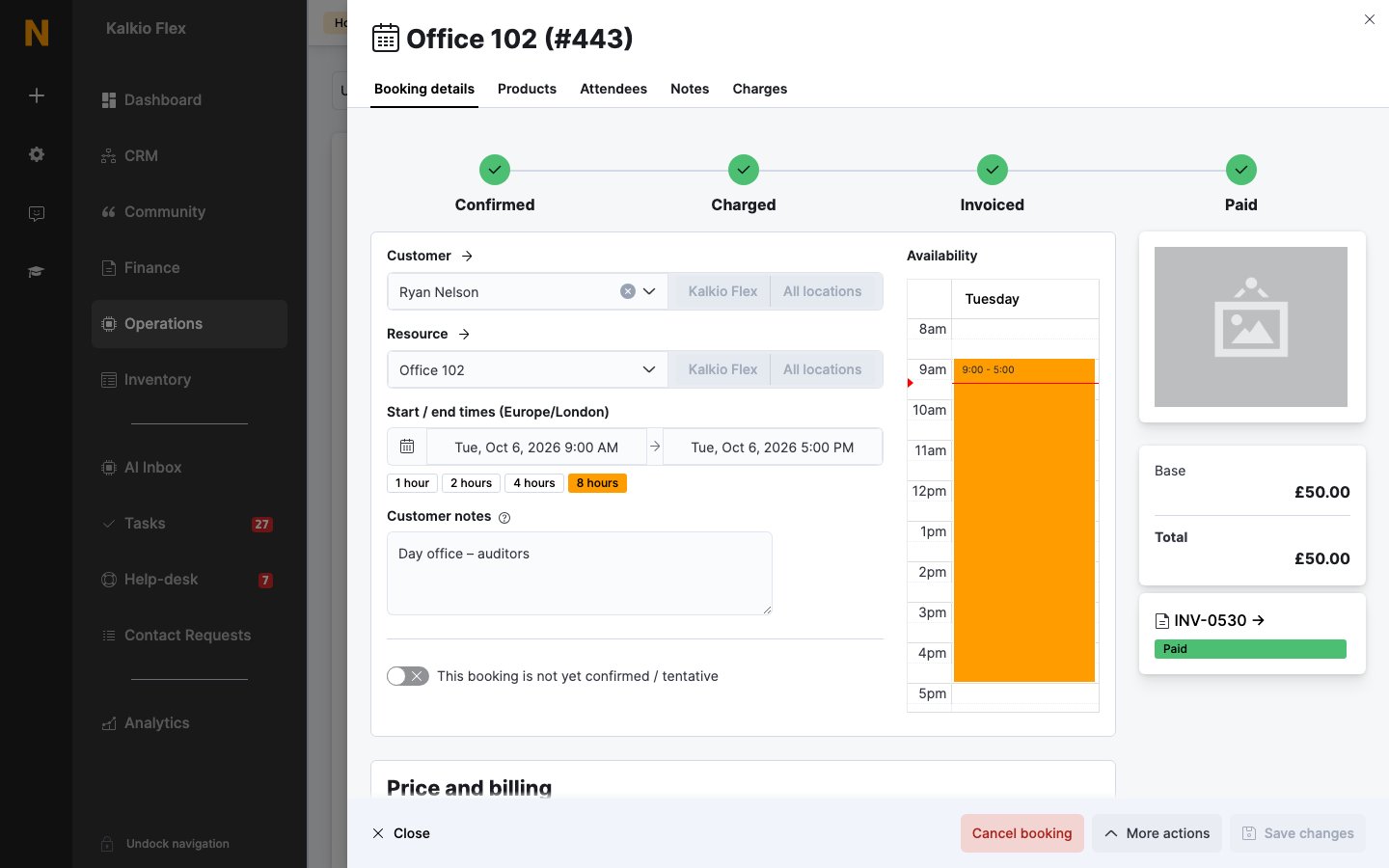 If the booking breaks one of the resource's [limits](/platform/billing/resources/limits), for example because the resource is already booked or closed, the form explains why. Some warnings, marked **Heads up!**, let you book anyway. Others, marked **You cannot place this booking**, don't.
### Price and billing
Nexudus works out the best price for the customer, resource and times you've chosen, and uses any credit the customer has. See [Booking pricing and credit](/platform/operations/bookings/pricing-and-credit).
| Field | What it does |
| - | - |
| **Price** | Overrides the calculated price. Leave it empty to use the calculated price. |
| **Rate** | Forces a specific rate. Leave it on **Best rate available** to let Nexudus choose. |
| **Discount code** | Applies one of your [discount codes](/platform/billing/discount-codes). |
| **Purchase Order number** | Recorded on the booking's charge. If you [split invoices by purchase order](/platform/finance/invoices/invoice-settings#invoice-split), bookings with different numbers go on separate invoices. |
| **Do not use any available booking credit** | Charges the full price, even if the customer has credit. |
| **Calculate cost and post charges to customer account when this booking is saved** | Charges the booking straight away, instead of waiting for Nexudus to charge it automatically. New bookings only. |
| **Invoice this booking when it is saved** | Issues an invoice for the booking when you save. New bookings only. |
| **Invoice this customer directly instead of the paying member of the team** | Bills this customer rather than their team's paying member. |
A price breakdown shows the **Base** price, **Products**, any **Dynamic Adj**, **Credits** used and the **Total**.
### Repeat bookings
Under **Repeat booking**, choose how often the booking repeats instead of **This booking does not repeat**:
* Every *n* days, weeks, months or years. For weekly bookings, choose the days of the week under **Repeat on these days of the week**.
* The first, second, third, fourth or last weekday of the month, for example the first Monday of each month.
Then set **Repeat until** and save. Nexudus creates a booking for each date in the series.
Customers can make repeat bookings themselves when the resource allows it. See [Resource limits](/platform/billing/resources/limits#requests-and-cancellations).
## Edit a booking
Open the booking, change what you need and save. Customers are notified when the date or time changes.
Once a booking has been charged, its price fields are locked. To change the price, select **Remove booking charges** in the **Price and billing** section first. Once it's on an invoice, changing or cancelling the booking doesn't change the invoice. See [Approve and cancel bookings](/platform/operations/bookings/approve-and-cancel#cancel-a-booking).
You can also drag a booking on the calendar to move it to another time or resource, or drag its edge to change its length. Nexudus asks you to confirm the change.
### Edit a repeat booking
When you save a booking that's part of a series, choose which bookings to change:
* **Update only this booking**
* **Update this booking and all bookings after this one**
* **Update all bookings in the series**
* **Update only bookings which have not yet been charged to the customer**
## Add products to a booking
On the booking's **Products** tab, choose a product from **Add product to booking**, set the **Quantity** and save. Only products linked to the resource are available. To link products, see [Sell products with bookings](/platform/billing/resources/features-and-add-ons#sell-products-with-bookings).
The products are charged with the booking, and are included in its price breakdown.
## Attendees and check-in
The **Attendees** tab lists the booking's guests. Nexudus sends each guest a copy of the meeting invite and a notification, if [guest confirmations](/platform/operations/bookings/notifications) are on.
To add guests:
* **Add visitor**: enter the guest's **Full name** and **Email**. If you don't have their email address, use `no-reply-visitors@nexudus.com`.
* **Bulk import**: paste a list of guests, one per line, such as `Ada Lovelace `.
* **Add existing customer**: choose one of your customers.
Each guest you add becomes a [visitor](/platform/operations/visitors) linked to the booking and to the customer who booked.
To record arrivals and departures, select **Check in** or **Check out** next to each attendee. Customers checked in to a booking appear in [check-ins](/platform/operations/check-ins). Booking attendees don't need a pass to check in.
## Notes
Use the **Notes** tab for internal conversation about the booking. Customers can't see these notes. Enter a **New internal note** and select **Add note**, or **Copy last note** to start from the previous one. The tab also records changes made to the booking.
## Charges
The **Charges** tab lists the booking's charges and the invoices it appears on.
## Related
* [Bookings](/platform/operations/bookings)
* [Approve and cancel bookings](/platform/operations/bookings/approve-and-cancel)
* [Booking pricing and credit](/platform/operations/bookings/pricing-and-credit)
* [Resource limits](/platform/billing/resources/limits)
This documentation is built and hosted on [Mintlify](https://mintlify.com), a developer documentation platform.
If the booking breaks one of the resource's [limits](/platform/billing/resources/limits), for example because the resource is already booked or closed, the form explains why. Some warnings, marked **Heads up!**, let you book anyway. Others, marked **You cannot place this booking**, don't.
### Price and billing
Nexudus works out the best price for the customer, resource and times you've chosen, and uses any credit the customer has. See [Booking pricing and credit](/platform/operations/bookings/pricing-and-credit).
| Field | What it does |
| - | - |
| **Price** | Overrides the calculated price. Leave it empty to use the calculated price. |
| **Rate** | Forces a specific rate. Leave it on **Best rate available** to let Nexudus choose. |
| **Discount code** | Applies one of your [discount codes](/platform/billing/discount-codes). |
| **Purchase Order number** | Recorded on the booking's charge. If you [split invoices by purchase order](/platform/finance/invoices/invoice-settings#invoice-split), bookings with different numbers go on separate invoices. |
| **Do not use any available booking credit** | Charges the full price, even if the customer has credit. |
| **Calculate cost and post charges to customer account when this booking is saved** | Charges the booking straight away, instead of waiting for Nexudus to charge it automatically. New bookings only. |
| **Invoice this booking when it is saved** | Issues an invoice for the booking when you save. New bookings only. |
| **Invoice this customer directly instead of the paying member of the team** | Bills this customer rather than their team's paying member. |
A price breakdown shows the **Base** price, **Products**, any **Dynamic Adj**, **Credits** used and the **Total**.
### Repeat bookings
Under **Repeat booking**, choose how often the booking repeats instead of **This booking does not repeat**:
* Every *n* days, weeks, months or years. For weekly bookings, choose the days of the week under **Repeat on these days of the week**.
* The first, second, third, fourth or last weekday of the month, for example the first Monday of each month.
Then set **Repeat until** and save. Nexudus creates a booking for each date in the series.
Customers can make repeat bookings themselves when the resource allows it. See [Resource limits](/platform/billing/resources/limits#requests-and-cancellations).
## Edit a booking
Open the booking, change what you need and save. Customers are notified when the date or time changes.
Once a booking has been charged, its price fields are locked. To change the price, select **Remove booking charges** in the **Price and billing** section first. Once it's on an invoice, changing or cancelling the booking doesn't change the invoice. See [Approve and cancel bookings](/platform/operations/bookings/approve-and-cancel#cancel-a-booking).
You can also drag a booking on the calendar to move it to another time or resource, or drag its edge to change its length. Nexudus asks you to confirm the change.
### Edit a repeat booking
When you save a booking that's part of a series, choose which bookings to change:
* **Update only this booking**
* **Update this booking and all bookings after this one**
* **Update all bookings in the series**
* **Update only bookings which have not yet been charged to the customer**
## Add products to a booking
On the booking's **Products** tab, choose a product from **Add product to booking**, set the **Quantity** and save. Only products linked to the resource are available. To link products, see [Sell products with bookings](/platform/billing/resources/features-and-add-ons#sell-products-with-bookings).
The products are charged with the booking, and are included in its price breakdown.
## Attendees and check-in
The **Attendees** tab lists the booking's guests. Nexudus sends each guest a copy of the meeting invite and a notification, if [guest confirmations](/platform/operations/bookings/notifications) are on.
To add guests:
* **Add visitor**: enter the guest's **Full name** and **Email**. If you don't have their email address, use `no-reply-visitors@nexudus.com`.
* **Bulk import**: paste a list of guests, one per line, such as `Ada Lovelace `.
* **Add existing customer**: choose one of your customers.
Each guest you add becomes a [visitor](/platform/operations/visitors) linked to the booking and to the customer who booked.
To record arrivals and departures, select **Check in** or **Check out** next to each attendee. Customers checked in to a booking appear in [check-ins](/platform/operations/check-ins). Booking attendees don't need a pass to check in.
## Notes
Use the **Notes** tab for internal conversation about the booking. Customers can't see these notes. Enter a **New internal note** and select **Add note**, or **Copy last note** to start from the previous one. The tab also records changes made to the booking.
## Charges
The **Charges** tab lists the booking's charges and the invoices it appears on.
## Related
* [Bookings](/platform/operations/bookings)
* [Approve and cancel bookings](/platform/operations/bookings/approve-and-cancel)
* [Booking pricing and credit](/platform/operations/bookings/pricing-and-credit)
* [Resource limits](/platform/billing/resources/limits)
This documentation is built and hosted on [Mintlify](https://mintlify.com), a developer documentation platform.