> ## Documentation Index
> Fetch the complete documentation index at: https://learn.nexudus.com/llms.txt
> Use this file to discover all available pages before exploring further.
# Deliveries
> Log mail and parcels received for customers, notify them and their teams, send collection reminders, and mark deliveries as collected.
## Overview
**Deliveries** is your front desk's log of mail and parcels received for customers. When you register a delivery, Nexudus emails the customer, and anyone else you've chosen, to tell them it's waiting. You can remind them if they don't collect it, and record when they do.
For [virtual office](/platform/virtual-offices/overview) customers, each delivery also follows the customer's handling preference for that kind of item, for example scanning and forwarding their mail. See [Handle virtual office deliveries](/platform/virtual-offices/deliveries).
## How to access
* **All deliveries**: go to **Operations → Front-desk → Deliveries**.
* **One customer's deliveries**: open the customer and go to **CRM → Deliveries**.
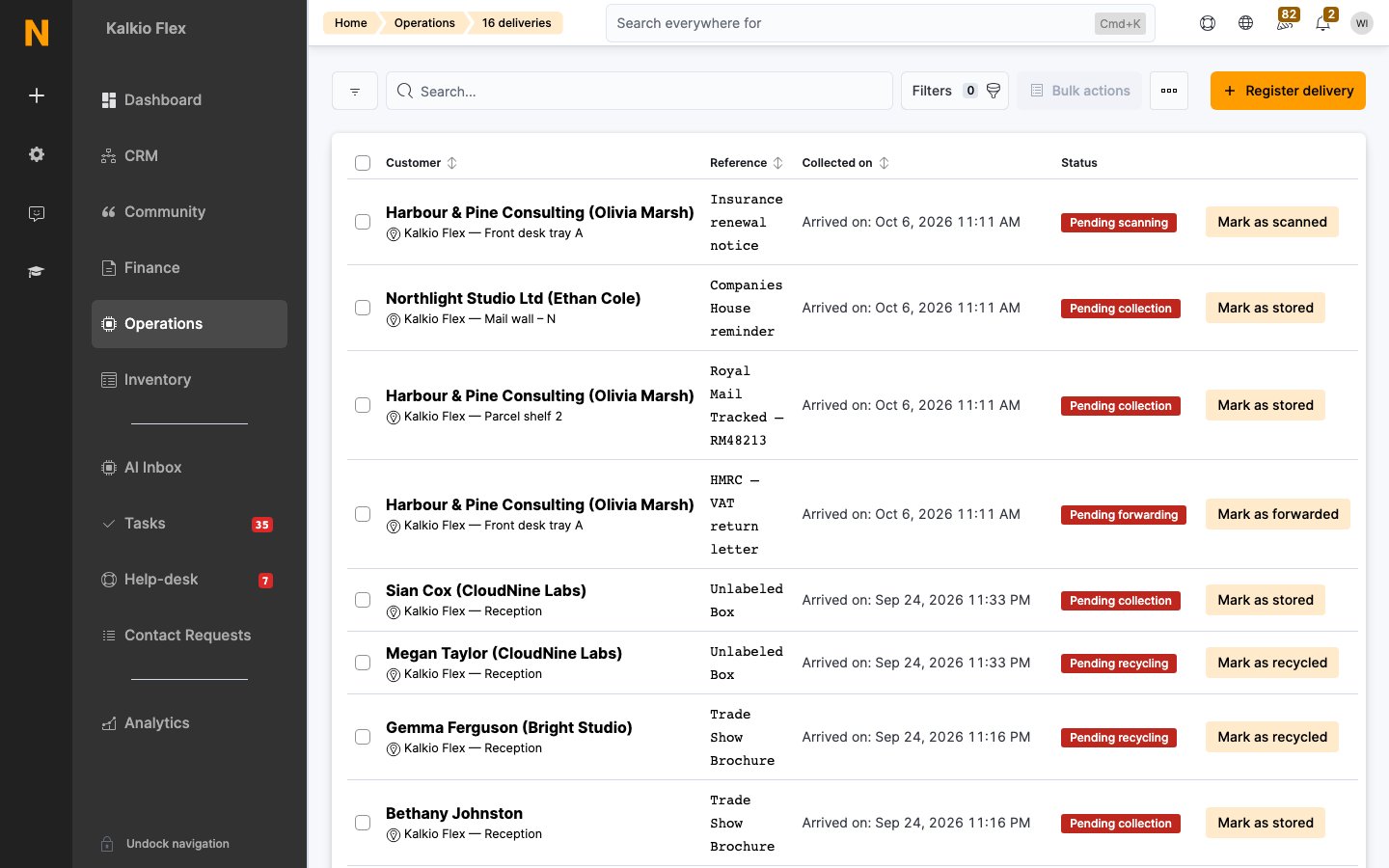 The list shows each delivery's **Customer**, **Reference**, when it arrived and was collected, and its **Status**. Use the views to switch between **Pending**, **Unassigned**, **Collected**, **Forwarded**, **Shredded** and **Recycled** deliveries. The button at the end of each row completes the delivery's next step, for example **Mark as stored**.
## Register a delivery
1. Select **Register delivery**.
2. If you manage more than one location, choose the **Location**.
3. Choose the **Delivery type**: **Mail**, **Parcel**, **Checks**, **Publicity** or **Other**.
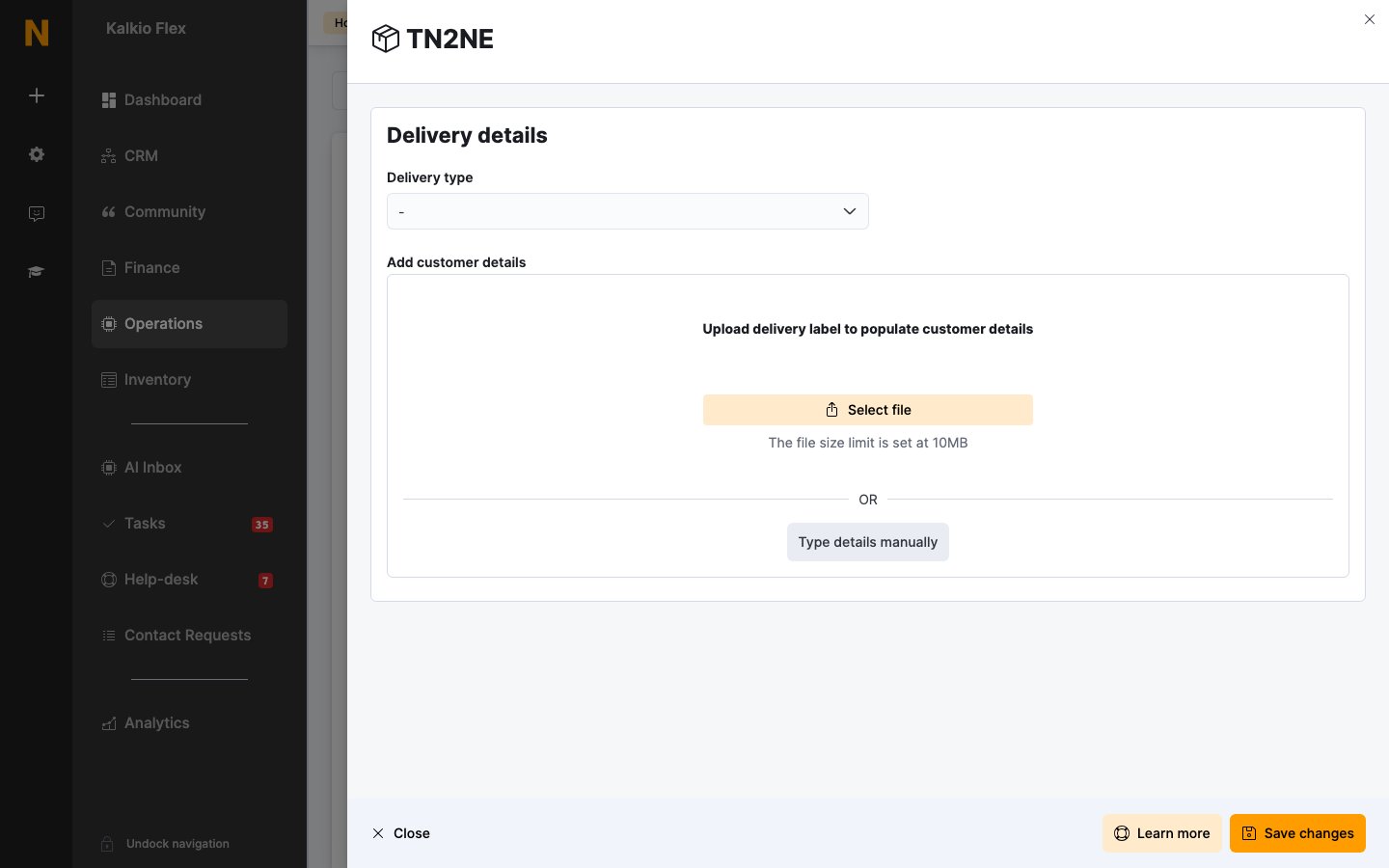
4. Upload a photo or scan of the delivery label. Nexudus reads it and suggests the recipient, courier and tracking number, and tries to match the recipient to a customer. You can upload a PDF instead, for example a scanned letter. To skip this, select **Type details manually**.
5. If the customer isn't matched, search for them under **Type to search for company or individual**. If the delivery is for a company, or for one of a virtual office customer's nominated recipients, it's assigned to the person who pays for it.
6. Add a **Reference**, who it was **Received by**, the **Delivery location** where you've stored it, and any **Notes**.
7. Save.
The list shows each delivery's **Customer**, **Reference**, when it arrived and was collected, and its **Status**. Use the views to switch between **Pending**, **Unassigned**, **Collected**, **Forwarded**, **Shredded** and **Recycled** deliveries. The button at the end of each row completes the delivery's next step, for example **Mark as stored**.
## Register a delivery
1. Select **Register delivery**.
2. If you manage more than one location, choose the **Location**.
3. Choose the **Delivery type**: **Mail**, **Parcel**, **Checks**, **Publicity** or **Other**.
4. Upload a photo or scan of the delivery label. Nexudus reads it and suggests the recipient, courier and tracking number, and tries to match the recipient to a customer. You can upload a PDF instead, for example a scanned letter. To skip this, select **Type details manually**.
5. If the customer isn't matched, search for them under **Type to search for company or individual**. If the delivery is for a company, or for one of a virtual office customer's nominated recipients, it's assigned to the person who pays for it.
6. Add a **Reference**, who it was **Received by**, the **Delivery location** where you've stored it, and any **Notes**.
7. Save.
 Deliveries you save without a customer go to the **Unassigned** view. Open one and choose the customer when you know who it's for.
## Who is notified
When you register a delivery for a customer, Nexudus sends the **Delivery received** email and an app notification. You can edit the email in the [email templates editor](/platform/settings/email-templates).
To notify other people too, open the customer, go to **Account → Notifications** and:
* Turn on **Notify this customer when a delivery is received for any member of their teams** on each team member who should hear about their colleagues' deliveries. For example, so anyone in a company can collect its parcels.
* Enter other addresses in **Send an email notification about new deliveries to this email address**. Separate several addresses with a semicolon (`;`).
## Collection reminders
**Send one now.** Open a delivery's actions menu, or tick several deliveries, and select **Send delivery reminder**. The customer is sent the delivery email again. Large batches can take up to 30 minutes to send.
**Send them automatically.** Create a [reminder](/platform/crm/reminders) under **CRM → Reminders** and choose **Days after uncollected delivery** as its trigger. Set the number of days and the message to send. You can add several reminders, for example after 7 and 14 days.
## Mark deliveries as collected
Tick the deliveries and select **Mark as collected**, or open a delivery and select **Mark as collected** on its **Collect** step. You can upload the customer's **Collection signature**. Collected deliveries move to the **Collected** view.
## Related
* [Handle virtual office deliveries](/platform/virtual-offices/deliveries)
* [Members & contacts](/platform/operations/members)
* [Teams](/platform/operations/teams)
* [Reminders](/platform/crm/reminders)
This documentation is built and hosted on [Mintlify](https://mintlify.com), a developer documentation platform.
Deliveries you save without a customer go to the **Unassigned** view. Open one and choose the customer when you know who it's for.
## Who is notified
When you register a delivery for a customer, Nexudus sends the **Delivery received** email and an app notification. You can edit the email in the [email templates editor](/platform/settings/email-templates).
To notify other people too, open the customer, go to **Account → Notifications** and:
* Turn on **Notify this customer when a delivery is received for any member of their teams** on each team member who should hear about their colleagues' deliveries. For example, so anyone in a company can collect its parcels.
* Enter other addresses in **Send an email notification about new deliveries to this email address**. Separate several addresses with a semicolon (`;`).
## Collection reminders
**Send one now.** Open a delivery's actions menu, or tick several deliveries, and select **Send delivery reminder**. The customer is sent the delivery email again. Large batches can take up to 30 minutes to send.
**Send them automatically.** Create a [reminder](/platform/crm/reminders) under **CRM → Reminders** and choose **Days after uncollected delivery** as its trigger. Set the number of days and the message to send. You can add several reminders, for example after 7 and 14 days.
## Mark deliveries as collected
Tick the deliveries and select **Mark as collected**, or open a delivery and select **Mark as collected** on its **Collect** step. You can upload the customer's **Collection signature**. Collected deliveries move to the **Collected** view.
## Related
* [Handle virtual office deliveries](/platform/virtual-offices/deliveries)
* [Members & contacts](/platform/operations/members)
* [Teams](/platform/operations/teams)
* [Reminders](/platform/crm/reminders)
This documentation is built and hosted on [Mintlify](https://mintlify.com), a developer documentation platform.