> ## Documentation Index
> Fetch the complete documentation index at: https://learn.nexudus.com/llms.txt
> Use this file to discover all available pages before exploring further.
# Credits and Benefits
> See a customer's money, time and printing credit, adjust balances to correct mistakes, and review how each credit was used.
## Overview
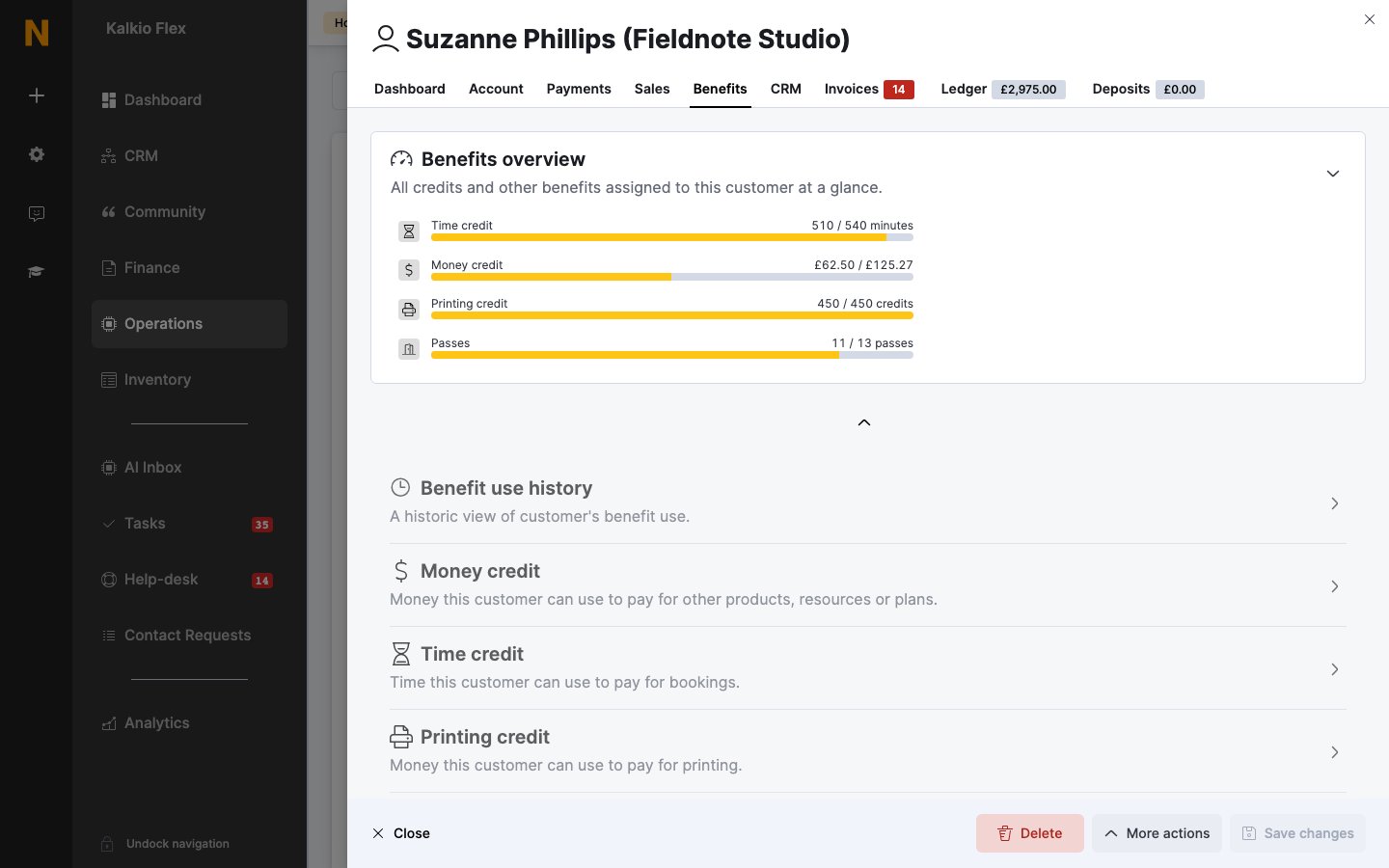
The **Benefits** tab on a customer record shows every credit, pass and discount the customer holds, where it came from (a plan, a product or added by hand) and how much is left. From here you can add credit, correct a balance, and see exactly how each credit was spent.
## How to access
Go to **Operations → Members & contacts**, open the customer and open the **Benefits** tab.
 ## What's on the Benefits tab
| Section | What it holds |
| - | - |
| **Benefits overview** | How much of each kind of credit, and how many passes, the customer has left. If they're in a team that shares or combines credit, it says so. |
| **Benefit use history** | Every time the customer used credit, or an admin adjusted it. |
| **Money credit** | Money the customer can spend on bookings, products, plans and other purchases. |
| **Time credit** | Time the customer can use to pay for bookings, such as meeting room hours. |
| **Printing credit** | Credit the customer can use to pay for printing. |
| **Passes** | Passes the customer can use to check in. Pass usage isn't included in the use history. |
| **Discounts** | Discount codes the customer can use. |
Each credit shows how much is left out of the total, when it's valid from and when it expires, and its **Source**: **Plan**, **Product** or **Manual**. The credit lists show **Current** credit by default. Change the view to see expired credit.
## Add credit
To give a customer new credit, open **Money credit** or **Time credit** and select **Add money credit** or **Add time credit**. Enter the amount, the **Valid from** and **Expires on** dates, and what the credit can pay for. Credit you add here shows **Manual** as its source.
## Adjust a customer's credit
Use these steps to correct a balance, for example to give back credit for a cancelled booking.
### Money credit
1. On the **Benefits** tab, open **Money credit**.
2. Open the actions menu next to the credit and select **Adjust remaining credit**.
3. Enter the **Adjustment amount**: a **positive** number adds credit, a **negative** number removes it. For example, enter `10` to add 10 or `-10` to remove 10.
4. Enter **A description or reason for this adjustment**.
5. Select **Yes, do it**.
The remaining credit can't go above the credit's total or below zero. To give more credit than that, add a new money credit.
### Time and printing credit
1. On the **Benefits** tab, open **Time credit** or **Printing credit**.
2. Open the actions menu next to the credit and select **Use time credit**.
3. Enter how many minutes or uses to take off the balance. A **positive** number uses credit, a **negative** number gives it back. For example, enter `30` to use half an hour or `-60` to give an hour back.
4. Select **Yes, do it**.
The two actions work in opposite directions. **Adjust remaining credit** adds with a positive number, while **Use time credit** removes with a positive number.
The change applies straight away and is recorded in the benefit use history.
## Review credit usage
## What's on the Benefits tab
| Section | What it holds |
| - | - |
| **Benefits overview** | How much of each kind of credit, and how many passes, the customer has left. If they're in a team that shares or combines credit, it says so. |
| **Benefit use history** | Every time the customer used credit, or an admin adjusted it. |
| **Money credit** | Money the customer can spend on bookings, products, plans and other purchases. |
| **Time credit** | Time the customer can use to pay for bookings, such as meeting room hours. |
| **Printing credit** | Credit the customer can use to pay for printing. |
| **Passes** | Passes the customer can use to check in. Pass usage isn't included in the use history. |
| **Discounts** | Discount codes the customer can use. |
Each credit shows how much is left out of the total, when it's valid from and when it expires, and its **Source**: **Plan**, **Product** or **Manual**. The credit lists show **Current** credit by default. Change the view to see expired credit.
## Add credit
To give a customer new credit, open **Money credit** or **Time credit** and select **Add money credit** or **Add time credit**. Enter the amount, the **Valid from** and **Expires on** dates, and what the credit can pay for. Credit you add here shows **Manual** as its source.
## Adjust a customer's credit
Use these steps to correct a balance, for example to give back credit for a cancelled booking.
### Money credit
1. On the **Benefits** tab, open **Money credit**.
2. Open the actions menu next to the credit and select **Adjust remaining credit**.
3. Enter the **Adjustment amount**: a **positive** number adds credit, a **negative** number removes it. For example, enter `10` to add 10 or `-10` to remove 10.
4. Enter **A description or reason for this adjustment**.
5. Select **Yes, do it**.
The remaining credit can't go above the credit's total or below zero. To give more credit than that, add a new money credit.
### Time and printing credit
1. On the **Benefits** tab, open **Time credit** or **Printing credit**.
2. Open the actions menu next to the credit and select **Use time credit**.
3. Enter how many minutes or uses to take off the balance. A **positive** number uses credit, a **negative** number gives it back. For example, enter `30` to use half an hour or `-60` to give an hour back.
4. Select **Yes, do it**.
The two actions work in opposite directions. **Adjust remaining credit** adds with a positive number, while **Use time credit** removes with a positive number.
The change applies straight away and is recorded in the benefit use history.
## Review credit usage
 ### All usage by credit type
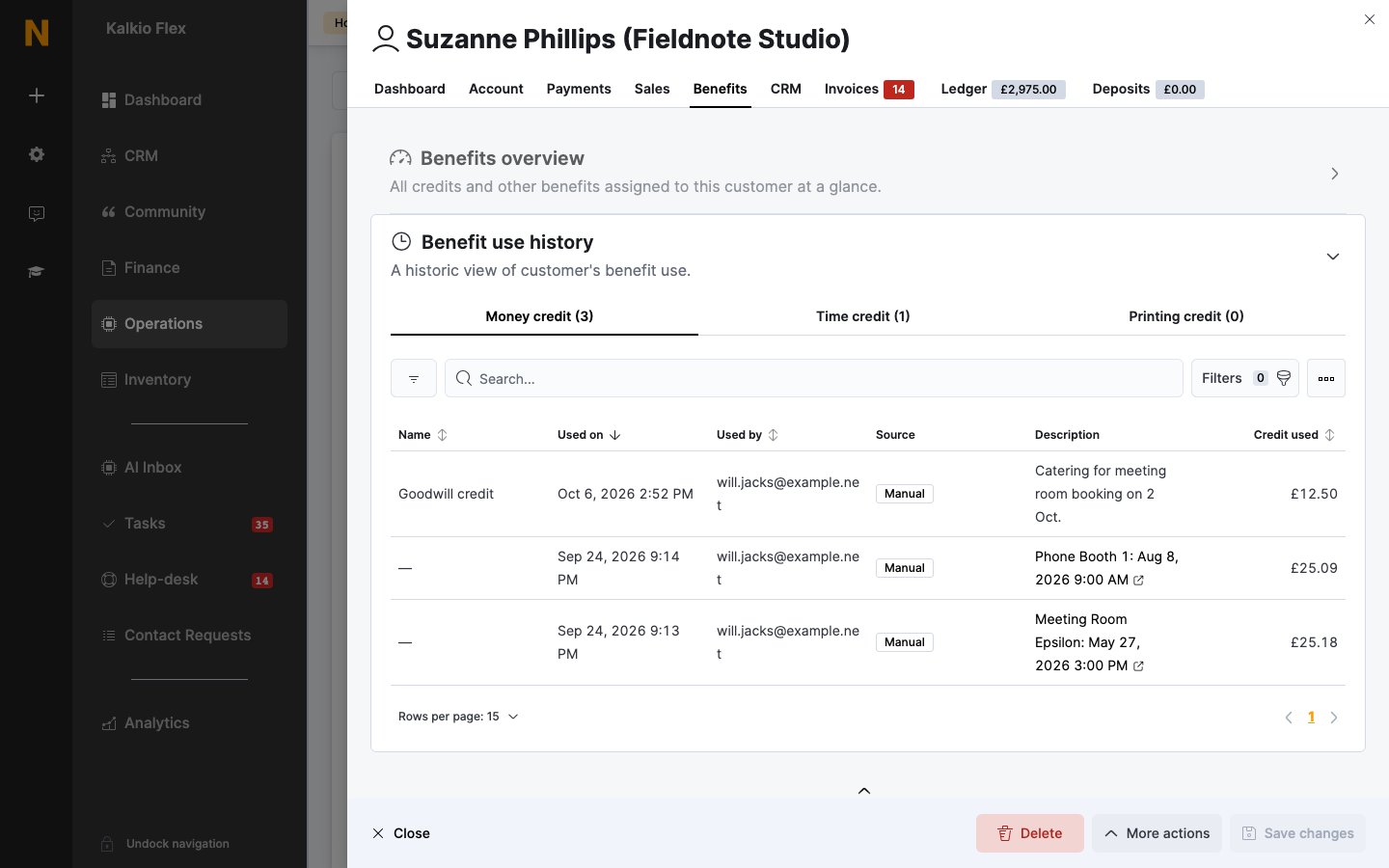
1. On the **Benefits** tab, open **Benefit use history**.
2. Choose **Money credit**, **Time credit** or **Printing credit**. Each shows how many uses it has.
### Usage of one credit
1. On the **Benefits** tab, open **Money credit**, **Time credit** or **Printing credit**.
2. Open the credit and go to its **Use history** tab.
Each entry shows:
* **Name**: the credit's name.
* **Used on**: when it was used.
* **Used by**: the customer, or the admin who adjusted it.
* **Source**: where the credit came from.
* **Description**: the booking it paid for, or the reason for an adjustment.
* **Credit used**: how much was used.
If the customer is in a team that shares credit, check the team's benefits too. See [Teams](/platform/operations/teams).
## Related
* [Credits](/platform/billing/credits)
* [Customer profile reference](/platform/operations/members/customer-profile)
* [Members & contacts](/platform/operations/members)
This documentation is built and hosted on [Mintlify](https://mintlify.com), a developer documentation platform.
### All usage by credit type
1. On the **Benefits** tab, open **Benefit use history**.
2. Choose **Money credit**, **Time credit** or **Printing credit**. Each shows how many uses it has.
### Usage of one credit
1. On the **Benefits** tab, open **Money credit**, **Time credit** or **Printing credit**.
2. Open the credit and go to its **Use history** tab.
Each entry shows:
* **Name**: the credit's name.
* **Used on**: when it was used.
* **Used by**: the customer, or the admin who adjusted it.
* **Source**: where the credit came from.
* **Description**: the booking it paid for, or the reason for an adjustment.
* **Credit used**: how much was used.
If the customer is in a team that shares credit, check the team's benefits too. See [Teams](/platform/operations/teams).
## Related
* [Credits](/platform/billing/credits)
* [Customer profile reference](/platform/operations/members/customer-profile)
* [Members & contacts](/platform/operations/members)
This documentation is built and hosted on [Mintlify](https://mintlify.com), a developer documentation platform.