> ## Documentation Index
> Fetch the complete documentation index at: https://learn.nexudus.com/llms.txt
> Use this file to discover all available pages before exploring further.
# Onboarding and Compliance
> Ask virtual office customers for proof of address and ID, screen company directors for sanctions and AML, review checks, and start contracts once customers pass.
## Overview
Before you hold a customer's mail, you may need to know who they are. Virtual office plans can ask customers for proof of address and ID, screen their company's directors against sanctions lists, and send them an onboarding form. You review the checks in Nexudus, and the customer's contract can wait to start until they pass.
Customers complete onboarding in the Members Portal after they buy the plan. See [Virtual office onboarding](/member-portal/virtual-office/onboarding).
## Set up checks on the plan
Open the plan's **Virtual Office** tab and go to **Virtual office onboarding**.
| Setting | What it does |
| - | - |
| **Customers in this plan are required to provide proof of address** | Asks for a proof of address document. Choose how you check it under **Select how you would like to check proof of address**, and list the documents you accept under **Let your customers know which documents you accept as proof of address**. |
| **Keep contracts paused, if the customer passes verification but their business or home address is outside your location country** | Doesn't start the contract if the customer's address or billing address is in another country. |
| **Customers in this plan are required to provide proof of ID** | Asks for an ID document. Choose **Manual** to check documents yourself, or **Stripe Identity** to verify them automatically. With manual checks, list the documents you accept. |
| **Repeat the check** | How often customers must repeat each check: **Never**, or every 3, 6, 12 or 24 months. |
| **Customers in this plan are required to pass AML screening** | Screens the company's directors. Choose **Enable OpenSanctions screening (sanctions & PEPs)**, **Enable Pappers company registry verification**, or both. |
| **Keep contracts paused until identity checks are activated and pass** | Doesn't start the contract, or invoice it, until every check has passed. |
| **Send custom onboarding form to any customers purchasing this plan** | Sends a [form](/platform/content/forms) as part of onboarding. Choose it under **Select form**. |
Use **Reuse previous list** to copy the accepted documents list from another plan.
### Connect Stripe Identity, OpenSanctions and Pappers
Automatic checks need an account with each provider. Go to **Settings → Integrations** and, under **Compliance**:
* **Stripe Identity** verifies ID documents. Turn on **Enable Stripe Identity** and enter your **Stripe Publishable Key** and **Stripe Secret key**. You can also have it compare the document's name, address line, city and state with the customer's details.
* **OpenSanctions** screens directors against international sanctions lists and politically exposed persons (PEPs). Turn on **Enable OpenSanctions integration** and enter your **API Key**.
* **Pappers** checks directors against the Pappers company registry. Turn on **Enable Pappers integration** and enter your **API Key**.
With OpenSanctions, you can set the **OpenSanctions dataset** to match against, and a **Match score threshold** between 0.0 and 1.0 on the plan. Scores above the threshold are flagged for you to review.
## What happens when a customer signs up
1. The customer buys the plan. If the contract waits for checks, it's created without a start date for invoicing, and the customer is sent a welcome email.
2. In the Members Portal, the customer adds their company and personal details, their directors, and uploads the documents you've asked for.
3. Nexudus runs AML screening on the directors, if it's on.
4. You review the documents, or Stripe Identity checks them.
5. When every check has passed, the contract starts and is invoiced from its start date. Nexudus adds the company's directors as nominated recipients and adds the company as an alias, unless the customer already added them.
Customers are emailed when a check passes or fails. Edit the **Identity check successful** and **Identity check failed** emails in the [email templates editor](/platform/settings/email-templates).
## Review identity checks
Go to **CRM → Identity checks** to see every check, or open a customer's contract and go to **Identity checks**.
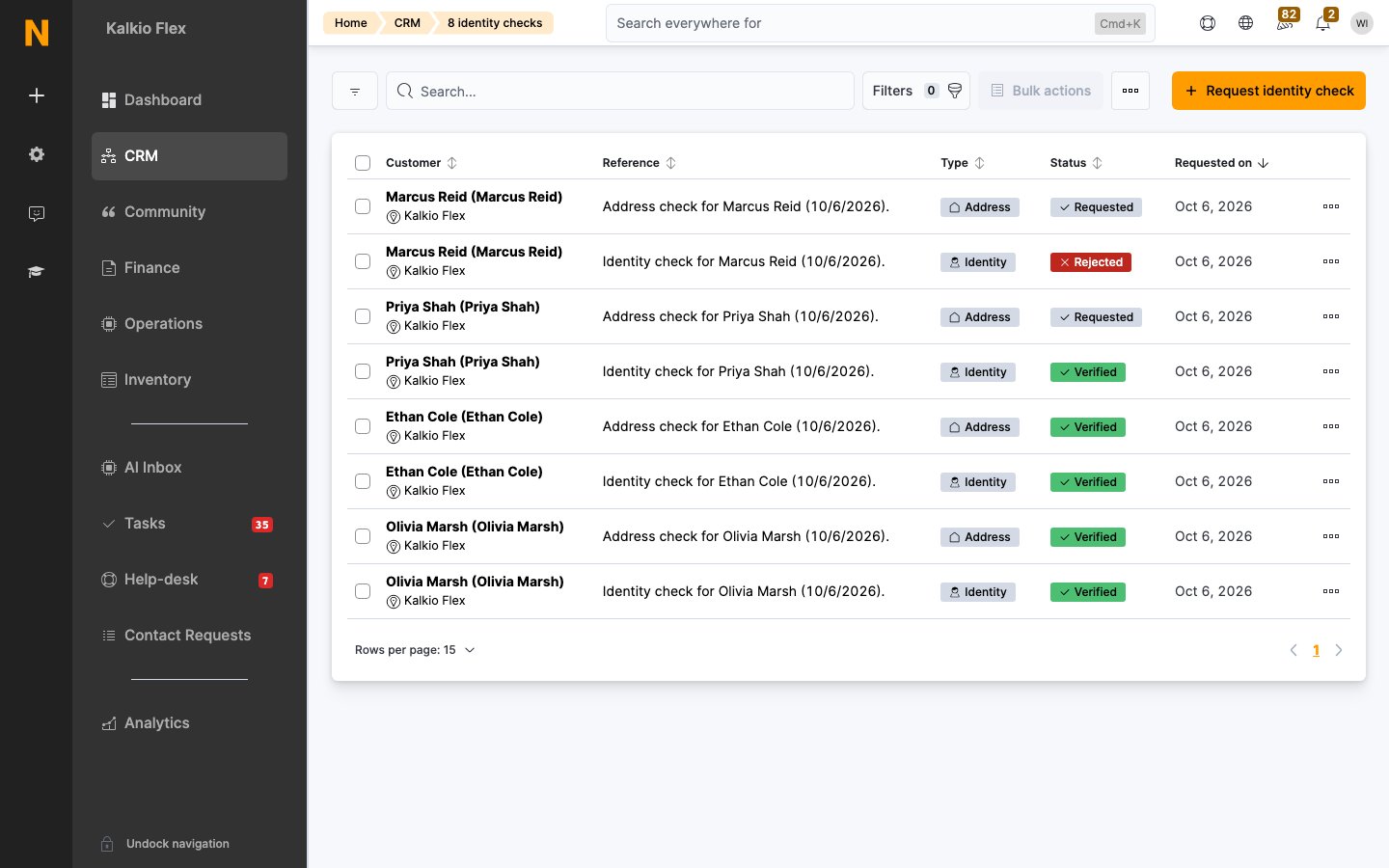 Each check has a status: **Requested**, **Submitted**, **Verified**, **Rejected** or **Cancelled**. Use the views to see checks with each status.
To review one:
1. Open the check and look at the uploaded documents. If the customer's address is outside your location's country, you see a **Country mismatch** warning.
2. Select **Mark as verified**, or **Mark as rejected** and add **Rejection notes** to tell the customer why.
You can also tick several checks in the list and choose **Verify identity check**, **Reject identity check** or **Cancel identity check** from **Bulk actions**, or **Download all documents**.
To ask for a check yourself, select **Request identity check**, choose the customer and the type: **Address and Identity check**, **Address check** or **Identity check**.
When a check is due to be repeated, Nexudus asks the customer again.
## Review AML checks
Open the contract and go to **AML checks**. Each director has an **AML Status**:
| Status | Meaning |
| - | - |
| **Not started** | Screening hasn't run yet. |
| **Pending** | Screening is running. |
| **Clear** | No match was found. |
| **Potential match** | A possible match needs your review. |
| **Confirmed match** | You've confirmed the match. The contract can't start. |
| **Error** | Screening couldn't run. |
| **Manually cleared** | You've reviewed a potential match and cleared it. |
For each director, choose **Details** to see the results, **Clear** to clear a potential match, **Confirm Match** to confirm it, or **Re-run** to screen them again. Add notes about your decision.
The contract only starts once every director is **Clear** or **Manually cleared**.
## The contract's virtual office tabs
| Tab | What's on it |
| - | - |
| **Contacts** | **Beneficiaries** (the company's directors and beneficial owners), **Company aliases** (other names mail can arrive under) and **Nominated recipients** (people who can receive mail), with their forwarding addresses. |
| **Identity checks** | The checks for this contract. |
| **AML checks** | The AML screening results for each director. Only shown if the plan requires AML screening. |
| **Forms** | The onboarding forms the customer has filled in. |
| **Delivery handling** | The customer's handling preferences. See [Handle virtual office deliveries](/platform/virtual-offices/deliveries#handling-preferences). |
## Related
* [Virtual office plans](/platform/virtual-offices/plans)
* [Virtual office onboarding in the Members Portal](/member-portal/virtual-office/onboarding)
* [Forms](/platform/content/forms)
* [Integrations](/platform/settings/integrations)
This documentation is built and hosted on [Mintlify](https://mintlify.com), a developer documentation platform.
Each check has a status: **Requested**, **Submitted**, **Verified**, **Rejected** or **Cancelled**. Use the views to see checks with each status.
To review one:
1. Open the check and look at the uploaded documents. If the customer's address is outside your location's country, you see a **Country mismatch** warning.
2. Select **Mark as verified**, or **Mark as rejected** and add **Rejection notes** to tell the customer why.
You can also tick several checks in the list and choose **Verify identity check**, **Reject identity check** or **Cancel identity check** from **Bulk actions**, or **Download all documents**.
To ask for a check yourself, select **Request identity check**, choose the customer and the type: **Address and Identity check**, **Address check** or **Identity check**.
When a check is due to be repeated, Nexudus asks the customer again.
## Review AML checks
Open the contract and go to **AML checks**. Each director has an **AML Status**:
| Status | Meaning |
| - | - |
| **Not started** | Screening hasn't run yet. |
| **Pending** | Screening is running. |
| **Clear** | No match was found. |
| **Potential match** | A possible match needs your review. |
| **Confirmed match** | You've confirmed the match. The contract can't start. |
| **Error** | Screening couldn't run. |
| **Manually cleared** | You've reviewed a potential match and cleared it. |
For each director, choose **Details** to see the results, **Clear** to clear a potential match, **Confirm Match** to confirm it, or **Re-run** to screen them again. Add notes about your decision.
The contract only starts once every director is **Clear** or **Manually cleared**.
## The contract's virtual office tabs
| Tab | What's on it |
| - | - |
| **Contacts** | **Beneficiaries** (the company's directors and beneficial owners), **Company aliases** (other names mail can arrive under) and **Nominated recipients** (people who can receive mail), with their forwarding addresses. |
| **Identity checks** | The checks for this contract. |
| **AML checks** | The AML screening results for each director. Only shown if the plan requires AML screening. |
| **Forms** | The onboarding forms the customer has filled in. |
| **Delivery handling** | The customer's handling preferences. See [Handle virtual office deliveries](/platform/virtual-offices/deliveries#handling-preferences). |
## Related
* [Virtual office plans](/platform/virtual-offices/plans)
* [Virtual office onboarding in the Members Portal](/member-portal/virtual-office/onboarding)
* [Forms](/platform/content/forms)
* [Integrations](/platform/settings/integrations)
This documentation is built and hosted on [Mintlify](https://mintlify.com), a developer documentation platform.