

Authentication
The Nexudus MCP server uses OAuth 2.0 — the same standard used by “Sign in with Google” and similar flows. Your MCP client opens a browser, you sign in to Nexudus, and the server gives the client a short-lived token to use on your behalf.What you see as a user
- You add
https://mcp.nexudus.comto your MCP client. - The client opens a browser window with the Nexudus login page.
- You enter your Nexudus email and password.
- You tick the responsibility disclaimer to acknowledge that you understand what an AI assistant connected to your Nexudus account can do.
- You choose whether to share member personal data with the AI assistant (see PII redaction).
- The browser redirects back to your client.
- Your AI assistant now has Nexudus tools available for the next 8 hours.
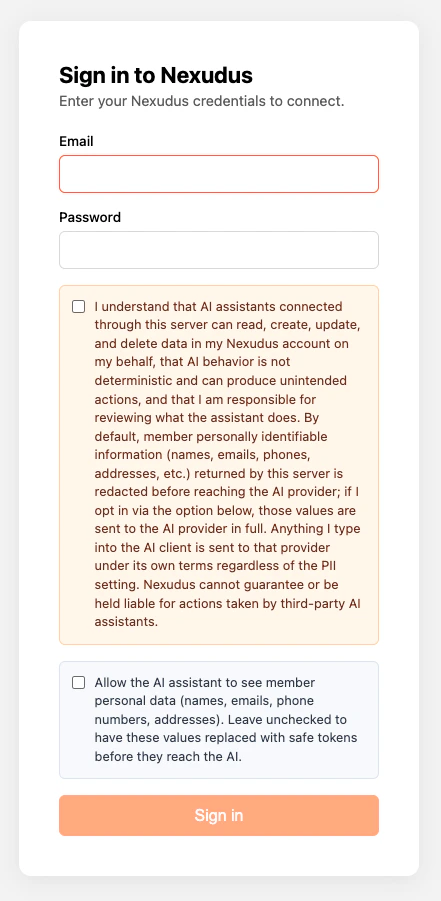
The two checkboxes on the login page
The Nexudus login page shows two checkboxes that you need to read before connecting.Responsibility disclaimer (required)
You must tick this box to sign in. It confirms that you understand:- AI assistants connected through the server can read, create, update, and delete data in your Nexudus account on your behalf.
- AI behaviour is not deterministic and can produce unintended actions.
- You are responsible for reviewing what the assistant does.
- Anything you type into the AI client is sent to that provider under its own terms, regardless of the PII setting on the Nexudus side.
- Nexudus cannot guarantee or be held liable for actions taken by third-party AI assistants.
PII redaction (optional)
The second checkbox controls whether the AI assistant sees real personal data — member names, emails, phone numbers, addresses, and other personally identifiable information (PII).- Leave it unchecked (the default) and PII is replaced with safe tokens before any response leaves the server.
- Tick it to send real PII to the AI provider in full.
What is stored
The token the MCP client holds is a signed wrapper around the Nexudus access token. The client cannot read or use the underlying Nexudus token directly — it can only ask the MCP server to use it on the client’s behalf. Your PII redaction choice is signed into that token, so it cannot be changed without re-authenticating.
Permissions
The MCP server uses your own Nexudus account to make API calls, so it has exactly the same permissions you do. If your account can see five locations, the assistant can see five locations. If your account cannot delete invoices, the assistant cannot delete invoices either.Session lifetime
A session lasts 8 hours from the moment you sign in. After that, the next tool call returns an authentication error and your AI assistant will tell you the connection has expired. Reconnect from your client’s connector settings — the steps are the same as the first time. See Sessions and re-authentication for more on what happens when a session ends.Disconnecting
To revoke access, disconnect the Nexudus connector inside your MCP client. The exact steps vary by client — see the client setup pages for instructions. Disconnecting from the client invalidates the token immediately on the next request. If you change your Nexudus password, any active MCP sessions stop working as soon as they next try to call the Nexudus API.Security notes
- All traffic is encrypted — the MCP server is only reachable over HTTPS.
- Tokens are signed — the wrapper token your MCP client holds is cryptographically signed by the server, so it cannot be forged or tampered with.
- Tokens are short-lived — even if a token were leaked, it expires in 8 hours.
- No long-term storage of credentials — your password is verified once and never persisted.
- Account-scoped — every action runs as your Nexudus account, with the same permissions and audit trail.
Next steps
PII redaction
What gets redacted and how to flip the setting.
Good practice
Do’s, don’ts, and how to keep AI actions safe.
Sessions and re-auth
What happens when your session expires.