Documentation Index

Fetch the complete documentation index at: https://learn.nexudus.com/llms.txt

Use this file to discover all available pages before exploring further.

Connect from Claude Code

Claude Code is Anthropic’s terminal-based AI assistant. It supports remote MCP servers through the /mcp command.

Prerequisites

  • Claude Code installed and signed in — see claude.ai/code.
  • A Nexudus account with API access.
  • A web browser available for the one-time login.

Add the Nexudus server

Run Claude Code in any directory, then add the Nexudus MCP server:
claude mcp add --transport http nexudus https://mcp.nexudus.com
This registers a new MCP server called nexudus that points at the hosted server. You only need to do this once per machine.

Sign in

Inside Claude Code, run:
/mcp
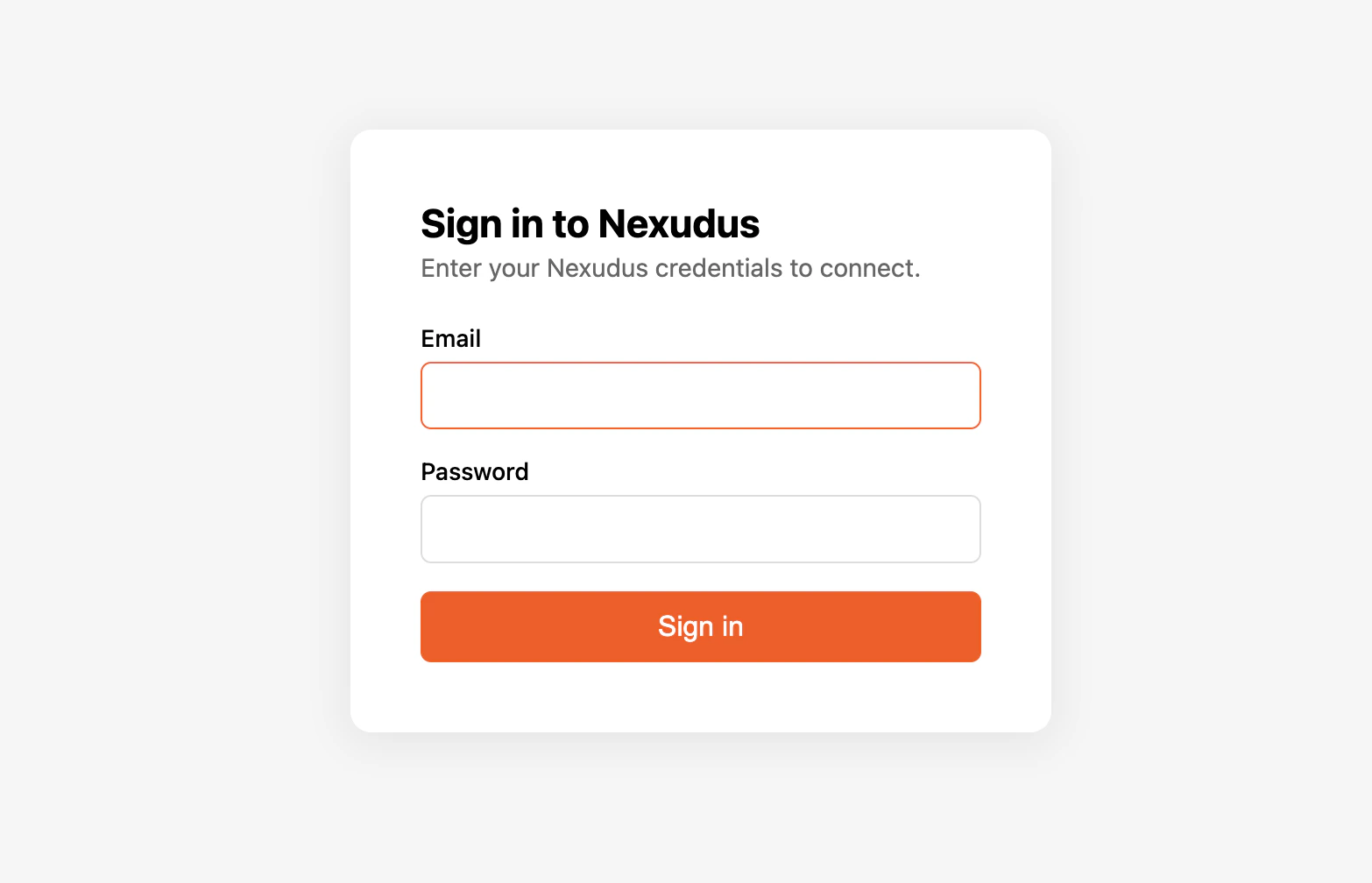
You will see nexudus in the list of servers, marked as needs authentication. Select it and Claude Code opens your default browser to the Nexudus login page. Sign in with your Nexudus email and password and approve the connection. The browser returns control to your terminal. Nexudus sign-in page asking for email and password to authorise the MCP connection. When you re-run /mcp, the nexudus server is now marked connected and the Nexudus tools are available.

Verify it works

In your Claude Code session, ask:
“List my Nexudus locations.”
Claude Code should call the Nexudus server and return your locations.

Things to try

  • “Show all bookings for today, grouped by location.”
  • “For each member with an overdue invoice, list their name and the invoice total.”
  • “Create a new visitor record for ‘Jane Doe’ visiting member 12345 at 2pm tomorrow.”
  • “Find every product priced above £100 and list them by location.”
Claude Code can create, update, and delete real data through the server. For destructive operations, the assistant should confirm with you first — read its plan before approving.

Remove the server

To remove the Nexudus server from Claude Code:
claude mcp remove nexudus

Re-authenticate

After the 8-hour session expires, run /mcp inside Claude Code, pick nexudus, and choose to reauthenticate. The browser flow runs again.

Common issues

IssueSolution
claude mcp add is not recognisedMake sure you are on a recent version of Claude Code. Run claude --version to check.
Browser does not open during sign-inCheck Claude Code’s logs for the manual URL and open it in your browser.
Tools show as registered but fail with auth errorsYour 8-hour session has expired. Run /mcp and reauthenticate.
Tools missing from the catalogueRun /mcp to check the server status — it may have disconnected.
For more, see Troubleshooting.

Next steps

Available tools

What the AI assistant can do for you.

Sessions and re-auth

Why sessions expire after 8 hours.