

The chat button
The “Ask me” button with a robot icon floats in the bottom corner of every portal page. It automatically hides when a member scrolls down a page and reappears when they scroll back up, keeping it unobtrusive on content-heavy pages.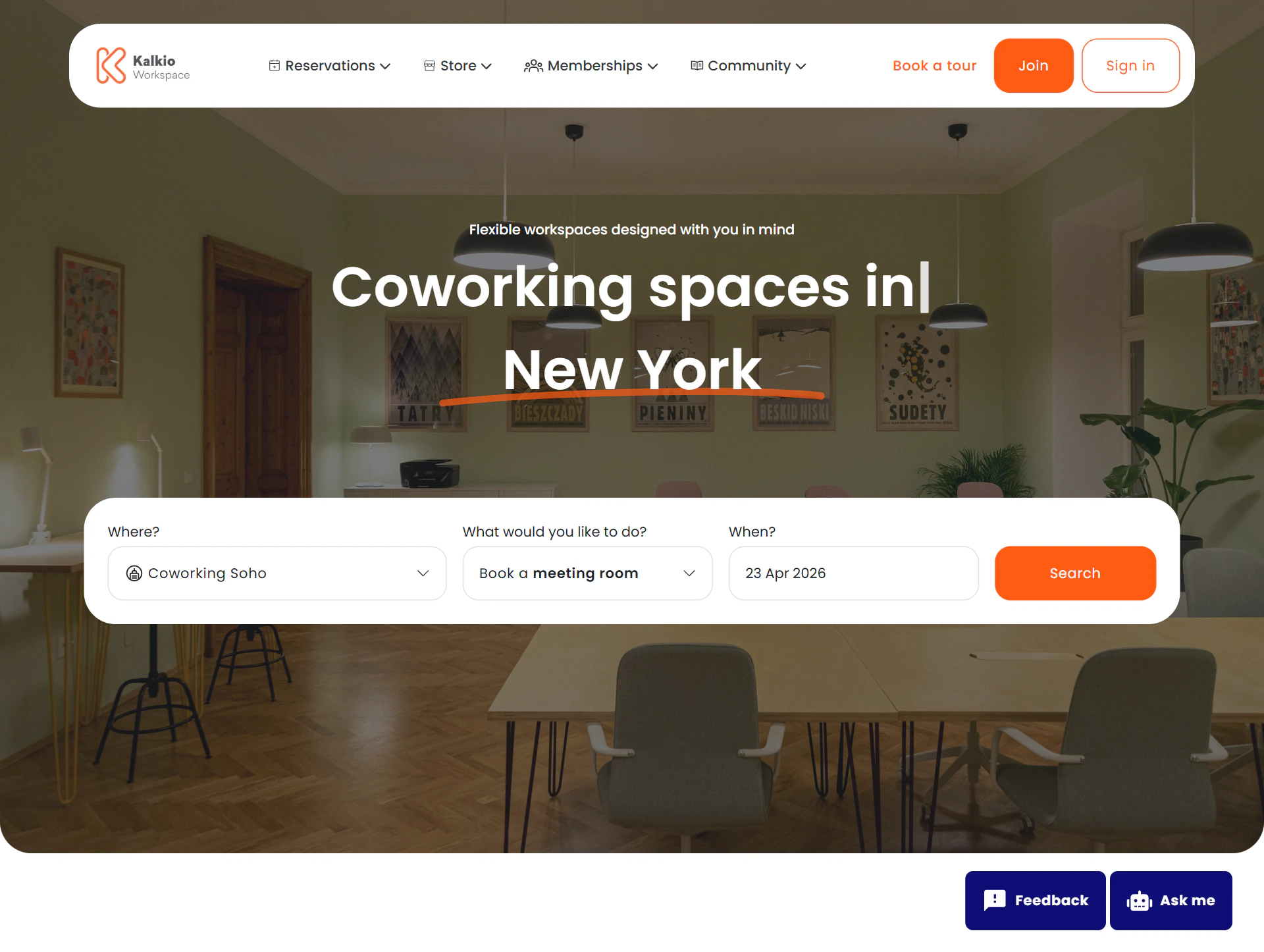
Opening the chat
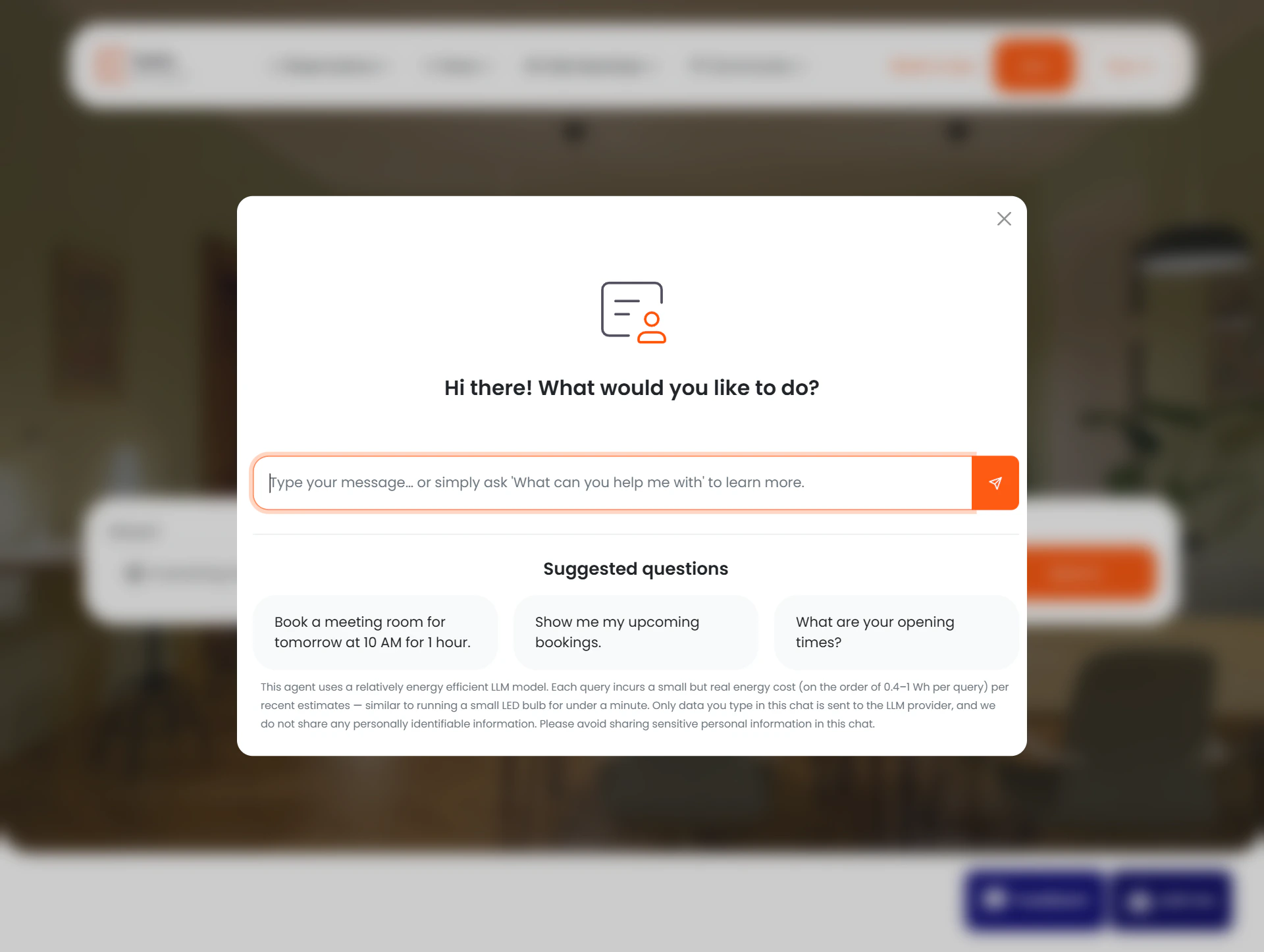
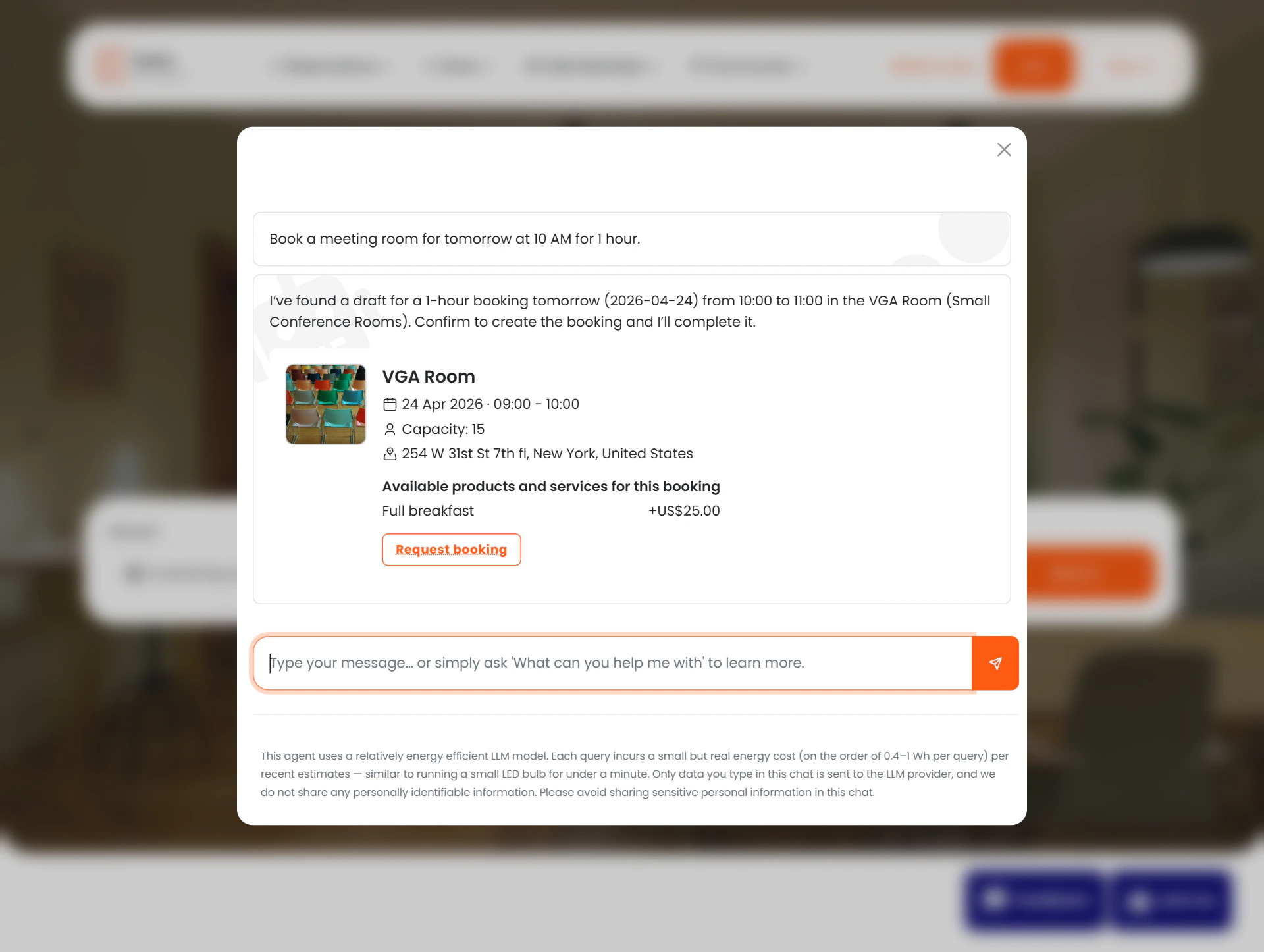
Clicking the button opens a chat modal. If it is a fresh session, the modal shows a greeting and three suggested prompts to help members get started quickly:- “Book a meeting room for tomorrow at 10 AM for 1 hour.”
- “Show me my upcoming bookings.”
- “What are your opening times?”
Sending a message
Members type in the input box at the bottom and press Enter (or click Send). Pressing Shift+Enter expands the input into a multi-line text area for longer messages. Messages can be up to 4,000 characters.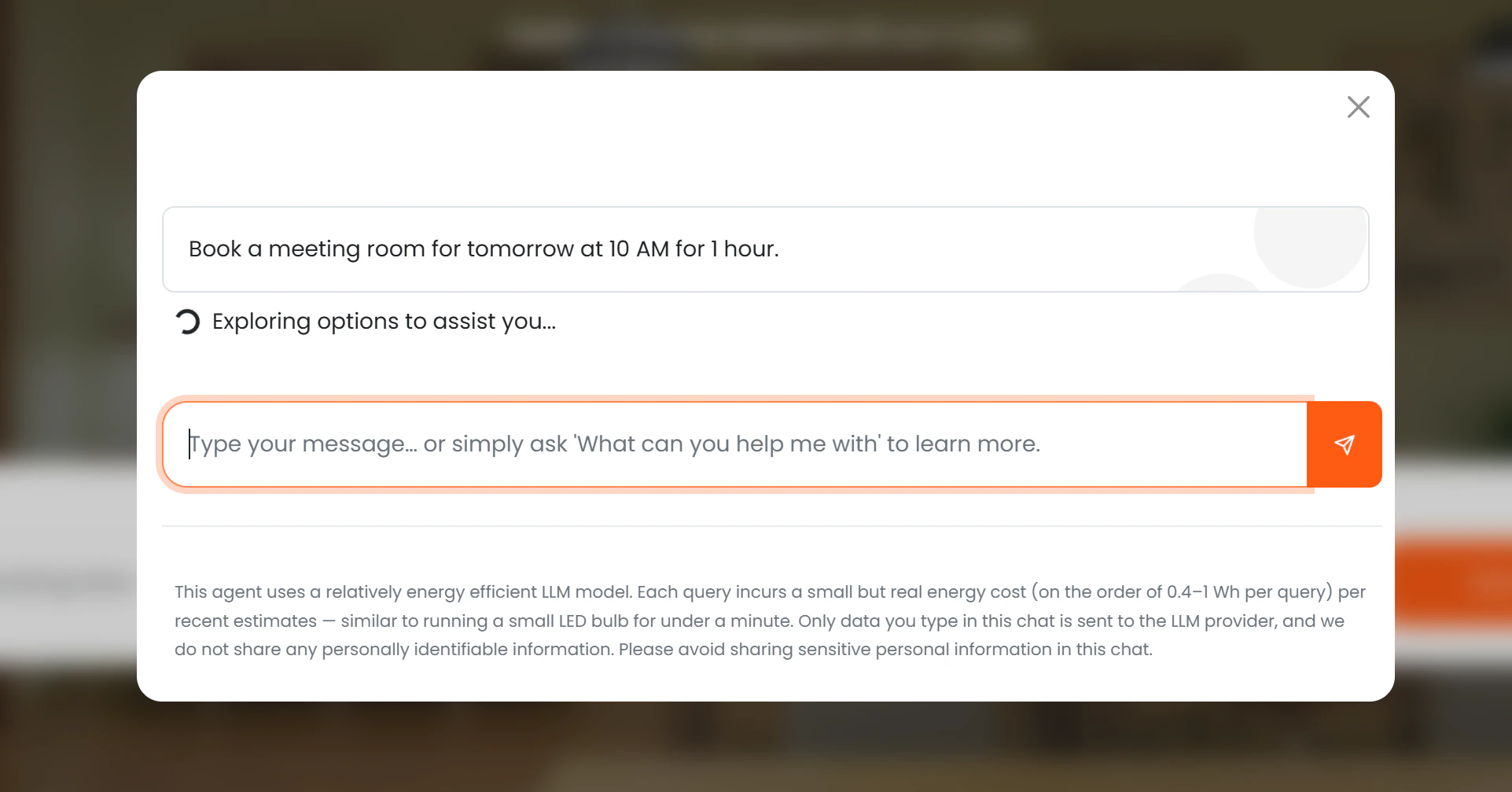
Loading and typing animation
While the AI processes the request, a loading message is shown — for example “Thinking about the best way to assist you…” or “Finding your options…”. Once the response arrives, the text types out character by character, giving the conversation a natural, back-and-forth feel.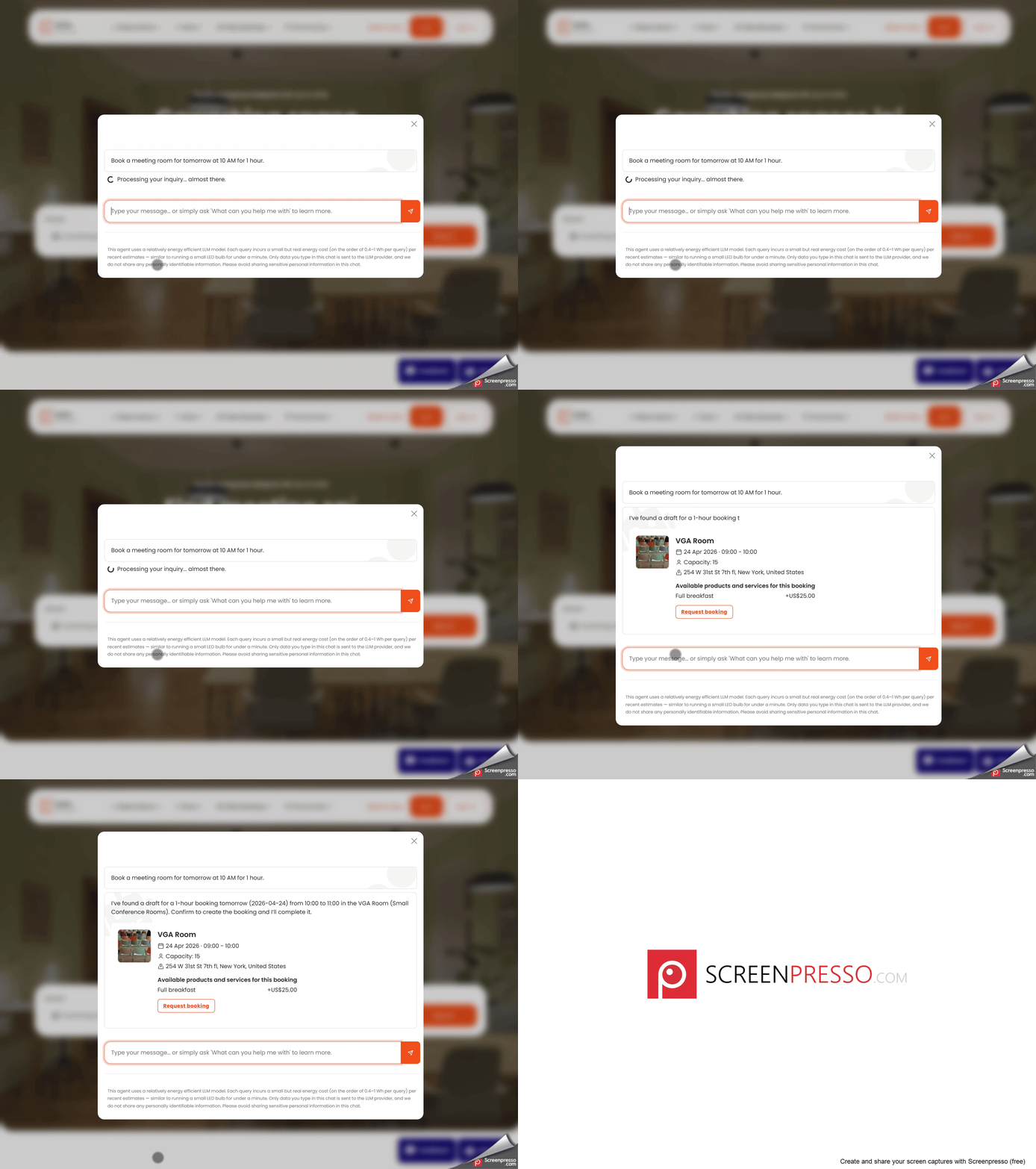
Tool cards
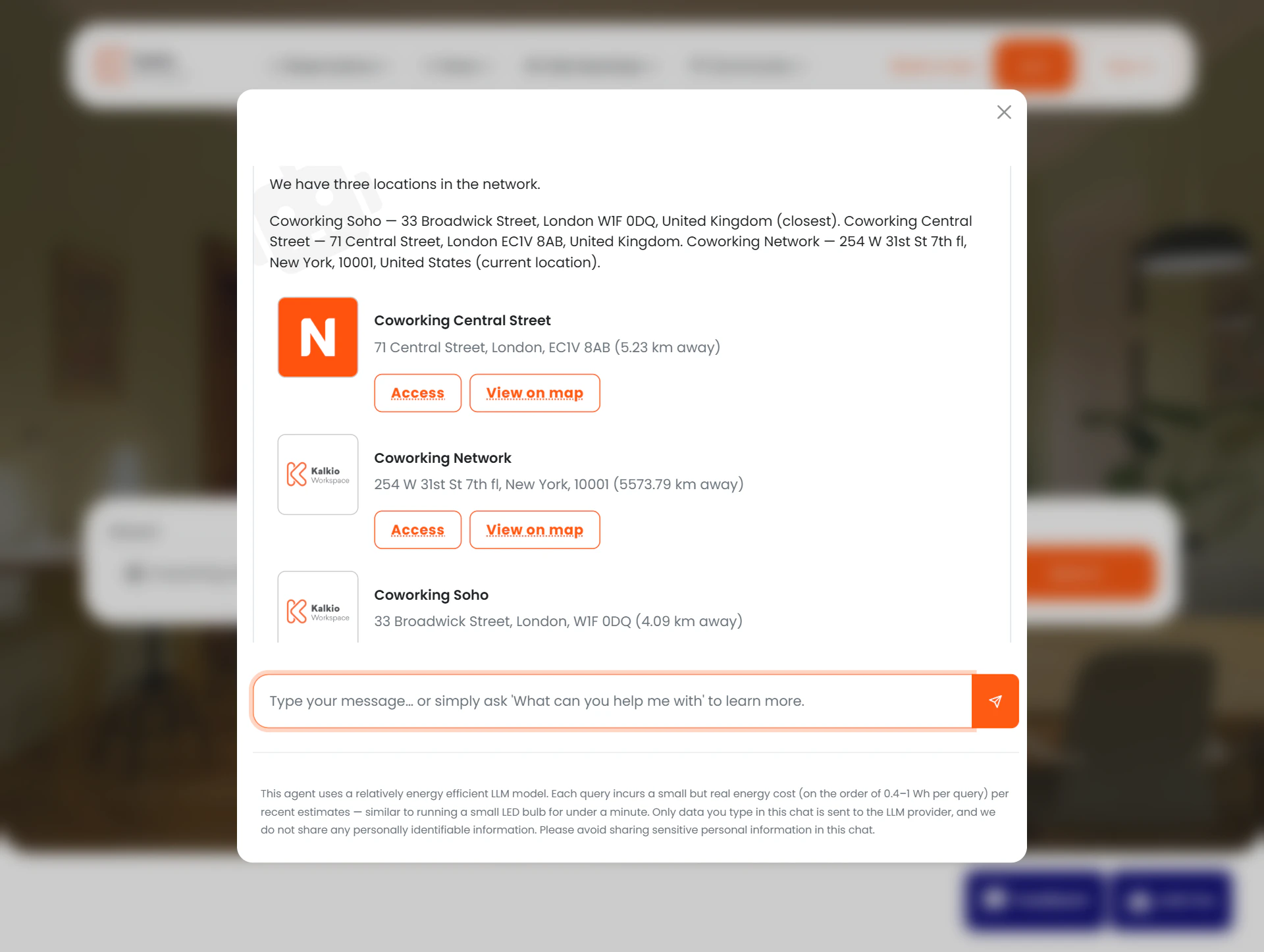
For certain responses, the AI shows a visual card alongside its text reply:
For day passes, membership plans, and private offices the AI renders rich formatted text with links and call-to-action buttons directly in the chat — these do not use a separate card.
Session management
Each chat session is independent. Closing and reopening the modal starts a fresh conversation — the previous exchange is not shown again in the UI. However, it is permanently stored in Nexudus and visible to operators in the AI Conversations list. If a member or prospect arrives at the portal with an?aiChat parameter in the URL — for example, from a marketing link or email — the chat window opens automatically.