

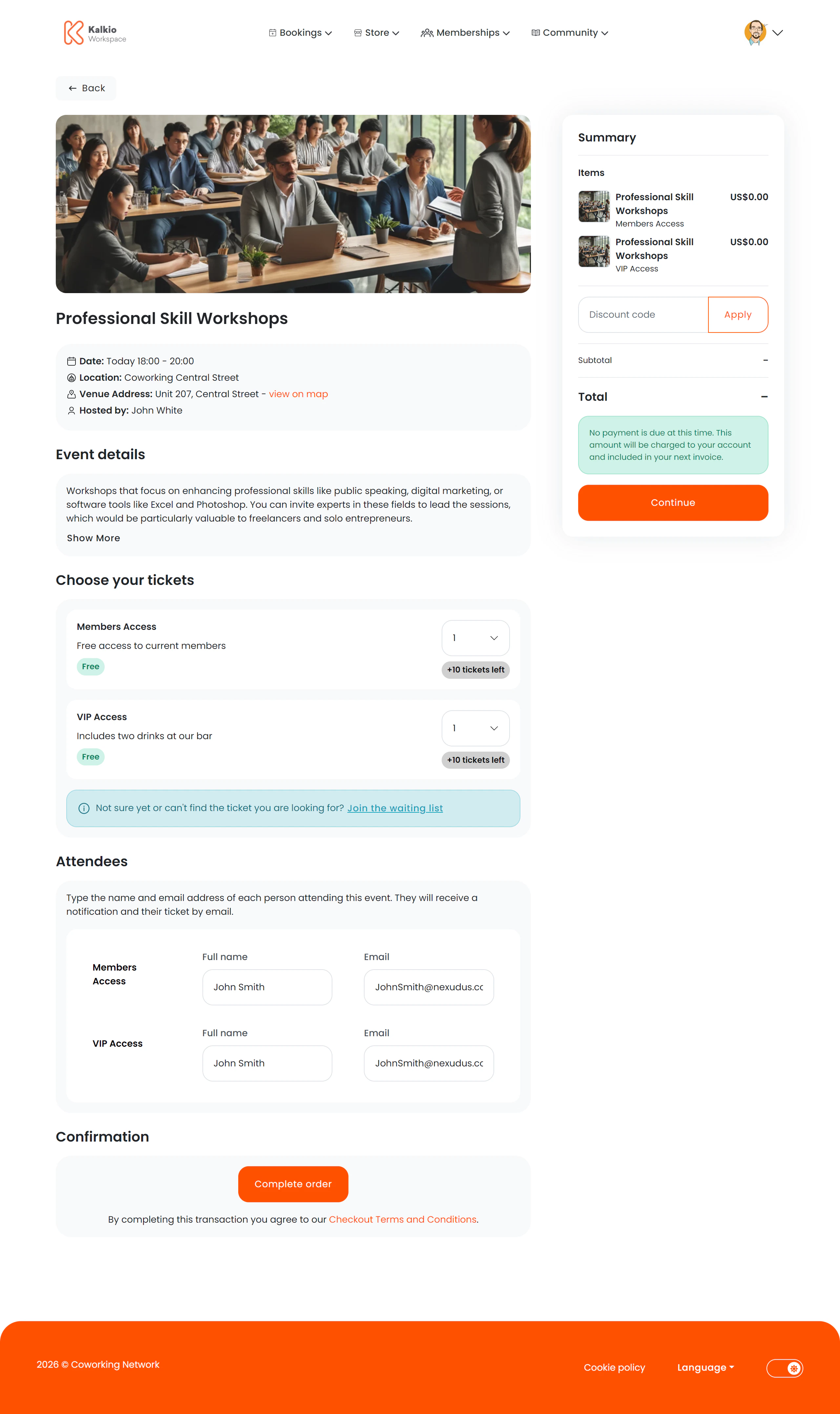
What members see
A two-column layout with event and ticket details on the left and a basket summary on the right.Event information
- Event name, image, and date/time range
- Location and venue address with a map link
- Host / organiser name
- Collapsible description — full event details that expand on demand
Ticket selection
Multiple ticket types can be listed, each showing:- Ticket name and price
- Tickets remaining — or a “Sold out” badge
- Quantity dropdown — select how many of each ticket type to purchase
Attendee information
For each ticket purchased, members fill in:- Attendee name
- Attendee email address
Custom fields
If you have configured custom fields on event tickets (such as dietary restrictions, t-shirt sizes, or session preferences), these fields appear in the attendee information section. Each attendee fills in their own custom field values. Custom fields are configured in the dashboard under CRM → Custom Fields with record type set to Event. Each field can apply to all tickets or be limited to specific events and ticket types using the Events and Event tickets selectors. See the platform documentation for details.Waiting list
If all ticket types are sold out, members can optionally register for a waiting list.Key features
- Multi-ticket checkout — buy different ticket types in a single order.
- Per-attendee capture — collect individual attendee details for every ticket.
- Live availability — ticket counts update to reflect remaining inventory.
- Waitlist support — keep demand visible even when tickets are sold out.