

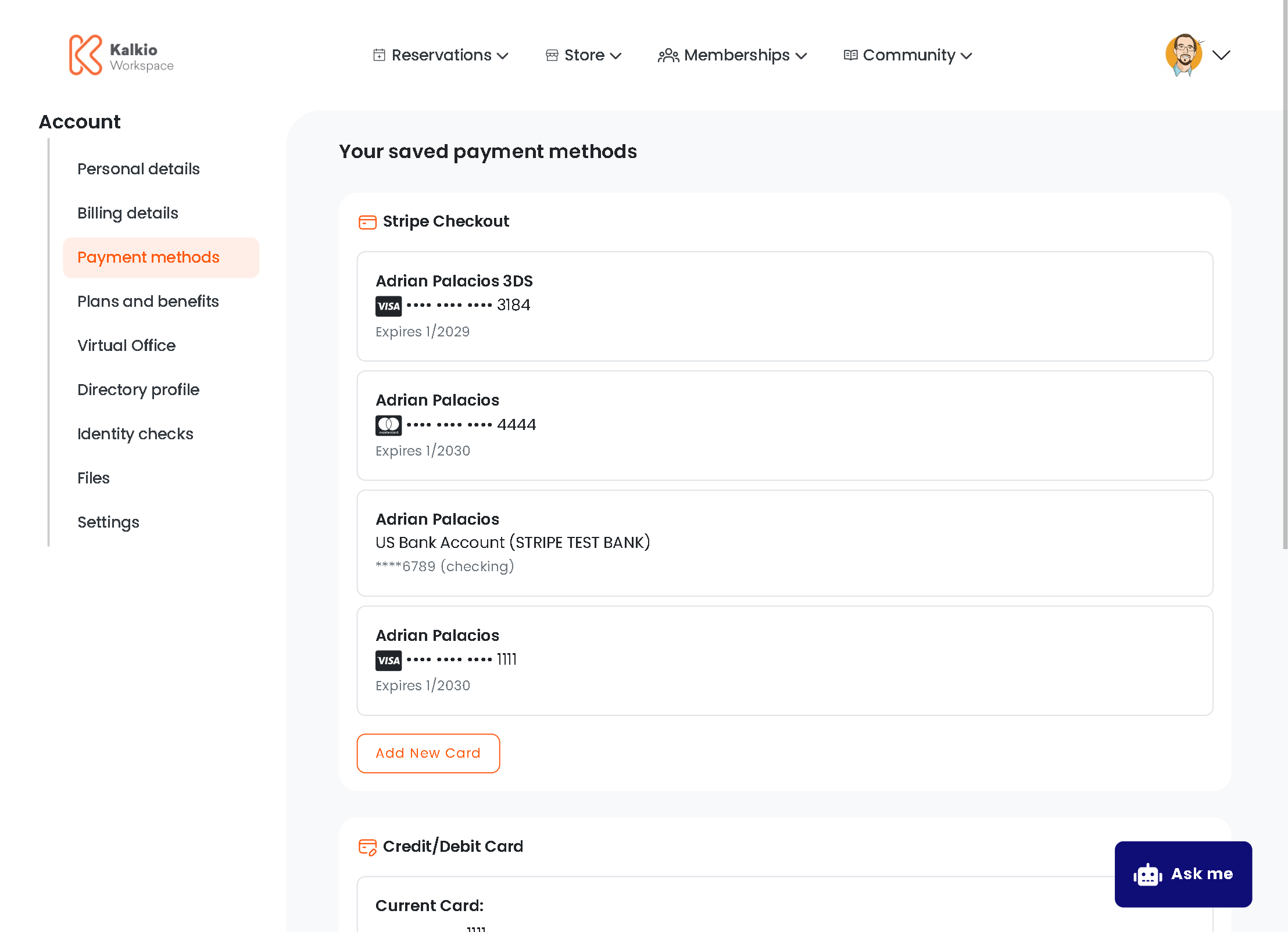
What members see
The page displays up to three conditional sections based on which payment providers you have enabled:Stripe Payment Methods
Appears when Stripe Checkout is enabled in your payment settings.
Members can add multiple payment methods. The embedded Stripe Checkout interface handles all security and validation.
Payment Card (Spreedly)
Appears when Spreedly is enabled in your payment settings.
The card number is stored in the
CardNumber field of the member’s profile and displays only the last 4 digits.
Bank Account (GoCardless)
Appears when GoCardless is enabled in your payment settings.
The GoCardless flow opens in a popup window. After the member completes the authorization, the page automatically refreshes to show the updated status.
Key features
- Conditional rendering — only shows sections for enabled payment providers.
- Provider-specific UI — each provider has its own optimized interface:
- Stripe uses embedded checkout for maximum security
- Spreedly uses inline tokenization forms
- GoCardless uses popup-based OAuth flows
- Auto-refresh — payment methods automatically refresh after updates.
- Consistent styling — all cards use the same bordered card design (
p-3 border rounded). - Support notice — informational alert directs members to contact support to remove payment methods.
Payment provider settings
Each section is controlled by these location settings:If all payment providers are disabled, only the support contact notice will be visible to members.
Removing payment methods
Members cannot remove payment methods directly through the portal. The page displays an informational alert instructing members to contact your support team for removal. This is a security measure to prevent accidental removal of active payment methods linked to subscriptions or recurring payments.Technical details
Backend requirements
- Stripe: Requires
POST /api/public/payments/stripe/createSetupSessionendpoint to generate setup sessions. - Spreedly: Requires
PUT /api/public/payments/spreedly/storeendpoint to store tokenized cards. - GoCardless: Uses existing callback flow at
/Callbacks/GoCardlessPre/.