

Virtual Office Onboarding
The virtual office onboarding flow guides new virtual office members through a structured setup process, collecting company details, personal information, AML screening, identity verification, and mail handling preferences.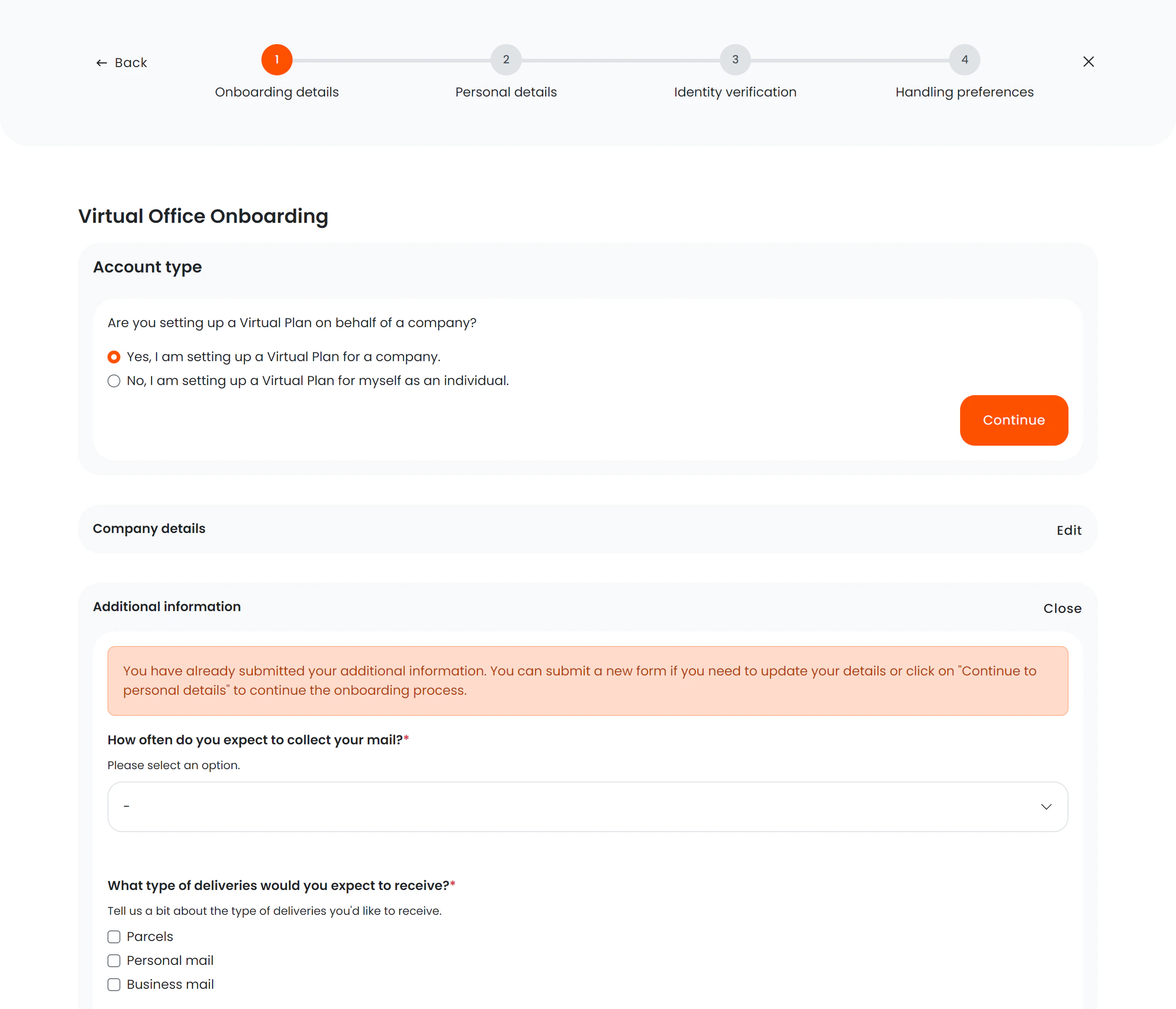
Onboarding steps
The wizard uses a visual progress stepper so members always know where they are in the process.Dynamic step count
Steps 3 and 4 are conditionally displayed based on the plan configuration. The wizard adjusts the stepper and navigation accordingly:- AML + Identity checks enabled — all 6 steps shown, AML must pass before identity verification begins.
- Only AML checks enabled — identity verification step is skipped.
- Only Identity checks enabled — AML screening step is skipped.
- Neither enabled — both steps are skipped and the member goes directly from personal details to mail preferences.
Compliance flow order
When both AML and identity checks are enabled on a plan, they follow a strict order:Key features
- Smart routing — the wizard detects which steps have already been completed and skips them on return visits.
- Exit confirmation — if a member tries to leave mid-process, a modal asks for confirmation to prevent accidental data loss.
- Profile mismatch alert — if the signed-in member doesn’t match the expected virtual office profile, a warning is displayed.
- Custom signup fields — form fields adapt based on the tariff/plan the member has selected.
- Director/contact form — collects information about company directors or other contact persons.
- AML confirmation dialog — before triggering AML screening, the member is asked to confirm all directors have been added and that names, company registration numbers, and company names are correct.
- Back navigation on failure — if AML checks fail, the member can navigate back to the personal details step to correct director information.
Form sections by step
Step 1 — Company details
- Company name and registration
- Contract information
- Director/contact person details
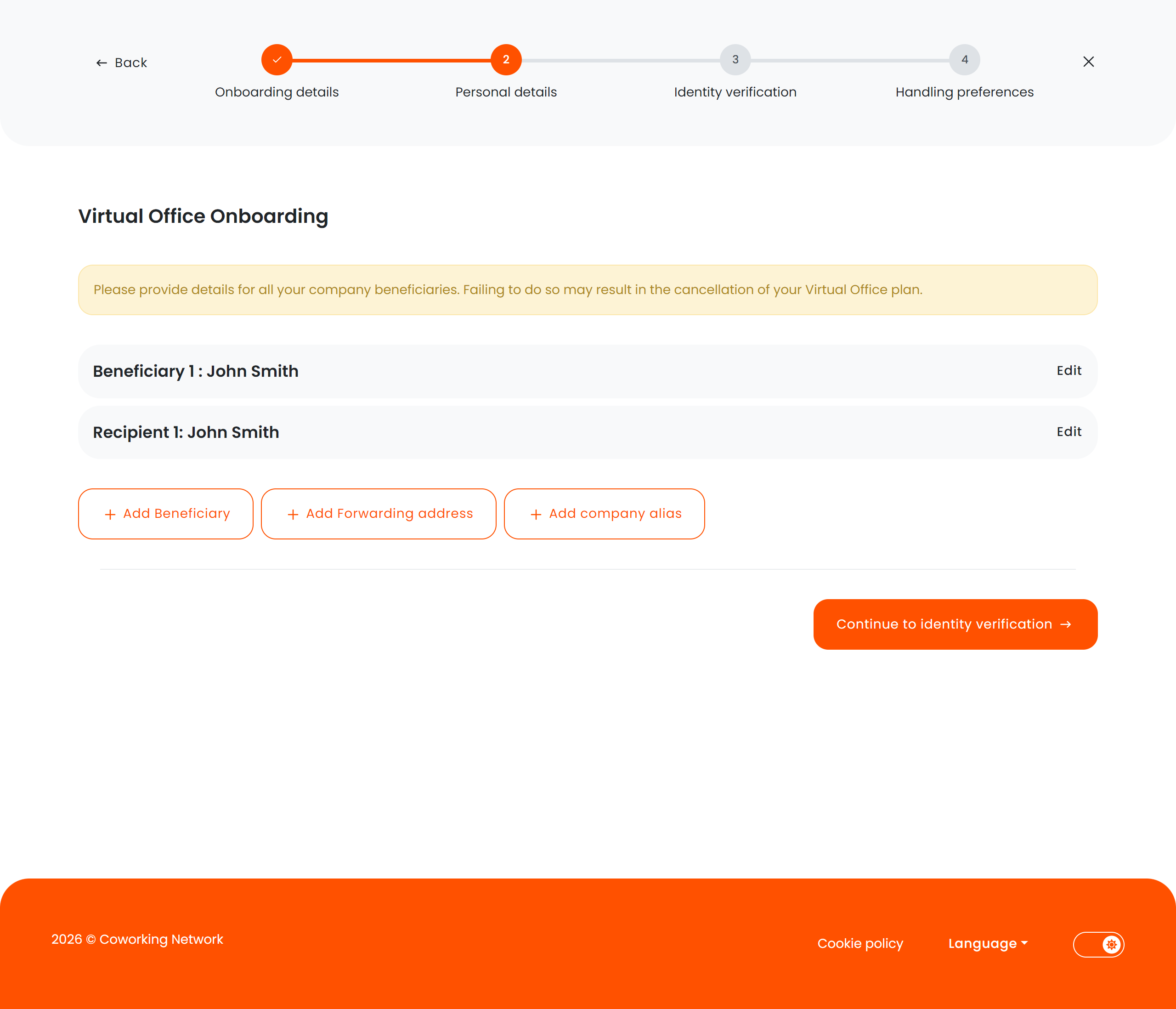
Step 2 — Personal details
- Directors: full name, address, city, postcode, state, phone, date of birth
- Recipients: forwarding addresses
- Company aliases
Step 3 — AML screening (conditional)
Displayed whenRequiresAmlChecks is enabled on the plan. The member sees the status of their AML screening for each director.
Before triggering: When clicking “Continue to AML screening” from the personal details step, the member sees a confirmation dialog:
“Please confirm that all directors have been added and that all names, company registration numbers and company names are correct. Once you proceed, the AML screening will be triggered and cannot be undone.”AML statuses displayed:
Navigation from the AML step:
- If checks pass → “Continue to identity verification” (if identity checks enabled) or “Continue to handling preferences”
- If checks fail or are under review → “Back to edit directors” button appears, allowing the member to return to the personal details step and correct information
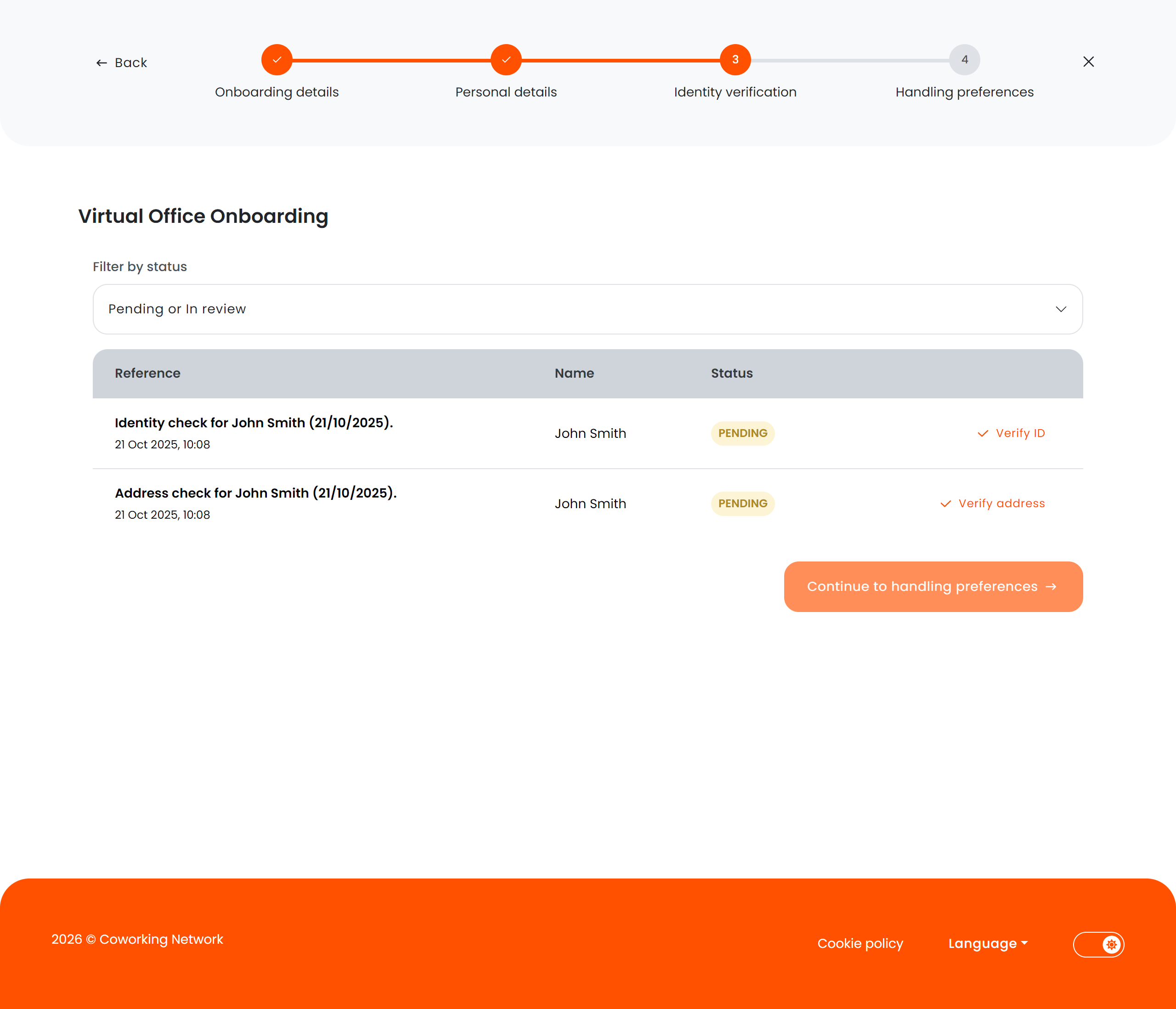
Step 4 — Identity verification (conditional)
- Upload identity documents or proof of address, depending on the check type
- The modal shows only the fields needed for that check type
- Members choose a document type from the allowed list, then upload the required files
- For identity checks, the modal also asks for document number, expiry date, and issuing authority
- Only displayed when
RequiresIdentityChecksis enabled for the plan - Only reachable after AML screening passes (if AML is also enabled)
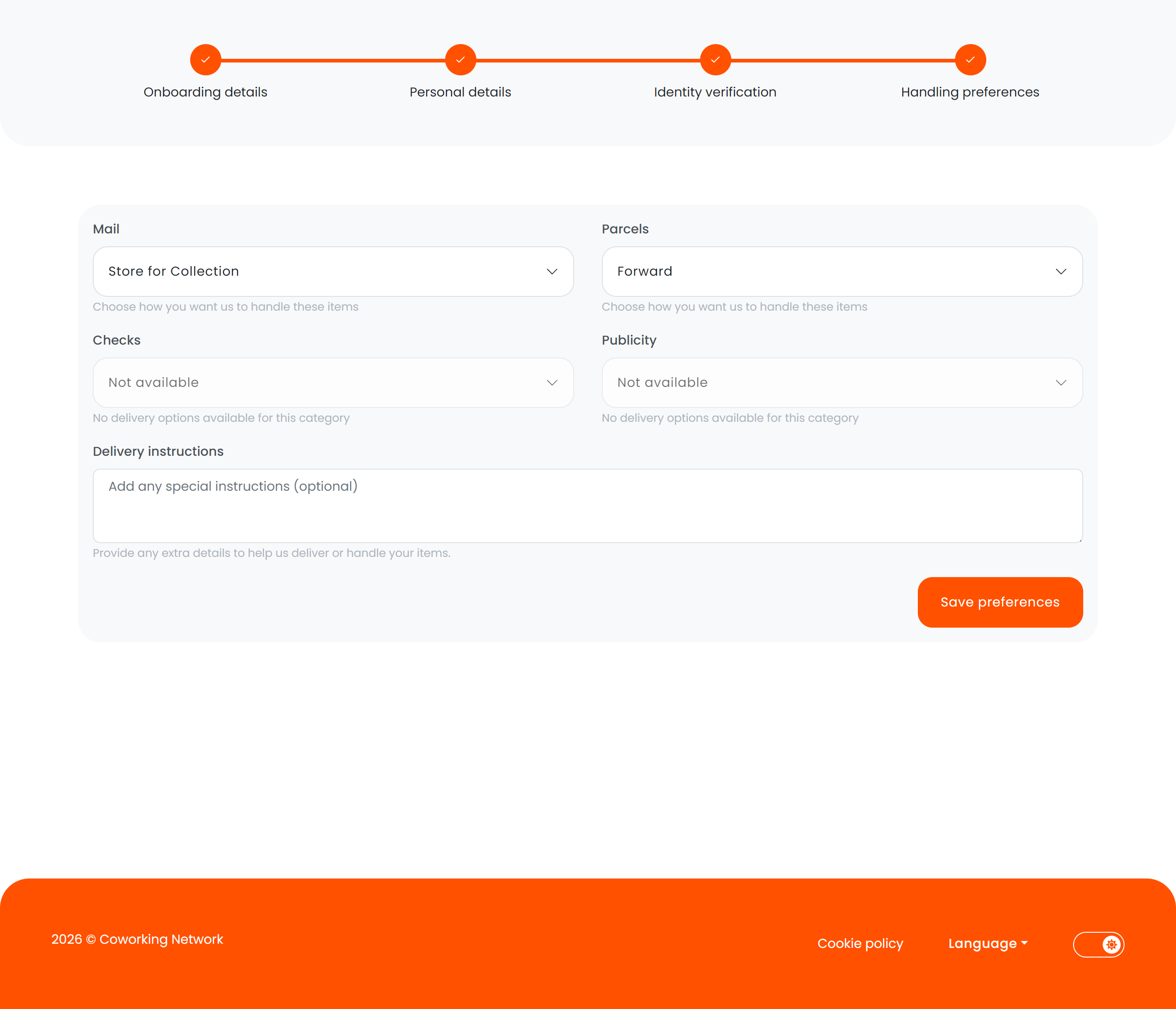
Step 5 — Mail preferences
- Delivery handling instructions
- Forwarding preferences
- Notification settings for incoming mail
Step 6 — Completion
- Confirmation that onboarding is complete
- Links to the dashboard or next steps

State detection
The onboarding flow tracks completion status through metadata flags:Automatic redirect logic
When a member returns to the onboarding flow, the system determines which step to show:- Missing company details → Company details step
- AML required but not started → Personal details (to trigger AML)
- AML in progress or under review → AML screening step
- AML passed, identity not started → Personal details (to trigger identity verification)
- Identity started but not completed → Identity verification step
- Preferences not set → Mail preferences step