The Standalone AI Chat Widget lets you embed the Nexudus AI assistant on any external website — your company homepage, a landing page, a blog, or any third-party site — with a single <script> tag. This is the same AI assistant that powers the chat experience inside your members portal, but designed to work on sites where the portal is not available.
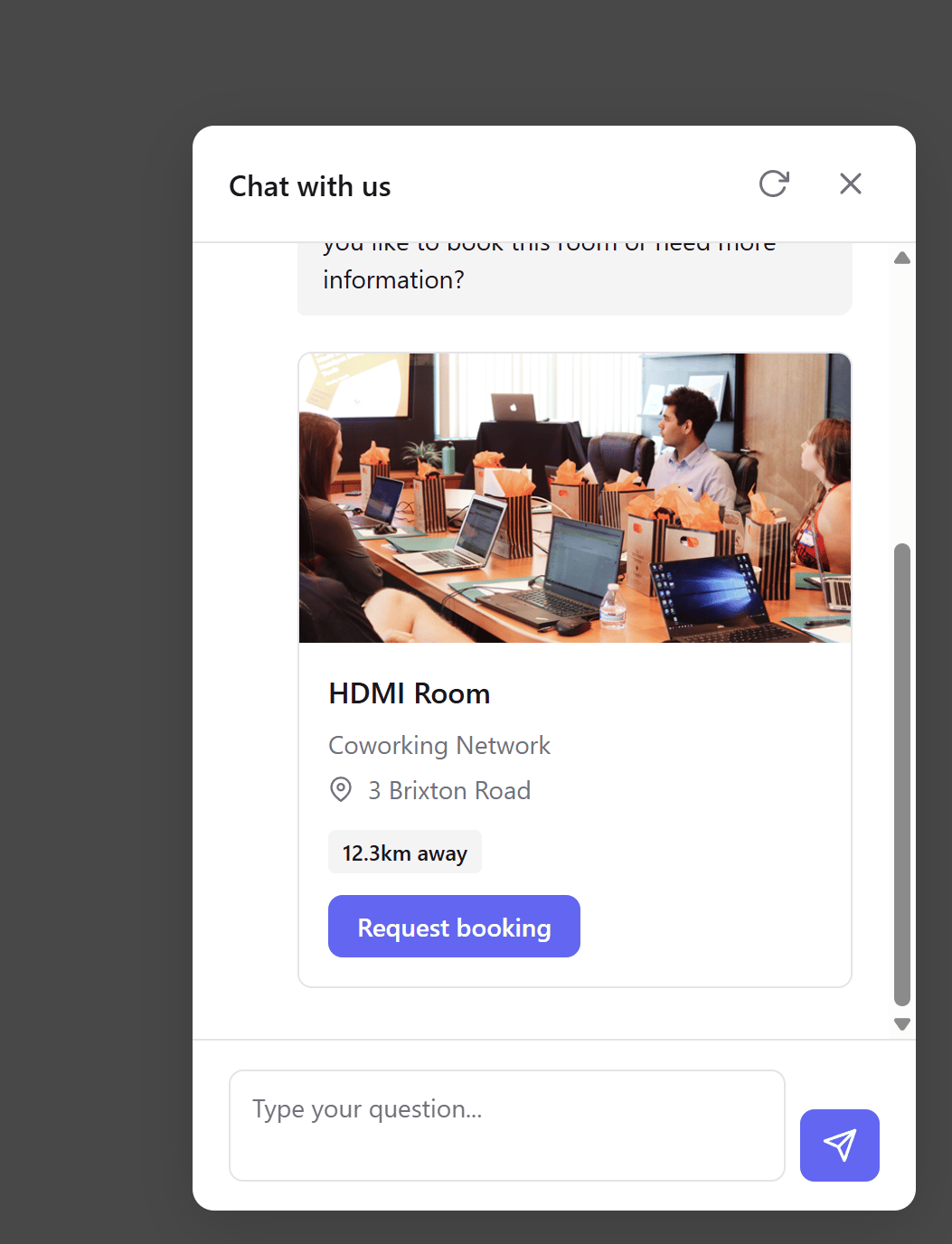
Use the standalone widget when you want to offer AI-powered conversations on pages outside the members portal:
| Scenario | Widget or Portal? |
|---|
| Your coworking space’s marketing website | Standalone widget |
| A landing page for a specific event or promotion | Standalone widget |
| Your company’s main corporate website | Standalone widget |
| Inside the members portal itself | Portal chat (built-in, no widget needed) |
The widget provides the same capabilities as the portal chat — answering questions about your location, rooms, membership plans, and day passes, as well as helping visitors book tours and resources.
The standalone widget shares the same conversation data with the portal. Conversations started on your external website appear in the AI Conversations list alongside portal conversations, so you get a unified view of all AI interactions.
How it works
The widget is a single JavaScript file that loads asynchronously. Once loaded, it:
- Reads configuration from
data-* attributes on the <script> tag
- Creates a floating action button in the corner of the screen
- Attaches a chat modal using Shadow DOM (completely isolated from your site’s styles)
- Communicates with the Nexudus AI API to process messages and return responses
No HTML elements are required on your page — the widget self-initialises and appends everything it needs to document.body.
Step 1: Get your API base URL
The widget needs to know which Nexudus account to connect to. Your API base URL follows this format:
https://{webAddress}.spaces.nexudus.com
Where {webAddress} is the Domain value shown in your Nexudus dashboard:
- Log in to dashboard.nexudus.com
- Go to Settings > Website
- Find the Domain field — this is your
webAddress
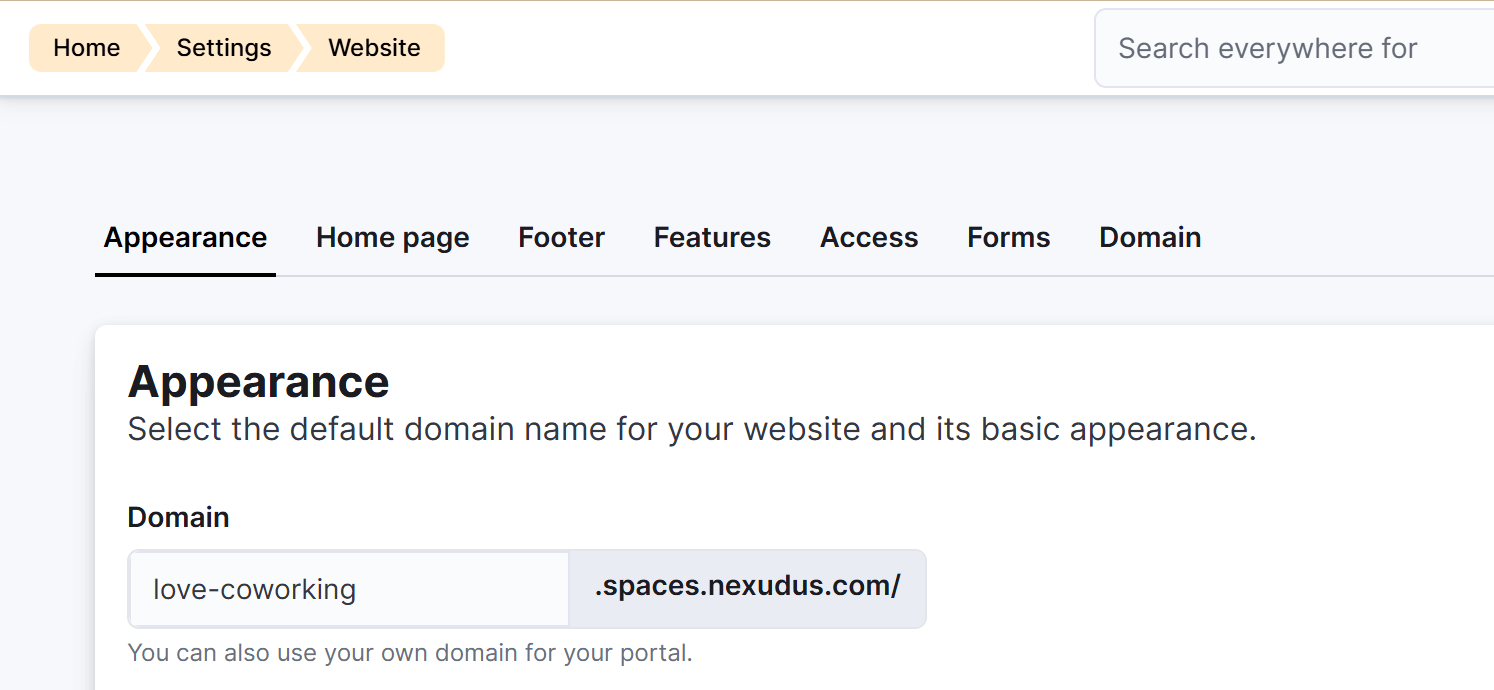
For example, if your Domain is myworkspace, your API base URL is:
https://myworkspace.spaces.nexudus.com
Step 2: Add the script tag
Place the following script tag before the closing </body> tag on your website:
<script
src="https://cdn.nexudus.site/widget/nexudus-ai-chat.min.js"
data-api-base="https://myworkspace.spaces.nexudus.com"
data-position="right"
data-primary-color="#6366f1"
data-text-color="#ffffff"
data-greeting="Hi! How can I help you today?"
data-placeholder="Ask me anything..."
></script>
Replace myworkspace with your actual Domain value from the step above.
Open your website in a browser. You should see a floating chat button in the bottom corner. Click it to open the chat modal and send a test message.
If you don’t see the button, check your browser console for errors. The most common issue is a missing or incorrect data-api-base value.
Configuration parameters
All configuration is passed through data-* attributes on the <script> tag. The only required attribute is data-api-base.
| Attribute | Type | Default | Description |
|---|
data-api-base | string | (required) | Your Nexudus API base URL (e.g. https://myworkspace.spaces.nexudus.com) |
data-position | "left" | "right" | "right" | Which side of the screen to place the floating button |
data-primary-color | CSS color | #6366f1 | Button background and accent color |
data-text-color | CSS color | #ffffff | Button icon and text color |
data-greeting | string | "" | Initial AI message shown when the chat opens |
data-placeholder | string | "Ask me anything..." | Input field placeholder text |
data-button-size | number (px) | 60 | Floating button diameter in pixels |
data-z-index | number | 9999 | CSS z-index for the widget layers |
data-geolocation | "true" | "false" | "true" | Whether to request the user’s location for proximity results |
data-open-on-load | "true" | "false" | "false" | Whether to auto-open the chat modal when the page loads |
data-locale | string | "en" | Language code for built-in UI strings |
data-portal-url | string | (same as data-api-base) | Base URL for links in tool cards (e.g. “Request booking” links) |
data-token | string | "" | Bearer token for authenticated API calls (enables inline booking confirmation) |
data-theme | "auto" | "light" | "dark" | "auto" | Color scheme — "auto" follows the visitor’s system preference |
Configuration examples
Left position with custom colors:
<script
src="https://cdn.nexudus.site/widget/nexudus-ai-chat.min.js"
data-api-base="https://myworkspace.spaces.nexudus.com"
data-position="left"
data-primary-color="#ff5100"
data-text-color="#ffffff"
></script>
Auto-open on page load with a greeting:
<script
src="https://cdn.nexudus.site/widget/nexudus-ai-chat.min.js"
data-api-base="https://myworkspace.spaces.nexudus.com"
data-open-on-load="true"
data-greeting="Welcome! Ask me about our membership plans or available meeting rooms."
></script>
Dark theme with custom portal URL:
<script
src="https://cdn.nexudus.site/widget/nexudus-ai-chat.min.js"
data-api-base="https://myworkspace.spaces.nexudus.com"
data-portal-url="https://myworkspace.spaces.nexudus.com"
data-theme="dark"
></script>
After the widget loads, it exposes a window.nxAiChat object that lets you control it programmatically from your website’s JavaScript.
Available methods
| Method | Description |
|---|
nxAiChat.open() | Open the chat modal |
nxAiChat.close() | Close the chat modal |
nxAiChat.newSession() | Start a new conversation (clears chat history) |
nxAiChat.destroy() | Remove the widget completely from the page |
nxAiChat.setToken(token) | Set or update the authentication token |
Examples
Open the chat when a user clicks a button on your page:
<button onclick="window.nxAiChat.open()">Chat with us</button>
Close the chat after a certain action:
// Close the widget after the user completes a form
document.getElementById('contact-form').addEventListener('submit', () => {
window.nxAiChat.close();
});
Start a fresh conversation:
// Reset the chat when navigating to a new section
window.nxAiChat.newSession();
Remove the widget entirely (e.g. on logout):
// Destroy the widget if the user logs out
window.nxAiChat.destroy();
Set an authentication token after user login:
// After your user authenticates on your website, pass their token to the widget
// This enables authenticated features like inline booking confirmation
window.nxAiChat.setToken('user-auth-token-here');
The setToken method is only useful if your website has its own authentication system and you want to pass the user’s session to the Nexudus API. For most use cases, the widget works fine without a token.
The widget emits events during its lifecycle. You can subscribe to these events using nxAiChat.on() and unsubscribe with nxAiChat.off().
Available events
| Event | When it fires | Payload |
|---|
open | When the chat modal opens | — |
close | When the chat modal closes | — |
message:sent | When the user sends a message | { prompt: string } |
message:received | When the AI responds | { response: string, tools?: unknown[] } |
tool:displayed | When a tool card is shown | { toolName: string, toolData: unknown } |
booking:confirmed | When a booking is confirmed | { bookingId: string, resourceId: string } |
error | When an API error occurs | { code: number, message: string } |
session:new | When a new session starts | — |
Examples
Track when a booking is confirmed:
window.nxAiChat.on('booking:confirmed', (data) => {
console.log('Booking confirmed:', data.bookingId);
// Send to your analytics platform
gtag('event', 'booking_confirmed', {
booking_id: data.bookingId,
resource_id: data.resourceId
});
});
Log all AI responses for debugging:
window.nxAiChat.on('message:received', (data) => {
console.log('AI response:', data.response);
if (data.tools && data.tools.length > 0) {
console.log('Tool cards:', data.tools);
}
});
Track chat open/close events:
window.nxAiChat.on('open', () => {
console.log('Chat opened');
});
window.nxAiChat.on('close', () => {
console.log('Chat closed');
});
Handle errors gracefully:
window.nxAiChat.on('error', (data) => {
console.error('Widget error:', data.code, data.message);
// Notify your error tracking service
Sentry.captureException(new Error(data.message), {
tags: { widget_error_code: data.code }
});
});
Unsubscribe from an event:
function onMessageSent(data) {
console.log('User sent:', data.prompt);
}
// Subscribe
window.nxAiChat.on('message:sent', onMessageSent);
// Later, unsubscribe
window.nxAiChat.off('message:sent', onMessageSent);
Style isolation
The widget uses Shadow DOM to mount its UI, which means:
- Your website’s CSS does not affect the widget’s appearance
- The widget’s CSS does not leak into your website
- The widget inherits the host page’s font family and base font size for a cohesive look
Colors like the button background and text are controlled via the data-primary-color and data-text-color attributes. The widget adapts to these values using CSS custom properties.
If you need to override additional styles, you can target the shadow host element (#nxai-root) and pass custom properties into the shadow root. However, this is rarely necessary — the built-in configuration options cover most use cases.
Session persistence
The widget stores conversation history in the browser’s localStorage, keyed by your data-api-base URL. This means:
- If a visitor closes the chat and returns later, their conversation history is restored
- Sessions expire after 7 days — older conversations are automatically discarded
- The “New chat” button in the chat header clears the session and starts fresh
Geolocation
When data-geolocation="true" (the default), the widget will request the visitor’s browser location on their first message. This allows the AI to calculate distances when presenting rooms, locations, and offices.
If the visitor denies the location permission, the widget continues to work normally — distance information is simply omitted from the AI’s responses.
Accessibility
The widget follows accessibility best practices:
- All interactive elements have proper ARIA roles and labels
- Focus is trapped inside the modal when it’s open
- Escape closes the modal, Enter sends a message
- An
aria-live="polite" region announces new AI messages to screen readers
- The widget respects
prefers-reduced-motion — the typewriter animation is skipped for users who prefer reduced motion
- The minified bundle is approximately 15–25KB gzipped
- The widget loads asynchronously and does not block page rendering
- No external dependencies — everything is contained in a single file
- The AI API is only called when the user sends a message
Troubleshooting
| Problem | Solution |
|---|
| Widget button doesn’t appear | Check that data-api-base is set correctly. Open browser console for errors. |
| Chat shows “API error” | Verify your data-api-base URL is accessible. Check that AI is enabled in your Nexudus account. |
| Widget styles look broken | Ensure the script tag is loaded after the page content (before </body>). |
| Multiple widgets on one page | Only one widget instance is allowed per page. The widget is idempotent — adding the script tag twice won’t create duplicates. |
| Chat doesn’t open on load | Make sure data-open-on-load="true" (as a string, not a boolean). |
| Tool cards show broken links | Set data-portal-url to your correct portal URL. |
Comparison with portal chat
| Feature | Standalone Widget | Portal Chat |
|---|
| Where it works | Any external website | Inside the members portal only |
| How to add | Single <script> tag | Built-in, no setup needed |
| Authentication | Optional (via data-token) | Automatic (member session) |
| Session persistence | localStorage (7-day expiry) | Server-side (permanent) |
| Conversation history | Visible in AI Conversations | Visible in AI Conversations |
| Conversion tracking | Yes | Yes |
| Customisation | Via data-* attributes | Via portal styling settings |
Related pages