Documentation Index

Fetch the complete documentation index at: https://learn.nexudus.com/llms.txt

Use this file to discover all available pages before exploring further.

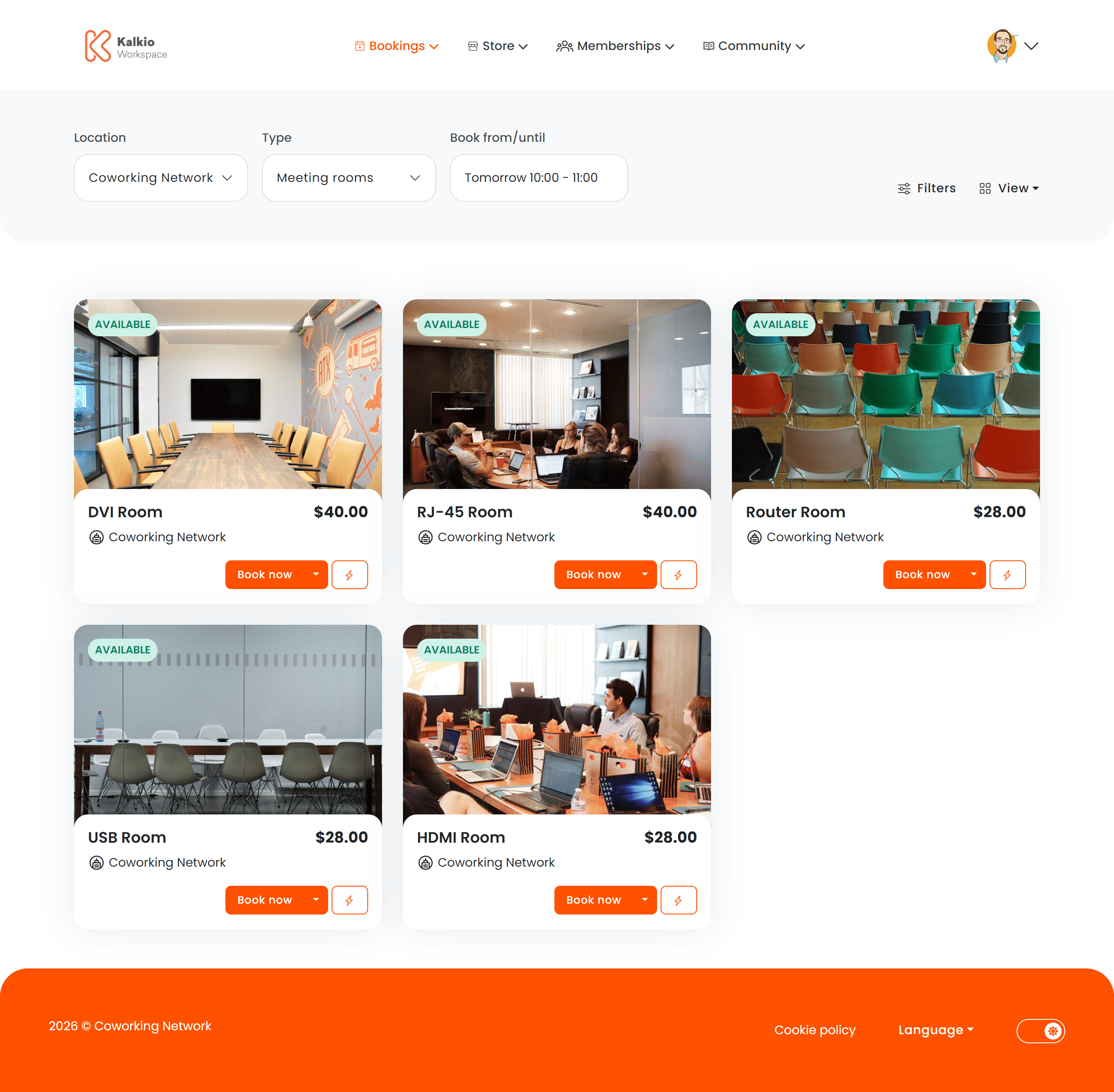
The Resource List page is where members discover and book available resources — meeting rooms, desks, offices, and other bookable spaces across your coworking locations. It supports multiple view modes and powerful filtering to help members find the right space quickly.
Resource List page

What members see

Resources are displayed as cards in a responsive grid. Each card can show:
  • Resource name and image
  • Capacity (number of seats / people)
  • Price per booking unit
  • Availability status indicator
  • Instant book button — book a resource directly from the card without navigating away

View modes

The Resource List supports multiple ways to browse available spaces:
ModeDescription
List viewResources displayed as cards in a responsive grid — the default browsable view
Calendar viewVisual calendar showing resource availability across days and time slots
Floor plan viewInteractive floor plan where members can see and select resources on a spatial layout
Map viewMap-based view showing resource locations — useful for multi-site setups
Members can switch between available views using the view selector controls.
FilterWhat it does
CategoryFilter resources by type — meeting rooms, desks, offices, etc.
CapacityFind resources that fit a minimum number of people
AmenitiesNarrow results by available amenities — projector, whiteboard, video call, etc.
Day & durationQuick shortcuts to filter by date and booking duration
Custom fieldsAdditional filters based on custom fields configured for your resources

Key features

  • Instant booking — members can book a resource directly from the listing without opening a separate checkout page.
  • Real-time availability — resource cards show current availability status so members know what is free right now.
  • Multi-location support — resources from all your locations are browsable in a single view.
  • Responsive layout — the grid adapts to screen size for a consistent experience on desktop and mobile.

How to configure

From the Page Editor you can control:
SettingEffect
Show filtersToggle the full filter bar
Show gridDisplay resources in the card grid layout
Show priceShow or hide pricing on resource cards
Show instant bookingEnable the quick-book button on cards
Show calendar viewAllow members to switch to the calendar view
Show floor plan viewAllow members to switch to the floor plan view
Show map viewAllow members to switch to the map view
Show category filterEnable filtering by resource category
Show capacity filterEnable filtering by capacity
Show amenities filterEnable filtering by amenities
Enable Instant Booking to let members reserve spaces in one click — it significantly reduces friction and increases booking rates.

Multi-location booking behaviour

When your network lists resources from multiple locations on a single site, the Set the home location of new customers based on the location of the resource setting (internal name: PublicWebSite.Bookings.PreserveWebAddress) controls what happens when a customer clicks on a resource to book it.
Setting valueBehaviour
DisabledThe customer stays on the current site and completes the booking without being redirected. New customers who sign up during the booking process will have their home location set to the location where they are booking from (i.e. the network location showing resources across different sites).
Enabled (default)The customer is redirected to the Members Portal of the location that owns the resource before completing the booking and their home location is set to that location.
This setting only applies when a location is configured to display resources from other locations in the same network.

Where to configure

In the Nexudus dashboard, go to Settings > Bookings and calendar settings > General and toggle Set the home location of new customers based on the location of the resource.
Resources use a single image that is requested at different sizes depending on context.
Where it appearsRequested sizeAspect ratio
Grid card800 × auto pxFlexible
Detail page gallery900 × 506 px~16 : 9
Checkout detail2048 × auto pxFlexible
Instant booking modal600 × 300 px2 : 1
Map view card500 × 200 px5 : 2
Booking confirmation914 × auto pxFlexible
Calendar thumbnail80 × 80 px1 : 1
Basket thumbnail200 × 200 px1 : 1
Dashboard upcoming300 × 300 px1 : 1
For the best results, upload a resource image of at least 2048 px wide with a 16:9 aspect ratio (e.g. 2048 × 1152 px). This covers the highest resolution requested by the detail page while looking good when cropped to square thumbnails or the 2:1 cards used in the booking modal. Keep the subject centred so it is not lost in tighter crops.