Documentation Index
Fetch the complete documentation index at: https://learn.nexudus.com/llms.txt
Use this file to discover all available pages before exploring further.
You control what the AI presents using the same Nexudus records you already manage, plus a small set of AI-specific fields on products, tariffs, and private offices. You also control which channels (chat, email, WhatsApp) are active for each location.
The “AI Ready” badge
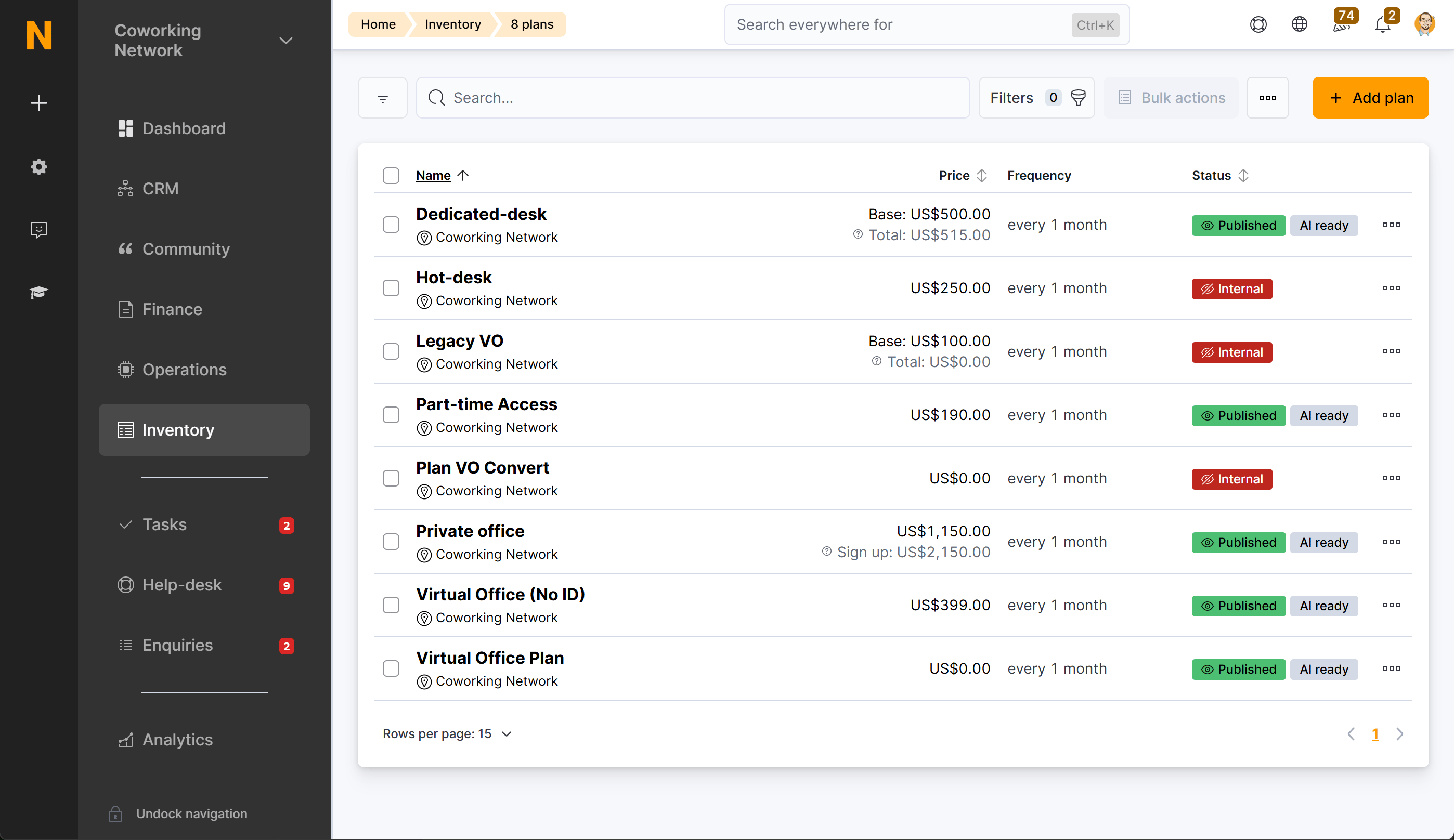
In the administration panel, any item that has Available to AI switched on shows an AI Ready badge in the list view. This makes it easy to see at a glance which of your plans, products, and offices are currently accessible to the AI without opening each record individually.
The badge appears in:
- Billing > Plans — for each membership plan tariff enabled for AI
- Billing > Products — for each day pass product enabled for AI
- Spaces > Floor Plan > Desks & Offices — for each private office enabled for AI
AI Items settings page
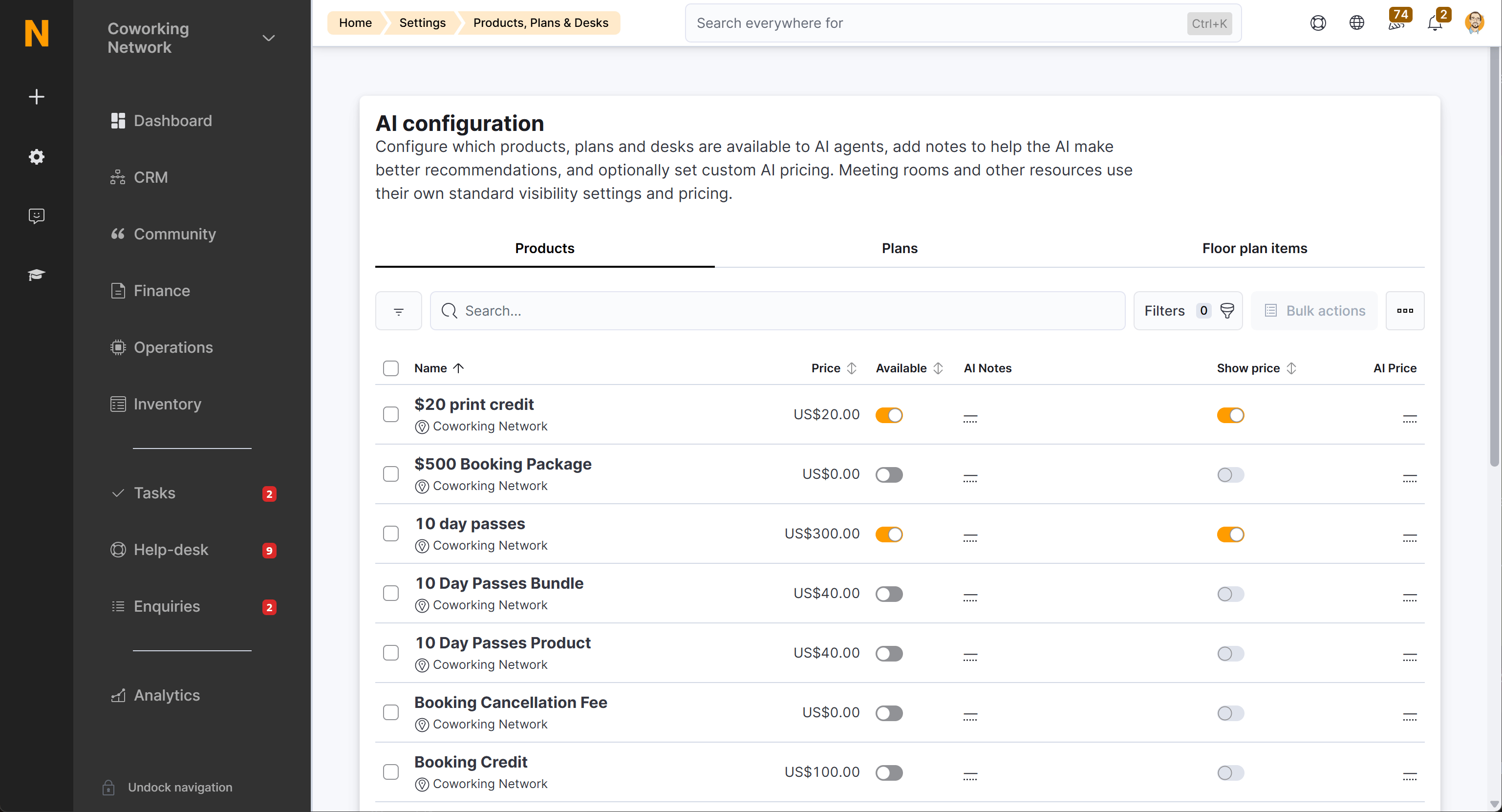
The quickest way to review and manage AI settings across all your items is the dedicated AI Items settings page. Go to Settings > AI > Items to open it.
The page has three tabs — Products, Plans, and Floor plan items — each showing a table with every record of that type. The columns are:
| Column | What it shows |
|---|
| Name | The item name, with the location shown underneath |
| Price | The regular price of the item |
| Available | Toggle to enable or disable Available to AI inline |
| AI Notes | The current Notes for AI value, truncated. Click to edit inline |
| Show price | Toggle to enable or disable Show price to AI inline |
| AI Price | The current Price for AI value. Click to edit inline |
You can search by name and filter by the Available to AI status. All changes are saved immediately — there is no separate save step.
Where to find the AI settings on individual records
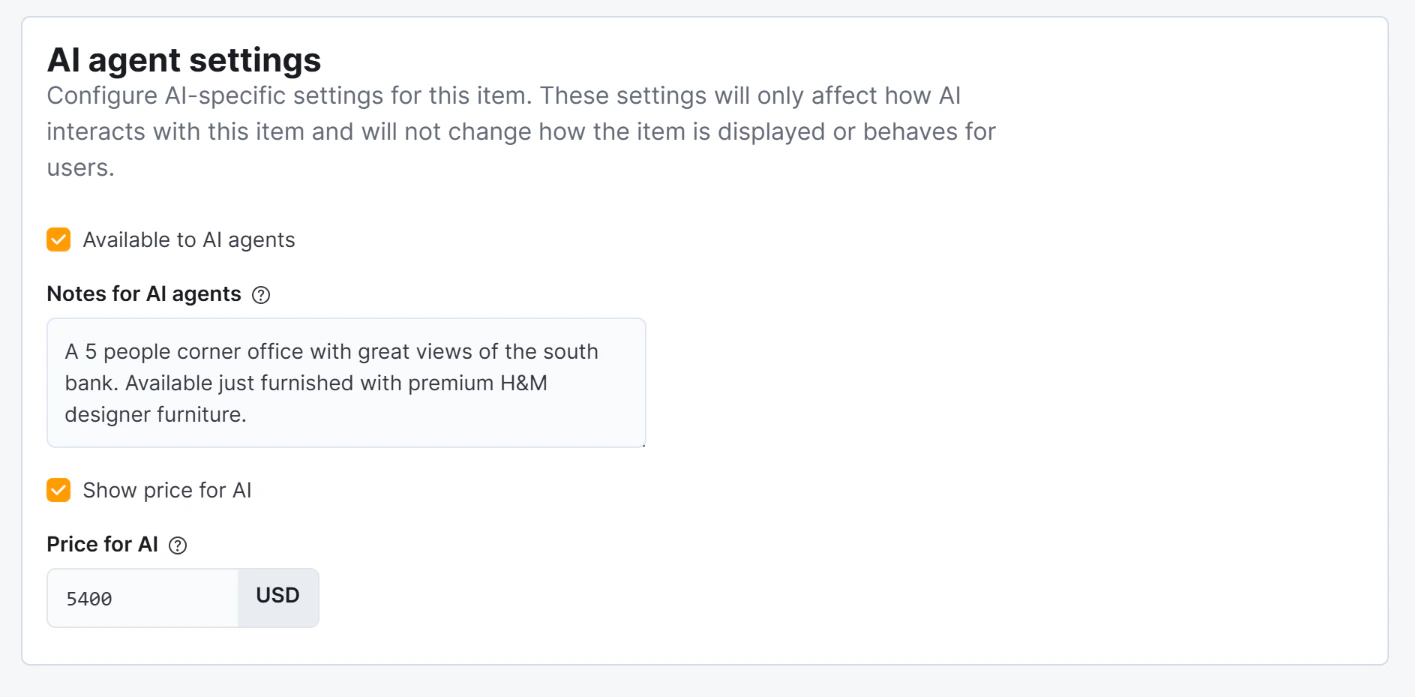
On each plan, product, or private office record, the AI-specific fields are also available in a section called “AI agent settings”. This section is separate from the general settings for the item.
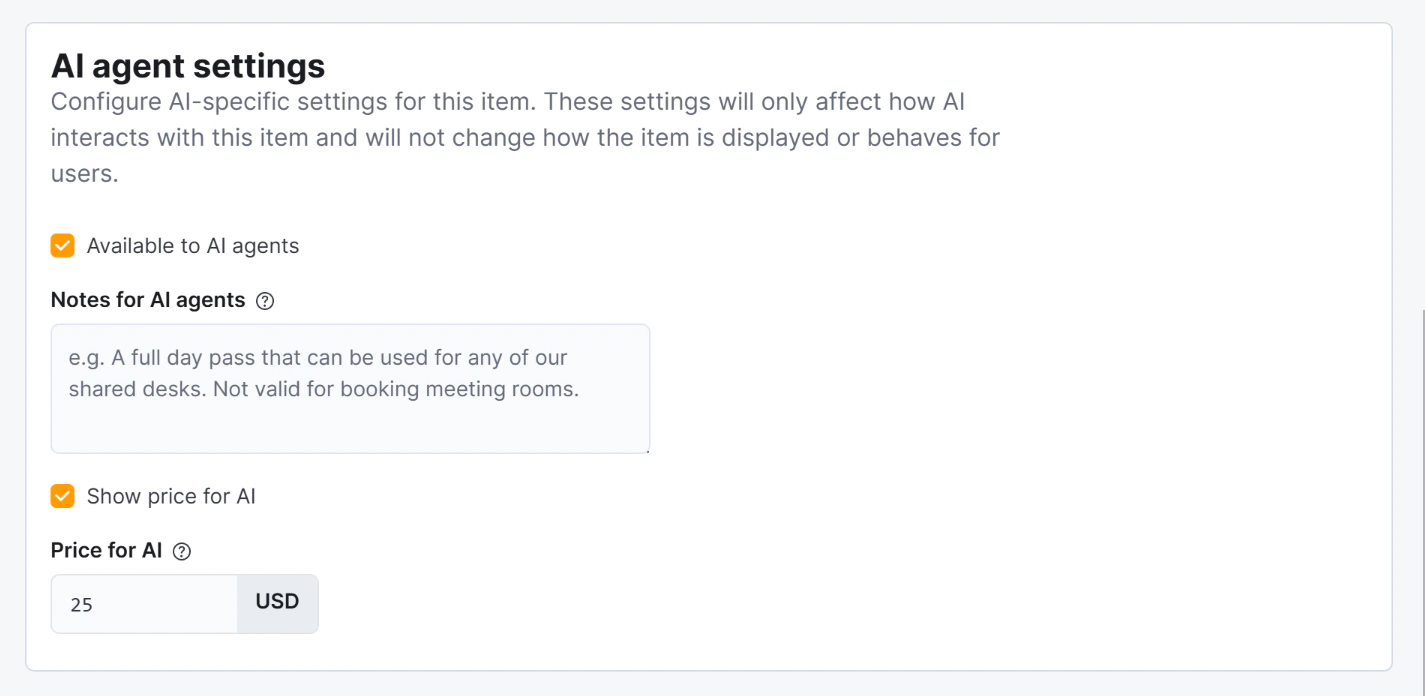
The fields for Notes for AI, Show price to AI, and Price for AI are disabled until Available to AI is switched on — you must enable the master switch before you can configure the other options.
AI-specific fields
These four fields appear in the AI agent settings section on Day Pass products, Membership Plans, and Private Office floor plan items:
| Field | What it does |
|---|
| Available to AI | Master switch. If off, the AI will never mention this item — even if it exactly matches what the user asked for. Enabling this is what triggers the AI Ready badge in the list view. |
| Show price to AI | If off, the AI describes the item without mentioning its price. Useful when pricing is negotiated individually. Disabled until Available to AI is on. |
| Price for AI | An alternative price shown only in the AI chat. Overrides the regular price in AI responses. Useful for promotional rates. Disabled until Available to AI is on. |
| Notes for AI | Private notes the AI uses when describing this item. Not shown to the user word-for-word — the AI incorporates these notes naturally into its response. Use this to add context such as “this office has just been refurbished” or “available from the 1st of next month.” Disabled until Available to AI is on. |
The standard Visible flag (present on products and plans) also affects the AI: when Available to AI is on but Visible is off, the AI acknowledges the item exists and suggests contacting the team, but does not show a price or a direct link.
Which item types the AI can work with
Not every product, plan, or floor plan item is eligible for the AI. Only certain types within each category are supported:
Day passes
Only products whose type is Day Pass can be made available to the AI. Other product types (extras, services, etc.) are not shown to the AI regardless of their settings.
Membership plans
The AI supports three categories of membership plan. Each category maps to one or more underlying plan types:
| Category | Plan types included |
|---|
| Dedicated Desk | Full-time Dedicated Desk, Part-time Dedicated Desk |
| Hot Desk | Full-time Hot Desk, Part-time Hot Desk |
| Virtual Office | Virtual Office, Virtual |
Plans of any other type are not available to the AI. Archived plans are also excluded automatically.
Private offices
Only floor plan items whose type is Office and that are marked as Available can be made available to the AI. Other floor plan item types (desks, meeting rooms, etc.) are not included.
If you have enabled Available to AI on an item but it does not appear in the AI Items settings page or in AI responses, check that the item’s type matches one of the supported types listed above and that it is not archived.
Quick reference
| I want the AI to… | Settings |
|---|
| Show and sell this item with full details | Available to AI ✓, Visible ✓ |
| Acknowledge this item exists but not show price or a link | Available to AI ✓, Visible ✗ |
| Never mention this item at all | Available to AI ✗ |
| Describe the item without showing any price | Available to AI ✓, Show price to AI ✗ |
| Show a different price than the regular one | Available to AI ✓, Show price to AI ✓, set Price for AI |
| Give the AI extra context for its descriptions | Available to AI ✓, fill in Notes for AI |
Access control per capability
The AI follows exactly the same access rules as the rest of your portal. There is no separate AI-level access control — you manage it in the same places you already use.
| Capability | Access controlled by |
|---|
| FAQ answers | The Access > FAQs setting in your portal configuration: Everyone / Only members / Only contacts |
| Meeting rooms & resources | The Visible, Only for members, and Only for contacts flags on each resource |
| Location information | Always public — no restrictions apply |
| Day passes | The Available to AI and Visible fields on each product |
| Membership plans | The Available to AI and Visible fields on each tariff |
| Private offices | The Available to AI field on each floor plan item |
If your FAQ articles are set to “Members only”, a prospect who is not logged in will receive a message saying they need to be a member to access that information — not the answer itself. The same applies to “Contacts only”. This is handled automatically; you do not need to configure anything in the AI separately.
Channel settings
By default, only the chat channel is active. You can enable the email and WhatsApp channels in your business settings:
| Setting | What it controls |
|---|
| AI Email | Enables the email channel. When on, your space’s AI email address accepts inbound messages. |
| AI WhatsApp | Enables the WhatsApp channel. When on, your space’s WhatsApp number accepts inbound messages. |
| WhatsApp phone number | The Twilio-enabled phone number for your space’s WhatsApp channel. Required when AI WhatsApp is enabled. Each location needs its own number. |
The AI-specific fields on items (Available to AI, Show price to AI, Price for AI, Notes for AI) apply uniformly across all channels. There is no way to make an item available on one channel but not another — if it is available to the AI, it is available on chat, email, and WhatsApp.
See Channels for a full comparison of channel behaviour and setup.